https://github.com/pkief/vscode-markdown-checkbox
VS Code extension for creating and marking checkboxes
https://github.com/pkief/vscode-markdown-checkbox
bullet-points checkbox markdown-checkbox vscode vscode-extension
Last synced: 7 months ago
JSON representation
VS Code extension for creating and marking checkboxes
- Host: GitHub
- URL: https://github.com/pkief/vscode-markdown-checkbox
- Owner: PKief
- License: mit
- Created: 2016-09-05T21:41:06.000Z (almost 10 years ago)
- Default Branch: main
- Last Pushed: 2025-07-19T16:59:42.000Z (12 months ago)
- Last Synced: 2025-09-18T13:27:48.235Z (10 months ago)
- Topics: bullet-points, checkbox, markdown-checkbox, vscode, vscode-extension
- Language: TypeScript
- Homepage: https://marketplace.visualstudio.com/items?itemName=PKief.markdown-checkbox
- Size: 8.69 MB
- Stars: 39
- Watchers: 2
- Forks: 12
- Open Issues: 8
-
Metadata Files:
- Readme: README.md
- Changelog: CHANGELOG.md
- Funding: .github/FUNDING.yml
- License: LICENSE.md
Awesome Lists containing this project
README

Markdown Checkbox
Create and toggle checkboxes in Markdown documents




## Description
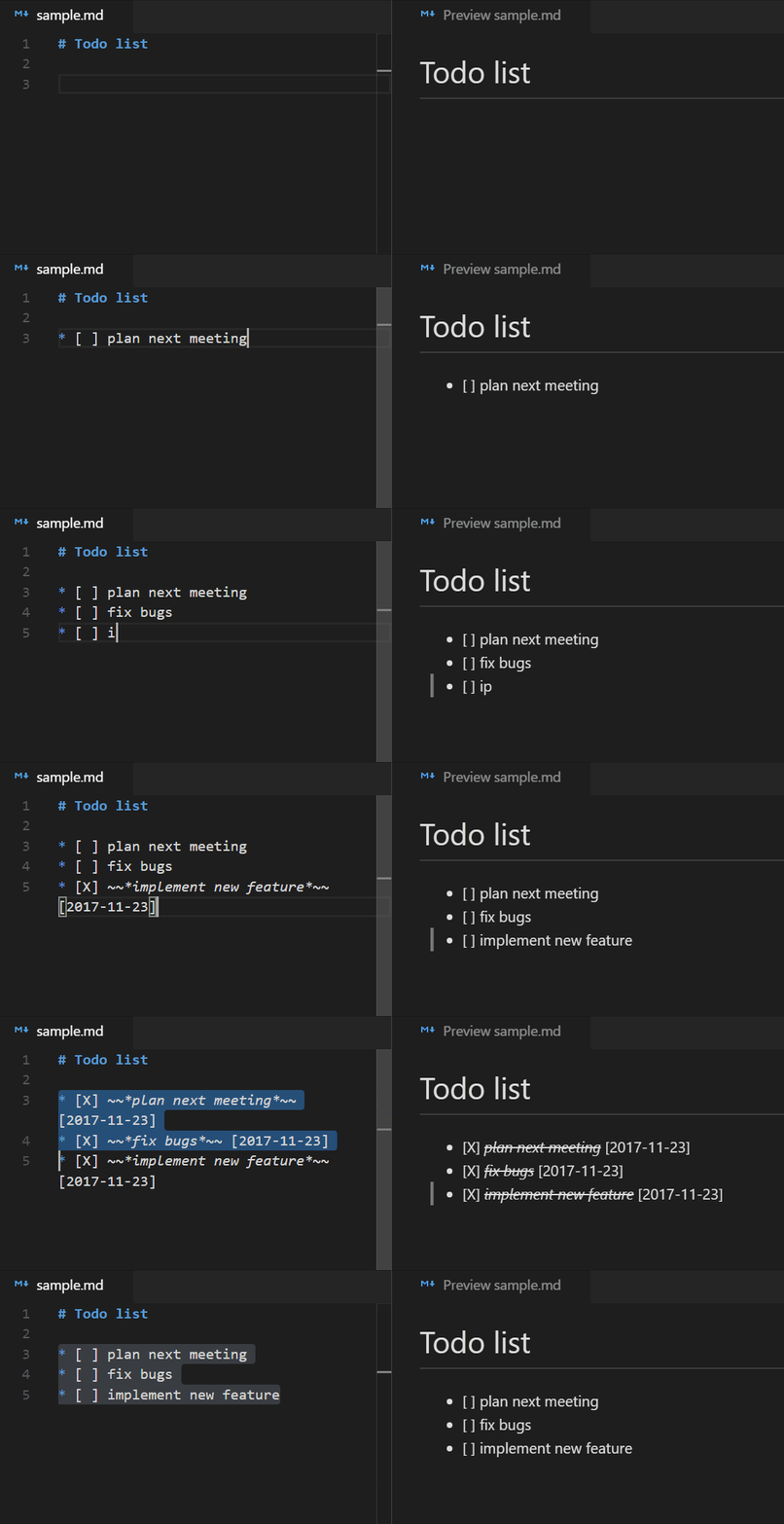
With this extension for Visual Studio Code it's possible to create todo lists in markdown. The extension provides shortcuts and some workspace configurations to create checkboxes and mark them with a shortcut.
## How to use
## Information in status bar

_At least one checkbox must exist in a file to see this information._
## Pick Checkboxes
Toggle all checkboxes in the current document with the Multi-Select QuickPick:

The QuickPick can be opened either from the command palette or by clicking on the status bar item.
## Keybindings
| Command | Windows | Mac |
| ----------------- | ----------------------------------------------------- | ---------------------------------------------- |
| Create a checkbox | CTRL + Shift + c | ⌘ + ⇧ + c |
| Toggle checkbox | CTRL + Shift + Enter | ⌘ + ⇧ + Enter |
These are the initial keyboard shortcuts, which can be customized by the [Keyboard Shortcuts](https://code.visualstudio.com/docs/getstarted/keybindings) settings in VS Code.
## Configuration
This extension can be customized with the following options.
### Bullet points
If bullet points before the checkboxes are required, then they can be enabled with the following setting:
options: true | false
```json
"markdown-checkbox.withBulletPoint": true
```
Example:
```
* [ ] todo
```
### Type of bullet points
Select a type of bullet point:
options: "*" | "-" | "+"
```json
"markdown-checkbox.typeOfBulletPoint": "*"
```
Example
```
* [ ] asterisk
- [ ] minus
+ [ ] plus
```
### Type of checkmark
Select a type of checkmark:
options: "X" | "x"
```json
"markdown-checkbox.checkmark": "X"
```
Example
```
- [X] uppercase checkmark
- [x] lowercase checkmark
```
### Italic
Italic font style of line of the checkbox after the checkbox has been checked:
options: true | false
```json
"markdown-checkbox.italicWhenChecked": true
```
Preview
- [x] _this line is italic_
### Strikethrough
Strikethrough the line of the checkbox after the checkbox has been checked:
options: true | false
```json
"markdown-checkbox.strikeThroughWhenChecked": true
```
Preview:
- [x] ~~_this line has been crossed out_~~
### Date when checked
Add date behind the checkbox item after the checkbox has been checked:
options: true | false
```json
"markdown-checkbox.dateWhenChecked": true
```
Preview:
- [x] ~~_sample with date_~~ [2017-11-23]
### Format date
If dates are enabled, they can be formatted with the following user setting:
```json
"markdown-checkbox.dateFormat": "YYYY-MM-DD"
```
It makes use of the JavaScript library [moment.js](https://momentjs.com/docs/#/parsing/string-format/) which means that the date format patterns can be found there.
In addition the syntax around in which the date is placed can be defined via template. `{date}` will be replaced by the actual date value:
```json
"markdown-checkbox.dateTemplate": "({date})"
```
Preview:
- [x] ~~_sample with date_~~ (2017-11-23)
### Specify language IDs
Besides markdown, this extension can also be used for other languages in VS Code. The language IDs can be specified in the user settings like this:
```json
"markdown-checkbox.languages": [
"markdown",
"plaintext"
]
```
### Change the Quick Pick ESC behavior
The Quick Pick can be closed with the ESC key. The behavior can be configured with the following setting:
```json
"markdown-checkbox.quickPickEscBehavior": "doNothing"
```
Possible values are:
- `doNothing`: Do nothing when ESC is pressed
- `uncheckAll`: Uncheck all checkboxes when ESC is pressed