https://github.com/plotly/dash-deck
Bringing deck.gl and pydeck into Dash
https://github.com/plotly/dash-deck
dash deck plotly pydeck
Last synced: 22 days ago
JSON representation
Bringing deck.gl and pydeck into Dash
- Host: GitHub
- URL: https://github.com/plotly/dash-deck
- Owner: plotly
- License: mit
- Created: 2020-08-18T21:38:09.000Z (almost 6 years ago)
- Default Branch: master
- Last Pushed: 2025-03-24T12:51:27.000Z (over 1 year ago)
- Last Synced: 2025-03-24T13:40:54.646Z (over 1 year ago)
- Topics: dash, deck, plotly, pydeck
- Language: JavaScript
- Homepage: https://dash-gallery.plotly.host/dash-deck-explorer/
- Size: 41.1 MB
- Stars: 96
- Watchers: 16
- Forks: 22
- Open Issues: 9
-
Metadata Files:
- Readme: README.md
- Changelog: CHANGELOG.md
- Contributing: CONTRIBUTING.md
- Funding: .github/FUNDING.yml
- License: LICENSE
- Code of conduct: CODE_OF_CONDUCT.md
- Codeowners: .github/CODEOWNERS
Awesome Lists containing this project
README
# Dash Deck
Dash Deck is a proof of concept library for building 3D interactive maps and graphical visualizations directly in Dash. Built on top of [deck.gl](https://deck.gl/), it supports maps built using [pydeck](https://pydeck.gl/) and deck.gl’s [JSON API](https://deck.gl/playground/).
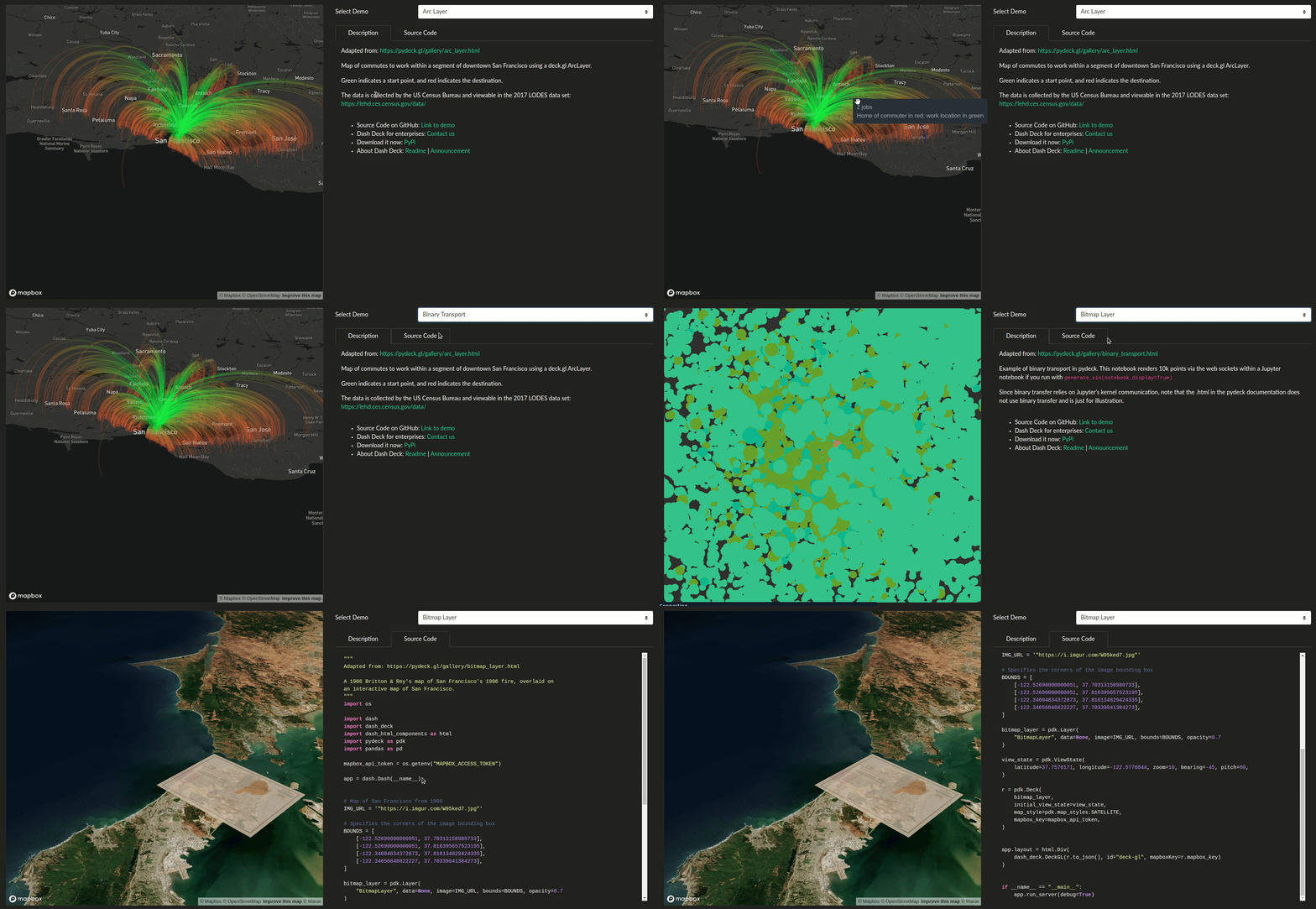
* Try it in the [Dash Deck Explorer][explorer-demo]
* Read [the announcement](https://community.plotly.com/t/initial-release-of-dash-deck-a-library-for-rendering-pydeck-and-deck-gl-in-dash/44528)
* Get it on [PyPi](https://pypi.org/project/dash-deck/), which has the latest version published by Plotly.
* Get it on [conda-forge](https://anaconda.org/conda-forge/dash-deck), a community maintained package index. To ensure that this version is up to date, please verify on the PyPi page.
## Getting started
### Quickstart (Python)
First install this library:
```
pip install dash-deck
```
then, define your map using the deck.gl JSON API:
```python
data = {
"description": "A minimal deck.gl example rendering a circle with text",
"initialViewState": {"longitude": -122.45, "latitude": 37.8, "zoom": 12},
"layers": [
{
"@@type": "TextLayer",
"data": [{"position": [-122.45, 37.8], "text": "Hello World"}],
},
],
}
```
finally, create your component and add it to your layout:
```python
import dash
import dash_deck
import dash_html_components as html
deck_component = dash_deck.DeckGL(data=data, id="deck-gl")
app = dash.Dash(__name__)
app.layout = html.Div(deck_component)
```
For a full example, see `usage.py`. To find examples of the JSON API, see [the deck.gl playground](https://deck.gl/playground/).
### Quickstart (R)
First, install the package from GitHub (the package is not yet available via CRAN):
```
remotes::install_github("plotly/dash-deck")
```
then, define your map using the deck.gl JSON API:
```r
deck_data <- list(
"description" = "A minimal deck.gl example rendering a circle with text",
"initialViewState" = list("longitude" = -122.45, "latitude" = 37.8, "zoom" = 12),
"layers" = list(
list(
"@@type" = "TextLayer",
"data" = list(list("position" = list(-122.45, 37.8), "text" = "Hello World"))
)
)
)
```
finally, create your component and add it to your layout:
```r
library(dash)
library(dashDeck)
library(dashHtmlComponents)
deck_component <- deckGL(data=deck_data, id="deck-gl")
app <- Dash$new()
app$layout(htmlDiv(deck_component))
```
### `pydeck` integrations
Make sure you have `pydeck` installed:
```
pip install pydeck
```
then, define a layer using `pdk` and run it:
```python
import pydeck as pdk
layer = pdk.Layer(
"TextLayer",
[{"position": [-122.45, 37.8], "text": "Hello World"}]
)
# Render
r = pdk.Deck(layers=[layer])
```
then, convert it to JSON and add it to your layout:
```python
import dash
import dash_deck
import dash_html_components as html
deck_component = dash_deck.DeckGL(r.to_json(), id="deck-gl")
app = dash.Dash(__name__)
app.layout = html.Div(deck_component)
```
To learn how to use `pydeck`, read more in [the official documentations](https://pydeck.gl/). You can find a complete example in `usage-pdk.py`.
### Mapbox tokens
Make sure that you have created a [Mapbox access token](https://docs.mapbox.com/help/how-mapbox-works/access-tokens/), and export it as an environment variable. For example, you can add the following line to your `.bashrc`:
```
export MAPBOX_ACCESS_TOKEN="pk.ey..."
```
Then, inside your app, define retrieve and define it as `mapbox_api_token`:
```python
import os
mapbox_api_token = os.getenv("MAPBOX_ACCESS_TOKEN")
```
When you define your component, simply pass it to `DeckGL` as an argument:
```python
...
r = pdk.Deck(...)
deck_component = dash_deck.DeckGL(r.to_json(), id="deck-gl", mapboxKey=mapbox_api_token)
...
```
## Running the demos
The Pydeck team has already created many amazing demos, which are shown in [their doc gallery](https://pydeck.gl/index.html#gallery). We ported them for Dash Deck with minor modifications. You can read the docstring of each `usage-.py` file, you will be able to find the source code of the original demo. You can also try them directly in the [Dash Deck Explorer][explorer-demo].
First, make sure you clone the project:
```
git clone https://github.com/plotly/dash-deck.git
cd dash-deck/
```
Create and activate a conda env:
```
conda create -n deck-demos python=3.7
conda activate deck-demos
```
Or a venv (make sure your `python3` is 3.6+):
```
python3 -m venv venv
source venv/bin/activate # for Windows, use venv\Scripts\activate.bat
```
Install all the dev and demo requirements:
```
pip install -r requirements.txt
pip install -r demos/requirements.txt
```
You can now run the demo you want to try (replace `` with the layer type you want to try):
```
python demos/usage-.py
```
## Tips and Tricks
### Side-by-side or overlapping maps with `Views`
If you want to show multiple maps side-by-side, you need to specify a `"view"` dict (when constructing your map dictionary) or `pdk.View` (which is given to `pdk.Deck`). For example, you would add the following parameter to your `pdk.Deck`:
```python
map_view = pdk.View("MapView", width="75%", height="600px", controller=True)
r = pdk.Deck(..., views=[map_view])
```
or add the following dictionary to your `data` dictionary:
```python
data = {
"layer": ...,
...,
"views": [{"@@type": "MapView", "width": "75%", "height": "600px"}],
}
deck_component = dash_deck.DeckGL(data, id="deck-gl")
```
See `demos/usage-views.py` for manually creating a `view` dictionary, and `demos/usage-pdk-views.py` for manually creating a `pdk.View`.
### Use DeckGL `style` for custom styling (width, height, color)
You can also directly modify `dash_deck.DeckGL`'s style:
```python
deck_component = dash_deck.DeckGL(..., style={"width": "50vw", "height": "50vh"})
```
The `style` prop is useful for directly changing the CSS of Dash Deck. For example, you can also change the `background-color`. See `demos/usage-style-prop.py` for an example.
### Callbacks and events
Various events are exposed as read-only props, and you can use them as `Input` or `State` to your callbacks. They are disabled by default in order to maximize performance for cases where a lot of data are passed through `setProps`.
To use them, either set `enableEvents` to `True`, or give a list with the gestures that you want to enable. For example, the two following lines are equivalent:
```python
dash_deck.DeckGL(r.to_json(), enableEvents=True)
dash_deck.DeckGL(r.to_json(), enableEvents=['click', 'hover', 'dragStart', 'dragEnd'])
```
Two types of events are available. `Info` is the picking info describing the object being clicked and `Event` is the original gesture event (in JSON). You can read more about [`Info` in the deck.gl developer guide](https://deck.gl/docs/developer-guide/interactivity#the-picking-info-object).
The following props are available:
* clickEvent, clickInfo
* dragStartEvent, dragStartInfo
* dragEndEvent, dragEndInfo
* hoverEvent, hoverInfo
For an example of using events, please see `demos/usage-events.py`.
### Using the tooltip
The `pydeck` tooltip can be used in Dash Deck. Moreover, rather than passing it to `pdk.Deck`, you will need to pass it to `dash_deck.DeckGL`:
```python
deck_component = dash_deck.DeckGL(
r.to_json(), id="deck-gl", tooltip=True
)
```
You can also customize your tooltip:
```python
deck_component = dash_deck.DeckGL(
r.to_json(),
id="deck-gl",
tooltip={
"html": ...,
"style": ...
}
)
```
To learn more about tooltips, please check out the [section in the Pydeck docs](https://pydeck.gl/tooltip.html). You will also be able to find some `demos` with custom tooltips.
### Custom Layers
To build custom layers, you will need to create a custom version of Dash Deck. To do this you will need:
1. Clone this project, create a venv, `npm` `install` and `build` (see CONTRIBUTING.md).
2. Add necessary packages to your `package.json`. E.g. `npm install turf`, if you need a library called turn.
3. Create a Javascript file inside `dash-deck/src/lib/` that will contain your layer. See [this as an example](https://github.com/ajduberstein/pydeck_custom_layer/blob/master/labeled-geojson-layer.js).
4. Import the Javascript file in `dash-deck/src/lib/components/DeckGL.react.js`, e.g.:
```JavaScript
...
import LabeledGeoJsonLayer from "../labeled-geojson-layer.js";
...
```
5. Add it to the `JSONConfiguration` in the same file:
```JavaScript
const configuration = {
classes: Object.assign(
{},
...,
LabeledGeoJsonLayer
),
enumerations: ...
}
```
6. `npm build`
7. Start creating an app that uses `pydeck` or JSON. See `dash-deck/demos/other/usage-custom-layer.py`.
8. Run the tests (see contributing.md).
9. When you are ready, create the installable distribution files by running `python setup.py sdist` inside `dash-deck/`.
## Contributing
See [CONTRIBUTING.md](https://github.com/plotly/dash-deck/blob/master/CONTRIBUTING.md)
## License
Dash and Dash Deck are licensed under MIT. Please view [LICENSE](https://github.com/plotly/dash-deck/blob/master/LICENSE) for more details.
## Contact and Support
If you are interested in supporting the development of this library, check out our [consulting & training page](https://plotly.com/consulting-and-oem/). For enterprise support and deployment, [contact us](https://plotly.com/contact-us).
## References
This component lets you visualizes PyDeck and deck/json files
directly in Dash. It also exposes various events (such as click,
hover and drag) inside callbacks.
Keyword arguments:
- data (dict | string; optional): Your map using the Deck.gl JSON format. This can be generated by calling
`pdk.Deck(...).to_json()`. Both a Python dictionary and a JSON-string your map is accepted.
- id (string; optional): The ID used to identify this component in Dash callbacks.
- style (dict; optional): Custom CSS for your map. This is useful for changing the height, width, and sometimes the background color.
- enableEvents (list of strings | boolean; default False): Either a boolean indicating if all event callbacks should be enabled, or a list of strings
indicating which ones should be used. If it's a list, you will need to specify one of the
following gestures: `click`, `dragStart`, `dragEnd`, `hover`.
- tooltip (dict | boolean; default False): This can be a boolean value (e.g. `True`, `False`) to display the default tooltip.
You can also give a dictionary specifying an `html` template and custom style using `css`. For more
information about templating, see: https://pydeck.gl/tooltip.html
- mapboxKey (string; optional): You will need a mapbox token to use deck.gl. Please create a mapbox
and follow the instructions here: https://docs.mapbox.com/help/how-mapbox-works/access-tokens/
- disableContext (boolean; default False): This is a boolean value (e.g. `True`, `False`) indicating whether or not to disable the default context menu
that shows up when right clicking on the map. If set to `True`, right clicking to rotate
a map or adjust its pitch will not trigger the default context menu.
- clickEvent (dict; optional): Read-only prop. To use this, make sure that `enableEvents` is set to `True`, or that `enableEvents` is a list that contains this event type.
This prop is updated when an element in the map is clicked. This contains
the original gesture event (in JSON).
- clickInfo (dict; optional): Read-only prop. To use this, make sure that `enableEvents` is set to `True`, or that `enableEvents` is a list that contains this event type.
This prop is updated when an element in the map is clicked. This contains
the picking info describing the object being clicked.
Complete description here:
https://deck.gl/docs/developer-guide/interactivity#the-picking-info-object
- hoverEvent (dict; optional): Read-only prop. To use this, make sure that `enableEvents` is set to `True`, or that `enableEvents` is a list that contains this event type.
This prop is updated when an element in the map is hovered. This contains
the original gesture event (in JSON).
- hoverInfo (dict; optional): Read-only prop. To use this, make sure that `enableEvents` is set to `True`, or that `enableEvents` is a list that contains this event type.
This prop is updated when an element in the map is hovered. This contains
the picking info describing the object being hovered.
Complete description here:
https://deck.gl/docs/developer-guide/interactivity#the-picking-info-object
- dragStartEvent (dict; optional): Read-only prop. To use this, make sure that `enableEvents` is set to `True`, or that `enableEvents` is a list that contains this event type.
To use this, make sure that `enableEvents` is set to `True`, or that `enableEvents` is a list that contains this event type.
This prop is updated when the user starts dragging on the canvas. This contains
the original gesture event (in JSON).
- dragStartInfo (dict; optional): Read-only prop. To use this, make sure that `enableEvents` is set to `True`, or that `enableEvents` is a list that contains this event type.
This prop is updated when the user starts dragging on the canvas. This contains
the picking info describing the object being dragged.
Complete description here:
https://deck.gl/docs/developer-guide/interactivity#the-picking-info-object
- dragEndEvent (dict; optional): Read-only prop. To use this, make sure that `enableEvents` is set to `True`, or that `enableEvents` is a list that contains this event type.
This prop is updated when the user releases from dragging the canvas. This contains
the original gesture event (in JSON).
- dragEndInfo (dict; optional): Read-only prop. To use this, make sure that `enableEvents` is set to `True`, or that `enableEvents` is a list that contains this event type.
This prop is updated when the user releases from dragging the canvas. This contains
the picking info describing the object being dragged.
Complete description here:
https://deck.gl/docs/developer-guide/interactivity#the-picking-info-object
[explorer-demo]: https://dash-gallery.plotly.host/dash-deck-explorer