https://github.com/pmatatias/input-quantity
Flutter widget for input quantity item
https://github.com/pmatatias/input-quantity
dart dartlang flutter flutter-package flutter-widget number-input quantity-input
Last synced: about 1 year ago
JSON representation
Flutter widget for input quantity item
- Host: GitHub
- URL: https://github.com/pmatatias/input-quantity
- Owner: pmatatias
- License: mit
- Created: 2022-09-19T16:29:24.000Z (over 3 years ago)
- Default Branch: master
- Last Pushed: 2024-05-19T14:02:05.000Z (about 2 years ago)
- Last Synced: 2024-05-19T14:51:33.791Z (about 2 years ago)
- Topics: dart, dartlang, flutter, flutter-package, flutter-widget, number-input, quantity-input
- Language: Dart
- Homepage: https://pub.dev/packages/input_quantity
- Size: 4.96 MB
- Stars: 9
- Watchers: 1
- Forks: 7
- Open Issues: 5
-
Metadata Files:
- Readme: README.md
- Changelog: CHANGELOG.md
- Contributing: CONTRIBUTING.md
- License: LICENSE
Awesome Lists containing this project
README
# Input Quantity








Flutter widget for quantity input. Increase or decrease the input value by pressing the button. It's built with text fields, so **InputQty** also supports manually typing quantities. Very flexible for large quantities. For example, if the user wants to enter the value `19243`, it will be very difficult to only rely on buttons.
Set input limits so that input values automatically return to predefined maximum/minimum values.
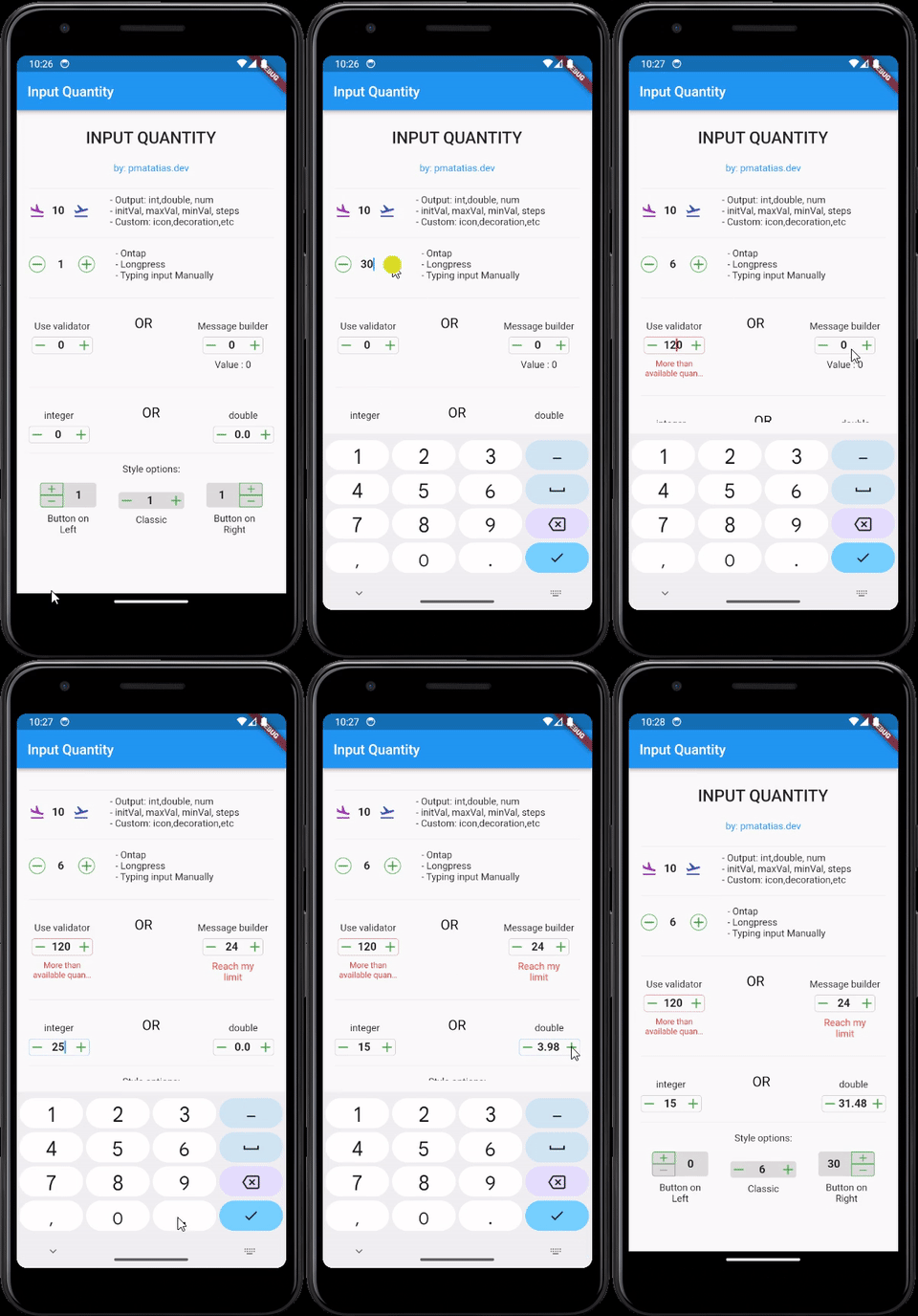
## Features
- Simple and easy to use
- Customizable
- Output: `int`, `double`, or `num`
- Style options: classic, button on the left or button on the right
- Tap once to update the value, `longpress` for update the value continuously, or type the value manually.
- Add validator form, or use custom message builder
## Installation
To use this package, add `input_quantity` as a dependency in your `pubspec.yaml` file.
```yaml
dependencies:
input_quantity: ^2.5.0
```
Then, run `flutter pub get` to install the package.
## Usage
### Basic Usage
```dart
import 'package:input_quantity/input_quantity.dart';
InputQty(
maxVal: 100,
initVal: 0,
minVal: -100,
steps: 10,
onQtyChanged: (val) {
print(val);
},
)
```
### Typing Manually
If you want to prevent typing manually, you can disable it from `enableTyping`.
```dart
InputQty(
qtyFormProps: QtyFormProps(enableTyping: false),
...
)
```
### Output Types
By default, the output will be as a `num`.
```dart
InputQty(
onQtyChanged: (val) {
print(val.runtimeType); // num
},
)
```
To specify the output type as `int`:
```dart
InputQty.int(
onQtyChanged: (val) {
print(val.runtimeType); // int
},
)
```
To specify the output type as `double`:
```dart
InputQty.double(
onQtyChanged: (val) {
print(val.runtimeType); // double
},
)
```
### Customizing Appearance and Behavior
#### Using `QtyFormProps`
You can customize the appearance and behavior of the input field using `QtyFormProps`.
```dart
InputQty(
qtyFormProps: QtyFormProps(
textAlign: TextAlign.center,
style: TextStyle(fontWeight: FontWeight.bold),
cursorColor: Colors.red,
enableTyping: true,
),
)
```
#### Using `QtyDecorationProps`
You can customize the decoration of the input field using `QtyDecorationProps`.
```dart
InputQty(
decoration: QtyDecorationProps(
borderShape: BorderShapeBtn.circle,
btnColor: Colors.blue,
fillColor: Colors.grey[200],
isBordered: true,+
),
)
```
### Validation
You can use the `validator` property to validate the input value.
```dart
InputQty(
validator: (value) {
if (value == null) {
return "Required field";
} else if (value >= 200) {
return "More than available quantity";
}
return null;
},
)
```
### Custom Messages
You can use the `messageBuilder` property to display custom messages based on the input value.
```dart
InputQty(
messageBuilder: (minVal, maxVal, value) {
if (value == null) return null;
if (value < -20) {
return Text(
"Reach my limit",
style: TextStyle(color: Colors.red),
textAlign: TextAlign.center,
);
} else if (value > 20) {
return Text(
"Reach my limit",
style: TextStyle(color: Colors.red),
textAlign: TextAlign.center,
);
} else {
return Text("Value : $value", textAlign: TextAlign.center);
}
},
)
```
### Controlling Input Value Programmatically
You can use `TextEditingController` to control the input value programmatically.
```dart
final TextEditingController _controller = TextEditingController();
InputQty(
qtyFormProps: QtyFormProps(
controller: _controller,
),
)
```
### Button Orientation
You can change the orientation of the buttons using `ButtonOrientation`.
```dart
InputQty(
decoration: QtyDecorationProps(
orientation: ButtonOrientation.horizontal,
),
)
```
### Button Position
You can change the position of the buttons using `QtyStyle`.
```dart
InputQty(
decoration: QtyDecorationProps(
qtyStyle: QtyStyle.btnOnRight,
),
)
```
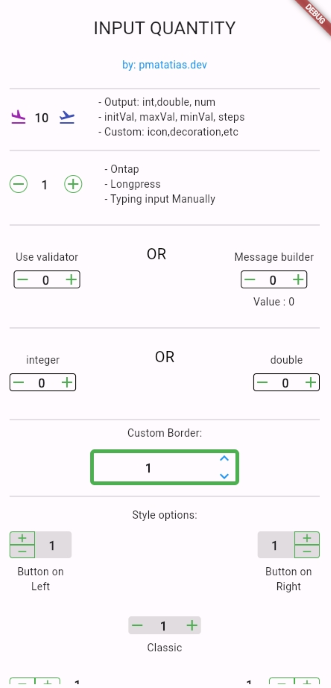
## Examples
For more examples, check the [example](example) directory.
## Contributons
To contribute to this project, please follow the guidelines in the [CONTRIBUTING.md](CONTRIBUTING.md) file.
Thank you to all contributors for their valuable contributions!


## Additional Information
- Want to thank me? You can buy me a coffee.
