https://github.com/pocketpaw/pocketpaw
Your AI agent in 30 seconds. Not 30 hours. Self-hosted, open-source personal AI with desktop installer, multi-agent Command Center(Deep Work), and 7-layer security. Anthropic, OpenAI, or Ollama.
https://github.com/pocketpaw/pocketpaw
ai-agents cli jarvis-assistant multi-agent-systems ollama open-source personal-assistant python security self-hosted telegram-bot-ai-assistant
Last synced: 5 months ago
JSON representation
Your AI agent in 30 seconds. Not 30 hours. Self-hosted, open-source personal AI with desktop installer, multi-agent Command Center(Deep Work), and 7-layer security. Anthropic, OpenAI, or Ollama.
- Host: GitHub
- URL: https://github.com/pocketpaw/pocketpaw
- Owner: pocketpaw
- License: mit
- Created: 2026-02-02T19:48:57.000Z (6 months ago)
- Default Branch: main
- Last Pushed: 2026-03-07T19:53:28.000Z (5 months ago)
- Last Synced: 2026-03-08T01:25:05.601Z (5 months ago)
- Topics: ai-agents, cli, jarvis-assistant, multi-agent-systems, ollama, open-source, personal-assistant, python, security, self-hosted, telegram-bot-ai-assistant
- Language: Python
- Homepage: http://pocketpaw.xyz/
- Size: 43.1 MB
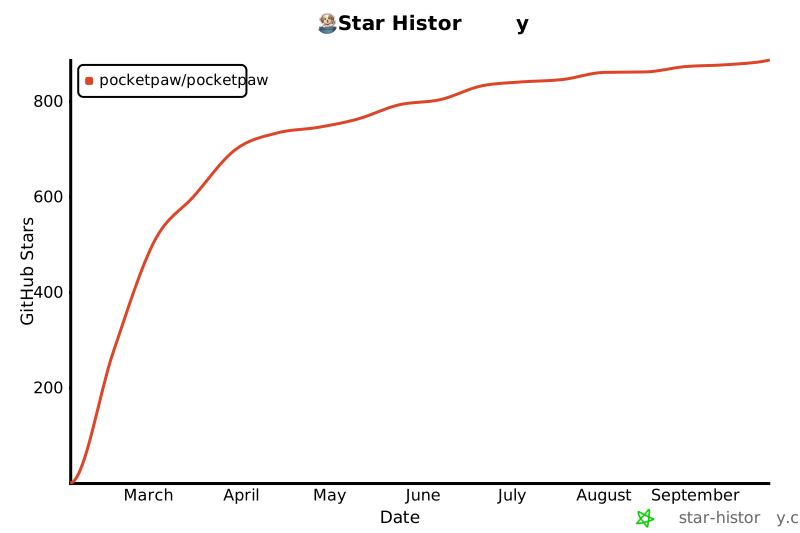
- Stars: 570
- Watchers: 2
- Forks: 201
- Open Issues: 63
-
Metadata Files:
- Readme: README.md
- Contributing: CONTRIBUTING.md
- License: LICENSE
- Codeowners: .github/CODEOWNERS
- Security: docs/security/audit-cli.mdx
Awesome Lists containing this project
- awesome-ChatGPT-repositories - pocketpaw - ⭐ 447 / Your AI agent in 30 seconds. Not 30 hours. Self-hosted, open-source personal AI with desktop installer, multi-agent Command Center(Deep Work), and 7-layer security. Anthropic, OpenAI, or Ollama. (CLIs)
README

🐾 PocketPaw
An AI agent that runs on your machine, not someone else's.







Self-hosted AI agent with a native desktop app and web dashboard. Talks to you over Discord, Slack, WhatsApp, Telegram, or the browser.
No subscription. No cloud lock-in. Your data stays on your machine.
> ⚠️ **Beta:** This project is under active development. Expect breaking changes between versions.
---
## Quick Start
### Desktop App (Recommended)
Download the native desktop app. It bundles the backend installer and provides a full-featured UI with system tray, global shortcuts, side panel, and multi-window support.
| Platform | Download |
| --- | --- |
| **Windows** | [PocketPaw-Setup.exe](https://github.com/pocketpaw/pocketpaw/releases/latest/download/PocketPaw-Setup.exe) |
| **macOS** | [PocketPaw.dmg](https://github.com/pocketpaw/pocketpaw/releases/latest/download/PocketPaw.dmg) |
| **Linux** | [PocketPaw.AppImage](https://github.com/pocketpaw/pocketpaw/releases/latest/download/PocketPaw.AppImage) |
### Install via Terminal
macOS / Linux
**Prerequisites:**
- Python 3.11 or higher ([download here](https://www.python.org/downloads/))
- pip package manager (included with Python)
**Quick install:**
```bash
pip install pocketpaw && pocketpaw
```
**Recommended install (with virtual environment):**
```bash
# 1. Verify Python version (must be 3.11+)
python3 --version
# 2. Upgrade pip to latest version
python3 -m pip install --upgrade pip
# 3. Create and activate virtual environment (optional but recommended)
python3 -m venv pocketpaw-env
source pocketpaw-env/bin/activate
# 4. Install PocketPaw
pip install pocketpaw
# 5. Run PocketPaw
pocketpaw
```
**Or use the automated install script:**
```bash
curl -fsSL https://pocketpaw.xyz/install.sh | sh
```
Windows (PowerShell)
### Windows Installation (Step-by-Step)
**Prerequisites:**
- **Python 3.11 or higher** — [Download Python](https://www.python.org/downloads/). During setup, check **"Add Python to PATH"**.
- pip (included with Python)
**Option A — Automated installer (recommended for beginners):**
```powershell
powershell -NoExit -Command "iwr -useb https://pocketpaw.xyz/install.ps1 | iex"
```
**Option B — Manual install:**
1. Open PowerShell and verify Python version (must be 3.11+):
```powershell
python --version
```
2. Upgrade pip:
```powershell
python -m pip install --upgrade pip
```
3. (Optional but recommended) Create and activate a virtual environment:
```powershell
python -m venv pocketpaw-env
.\pocketpaw-env\Scripts\Activate.ps1
```
4. Install PocketPaw:
```powershell
pip install pocketpaw
```
5. Verify the installation by running:
```powershell
pocketpaw --help
```
Or start the dashboard:
```powershell
pocketpaw
```
### Windows Troubleshooting
If you installed PocketPaw with `pip install pocketpaw` and the `pocketpaw` command is not recognized:
```text
'pocketpaw' is not recognized as an internal or external command
```
This usually means your Python Scripts directory is not on your PATH. By default it is at:
```text
C:\Users\\AppData\Local\Python\Python3.XX\Scripts
```
Find your exact Scripts path:
```powershell
python -c "import sysconfig; print(sysconfig.get_path('scripts'))"
```
**How to fix:**
1. Open Start → Search "Environment Variables"
2. Click "Edit the system environment variables"
3. Click "Environment Variables"
4. Under User variables → Select `Path` → Click Edit
5. Add the Scripts directory path
6. Restart your terminal
Alternatively, run PocketPaw without adding Scripts to PATH:
```powershell
python -m pocketpaw
```
> [!TIP]
> **First Run:** After opening the dashboard, the system health may show **UNHEALTHY** — this is expected if no API key is configured. The app itself is running correctly; only AI features are disabled. Go to **Settings > API Keys** to add your key, or [use Ollama for free local inference](#features).
> **Note:** Some features (browser automation, shell tools) work best under WSL2. Native Windows support covers the web dashboard and all LLM chat features.
Other methods
```bash
pipx install pocketpaw && pocketpaw # Isolated install
uvx pocketpaw # Run without installing
# From source
git clone https://github.com/pocketpaw/pocketpaw.git
cd pocketpaw && uv run pocketpaw
```
Docker
```bash
git clone https://github.com/pocketpaw/pocketpaw.git && cd pocketpaw
cp .env.example .env
docker compose up -d
```
Dashboard at `http://localhost:8888`. Get the access token:
```bash
docker exec pocketpaw cat /home/pocketpaw/.pocketpaw/access_token
```
Agent-created files appear in `./workspace/` on the host. Optional profiles: `--profile ollama` (local LLMs), `--profile qdrant` (vector memory). Using Ollama on the host? Set `POCKETPAW_OLLAMA_HOST=http://host.docker.internal:11434` in `.env`.
The web dashboard opens at `http://localhost:8888`. From there you can connect Discord, Slack, WhatsApp, or Telegram.
---
## Features
| | |
| --- | --- |
| 📡 **9+ Channels** | Web Dashboard, Discord, Slack, WhatsApp, Telegram, Signal, Matrix, Teams, Google Chat |
| 🧠 **6 Agent Backends** | Claude Agent SDK, OpenAI Agents, Google ADK, Codex CLI, OpenCode, Copilot SDK |
| 🛠️ **50+ Tools** | Browser, web search, image gen, voice/TTS/STT, OCR, research, delegation, skills |
| 🔌 **Integrations** | Gmail, Calendar, Google Drive & Docs, Spotify, Reddit, MCP servers |
| 💾 **Memory** | Long-term facts, session history, smart compaction, Mem0 semantic search |
| 🔒 **Security** | Guardian AI, injection scanner, tool policy, plan mode, audit log, self-audit daemon |
| 🏠 **Local-First** | Runs on your machine. Ollama for fully offline operation. macOS / Windows / Linux. |
### Examples
```
You: "Every Sunday evening, remind me which recycling bins to put out"
Paw: Done. I'll check the recycling calendar and message you every Sunday at 6pm.
You: "Find that memory leak, the app crashes after 2 hours"
Paw: Found it. The WebSocket handler never closes connections. Here's the fix.
You: "I need a competitor analysis report for our product launch"
Paw: 3 agents working on it. I'll ping you when it's ready.
```
---
## Architecture

Everything goes through an event-driven message bus. Channels publish messages, the `AgentLoop` picks them up and routes to whichever backend you've configured. All six backends implement the same `AgentBackend` protocol, so swapping one for another doesn't touch the rest of the system.
The **desktop client** (`client/`) is a Tauri 2.0 + SvelteKit app that connects to the Python backend over REST and WebSocket. It provides system tray integration, global hotkeys, multi-window support (side panel, quick ask), and an onboarding wizard that handles backend installation.
### Agent Backends
| Backend | Key | Providers | MCP |
| --- | --- | --- | :---: |
| **Claude Agent SDK** (Default) | `claude_agent_sdk` | Anthropic, Ollama | Yes |
| **OpenAI Agents SDK** | `openai_agents` | OpenAI, Ollama | No |
| **Google ADK** | `google_adk` | Google (Gemini) | Yes |
| **Codex CLI** | `codex_cli` | OpenAI | Yes |
| **OpenCode** | `opencode` | External server | No |
| **Copilot SDK** | `copilot_sdk` | Copilot, OpenAI, Azure, Anthropic | No |
### Security

A secondary LLM (Guardian AI) reviews every tool call before it runs. On top of that: injection scanning, configurable tool policies, plan mode for human approval, `--security-audit` CLI, a self-audit daemon, and an append-only audit log. [Details in the docs](https://pocketpaw.xyz/security).
Detailed security architecture

---
## Configuration
Settings live in `~/.pocketpaw/config.json`. You can also use `POCKETPAW_`-prefixed env vars or the dashboard Settings panel. API keys are encrypted at rest.
### Environment Variables (.env file)
PocketPaw ships with a `.env.example` file that lists every supported environment variable with inline comments. Before running PocketPaw (especially when cloning from source or using Docker), copy it to `.env` and fill in the values you need:
```bash
# macOS / Linux
cp .env.example .env
# Windows (PowerShell)
Copy-Item .env.example .env
```
Then open `.env` in your editor and uncomment / set the variables relevant to your setup. For example:
```dotenv
# LLM provider
POCKETPAW_ANTHROPIC_API_KEY=sk-ant-...
POCKETPAW_AGENT_BACKEND=claude_agent_sdk # or openai_agents, google_adk, etc.
# Optional: Telegram bot
POCKETPAW_TELEGRAM_BOT_TOKEN=...
POCKETPAW_ALLOWED_USER_ID=...
```
> **Tip:** Variables set in `.env` are loaded automatically at startup. You can also export them directly in your shell or set them via the dashboard **Settings** panel — all three methods work interchangeably.
Alternatively, export variables directly in your shell:
```bash
export POCKETPAW_ANTHROPIC_API_KEY="sk-ant-..." # Required for Claude SDK backend
export POCKETPAW_AGENT_BACKEND="claude_agent_sdk" # or openai_agents, google_adk, etc.
```
> **Note:** An Anthropic API key from [console.anthropic.com](https://console.anthropic.com/settings/keys) is required for the Claude SDK backend. OAuth tokens from Claude Free/Pro/Max plans are [not permitted](https://code.claude.com/docs/en/legal-and-compliance#authentication-and-credential-use) for third-party use. For free local inference, use Ollama instead.
See the [full configuration reference](https://pocketpaw.xyz/getting-started/configuration) for all settings.
---
## Development
### Backend (Python)
**Prerequisites:**
- Python 3.11 or higher ([download here](https://www.python.org/downloads/))
- [uv](https://docs.astral.sh/uv/) package manager
**Install uv:**
> [!WARNING]
> **Windows users:** You must **open a new terminal window** after running the install script below before `uv` will be recognized. The installer updates your PATH, but this change does not apply to your current terminal session — running `uv` immediately after install will give a `CommandNotFoundException` error.
```bash
# macOS/Linux
curl -LsSf https://astral.sh/uv/install.sh | sh
# Windows (PowerShell)
powershell -ExecutionPolicy ByPass -c "irm https://astral.sh/uv/install.ps1 | iex"
# Or via pip
pip install uv
```
> [!TIP]
> **Windows:** To use `uv` immediately without opening a new terminal, run:
> ```powershell
> $env:Path = "$env:USERPROFILE\.local\bin;$env:Path"
> ```
> Then verify the installation: `uv --version`
**Setup and run:**
```bash
# 1. Verify Python version
python3 --version
# 2. Clone and enter the repository
git clone https://github.com/pocketpaw/pocketpaw.git && cd pocketpaw
# 3. Install with dev dependencies
uv sync --dev
# 4. Run PocketPaw in development mode (auto-reload)
uv run pocketpaw --dev
# 5. Run tests
uv run pytest --ignore=tests/e2e # Run tests (2900+)
# 6. Lint & format
uv run ruff check . && uv run ruff format .
```
Optional extras
```bash
pip install pocketpaw[openai-agents] # OpenAI Agents backend
pip install pocketpaw[google-adk] # Google ADK backend
pip install pocketpaw[discord] # Discord
pip install pocketpaw[slack] # Slack
pip install pocketpaw[memory] # Mem0 semantic memory
pip install pocketpaw[all] # Everything
```
### Desktop Client (Tauri + SvelteKit)
The native desktop app lives in `client/`. It connects to the Python backend via REST/WebSocket.
**Prerequisites:**
- [Bun](https://bun.sh/) (package manager)
- [Rust](https://rustup.rs/) (for Tauri)
- Python backend running on `localhost:8888`
```bash
cd client
bun install # Install dependencies
bun run dev # Vite dev server (http://localhost:1420)
bun run tauri dev # Full desktop app (frontend + Tauri shell)
bun run check # Type check
bun run tauri build # Production build
```
**Tech stack:** SvelteKit 2 + Svelte 5, Tailwind CSS 4, shadcn-svelte, Tauri 2.0 (Rust). See `client/CLAUDE.md` for full architecture details.
---
## Documentation
**[pocketpaw.xyz](https://pocketpaw.xyz)** covers getting started, backends, channels, tools, integrations, security, memory, and the full API reference.
---
## Star History
## Contributors
---
## Join the Pack
- Twitter: [@prakashd88](https://twitter.com/prakashd88)
- Discord: [discord.gg/asRrtm95Zc](https://discord.gg/asRrtm95Zc)
- Email: pocketpawai@gmail.com
PRs welcome. Come build with us.
## License
MIT © PocketPaw Team
Built for people who'd rather own their AI than rent it