https://github.com/primaryobjects/chromestats
Collect total-user install counts for your Chrome extension daily.
https://github.com/primaryobjects/chromestats
Last synced: over 1 year ago
JSON representation
Collect total-user install counts for your Chrome extension daily.
- Host: GitHub
- URL: https://github.com/primaryobjects/chromestats
- Owner: primaryobjects
- Created: 2014-09-30T00:26:52.000Z (almost 12 years ago)
- Default Branch: master
- Last Pushed: 2016-01-01T16:51:32.000Z (over 10 years ago)
- Last Synced: 2025-02-09T17:47:59.116Z (over 1 year ago)
- Language: JavaScript
- Homepage:
- Size: 40 KB
- Stars: 1
- Watchers: 4
- Forks: 0
- Open Issues: 0
-
Metadata Files:
- Readme: README.md
Awesome Lists containing this project
README
ChromeStats
=========
### for Linux/Mac/Windows
ChromeStats collects total user install counts for your Chrome extension in the Google Chrome store.
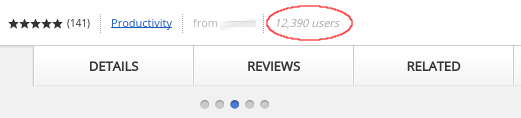
ChromeStats works by reading the total number of installs for your extension and saving the count to a Mongo database. Each entry includes a date/time stamp and total install count. Run the script at startup, collect data over time, and watch your total user count grow (or decline :O) over time.
You can run it using the bash shell or node.js script.
Example Output
---
```javascript
{ 'EventDate': ISODate('2014-09-29T22:59:56Z'), 'Users': 25621 }
```
Example Chart
---
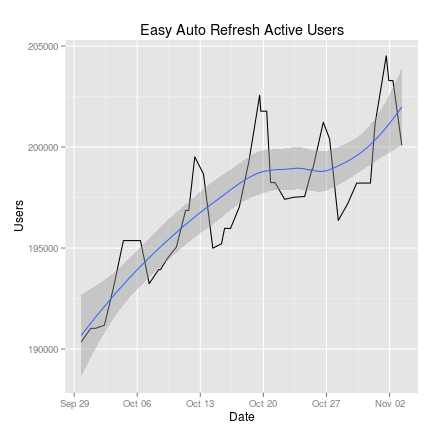
An R script is also included, which allows you to chart the results on a graph. Or you can use your favorite graphing tool (Excel, Google Docs, etc). Here's an example.
Install
---
1. Download [chromestats.sh](https://raw.githubusercontent.com/primaryobjects/chromestats/master/chromestats.sh) or [chromestats.js](https://raw.githubusercontent.com/primaryobjects/chromestats/master/chromestats.js) and place it in a folder, such as ~/Documents/chromestats.
2. Edit the file and fill in values for the following variables at the top:
```sh
# User-defined variables.
appId="your-app-name/chrome-store-app-id"
host="host.mongo.com:12345/dbname"
user="mongo-username"
pass="mongo-password"
```
3. If you're using the node.js script, run the following command:
```sh
npm install
```
4. Run the script:
Bash
```sh
cd ~/Documents/chromestats
bash chromestats.sh
```
Node.js
```sh
cd C:\Users\your-user-name\Documents\chromestats\chromestats
node chromestats
```
The script will collect your total user install count and save it to your mongo database, using the collection name "analytics".
Running at Startup
---
You can automatically run the script at boot time by editing /etc/rc.local and adding an entry to run the script. It's a good idea to include logging of the output, so you know it's working. On Linux/Mac, do the following:
1. Edit /etc/rc.local and add the following lines towards the top of the file:
```sh
# Log rc.local to tmp/rc.local.log
exec 2> /tmp/rc.local.log # send stderr from rc.local to a log file
exec 1>&2 # send stdout to the same log file
set -x
bash "/home/username/Documents/chromestats/chromestats.sh"
```
On Windows, do the following:
1. Click Start->Run. If you're using Windows 8, right-click the Windows start-menu icon and select Run.
2. Type: regedit
3. Navigate to HKEY_CURRENT_USER\Software\Microsoft\Windows\CurrentVersion\Run
4. Right-click in the right-side window and select New->String Value.
5. Enter the name: chromestats
6. Double-click the newly created key "chromestats" and enter the following for its Value data:
```sh
node C:\Users\your-user-name\Documents\chromestats\chromestats
```
Note, in Windows, you may want to wait for Internet access before running the script. You can use [wait4net.bat](http://paulhoule.com/wait4net/) to do this, and change the registry command to execute a batch file:
```sh
"C:\Users\your-user-name\Documents\wait4net.bat" start /log c:\temp\mongobackuplog.txt "C:\Users\your-user-name\Documents\chromestats.bat" > c:\temp\mongobackuplog2.txt
```
License
----
MIT
Author
----
Kory Becker
http://www.primaryobjects.com/kory-becker