https://github.com/primaryobjects/loginimagechanger
Login Image Changer for Linux Mint and Ubuntu lets you automatically change the login background each time your computer starts up.
https://github.com/primaryobjects/loginimagechanger
Last synced: about 1 month ago
JSON representation
Login Image Changer for Linux Mint and Ubuntu lets you automatically change the login background each time your computer starts up.
- Host: GitHub
- URL: https://github.com/primaryobjects/loginimagechanger
- Owner: primaryobjects
- Created: 2014-08-19T23:21:05.000Z (almost 12 years ago)
- Default Branch: master
- Last Pushed: 2014-08-25T01:02:39.000Z (almost 12 years ago)
- Last Synced: 2025-06-30T21:05:21.338Z (about 1 year ago)
- Language: Shell
- Homepage:
- Size: 1.03 MB
- Stars: 4
- Watchers: 2
- Forks: 0
- Open Issues: 0
-
Metadata Files:
- Readme: readme.md
Awesome Lists containing this project
README
Login Image Changer
=========
### for Linux Mint and Ubuntu
Login Image Changer lets you automatically change the login background each time your computer starts up. It selects a random image from a target folder and updates your theme's background image, giving you a fresh and exciting new image for your login screen each time!
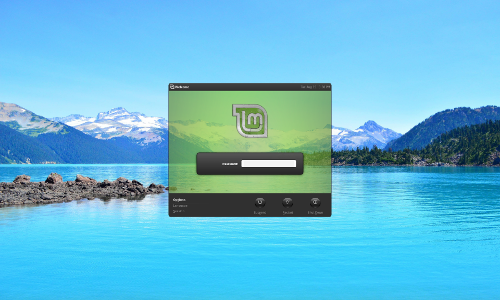
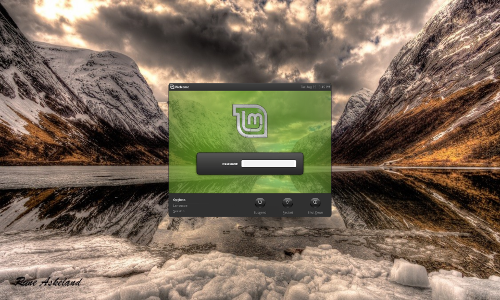
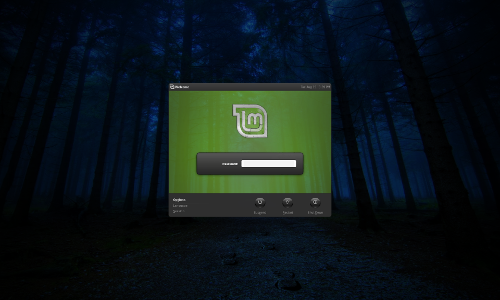
It's as simple as this:
- Run loginimage.sh.
- Select a folder of images.
- Select the background image for your current login theme.
That's it!
Install
---
1. Download [loginimage.sh](https://raw.githubusercontent.com/primaryobjects/loginimagechanger/master/loginimage.sh) and place it in a folder, such as ~/Documents/login-image-changer.
```sh
cd ~/Documents/login-image-changer
sudo bash loginimage.sh
```
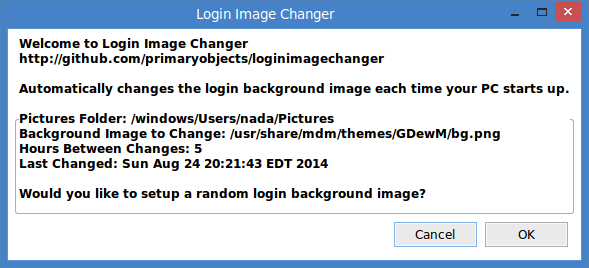
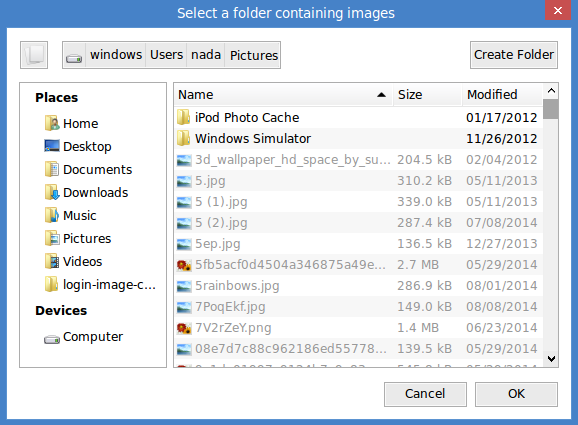
2. Select a folder of images.
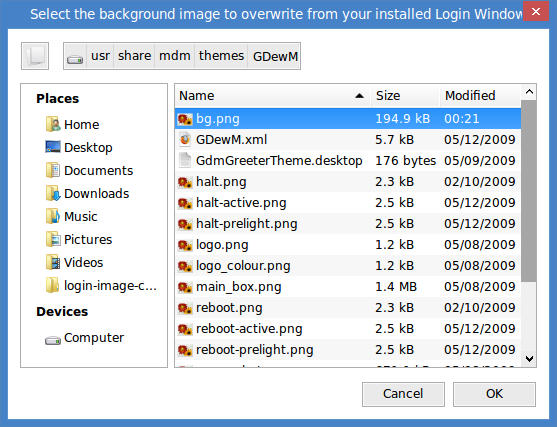
3. Select the background image of your currently installed login theme. This file will be overwritten by Login Image Changer each time your PC starts up. Hint: Login themes are accessible via the Linux "Login Window" app. GDM themes are located in /usr/share/mdm/themes, while HTML themes are located in /usr/share/mdm/html-themes. You must select the background image for your *currently* installed theme, otherwise there will be no effect. Check the "Login Window" app to see which theme you have active. In the screenshot below, /usr/share/mdm/themes/GDewM/bg.png is the background image used in the theme.
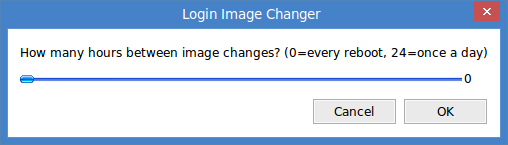
4. Set how frequently to change the image by choosing the number of hours between changes. Leave this as 0 to change the image every reboot. Set to 24 to change once per day.
5. It's now installed to run automatically at startup! Logout to see the changes take effect.
Command Line Arguments
---
-h, --help - Displays help
```sh
sudo bash loginimage.sh -h
```
-r, --run - Run login image changer and change background image
```sh
sudo bash loginimage.sh -r
```
-i, --install - Displays UI to select a new folder and modify settings
```sh
sudo bash loginimage.sh -i
```
-u, --uninstall - Restores a backup of the original theme image, removes the settings folder, removes the auto-run entry from /etc/rc.local
```sh
sudo bash loginimage.sh -u
```
Technical Details
---
Login Image Changer uses Zenity for the user interface. The first time it runs without command line arguments, it checks if the folder exists /usr/share/login-image-changer. If the folder does not exist, the GUI will display, allowing the user to choose options. Upon saving, the folder will be created. The folder contains a settings file and a backup copy of the target theme image to be overwritten.
Saving creates the following auto-run entry in /etc/rc.local (substituting the path of where the script is ran from):
```sh
sudo bash "/home/username/Documents/login-image-changer/loginimage.sh" -r
```
This allows the script to run each time the computer starts up.
If you get tired of the fresh and exciting login background images, you can always uninstall with the -u switch.
Uninstalling cleans up the files by copying the backup image from /usr/share/login-image-changer back into the original theme folder, removing the entry from /etc/rc.local, and removing the settings folder /usr/share/login-image-changer.
The script also restores the backup of the theme image when you use the -i switch to pick a new folder and/or theme. This way, if you change themes (in which case, Login Image Changer will be updating the wrong background image now), you can use the -i switch to run the GUI and select the new theme filename. The prior theme will have its original background image restored and the new theme will now be updated upon each PC startup.
Trouble-Shooting
---
1. Check the current settings by running the setup:
```sh
sudo bash loginimage.sh -i
```
This will allow you to view the selected picture directories, hours between changes, and the date of the last change.
2. Run it manually:
```sh
sudo bash loginimage.sh -r
```
This will run Login Image Changer and let you view the output. Check for any errors. Also, note if the number of hours since the last change has not elapsed, then the image will not be changed.
3. If the image fails to update only during reboot, you can log the calls to Login Image Changer by editing /etc/rc.local and adding the following lines towards the top of the file:
```sh
# Log rc.local to tmp/rc.local.log
exec 2> /tmp/rc.local.log # send stderr from rc.local to a log file
exec 1>&2 # send stdout to the same log file
set -x
```
Then reboot your PC, log in, and view the file /tmp/rc.local.log to check for any errors. Login Image Changer outputs status each time it runs.
License
----
MIT
Author
----
Kory Becker
http://www.primaryobjects.com/kory-becker