https://github.com/projectchrono/chrono-solidworks
Plugin for exporting SolidWorks systems to Chrono::Engine
https://github.com/projectchrono/chrono-solidworks
Last synced: about 1 year ago
JSON representation
Plugin for exporting SolidWorks systems to Chrono::Engine
- Host: GitHub
- URL: https://github.com/projectchrono/chrono-solidworks
- Owner: projectchrono
- License: bsd-3-clause
- Created: 2013-10-07T19:52:09.000Z (almost 13 years ago)
- Default Branch: master
- Last Pushed: 2025-03-17T14:40:27.000Z (over 1 year ago)
- Last Synced: 2025-04-21T13:45:45.664Z (over 1 year ago)
- Language: C
- Size: 42.1 MB
- Stars: 26
- Watchers: 30
- Forks: 9
- Open Issues: 1
-
Metadata Files:
- Readme: README.md
- License: LICENSE
Awesome Lists containing this project
README
CHRONO::SOLIDWORKS
==================
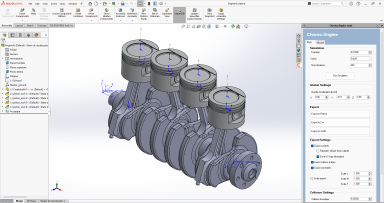 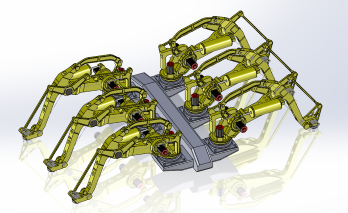
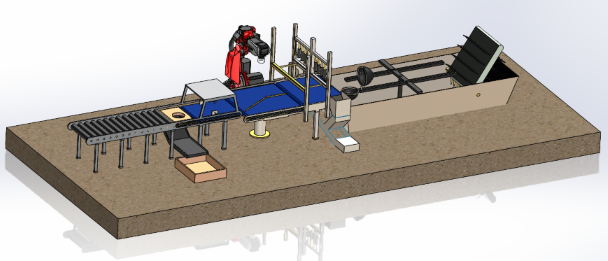
Chrono::SolidWorks is an add-in for [SolidWorks](https://www.solidworks.com) that allows to simulate the CAD models by leveraging the capabilities of the [Chrono](https://www.projectchrono.org) multibody library.
The models created can be also exported for further processing directly in Chrono, either in C++, Python, C# or through JSON files.
Chrono::SolidWorks is part of [Project Chrono](https://www.projectchrono.org).
Main features
-------------
* add-in for [SolidWorks](https://www.solidworks.com)
* export mechanical systems including:
+ Parts, as rigid bodies; including mass and inertia properties
+ Assemblies, as rigid bodies for rigid Assemblies, or articulated for flexible Assemblies;
+ Mates, either Standard or Mechanical;
+ custom motors
* export visualization shapes Wavefront OBJ meshes, to be later edited/optimized
* export coordinate systems as chrono::ChMarker
* adding advanced collision features
For more informations: [Chrono::Solidworks User Manual](https://api.projectchrono.org/development/manual_chrono_solidworks.html)
How to install the add-in
------------------------------------
Visit the ProjectChrono website for the [pre-compiled binary webpage](https://www.projectchrono.org/download/) and look for the Chrono::Solidworks section.
The installer will prompt the user to locate the Solidworks directory. Dependencies will be installed together with the add-in.
How to build the add-in from source (advanced users)
------------------------------------
There is no need to build the add-in from source unless you are interested in expanding/fixing the add-in.
* the project is written in C#, so you must use Microsoft Visual Studio with the C# development module enabled
* double check the availability of the proper .NET Framework version on your computer
* you must have a [SolidWorks](https://www.solidworks.com) license installed on your computer
* clone this repository to any given folder (always suggested to avoid spaces and special characters in the path)
* run Visual Studio as Administrator
* load the **ChronoSolidworks.sln** solution located in the main directory
* set build configuration to *Release*
* right-click on the *ChronoSolidworksAddIn* target, click on *Manage NuGet Packages* and install the *Newtonsoft.JSON* package
* you may need to modify some settings of this solution, in order to reference the .COM assemblies of your SolidWorks
In the Solution Explorer panel, expand *ChronoSolidworksAddIn*>*References* and make sure that the four references called "SolidWorks...." are properly set. If not:
+ right click on *References*>*Add Reference...*
+ go to the *Browse* tab and navigate to the SolidWorks installation folder
(typically *C:\Program Files\SolidWorks 20XX\SolidWorks*) and add the following files (names might change depending on Solidworks version):
- *solidworkstools.dll*
- *SolidWorks.Interop.sldworks.dll*
- *SolidWorks.Interop.swcommands.dll*
- *SolidWorks.Interop.swconst.dll*
- *SolidWorks.Interop.swpublished.dll*
* right-click on *ChronoSolidworksAddIn* project, click on *Properties*, *Reference Paths* and add the Solidworks installation folder (e.g. "C:\Program Files\SOLIDWORKS Corp\SOLIDWORKS\")
* in the *Build* panel close by an additional flag `HAS_CHRONO_CSHARP` is currently set by default: in case you didn't compile Chrono with CSHARP module enabled please remove this flag. This will disable the "Export to JSON" and "Run Simulation" options.
+ in case you decided to use Chrono CSharp, right click on the *ChronoSolidworksAddIn*, then *Add*>*Existing Item*, go to the Chrono build folder, navigate into _bin/Release_ and select *ChronoEngine.dll* and *ChronoEngine_csharp_core.dll*; in the selection dialog it is better to select *Add as Link* instead of a simple *Add*; please mind that the selection dialog has some selection filter that, in this case, should be set to show also *.dll* files; you should now see the picked libraries into the Visual Studio solution;
+ select both *ChronoEngine.dll* and *ChronoEngine_csharp_core.dll*, right-click and then *Properties*; set the *Copy to Output Directory* to *Copy always*;
+ go to the Chrono build folder, copy all the source code from _chrono_csharp/core_ and _chrono_csharp/irrlicht_ into a single folder e.g. _csharp_source_ (unfortunately Chrono CSharp modules re-export some classes, thus creating duplicated items);
+ in Visual Studio, right click on the *ChronoSolidworksAddIn* target, then *Add*>*New Folder* and call it _Chrono_; this is for convenience;
+ right click on it, click on *Add*>*Existing Item*, go to the temporary _csharp_source_ folder and add all the files contained there by selecting _Add as Link_;
* build the solution. It will generate the **ChronoEngineAddIn.dll** into the *chrono-solidworks_install* together with all its dependencies; the DLLs are automatically registered by the post-build events
* start SolidWorks, you should find the Chrono::Engine panel in the Task Pane to the right. Note that add-ins can be enabled/disabled with the *Tools>Adds-In* menu in the toolbar
If you find problems to build the add-in, look at [this tutorial](https://www.angelsix.com/cms/products/tutorials/64-solidworks/67-creating-a-solidworks-add-in-from-scratch) for instructions about how to build add-ins for SolidWorks.
How to use the Chrono::SolidWorks add-in
----------------------------------------
In the _ChronoSolidworksImportTemplate_ a CMake solution offers a set of projects to test all the export options: CPP, JSON, Python parsing and PyChrono. CMake will setup a solution according to your IDE including to test the first three types of export, plus it will create a dedicate PyChrono source file that can be run indipendently (it will be created in the _${PROJECT_BINARY_DIR}/pychrono_).
The _ChronoSolidworksImportTemplate_ is available in the install folder or inside the *to_put_in_app_ir* folder in the sources.
See the [tutorials](https://api.projectchrono.org/development/tutorial_table_of_content_chrono_solidworks.html) for examples of C++ code and Python code that load systems exported with this add-in.
A place for discussions can be the [projectchrono group](https://groups.google.com/forum/#!forum/projectchrono).