https://github.com/ptv-logistics/log4ala
Log4Net appender for Azure Log Analytics
https://github.com/ptv-logistics/log4ala
azure azure-log-analytics csharp log-analytics log4net
Last synced: over 1 year ago
JSON representation
Log4Net appender for Azure Log Analytics
- Host: GitHub
- URL: https://github.com/ptv-logistics/log4ala
- Owner: ptv-logistics
- License: mit
- Created: 2017-05-10T15:39:44.000Z (about 9 years ago)
- Default Branch: master
- Last Pushed: 2025-04-07T14:24:53.000Z (over 1 year ago)
- Last Synced: 2025-04-07T14:35:45.676Z (over 1 year ago)
- Topics: azure, azure-log-analytics, csharp, log-analytics, log4net
- Language: C#
- Homepage: https://ptv-logistics.github.io/Log4ALA/
- Size: 3.05 MB
- Stars: 10
- Watchers: 11
- Forks: 6
- Open Issues: 1
-
Metadata Files:
- Readme: README.md
- License: LICENSE
Awesome Lists containing this project
README
## Log4ALA
Log4Net appender fo Azure Log Analytics (ALA)... sending data to Azure Log Analytics.
The data will also be logged/sent asynchronously for high performance and to avoid blocking the caller thread.
## Get it
You can obtain this project as a [Nuget Package](https://www.nuget.org/packages/Log4ALA)
Install-Package Log4ALA
Or reference it and use it according to the [License](./LICENSE).
## Create a Azure Log Analytics Workspace
[Create a workspace](https://docs.microsoft.com/en-us/azure/log-analytics/log-analytics-quick-create-workspace)
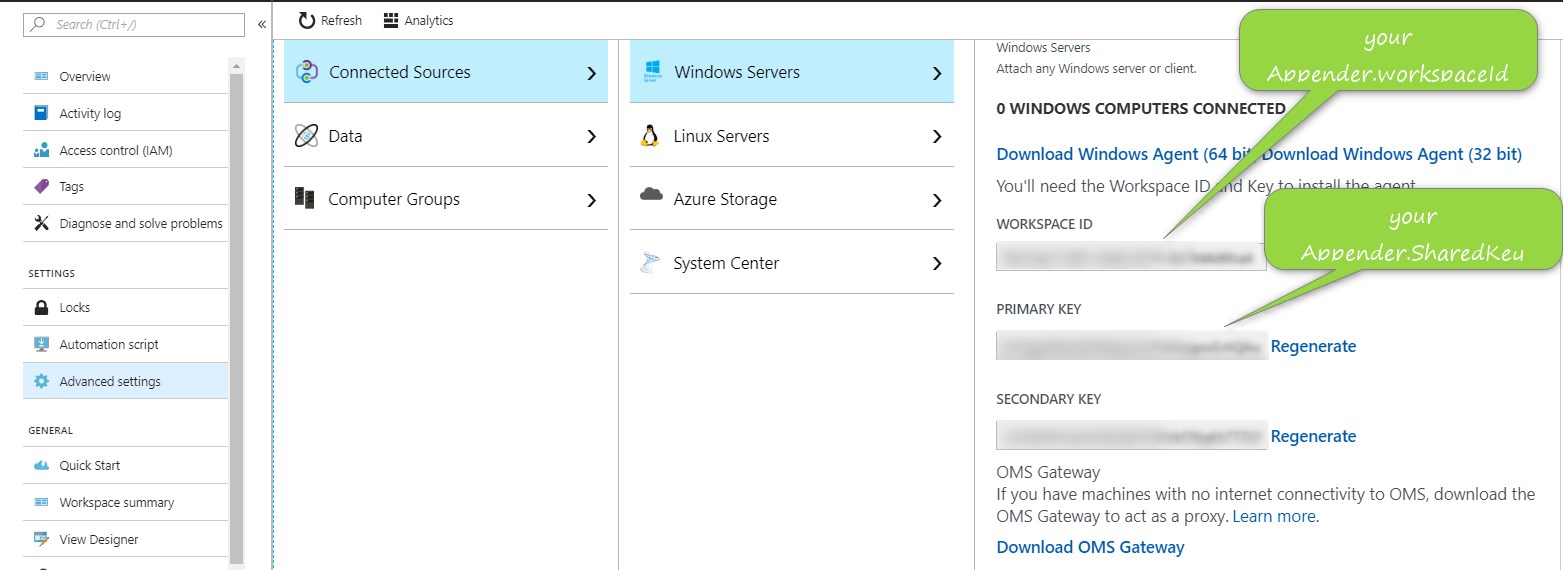
## Get the workspace id and shared key (aka primary key)
## Logs Ingestion API support
### General description
https://learn.microsoft.com/en-us/azure/azure-monitor/logs/logs-ingestion-api-overview
### Configuration settings
ingestionApi
To use the new Ingestion API set to true - default is false.
If true workspaceId and SharedKey can leave empty
logType
The Custom table name without _CL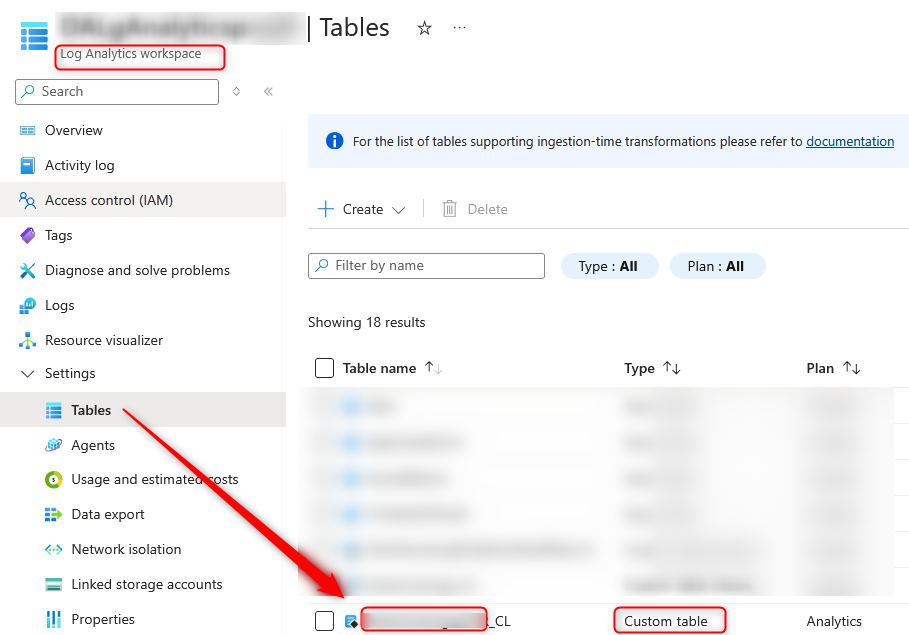
ingestionApiGzip
To compress the send ingestion logs - default is true
tenantId
Tenant ID of your Microsoft Entra ID
appId
Application ID of your registered Microsoft Entra Application and service principal
appSecret
The secret of the above application ID
dcrEndpoint
The dcr endpoint URI
dcrId
The data collection rule (dcr) id which should be used for the transformation
dcrEndpointApiVersion
The dcr endpoint api version - default is 2023-01-01
### Changed Behaviour
**Important** ...if the Logs Ingestion API will be used instead of the deprecated HTTP Data Collector API the custom fields/ columns in the Log Analytics table won't be created automatically any longer
and need to be created manually in the depending Log Analytics table and also added in the data collection rule (dcr) definition for the transformation.
#### How to change Log Analytics table schema + dcr
Custom table schema changes e.g. add/delete/change columns can be done with [UpdateLogAnalyticsCustomTableAndDcr.ps1](https://github.com/ptv-logistics/Log4ALA/blob/master/Log4ALA/UpdateLogAnalyticsCustomTableAndDcr.ps1)
## Use it
This example is also available as a [LoggerTests.cs](https://github.com/ptv-logistics/Log4ALA/blob/master/Log4ALA/LoggerTests.cs):
```csharp
using log4net;
using System;
namespace Log4ALATest
{
class LoggerTests
{
private static ILog alaLogger1 = LogManager.GetLogger("Log4ALALogger_1");
private static ILog alaLogger2 = LogManager.GetLogger("Log4ALALogger_2");
private static ILog alaLogger3 = LogManager.GetLogger("Log4ALALogger_3");
static void Main(string[] args)
{
//Log message as anonymous type... the properties will then be mapped to Azure Log Analytic properties/columns.
for (int i = 0; i < 10; i++)
{
alaLogger1.Info(new { id = $"log-{i}", message = $"test-{i}" });
}
System.Console.WriteLine("done1");
//Log messages with semicolon separated key=value strings...the keys will then be mapped to Azure Log Analytic properties/columns.
for (int i = 0; i < 10; i++)
{
alaLogger2.Info($"id=log-{i}; message=test-{i}");
}
System.Console.WriteLine("done2");
//Log messages with semicolon separated key=value strings and duplicate key detection... the duplicate keys in the following example
//will be mapped to Azur Log Analytic properties/columns message_Duplicate0 and message_Duplicate1.
for (int i = 0; i < 10; i++)
{
alaLogger2.Info($"id=log-{i}; message=test-{i}; message=test-{i}; message=test-{i}");
}
System.Console.WriteLine("done3");
//Log message as json string ...the json properties will then be mapped to Azure Log Analytic properties/columns.
for (int i = 0; i < 10; i++)
{
alaLogger3.Info($"{{\"id\":\"log-{i}\", \"message\":\"test-{i}\"}}");
}
System.Console.WriteLine("done4");
//log message if separators are changed from defaults = and ; to [=] and [;]
//Log4ALAAppender_3.keyValueSeparator="[=]"
//and
//Log4ALAAppender_3.keyValuePairSeparator="[;]"
for (int i = 0; i < 10; i++)
{
alaLogger3.Info($"id[=]log={i}[;]message[=]test={i}");
}
System.Console.WriteLine("done5");
System.Threading.Thread.Sleep(new TimeSpan(0, 5, 0));
}
}
}
```
## Proxy settings
At the the moment the default proxy could only be set by config (Web.config or App.config):
Refer to this [article](https://msdn.microsoft.com/en-us/library/kd3cf2ex(v=vs.110).aspx) for more information.
```xml
```
or by code:
```csharp
System.Net.WebRequest.DefaultWebProxy = new System.Net.WebProxy("http://IP:PORT/", true);
```
## Features
1. You can batch multiple log messages together in a single request by configuration with the properties batchSizeInBytes, batchNumItems or batchWaitInSec (described further down).
If batchSizeInBytes will be choosed the collecting of the log data will be stopped and send to Azure Log Analyitcs if batchSizeInBytes will be reached or the duration is >= BatchWaitMaxInSec with default 60s or
batch size >= BatchSizeMax 30 mb (1 mb for Ingestion API) this conditions applies also if you choose batchNumItems. In case of batchWaitInSec collecting will be stopped and send if batchWaitInSec will be reached or the batch size will be >= BatchSizeMax 30 mb (1 mb for Ingestion API) .
2. Auto detection/convertion of numeric, boolean, and dateTime string values to the [ Azure Log Analytics type _s, _g, _d, _b and _t](https://docs.microsoft.com/en-us/azure/log-analytics/log-analytics-data-collector-api#record-type-and-properties)().
3. Field values greater than 32 KB (64 KB for Ingestion API) will be truncated (the value could be configured with maxFieldByteLength).
4. Field names greater than 100 chars (45 chars for Ingestion API) will be truncated (the value could be configured with maxFieldNameLength).
5. Configurable core field names (the value could be configured with coreFieldNames).
6. Configurable background worker thread priority (the value could be configured with threadPriority).
7. Configurable abortTimeoutSeconds - the time to wait for flushing the remaining buffered data to Azure Log Analytics if e.g. the Log4Net process will be shutdown.
8. Configurable detection of json strings (e.g. "{\"id\":\"log-1\", \"message\":\"test-1\"}") or key value (e.g. "message=test-1") in the log messages with the properties jsonDetection (default true) and keyValueDetection (default true). Azure Log Analytics creates
custom fields/ record types for each incoming json property or key name.
**Important** ...if the Logs Ingestion API will be used the custom fields/ columns in the Log Analytics table won't be created automatically any longer
and need to be created manually in the depending Log Analytics table and also added in the data collection rule (dcr) definition for the transformation.
9. Configurable keyValue detection with keyValueSeparator and keyValuePairSeparator properties. To configure any other single char or multiple chars as separator for the keyValue detection in the log message.
To avoid format conflicts e.g. with the semicolon separated key=value log message "Err=throws xy exception;Id=123" normally you will get two custom fields/records in Azure Log Analytics
Err_s:"throws xy exception" and Id_d:123 but if you like to use one of the default keyValueSeparator "=" or the default keyValuePairSeparator ";" chars in the value itself e.g. "Err=throws exception = exception
name;Id=123" you will run into a format conflict normally you expect to get Err_s:"throws exception = exception name" but for the Err key in the log message you will get Err_s:"throws" and MiscMsg_s:"exception
exception name" and Id_d:123 as custom fields in Azure Log Analytics because of the keyValue separator char "=" contained in the value itself. To avoid this behaviour e.g. set the properties keyValueSeparator
to "[=]" and keyValuePairSeparator to "[;]" and now your log message should look like "Err[=]throws exception = exception name[;]Id[=]123".
10. Disable the MiscMessageFieldName of the coreFieldNames property (default is MiscMessageFieldName="MiscMsg") as custom field prefix with the property disableAnonymousPropsPrefix (true/false default is false) in case of using anonymous types as log message e.g. with
alaLogger2.Info(new { Id=$"log-{i}", Message=$"test-{i}", Num=i, IsEnabled=true }) wich will lead to the following Azure Log Analytics Custom Fields: MiscMsg_Id_s, MiscMsg_Message_s, MiscMsg_Num_d, MiscMsg_IsEnabled_b to
log without prefix set disableAnonymousPropsPrefix=true and you will get the custom fields Id_s, Message_s, Num_d, IsEnabled_b without MiscMsg_ prefix.
11. Configurable workspace domain name default is ods.opinsights.azure.com (the domain name could be configured with logAnalyticsDNS). Now it's possible to change the domain name to Azure government workspaces ods.opinsights.azure.**us**.
12. Configurable passthrough timestamp with enablePassThroughTimeStampField default is false if true the field should be contained in the log message e.g with "...;DateValue=2016-05-12T20:00:00.625Z;...".
## General Configuration
It's possible to configure multiple log4net Azure Log Analytics appender(s). The properties (e.g. workspaceId, SharedKey...) of each appender could be configured as
appender properties, appSettings in App.config/Web.config or as Azure Configuration Setting (Azure settings are excluded from netstandard2.0 and netcoreapp2.0) with fallback strategy AzureSetting=>appSetting=>appenderProperty.
If the properties will be configured as appSetting in App.config/Web.config or as Azure Configuration Settings it's important to attach the appender name as prefix
to the property e.g. **YourAppenderName.workspaceId**
## Example App Configuration file
This configuration is also available as a [App.config](https://github.com/ptv-logistics/Log4ALA/blob/master/Log4ALATest/App.config):
```xml
```
## Example AppSettings ASP.NET Core
This configuration is also available as a [appsettings.json](https://github.com/ptv-logistics/Log4ALA/blob/master/Log4ALATest.Core/appsettings.json):
```json
{
"Log4ALAAppender_2": {
"workspaceId": "",
"SharedKey": "",
"ingestionApi": false,
"ingestionApiGzip": true ,
"tenantId": "",
"appId": "",
"appSecret": "",
"dcrEndpoint": "",
"dcrId": "",
"dcrEndpointApiVersion": "",
"logType": "",
"logMessageToFile": true,
"jsonDetection": true,
"batchWaitMaxInSec": "2",
"coreFieldNames": "{'DateFieldName':'DateValue','MiscMessageFieldName':'MiscMsg','LoggerFieldName':'Logger','LevelFieldName':'Level'}",
"keyValueSeparator": "[=]",
"keyValuePairSeparator": "[;]"
},
"alaQueueSizeLogIntervalEnabled": false,
"alaQueueSizeLogIntervalInSec": "100",
"disableInfoLogFile": false,
"enableDebugConsoleLog": false,
"Logging": {
"IncludeScopes": false,
"Debug": {
"LogLevel": {
"Default": "Warning"
}
},
"Console": {
"LogLevel": {
"Default": "Warning"
}
}
}
}
```
it's also possible to override all Log4ALA appsettings.json configuration settings during runtime by setting the depending environment
variable with dotnetcore appsettings notation e.g.:
```csharp
// path = D:\home\LogFiles\Log4Net if your ASP.NET Core App will be deployid as Azure App Service
var path = Path.Combine(System.Environment.GetEnvironmentVariable("HOME"), "LogFiles", "Log4Net");
System.Environment.SetEnvironmentVariable("Log4ALAAppenderAll:errAppenderFile", Path.Combine(path, "log4ALA_error.log"));
System.Environment.SetEnvironmentVariable("Log4ALAAppenderAll:infoAppenderFile", Path.Combine(path, "log4ALA_info.log"));
```
or by using appsettings.{env.EnvironmentName}.json (env.EnvironmentName => ASPNETCORE_ENVIRONMENT environment variable).
The order of the appsettings loading strategy how the settings will be overwritten or extended is:
appsettings.shared_lnk.json <-- appsettings.json <-- appsettings.env_{EnvVars["ASPNETCORE_ENVIRONMENT"]}.json <-- appsettings.user_{System.Environment.UserName.ToLower()}.json
<-- appsettings.env_{EnvVars["APPSETTINGS_SUFFIX"]}.json <-- EnvironmentVariables
inheritance: "<--"
Pitfall:
1. don't forget to restart VS if you add or change any environment variable e.g. with
Control Panel > System > Advanced system settings > Environment Variables... > New System Variable because without a restart the new environment variable couldn't be loaded in debug mode.
2. don't forget to set the VS project file property "Copy to Output Directory: Copy if newer or Copy alway" of newly added appsetings.*.properties (not required for AspNetCore)
## Example Log4Net Configuration file
```xml
```
## Issues
[Data ingestion time in Log Analytics](https://docs.microsoft.com/en-us/azure/log-analytics/log-analytics-data-ingestion-time)
Keep in mind that this library won't assure that your JSON payloads are being indexed, it will make sure that the Logs Ingestion API and the HTTP Data Collection API [responds an Accept](https://azure.microsoft.com/en-us/documentation/articles/log-analytics-data-collector-api/#return-codes) typically it takes just a few seconds for the data/payload to be indexed, to know how much time does it take until the posted data has been indexed completely go to the
Azure Portal and select the depending Log Analytics Workspace/Usage and estimated costs and then click *Insights* then tab *Usage* scroll over to the bottom and the tab *Ingestion Latency* ... There can be Live Site issues causing some delays, hence the official SLA is longer than this see also [SLA for Log Analytics](https://azure.microsoft.com/en-gb/support/legal/sla/log-analytics/v1_1/).
## Supported Frameworks
* .NETFramework >= 4.5
* .NETStandard >= 2.0