https://github.com/rafaelha/vscode-flamegraph
py-spy and memray profiler integration for VS Code
https://github.com/rafaelha/vscode-flamegraph
flamegraph jupyer-notebook line-profiler memory memray performance-analysis profiling py-spy python vscode-extension
Last synced: 8 months ago
JSON representation
py-spy and memray profiler integration for VS Code
- Host: GitHub
- URL: https://github.com/rafaelha/vscode-flamegraph
- Owner: rafaelha
- License: apache-2.0
- Created: 2024-11-11T22:02:42.000Z (over 1 year ago)
- Default Branch: main
- Last Pushed: 2025-09-26T21:39:09.000Z (9 months ago)
- Last Synced: 2025-09-26T23:28:53.870Z (9 months ago)
- Topics: flamegraph, jupyer-notebook, line-profiler, memory, memray, performance-analysis, profiling, py-spy, python, vscode-extension
- Language: TypeScript
- Homepage: https://marketplace.visualstudio.com/items?itemName=rafaelha.vscode-flamegraph
- Size: 42.3 MB
- Stars: 26
- Watchers: 2
- Forks: 2
- Open Issues: 2
-
Metadata Files:
- Readme: README.md
- Changelog: CHANGELOG.md
- License: LICENSE
Awesome Lists containing this project
README
### py-spy and memray integration for VS Code
[](https://github.com/rafaelha/vscode-flamegraph)
Profiling your code with *Flamegraph* is simple.
In Jupyter notebooks, click the 🔥 button above the cell you want to profile:

For Python scripts, select `Flamegraph: Profile file with py-spy` from the dropdown menu next to the ▶️ icon:

Your code will be profiled with [py-spy](https://github.com/benfred/py-spy). You can interrupt the profiling anytime with `Ctrl+C`. The profiling results are visualized next to your code and as a flamegraph in a new tab.
To hide the inline annotations, right-click anywhere in the editor and select `Flamegraph: Toggle Inline Profile`.
Additionally, on Linux, macOS, and within WSL or Docker containers, basic memory profiling is supported with [memray](https://github.com/bloomberg/memray). Use the command palette in VS Code (Cmd+Shift+P/Ctrl+Shift+P) to select `Flamegraph: Profile file with memray` or `Flamegraph: Profile cell with memray`. This will show memory allocations for the time snapshot where heap memory usage reached its maximum.

## Usage
The extension visualizes profiling data in two ways:
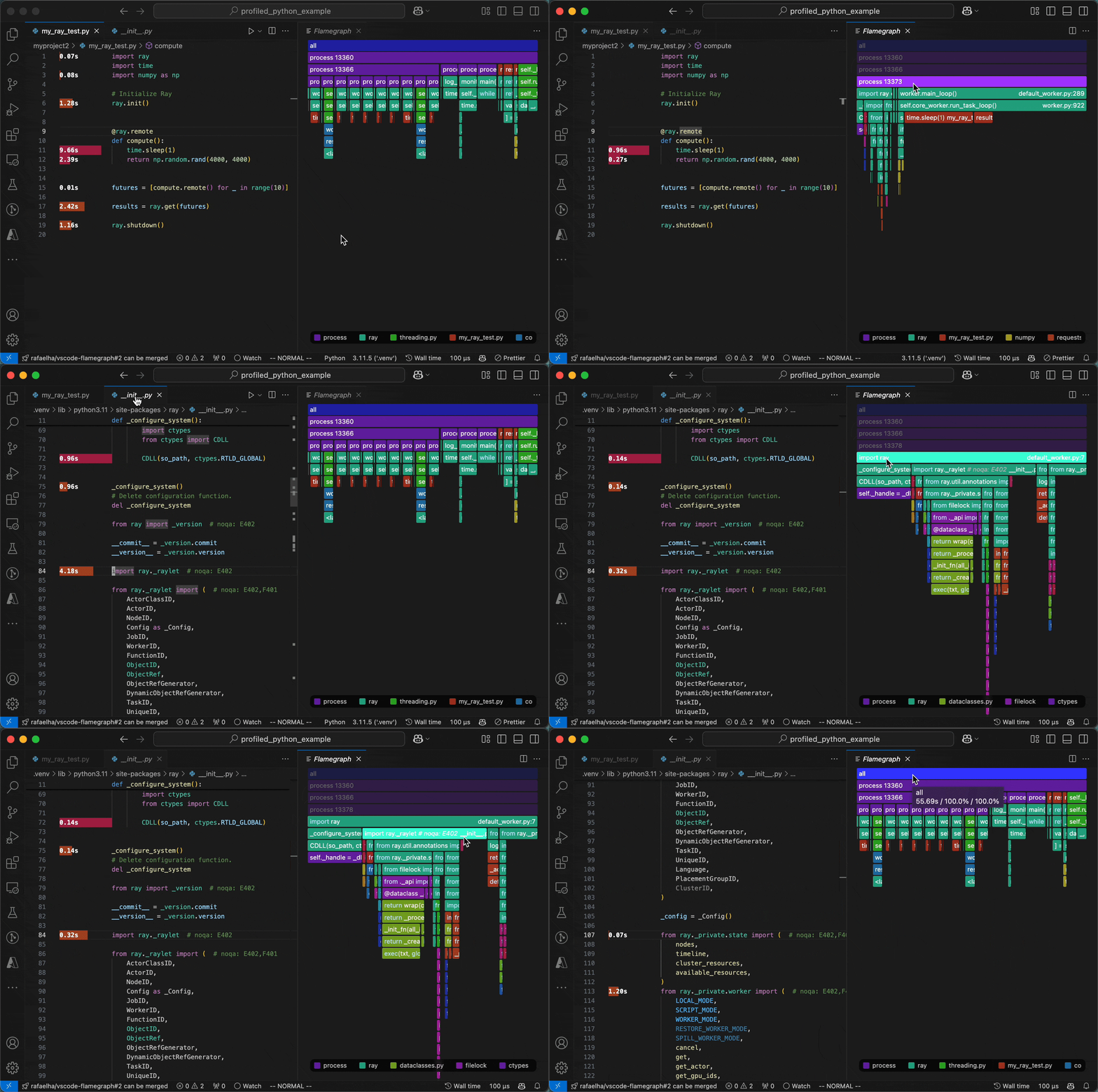
1. **Inline Code Annotations**: Shows timing or memory information for each function scope, with colors indicating the scope level.
2. **Interactive Flamegraph**: Displays the complete call stack of your profiled code (see [this article](https://www.brendangregg.com/flamegraphs.html) about flamegraphs). You can:
- Click any element to zoom in
- Click parent elements to zoom out
- `Cmd+Click` (Mac) or `Ctrl+Click` (Windows/Linux) to jump into the code.
- Click legend elements to filter the flamegraph by module.
- Click the `>` button in the legend to toggle between code or function display.
The flamegraph and inline annotations are linked -
when you select an element in the flamegraph, the corresponding inline annotations are filtered.
## Useful Commands
Open the Command Palette (Command+Shift+P on Mac and Ctrl+Shift+P on Windows/Linux) and type in one of the following commands:
| Command | Description |
|---------|-------------|
| `Flamegraph: Profile file with py-spy` | Profile the active file with py-spy and display the results |
| `Flamegraph: Toggle Inline Profile` | Show or hide the inline annotations. This is also accessible via right-click on the editor. |
| `Flamegraph: Show` | Open a new tab showing the flamegraph |
| `Flamegraph: Attach py-spy to running process` | Attach py-spy to a running process and display the results. The extension will ask for a Process ID (PID) to attach to |
| `Flamegraph: Profile all unit tests with pytest` | Run and profile the `pytest` command |
| `Flamegraph: Profile unit tests in file with pytest` | Run and profile the `pytest` command on the active file |
| `Flamegraph: Show py-spy top` | Displays a top like view of functions consuming CPU using py-spy |
| `Flamegraph: Load Profile` | Load a profile from a file. You may also right-click on `.pyspy` or `.memray` files in the file explorer and select `Flamegraph: Load Profile`. |
For memory profiling with `memray`, use the following commands. Note that memray is [not supported](https://bloomberg.github.io/memray/supported_environments.html#supported-operating-systems) on Windows. On Windows, you can still use the extension within Windows Subsystem for Linux (WSL) or [Docker containers](https://bloomberg.github.io/memray/attach.html#debugger-privileges).
| Command | Description |
|---------|-------------|
| `Flamegraph: Profile file with memray` | Profile the active file with memray and display the results |
| `Flamegraph: Profile cell with memray` | Profile the active cell with memray and display the results |
| `Flamegraph: Profile notebook with memray` | Profile the entire notebook with memray and display the results |
| `Flamegraph: Attach memray to running process` | Attach memray to a running process and display the results. The extension will ask for a Process ID (PID) to attach to |
| `Flamegraph: Attach memray live view to running process` | Attach memray live view to a running process for real-time memory profiling |
## Using the Command Line
You can run py-spy directly from the command line. The extension will watch for changes to the files `profile.pyspy` and `profile.memray` in the current workspace and load the profile when it changes.
To profile a script, use the command:
```bash
py-spy record --output profile.pyspy --format raw --full-filenames -- python my_script.py
```
Here, it is important to specify the output file as `profile.pyspy` and the format as `raw`. For best results, use the `--full-filenames` flag to allow the extension to resolve file names in the flamegraph. For additional configuration options, see the [py-spy documentation](https://github.com/benfred/py-spy) or run `py-spy record --help`.
## Using VS Code Tasks
The extension allows you to run the py-spy profiler from VS Code's task system. This makes it easy to integrate profiling into your workflow and configure custom tasks.
### Using the Task Explorer
1. Open the Command Palette (`Ctrl+Shift+P` or `Cmd+Shift+P` on macOS)
2. Type "Tasks: Run Task" and select "flamegraph"
3. Choose one of the available flamegraph tasks or click the gear icon to customize the task.
### Creating a tasks.json File
You can also create a `tasks.json` file in your `.vscode` folder to customize the tasks. This is currently only supported for py-spy profiling. For example, the task
```json
{
"version": "2.0.0",
"tasks": [
{
"type": "flamegraph",
"file": "${file}",
"args": [
"--my-custom-arg1",
"value",
],
"label": "Flamegraph: My custom profile command"
}
]
}
```
will execute the command
```py-spy -- python --my-custom-arg1 value```.
Or, you can profile a specific unit test (via `pytest`) with the following task definition:
```json
{
"version": "2.0.0",
"tasks": [
{
"type": "flamegraph",
"args": [
"-m",
"pytest",
"path/to/my_test_file.py::test_my_function",
],
"subprocesses": false,
"native": true,
"subprocesses": false,
"gil": false,
"idle": false,
"nonblocking": false,
"label": "Flamegraph: Profile my_test_function"
}
]
}
```
Notice that we additionally enabled the py-spy native option. This will execute the command
```py-spy --native -- python -m pytest path/to/my_test_file.py::test_my_function```
### Setting custom keyboard shortcuts
You can bind tasks to keyboard shortcuts by adding entries to your `keybindings.json` file:
1. Open the Command Palette (`Ctrl+Shift+P` or `Cmd+Shift+P` on macOS)
2. Type "Preferences: Open Keyboard Shortcuts (JSON)" and select it
3. Add entries like the following:
```json
{
"key": "ctrl+shift+enter",
"command": "workbench.action.tasks.runTask",
"args": "Flamegraph: My custom profile command"
}
```
## Contributing
### Development
1. Clone the repository
```bash
git clone https://github.com/rafaelha/vscode-flamegraph.git
```
2. Install dependencies for both the extension and the flamegraph-react UI
```bash
npm run install:all
```
3. Build webview UI source code, i.e. the flamegraph react component
```bash
npm run build:webview
```
4. In VS Code, press `F5` to open a new Extension Development Host window.
### TODO
- [ ] Switch to `speedscope` format. Eventually, this extension should be refactored to be compatible with all profilers that output `speedscope` files. Currently, only left-heavy profile view is supported.
- [ ] Unit tests
- [x] Performance tests
- [x] Option to filter the flamegraph by module.
- [ ] Refactor flamegraph react component. Currently, the whole graph is recomputed on every mouse hover event. We could consider using `speedscope` npm package to render the flamegraph.
- [x] Memray memory profiles
- [ ] Select sampling interval
- [x] Jupyter notebook profiling.
- [ ] Inverted flamegraphs