https://github.com/raj8888/video_call_app
VedMed is a simple Video call and Chat app where patient can schedule a meetings with certified doctors.
https://github.com/raj8888/video_call_app
bcrypt css expressjs html javascript jsonwebtoken mongodb mongoosejs nodejs socket-io webrtc
Last synced: 3 months ago
JSON representation
VedMed is a simple Video call and Chat app where patient can schedule a meetings with certified doctors.
- Host: GitHub
- URL: https://github.com/raj8888/video_call_app
- Owner: raj8888
- Created: 2023-06-21T09:09:10.000Z (about 3 years ago)
- Default Branch: master
- Last Pushed: 2023-08-29T04:24:25.000Z (almost 3 years ago)
- Last Synced: 2026-01-03T12:23:49.562Z (6 months ago)
- Topics: bcrypt, css, expressjs, html, javascript, jsonwebtoken, mongodb, mongoosejs, nodejs, socket-io, webrtc
- Language: JavaScript
- Homepage: https://ved-med-video-call.netlify.app/
- Size: 11.2 MB
- Stars: 2
- Watchers: 1
- Forks: 0
- Open Issues: 0
-
Metadata Files:
- Readme: README.md
Awesome Lists containing this project
README
# VedMed
### (VideoCall Application For Doctor and Patient)
VedMed is a simple Video call and Chat app where patient can schedule a meetings with certified doctors.
## Features
- Authentication
- Authorization
- Mail Service
- Appointment System
- Create a Meeting
- Real Time Chatting
- Update and Delete Meeting
- Share Screen
- Video Call
## Tech Stack
**Client:** HTML, CSS, JavaScript, webRTC.
**Server:** Node.js, Express.js, Nodemailer,Mongoose,Socket.io.
**Database:** MongoDB.
## Run Locally
Clone the project
```bash
git clone https://github.com/raj8888/Video_Call_App
```
Go to the project directory
```bash
cd Video_Call_App
```
Install dependencies
```bash
npm install
```
Start the server (Download nodemon npm library globally)
```bash
npm install -g nodemon
```
```bash
nodemon index.js
```
## Environment Variables
To run this project, you will need to add the following environment variables to your .env file
`mongoDBURL`
`port`
`secretkey`
`mailID`
`mailPass`
- `mailID` and `mailPass` you have to generate from your gmail account.
## API Reference
#### Welcome
```http
GET /api
```
## For Pateint
#### patients Register
```http
POST /api/patients/register
```
#### patients Login
```http
POST /api/patients/login
```
**Only Admin can access following route**
#### All patients
```http
GET /api/patients/all
```
**Only Admin and Doctor can access following route**
#### Single Patient
```http
GET /api/patients/single/:patientID
```
## For Doctors:
#### doctors Register
```http
POST /api/doctors/register
```
#### doctors Login
```http
POST /api/doctors/login
```
**Only Admin can access following routes**
#### All doctors
```http
GET /api/doctors/all
```
**Only Doctor can access following routes**
#### Single doctors
```http
GET /api/doctors/single/doctorinfo
```
**Only Doctor can access following routes**
#### Update Area of Specialization
```http
PATCH /api/doctors/update/specialization
```
**Only Admin and Patient can access following route**
#### Single doctor
```http
GET /api/doctors/single/:doctorID
```
**Only Admin and Patient can access following route**
#### Search Route
```http
POST /api/doctors/search
```
## For Meetings:
**Only Admin and Patient can access following route**
#### Fot Create Appointment
```http
POST /api/meetings/patients/appointment
```
**Only Admin and Doctor can access following route**
#### Fot Update Status Appointments
```http
POST /api/meetings/doctor/appointment/:meetingID
```
#### Fot Get All Doctors Meetings
```http
GET /api/meetings/all/doctor
```
#### Fot Get All Patients Meetings
```http
GET /api/meetings/all/patient
```
#### Fot Get All Patients Meetings (Accepted by Doctor)
```http
GET /api/meetings/patients/all
```
#### Fot Get Pending Appointments for Doctr
```http
GET /api/meetings/doctors/appointment
```
#### Fot Get All Doctors Meetings (Accepted by Doctor)
```http
GET /api/meetings/doctors/all
```
#### Fot Get Paticular Meeting
```http
GET /api/meetings/single/:meetingID
```
**Only Admin and Patient can access following route**
#### Update Meetings
```http
PATCH /api/meetings/update/:meetingID
```
**Only Admin and Patient can access following route**
#### Delete Meetings
```http
DELETE /api/meetings/delete/:meetingID
```
#### SendMail To JoinMeet
```http
POST /api/meetings/sendmail
```
#### SendMail of Emergency Notification to JoinMeet (Notification)
```http
POST /api/meetings/notification/:meetingID
```
#### For Checking Time of Meet
```http
POST /api/meetings/checktime/:meetingID
```
**Authentication Required All Routes Except Login and Register**
### Doctor Schema Ref:
```
const doctorSchema = mongoose.Schema({
name:String,
email:String,
password:String,
mobile:String,
sex:String,
areaOfSpecialization:String,
role:{type:String,default:"doctor"},
age:Number,
meetings:[{type:String}],
createdDate:String
})
```
### Patient Schema Ref:
```
const patientSchema = mongoose.Schema({
name:String,
email:String,
password:String,
mobile:String,
sex:String,
role:{type:String,default:"patient"},
age:Number,
meetings:[{type:String}],
createdDate:String
})
```
### Meeting Schema Ref:
```
const meetingSchema = mongoose.Schema({
patinetID: { type: mongoose.ObjectId, ref: 'patient' },
doctorID: { type: mongoose.ObjectId, ref: 'doctor' },
concerns:String,
meetingTime:String,
meetingDate:String,
completed:Boolean
})
```
## Screenshots
Patient Dashboard:(With See all doctors section)

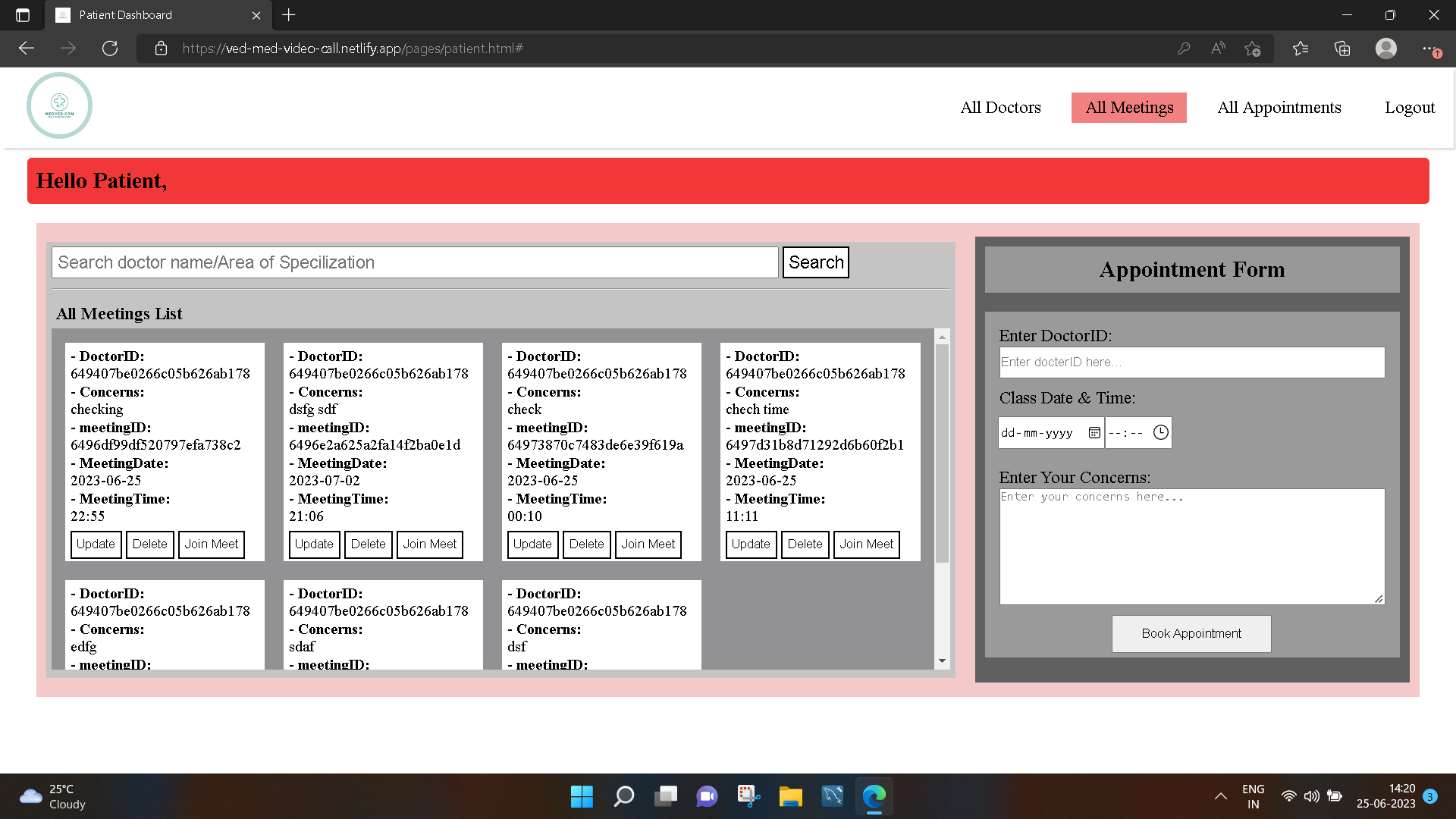
Patient Dashboard:(With See all meetings section)
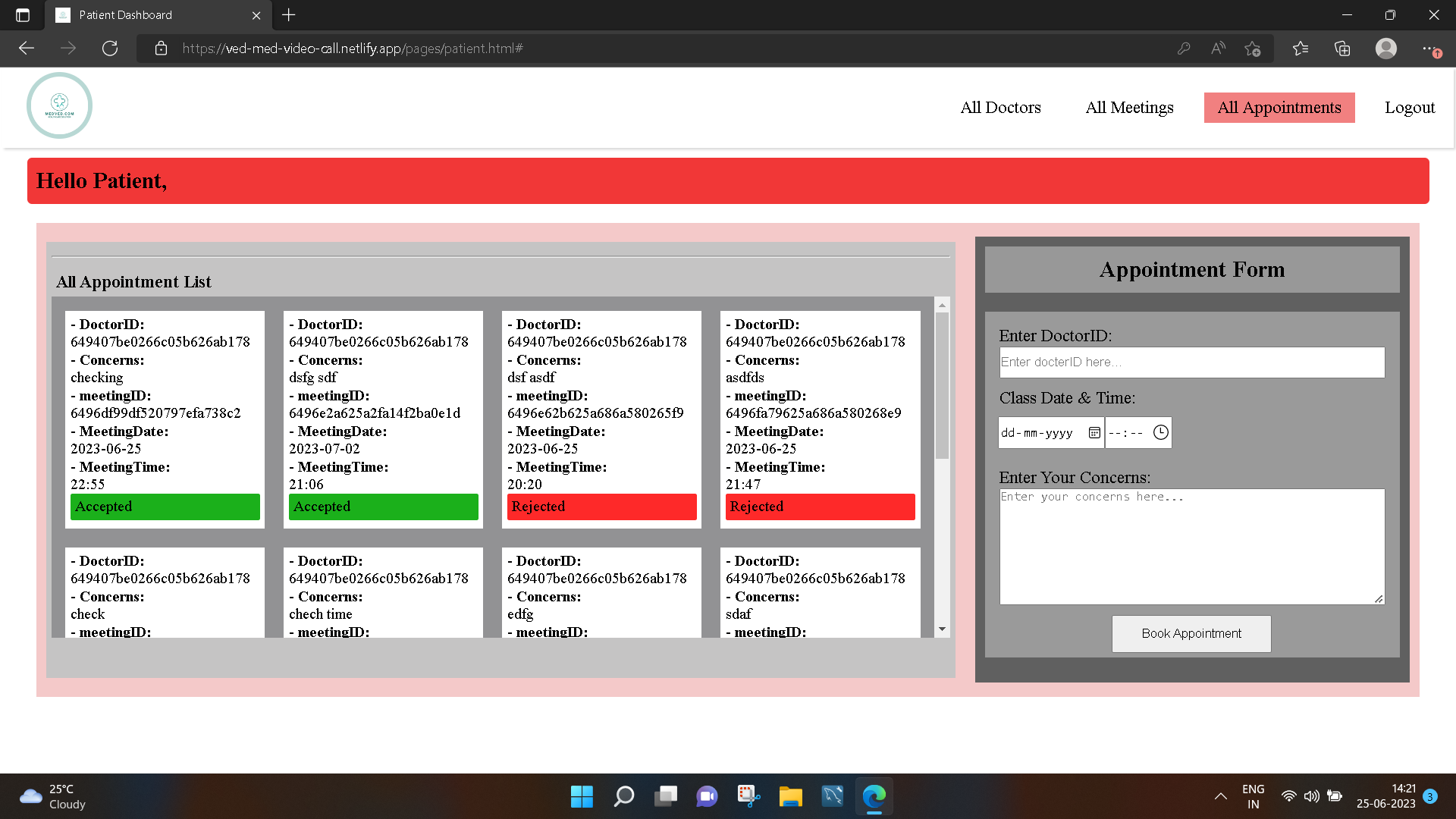
Patient Dashboard:(With See all appointments section)
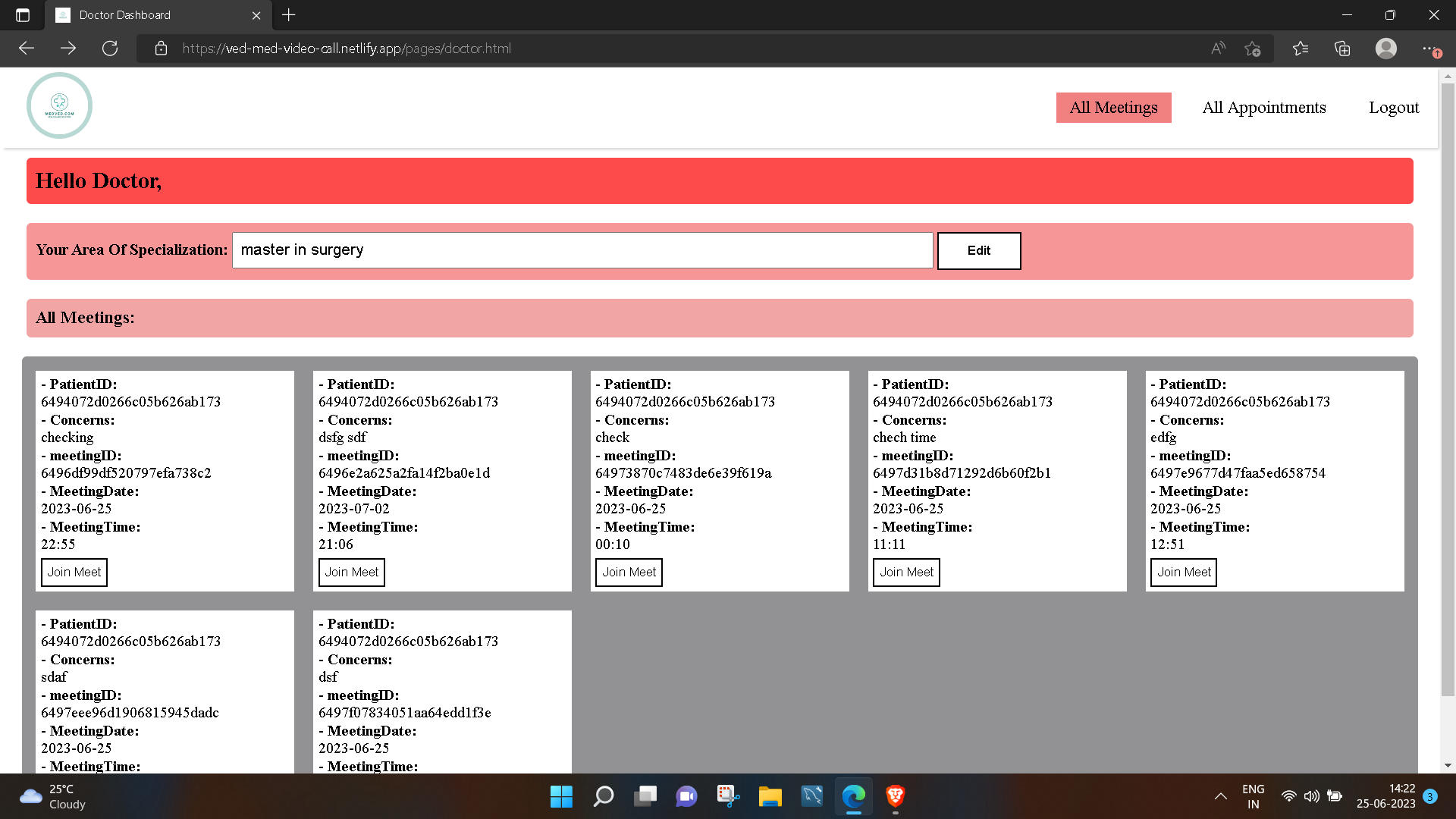
Doctor Dashboard:(With See all meetings section)
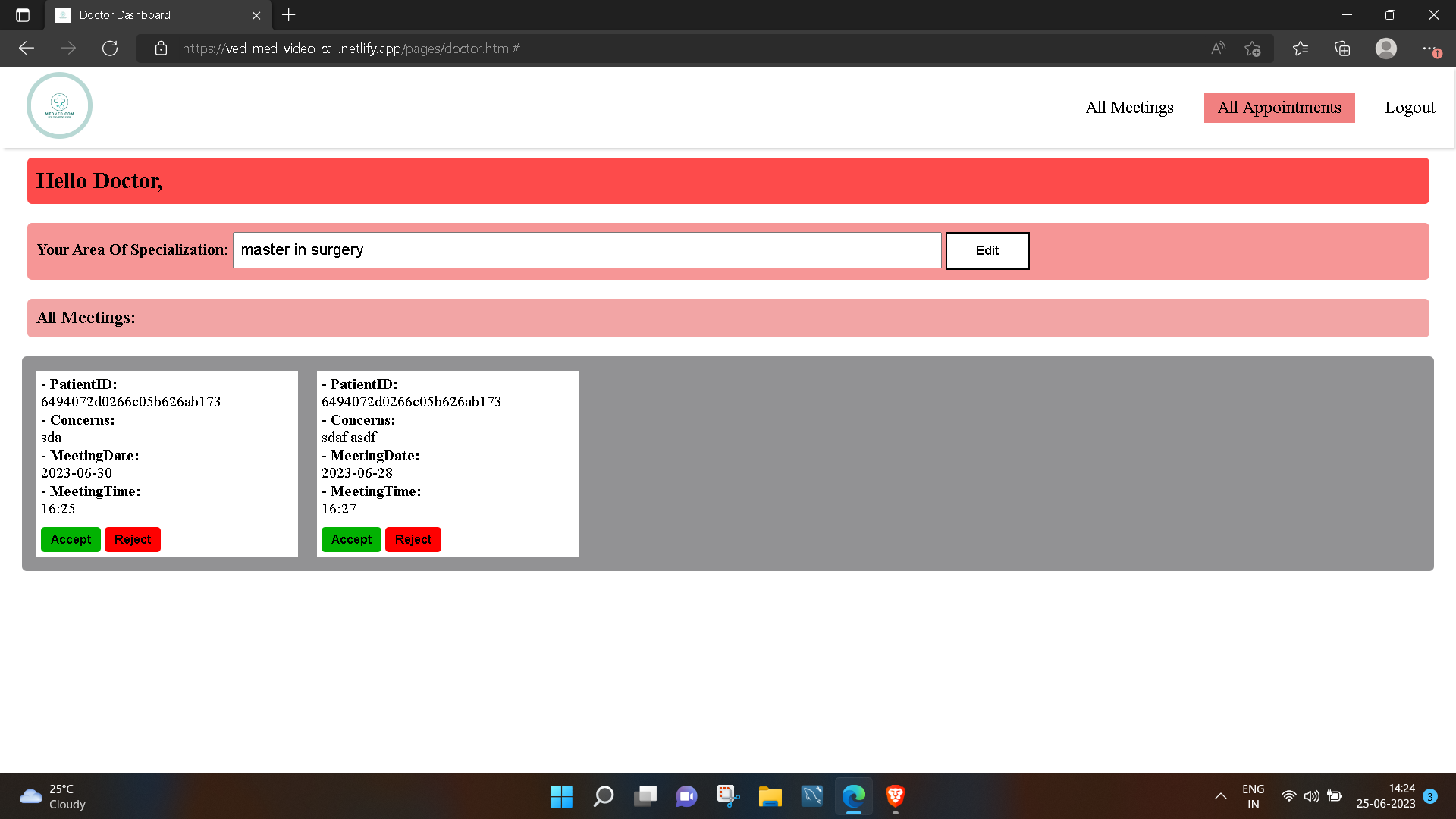
Doctor Dashboard:(With See all appointments section)
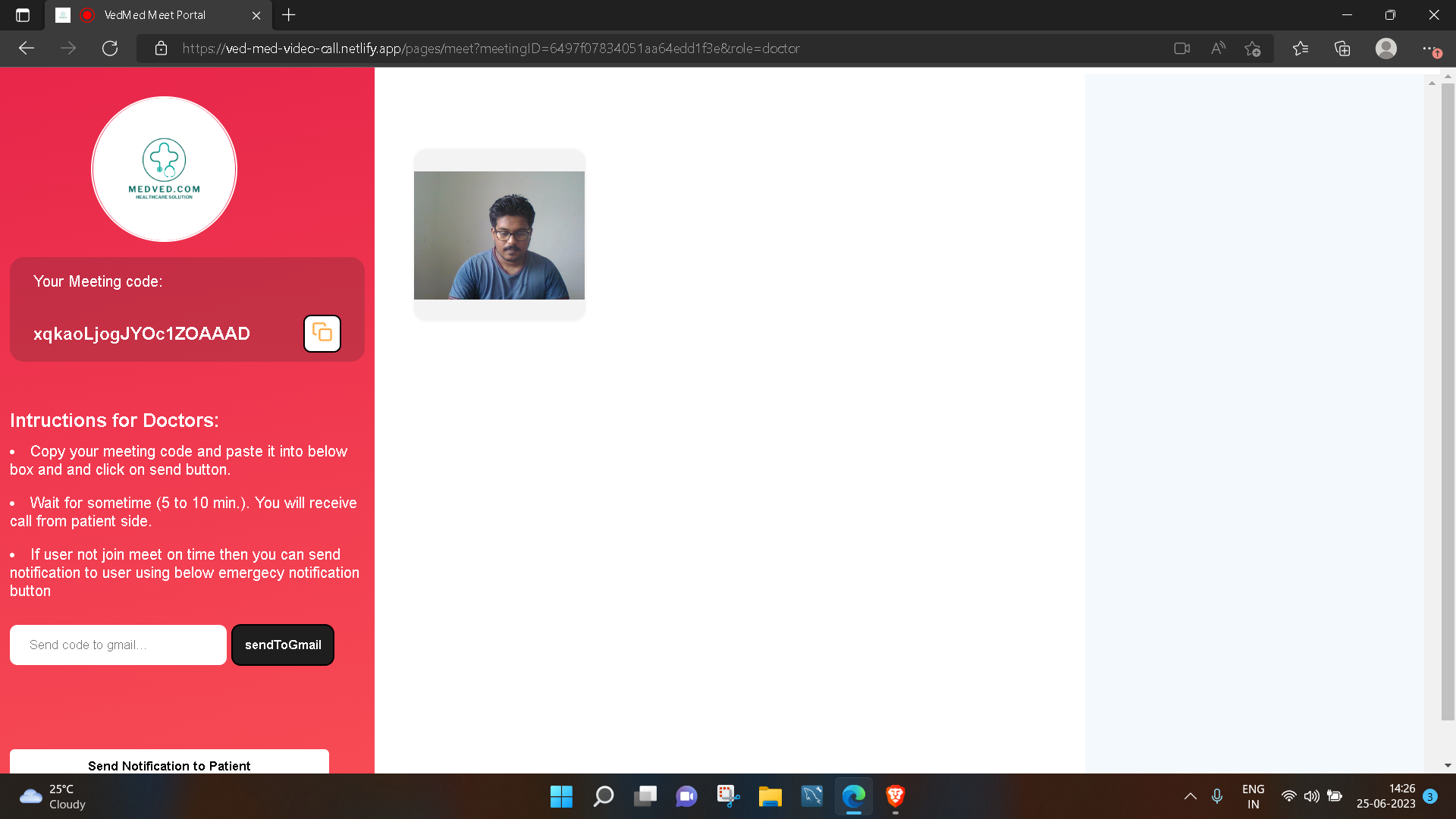
Meeting Portal:(Doctor Side)
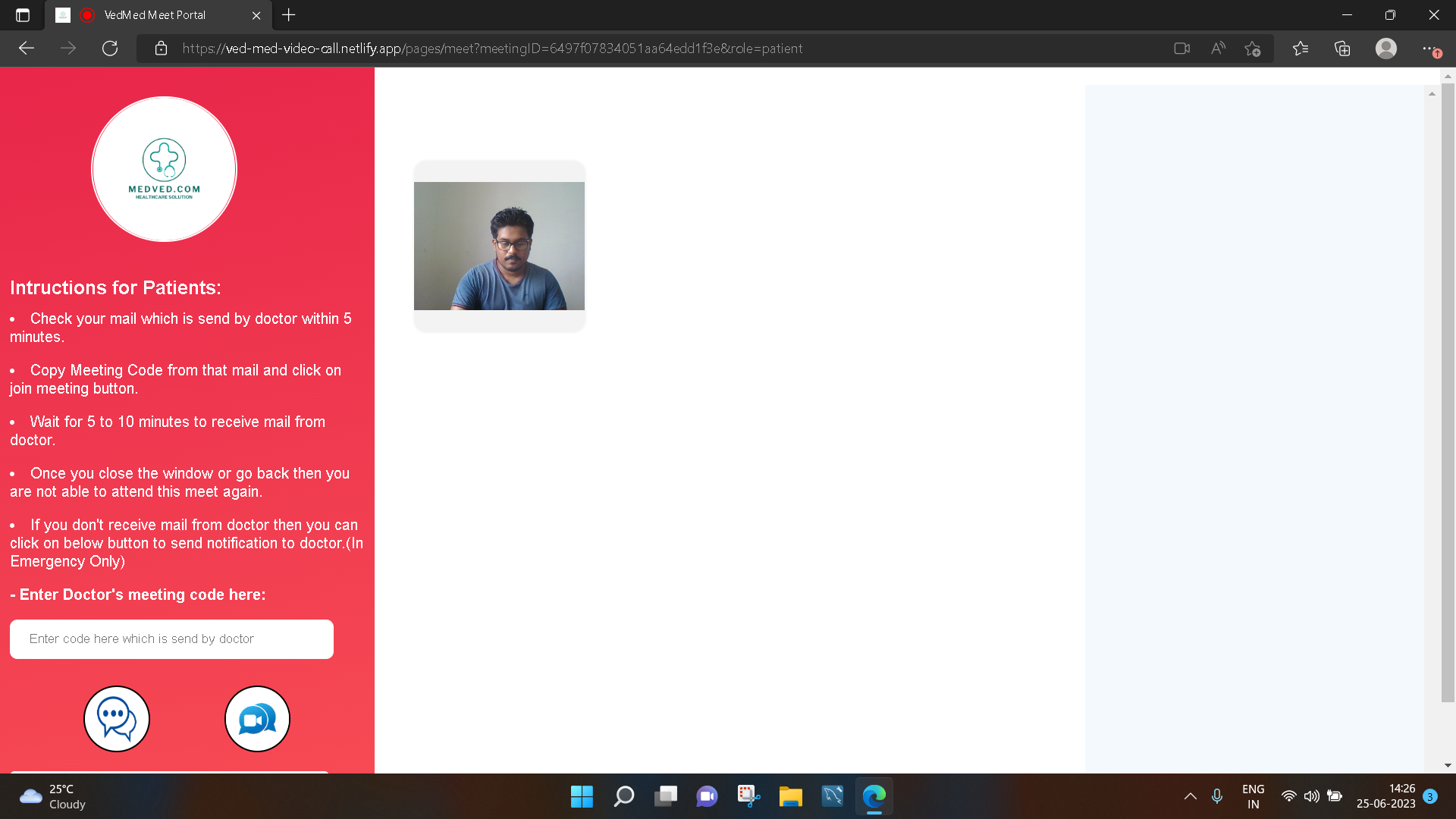
Meeting Portal:(Patient Side)
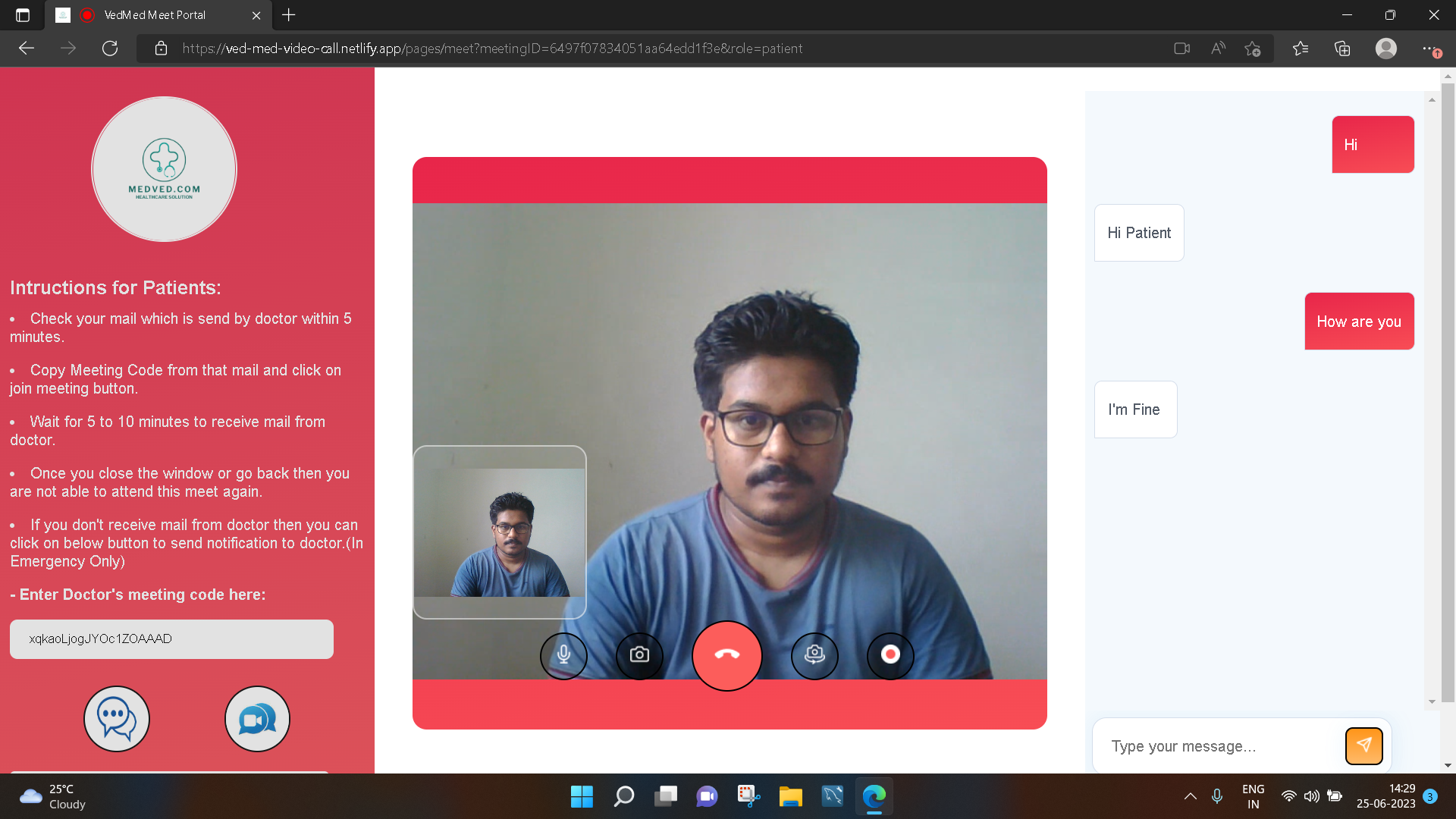
Video Call, Chat, MicOff, CameraOff, ShareScreen :
## Frontend Part Instruntions:
### For Patients:
- First Register with your gmailID and login to account.
- After Login you can see all doctors information.
- On Navbar you have option of see all meetings.
- For create Appointment you have to copy the doctorID of Particular doctor from doctors information and paste it to input bar. Then select date and time properly and enter you concern and click on create appointment button.
- Wait for some time your appointment status will be updated by doctor.
Ex. If doctor accept you request then you can see as accepted status for rejected status will be rejected and for pending status will be pending
- You can checkout your all appointments in all appointments section.
- If you want to update meeting information then click on update button of that particular meeting. Then you will see all the information of that meeting on left side form. Update the information as per your requirement and click on update button.
- If you want to delete meeting then just click on delete button.
- You can join meet before 5 minutes or after 5 minutes only.
- Otherwise you are not able to join meeet.
- So, click on join button on time.
- Then you can wait there for sometime to get mail of meetCode from doctor side.
- Once you recieved mail then you can copy `meetingCode` from mail and paste on Enter other person code section. And click on join button.
- Then you will get window to option for reject call but wait for some time to join doctor. If you want to decline call without meet then you can.
- In meet you have option for micOff,cameraOff,chat,sharescree.
- If you wait for 5 to 10 minutes and doctor not joined meet then you can use send notification button to send mail to doctor to join meet.
### For Doctors:
- First Register with your gmailID and login to account.
- After Login you can see all yours meetings information.
- You will able to see all your pending appointements in all appointment section.
- You can accept or reject request of patient according your schedule.
- Once you accept the request then you can see all your meetings on all meetings section.
**Important Note (For Doctors and Patients):**
- You have to click on `join button` when you scheduled meeting.
- You can join meet within 5 minutes befor and 5 minutes after time of meet.
- Once click on `join button` and you redirected to meeting portal if you click on back button or close window then you are not able to join the meet again.
**Both patient and doctor will receive mail notification for if patient create meet, update meet information or delete meet**
## Live Demo
[https://ved-med-video-call.netlify.app](https://ved-med-video-call.netlify.app)
## Backent Deployed Demo
[https://video-call-backend-i5df.onrender.com](https://video-call-backend-i5df.onrender.com)
## Author
- [@raj8888](https://github.com/raj8888)