https://github.com/ratmuds/MCServerInstaller
This app can create a server locally. I spent way too many hours on this.
https://github.com/ratmuds/MCServerInstaller
minecraft minecraft-server server
Last synced: 4 months ago
JSON representation
This app can create a server locally. I spent way too many hours on this.
- Host: GitHub
- URL: https://github.com/ratmuds/MCServerInstaller
- Owner: R4z0rBl8D3
- Created: 2021-09-21T22:16:39.000Z (almost 5 years ago)
- Default Branch: master
- Last Pushed: 2021-11-27T01:34:41.000Z (over 4 years ago)
- Last Synced: 2024-12-29T13:28:14.804Z (over 1 year ago)
- Topics: minecraft, minecraft-server, server
- Language: C#
- Homepage:
- Size: 94.7 KB
- Stars: 0
- Watchers: 1
- Forks: 0
- Open Issues: 0
-
Metadata Files:
- Readme: README.md
Awesome Lists containing this project
README
# MCServerInstaller
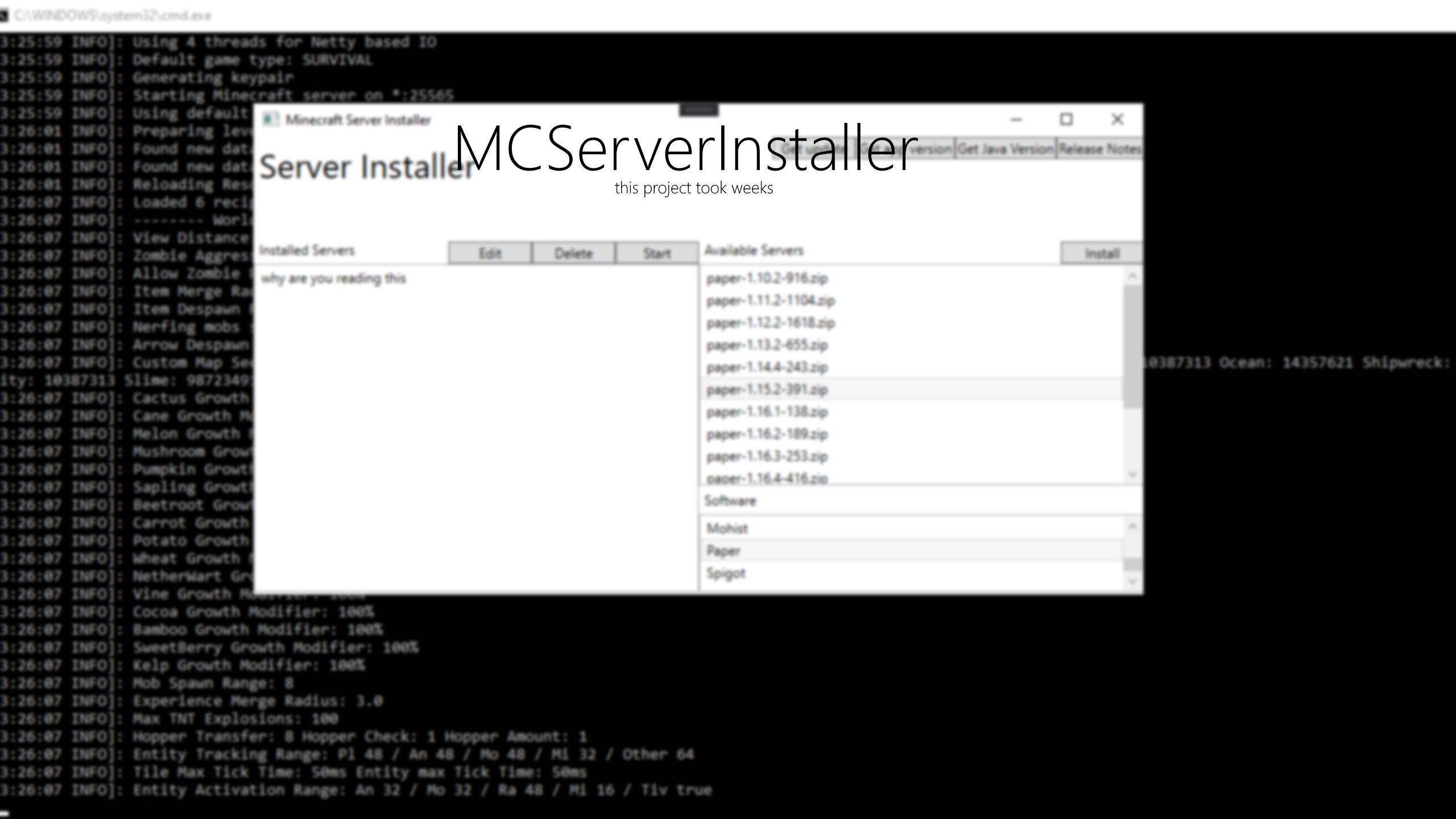
This app can create a server locally.
This app is missing some versions of Minecraft, like 1.17.1 because the installer didn't work or the server ended up being weird. Or because I was too lazy.
# How to use it
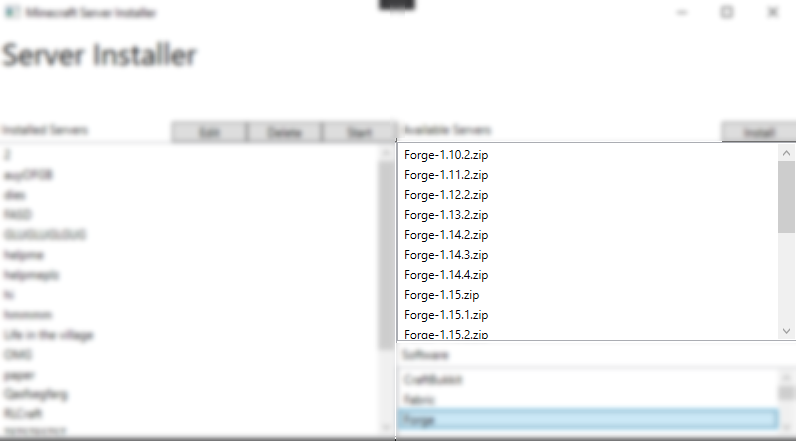
This is what you will see when you open the app.
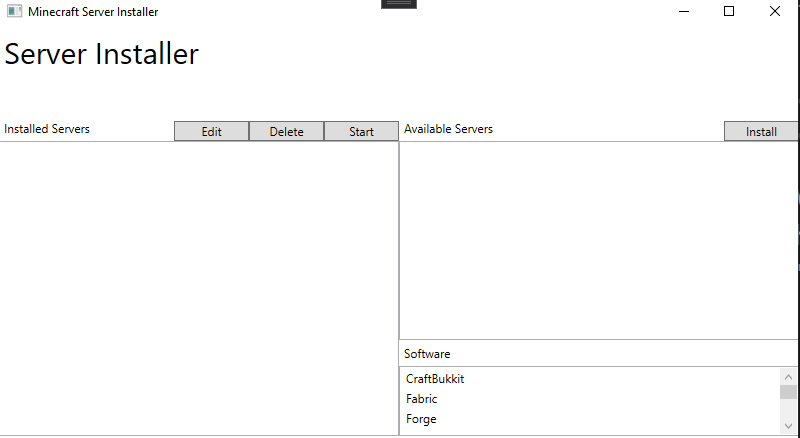
Over here you can select which software you want for your server.
And then select the version and click install.
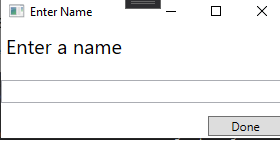
A window will appear asking for the name of the server. It will download the server and start it up to create the folders and files, when the console says done then you can close it.
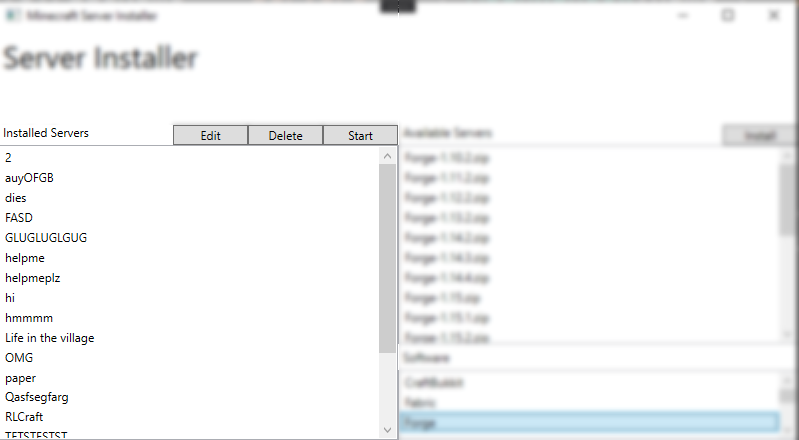
This is where you can find your downloaded servers.
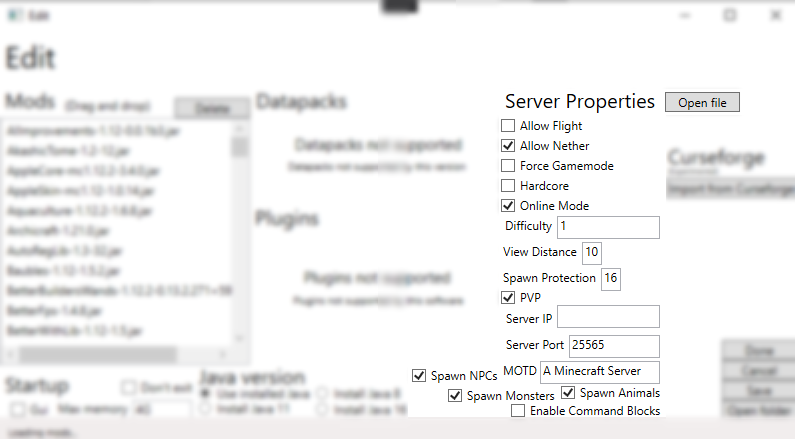
This is what the edit window looks like.
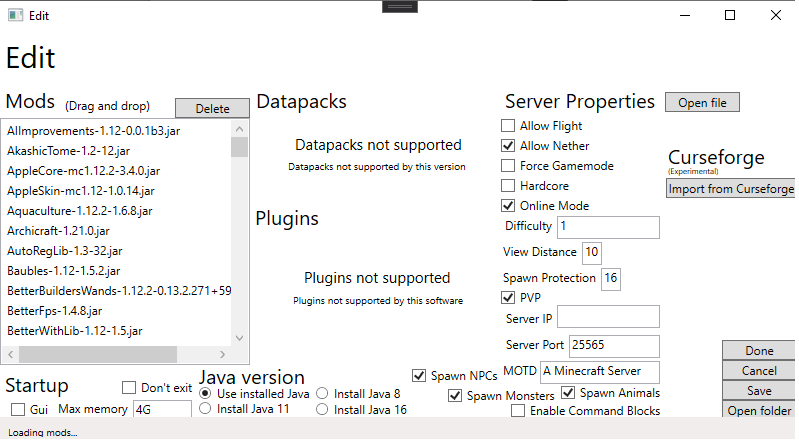
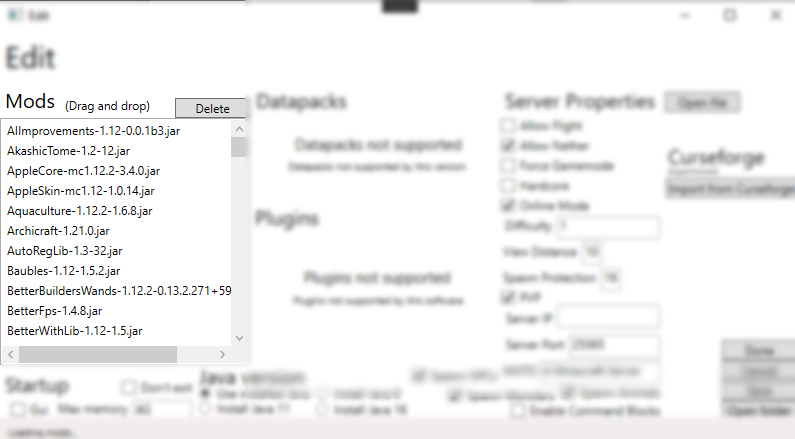
Over here is where you can find the mods, you can drag and drop mods into it.
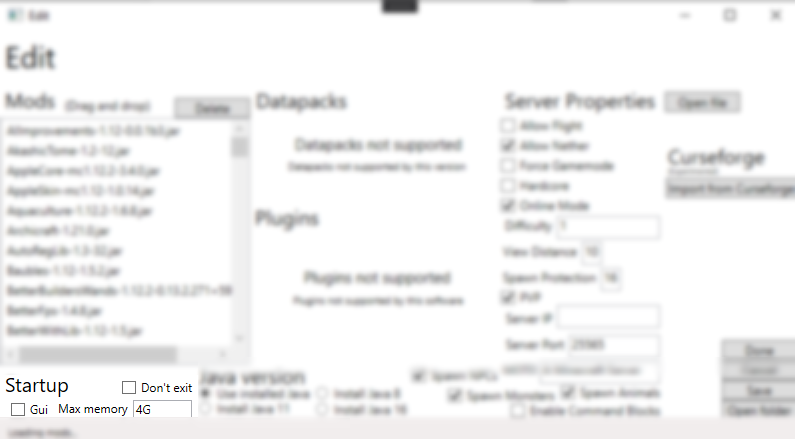
This is where you can change stuff that are needed to start the server, you can enable the GUI if you want (uses more resources), set the amount of memory the server is allowed to use M is megabytes and G is gigabytes and the Don't Exit checkbox makes it so that the server won't close automatically.
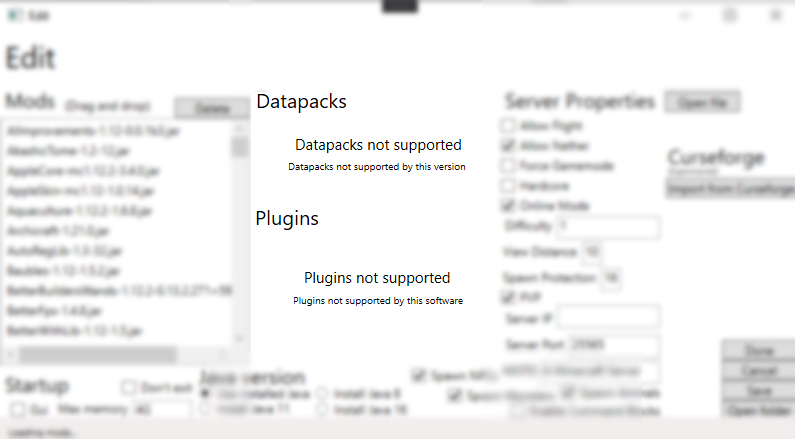
You can add datapacks and plugins here (the world name should be 'world' or it won't work).
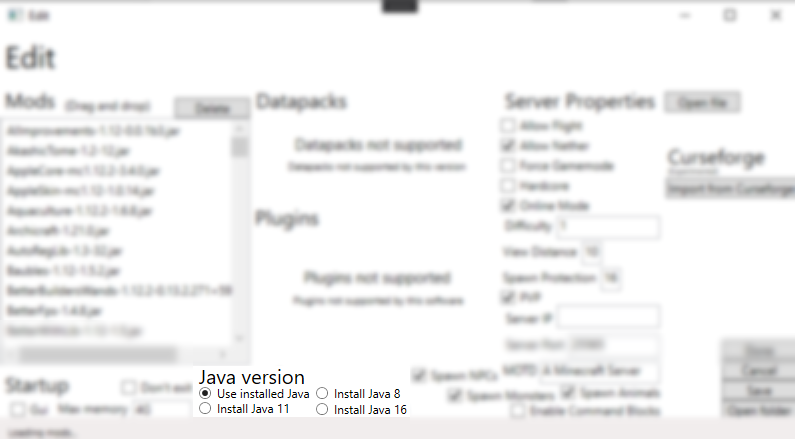
If you want to download Java (only used by the server) then you can select which version, I really don't recommend using this unless you have for example Java 16, but the server requires Java 8 then you can select Install Java 8 and the server will probably work.
This is where you can edit some properties of the server, I left some out though so if it's not here then click Open file.
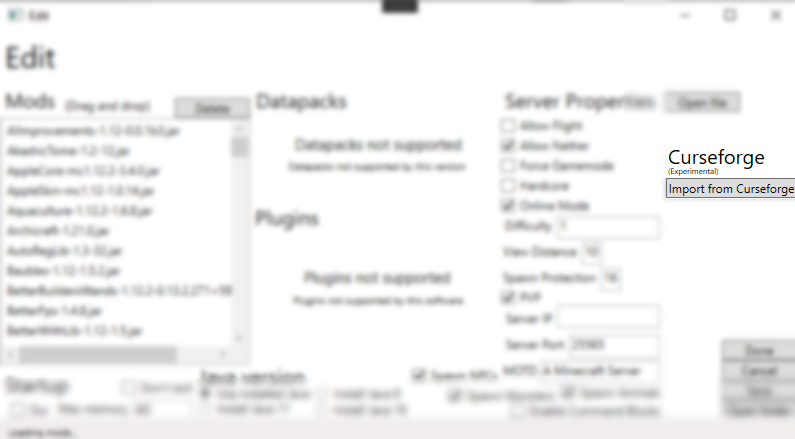
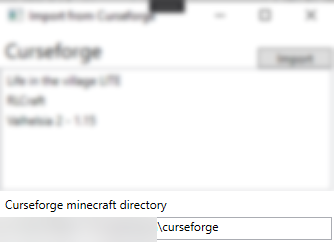
I added an experimental feature to import the mods and other stuff from Curseforge instances.
This is what the import window looks like.
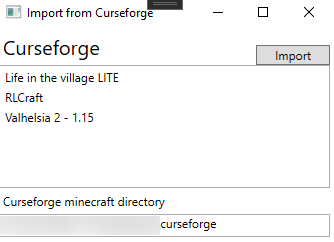
This is where you can find the modpacks.
If you moved where Curseforge puts its instances then put in the directory in the text box.
You can save and exit by clicking Done, canceling using Cancel, saving using Save and opening where the server is stored by pressing Open folder.