https://github.com/rbanffy/vm370
Docker image for rbanffy/vm370
https://github.com/rbanffy/vm370
docker emulation hercules ibm mainframe
Last synced: 4 months ago
JSON representation
Docker image for rbanffy/vm370
- Host: GitHub
- URL: https://github.com/rbanffy/vm370
- Owner: rbanffy
- License: agpl-3.0
- Created: 2017-06-09T22:54:08.000Z (about 9 years ago)
- Default Branch: main
- Last Pushed: 2024-06-24T09:58:53.000Z (about 2 years ago)
- Last Synced: 2025-01-11T19:02:23.150Z (over 1 year ago)
- Topics: docker, emulation, hercules, ibm, mainframe
- Language: Makefile
- Size: 1.19 MB
- Stars: 18
- Watchers: 2
- Forks: 3
- Open Issues: 8
-
Metadata Files:
- Readme: README.md
- Changelog: CHANGELOG.md
- License: LICENSE
Awesome Lists containing this project
README
# vm370
[](https://hub.docker.com/r/rbanffy/vm370/)
[](https://github.com/rbanffy/vm370)
This repo contains the files needed to build the Docker image for rbanffy/vm370.
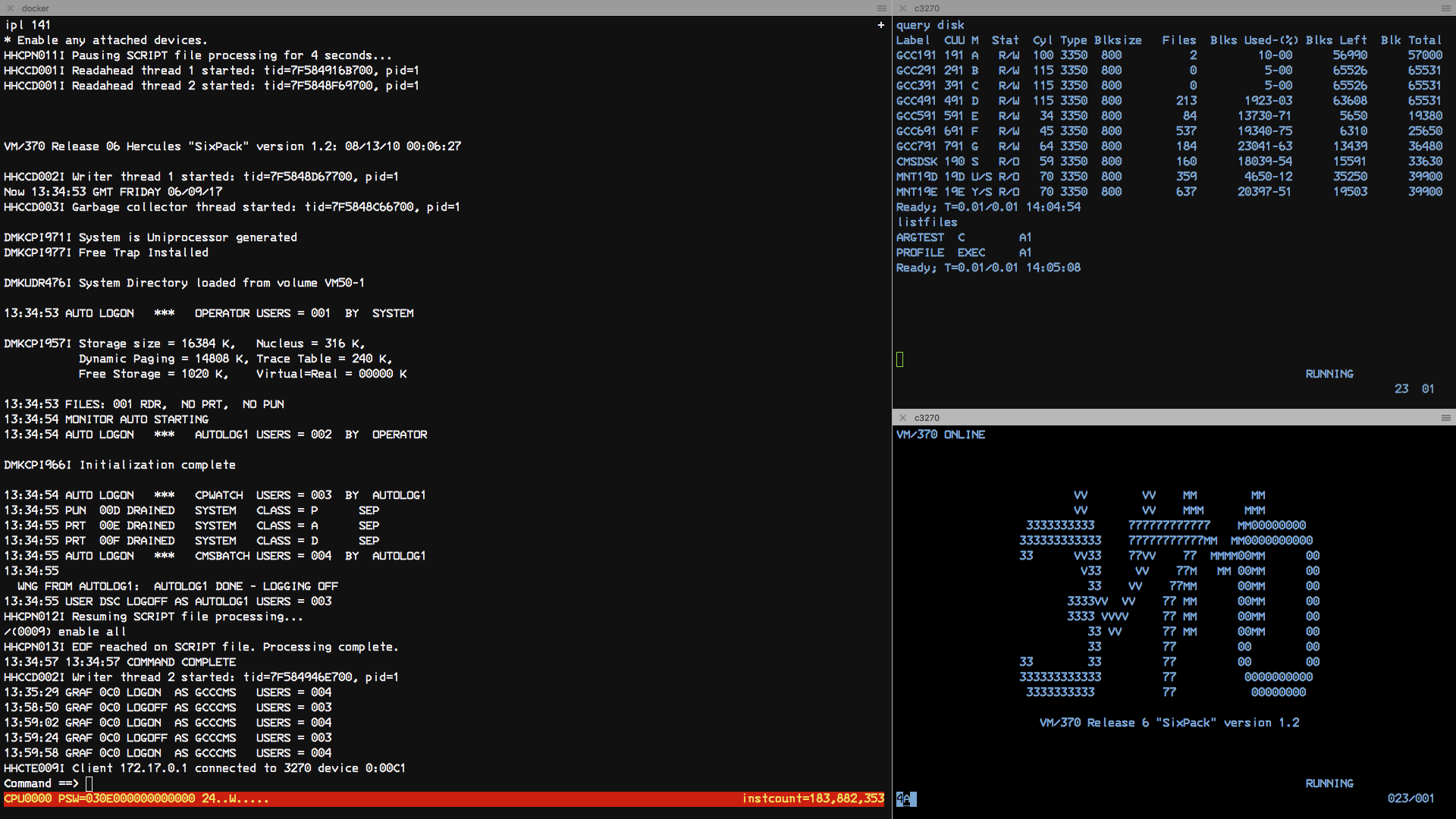
## Building the image
By default, we'll build the VM370 Six Pack image. To build it, run:
```shell
docker build -t vm370 .
```
To run the image you just built on an amd64 computer, use:
```shell
docker run -it -p 3270:3270 -p 8081:8081 $USER/vm370:latest-amd64
```
At this point, you can connect your terminals to localhost on port 3278. To
get to the web console, connect to http://localhost:8081 using the credentials
for the MAINT user (as published in the Sixpack documentation).
## Building an image with other OSs
By default we'll build based on Dockerfile-vm370. To select other Dockerfiles,
set the variable OPERATING_SYSTEM.
```shell
OPERATING_SYSTEM=vm370ce make build
```
## Running from Docker Hub
To run the VM370 Six Pack image without building it locally, use:
```shell
docker run -it -p 3270:3270 -p 8081:8081 rbanffy/vm370
```
MVS Tk4- uses port 8038 for the web console:
```shell
docker run -it -p 3270:3270 -p 8038:8038 rbanffy/mvstk4
```
## Deploying it to a Docker Swarm
This image is intended to run as a service on a cluster. To create a vm370
service on your cluster, run:
```shell
docker service create --name vm370 --publish 3270:3270 --publish 8081:8081 rbanffy/vm370
```
When the service is up and running, connecting a 3270 session to any node will
get you to the VM370 welcome screen.
### A warning
The web-based Hercules console is not working properly for the VM370 images at
the moment, but work correctly with MVS 3.8 Tk4- on port 8038.
A more serious issue is that data is not persisted beyond the life of the
container, or when the workload is moved to a new node. Use it at your own
peril (and, if you know how, help improving it).
## About the environments
### VM370 SixPack and VM370ce
These are VM/370 systems with numerous improvements, fixes, and extras. VM370ce is newer and has more functionality.
Both come preconfigured with multiple users:
|Userid|Description|Password|
|------|-----------|--------|
|CMSUSER|Normal user|CMSUSER|
|MAINT|Maintenance user|CPCMS|
|OPERATOR|Operator user|OPERATOR|
The user MAINT can see the other users in the `USERS DIRECT` file.
### MVSTk4
This is an MVS 3.8j (the last version of MVS that can be legally deployed without a license - and an actual mainframe), with numerous improvements, fixes, and extras.
It comes with some preconfigured users:
|Userid|Description|Password|
|------|-----------|--------|
|HERC01|Fully Authorized|CUL8TR|
|HERC02|Fully Authorized|CUL8TR|
|HERC03|Standard user|PASS4U|
|HERC04|Standard user|PASS4U|
|IBMUSER|Emergency user|IBMPASS|