https://github.com/rhysd/chromenu
Mobile Chrome in your menubar
https://github.com/rhysd/chromenu
browser desktop-application menubar
Last synced: over 1 year ago
JSON representation
Mobile Chrome in your menubar
- Host: GitHub
- URL: https://github.com/rhysd/chromenu
- Owner: rhysd
- License: other
- Created: 2016-11-18T12:03:59.000Z (over 9 years ago)
- Default Branch: master
- Last Pushed: 2020-07-07T00:17:55.000Z (about 6 years ago)
- Last Synced: 2024-10-05T12:32:25.029Z (almost 2 years ago)
- Topics: browser, desktop-application, menubar
- Language: TypeScript
- Size: 223 KB
- Stars: 44
- Watchers: 6
- Forks: 2
- Open Issues: 2
-
Metadata Files:
- Readme: README.md
- License: LICENSE
Awesome Lists containing this project
README
Chromenu
=======
Chromium mini browser for your menubar. This app intends to be used for your daily tasks with browser.
You can access to a mini browser quickly via clicking menu item or hot key everywhere.
This app consists of three parts; header, main view and footer.
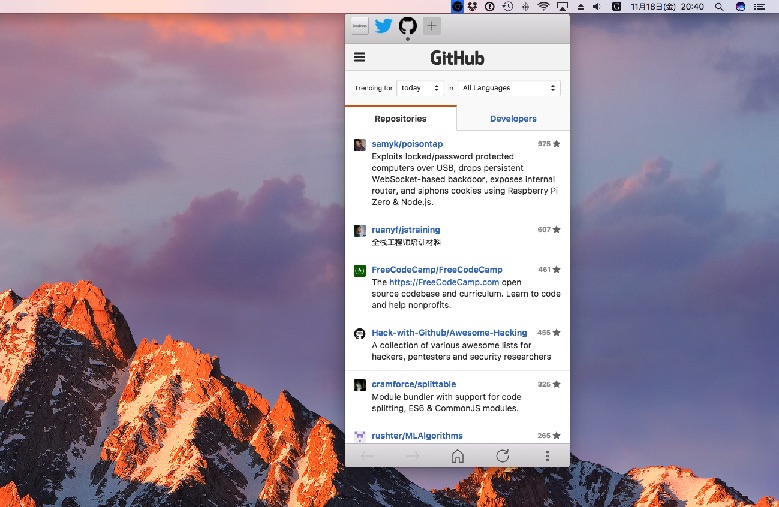
- **Header**: you can register some pages and switch them by clicking icons.
- **Main view**: web pages will be rendered here.
- **Footer**: you can control browser; go forward/back, home, reload and so on.
## Installation
Download a package for your environment from [release page](https://github.com/rhysd/Chromenu/releases).
After unarchive the zip, you can start app by clicking or executing a binary in the directory.
Or install via [npm](https://www.npmjs.com/package/chromenu).
```
$ npm install -g chromenu
$ chromenu
```
## Usage
### Getting Started
Just after starting app, you can see below window.
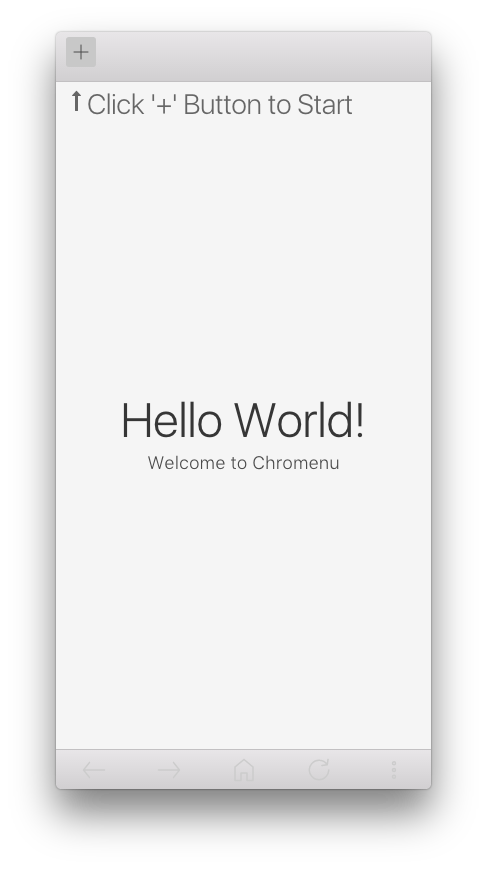
For now, what you can do is register new page from '+' button at header.
It opens a configuration view and you can input the information of the page which you want to register.
- URL of the page (required)
- Icon image (optional)
- Page title (optional)
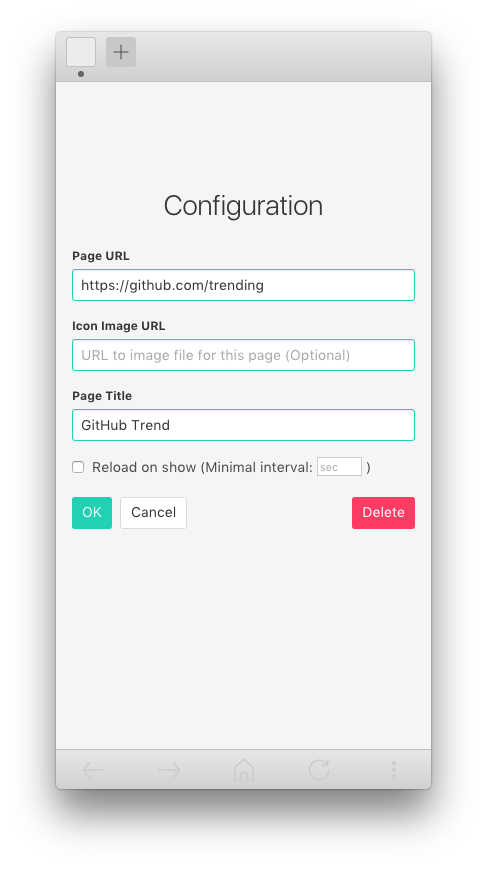
After clicking 'OK', new icon will be added to header and the page will be opened in main view.
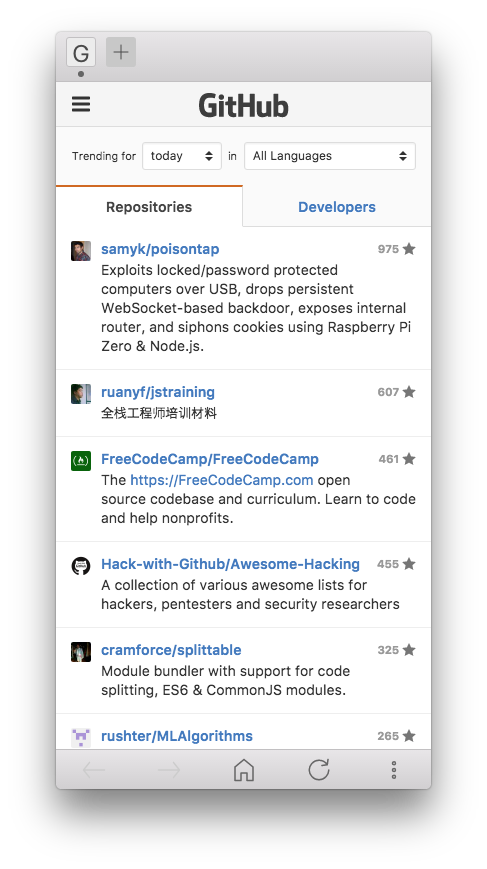
Now you can explore the page freely. Footer has some buttons to control browseing (go forward/back,
go home (registered URL), reload).
You can show/hide this app by clicking the Chrome icon in menubar or entering hot key (`Cmd+Shift+S`
in macOS or `Ctrl+Shift+S` in other platforms by default). In app, some keyboard shortcuts are available
(please see below section).
When you want to add another page, click '+' again.
### Keyboard Shortcuts
Some keyboard shortcuts are available in the app by default. The `mod` means `Cmd` key in macOS,
or `Ctrl` key in other platforms.
| Default Shortcut | Description | Action Name |
|------------------|------------------------------------|-------------------------|
| `mod+{number}` | Open `{number}`th page. | `page1`~`page9` |
| `mod+r` | Reload page. | `reload` |
| `mod+f` | Toggle search window. | `toggle-search` |
| `mod+shift+h` | Show home (registered URL). | `home` |
| `mod+backspace` | Go back. | `back` |
| N/A | Go forward. | `forward` |
| `mod+o` | Open the page in external browser. | `open-external-browser` |
| `ctrl+tab` | Open next page. | `next-page` |
| `ctrl+shift+tab` | Open previous page. | `previous-page` |
| `mod+h` | Scroll left. | `scroll-left` |
| `mod+l` | Scroll right. | `scroll-right` |
| `mod+j` | Scroll down. | `scroll-down` |
| `mod+k` | Scroll up. | `scroll-up` |
| `mod+shift+j` | Scroll to the bottom of page. | `scroll-bottom` |
| `mod+shift+k` | Scroll to the top of page. | `scroll-top` |
| N/A | Scroll down half page. | `scroll-down-half-page` |
| N/A | Scroll up half page. | `scroll-up-half-page` |
| N/A | Scroll down a page. | `scroll-down-page` |
| N/A | Scroll up a page. | `scroll-up-page` |
| N/A | Open DevTools (for debugging). | `open-devtools` |
| N/A | Reset application (for debug). | `reset-app` |
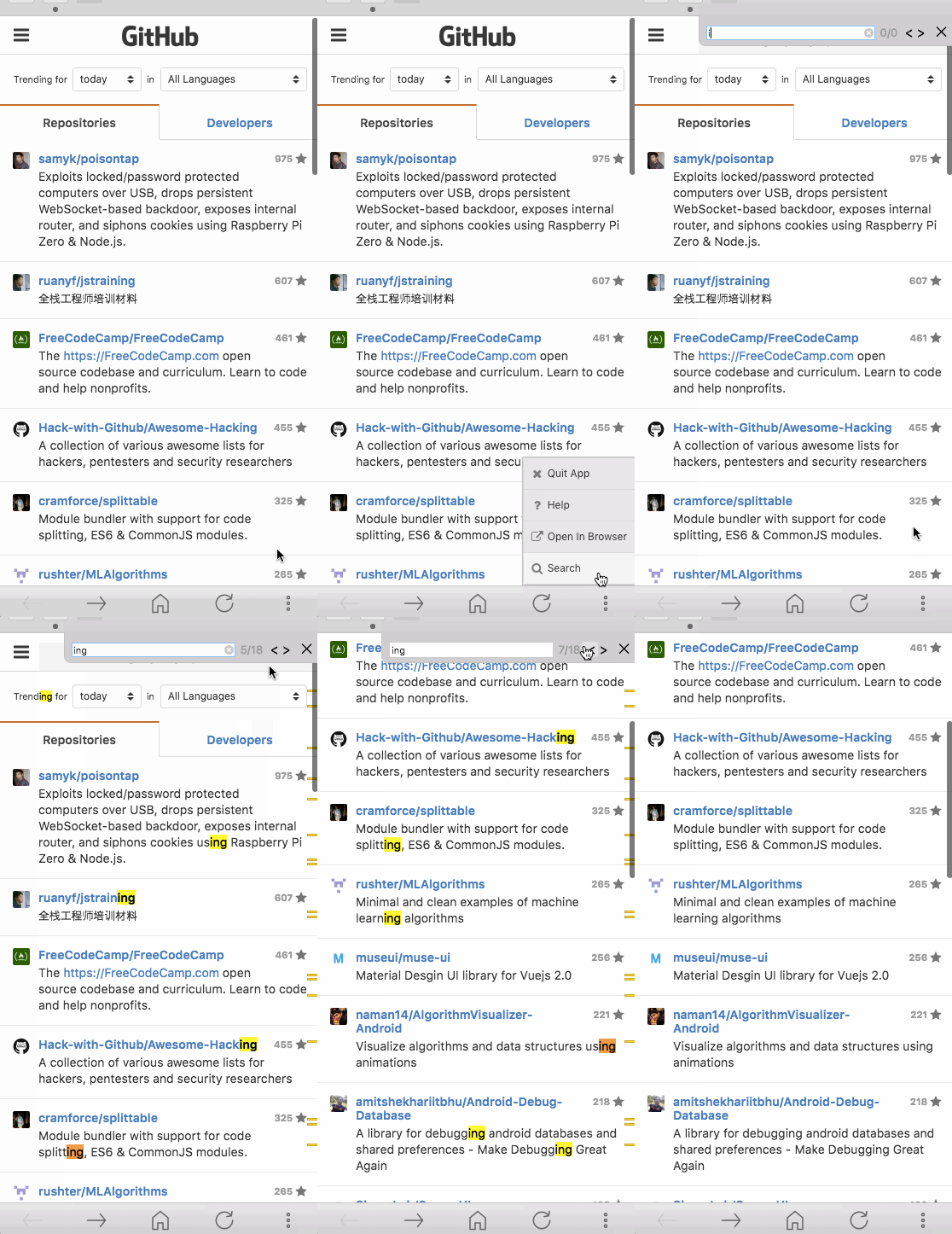
### Search in the Page
You can search some words in the page like `Cmd+F` (or `Ctrl+F`) in Chrome.
## Configuration
Configuration file `config.json` is created in application directory when app is launched at first.
The path to configuration directory is depending on the OS.
- `~/Library/Application\ Support/Chromenu` for macOS
- `~/.config/Chromenu` for Linux
- `%APPDATA%\Chromenu` for Windows.
You can customize application behavior with the JSON file.
### `hot_key`
Hot key to access to this app quickly. Note that key sequence format is **different from below `keymaps` configuration**.
This value should be specified with [accelerator format](https://github.com/electron/electron/blob/master/docs/api/accelerator.md) (e.g. `F8`).
Default value is `CmdOrCtrl+Shift+S`. Empty string or `null` disables hot key.
### `icon_color`
Icon color in menubar (task tray in Windows). Available value is `black` or `white`.
Default is `black` for macOS, `white` for other platforms.
### `always_on_top`
If this value is set to `true`, application is fixed to the top of window stack.
After losing focus, application keeps to be shown. Default value is `false`.
### `normal_window`
If this value is set to `true`, application will launch with normal window rather than menubar window.
Default value is `false`.
### `url_blacklist`
You can specify patterns of URL to block loading some contents. Default value is `[]`.
```json
[
"https://*.github.com/*",
"*://electron.github.io",
"https://example.com/*"
]
```
These patterns will be passed to [Electron's `WebRequest.onBeforeRequest` callback](http://electron.atom.io/docs/api/web-request/).
### `keymaps`
Key-map value to specify key shortcuts.
Key is a key sequence. The format is the same as [mousetrap package's one](https://craig.is/killing/mice).
Value is an action name in the key shortcuts list of above section.
Or you can specify the relative path to JavaScript file in configuration directory.
```json
{
"mod+q": "toggle-search",
"mod+s": "path/to/select-some-tab.js"
}
```
With above, `mod+s` will execute `{application directory}/path/to/select-some-tab.js`
in the current page. You can create a cusotmized key shortcut by writing up JavaScript code
for your favorite pages.