https://github.com/robertlucian/remotecontrolpi
Live streaming with joystick on the RaspberryPi with Pi Camera
https://github.com/robertlucian/remotecontrolpi
gopigo gopigo3 joystick joystick-control picamera python raspberry-pi remote-control robot
Last synced: about 1 year ago
JSON representation
Live streaming with joystick on the RaspberryPi with Pi Camera
- Host: GitHub
- URL: https://github.com/robertlucian/remotecontrolpi
- Owner: RobertLucian
- License: mit
- Created: 2017-08-26T01:09:01.000Z (almost 9 years ago)
- Default Branch: master
- Last Pushed: 2018-06-19T20:37:32.000Z (about 8 years ago)
- Last Synced: 2025-04-11T12:12:14.186Z (about 1 year ago)
- Topics: gopigo, gopigo3, joystick, joystick-control, picamera, python, raspberry-pi, remote-control, robot
- Language: JavaScript
- Size: 298 KB
- Stars: 4
- Watchers: 2
- Forks: 5
- Open Issues: 1
-
Metadata Files:
- Readme: README.md
- License: LICENSE
Awesome Lists containing this project
README
# Remote Controlled Pi
With this library you can video stream from your `Raspberry Pi` with a `Pi Camera`.
The added feature is a on-screen joystick that works on touch-enabled devices and on regular computers.
The measured movement of the joystick is then relayed back to your `Raspberry Pi`, where you can then do anything with it - for instance, **driving a robot**.
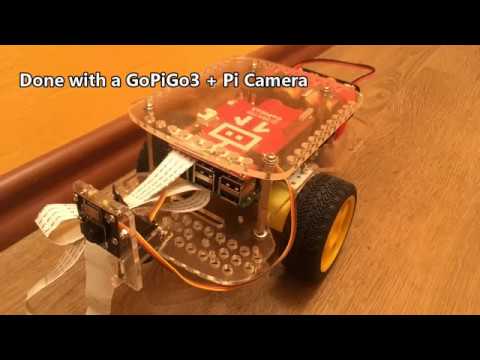
Here's an example project done with a `GoPiGo3` robot.

## How to use it
In order to process the joystick's movement, you have to take a look at `robot_commands` function that resides in `flask_server.py` script.
In this function, you get new updates of the joystick every 250 ms.
In this function, there are a couple of variables that were already assigned queried values. Here's what it means for each of it:
* `state`: It's set to `move` when the joystick is moved away from the center and `stop`, when the joystick is released (and destroyed).
* `angle_degrees`: The orientation of the joystick's small circle relative to the big circle. It's anti-clockwise and it starts at 0 degrees at the right (where the joystick is pulled to the right). It's measured in degrees and the values go from 0 up to 360.
* `angle_dir`: It tells the general orientation of the joystick. It can be `up`/`down`/`left`/`right`.
* `joystick_pull_force`: It tells how much the user is pulling the joystick from its center. The values start at 0 and don't have an upper limit. The upper limit is determined by the screen size.
* `determined_speed`: Is computed from `joystick_pull_force`. The advantage is that this speed is relative to a given range (a max and a min constant).
Since I've added a GIF showcasing the GoPiGo3 I also added code for the GoPiGo3 inside the server, so if you want to test it on your robot, just uncomment anything related to the GoPiGo3 (imports, function calls, exceptions and such) and add yours instead.
## Setting Up
Install the `Pi Camera` dependencies and `Flask` by running the `install.sh` script:
```
sudo pip3 install -r requirements.txt
```
If you want to run the script just as it is, you also need to install the `gopigo3` library from [GoPiGo3 Repo](http://github.com/DexterInd/GoPiGo3). Otherwise replace everything on the GoPiGo3 in the script with the function calls needed for your own robot.
If you have followed the above instructions, then by now, you should now have everything set up.
## Running it
Start the server by typing the following command:
```
python3 remote_robot.py
```
It's going to take a couple of seconds for the server to fire up.
A port and address will be shown in there. By default, the port is set to `5000`.
Take your `Raspberry Pi` interface's IP address and port and use it on a mobile device or laptop in order to reach the web page.
The webpage's address will have the following pattern:
```
http://[raspberrypi-ip-address]:[port]
```
Also, make sure you have your mobile device / laptop on the same network as your `Raspberry Pi`. Otherwise, you won't be able to access it.
## Example Project
This is a project done with this library and with a `GoPiGo3`. Check it out on YouTube.
[](https://www.youtube.com/watch?v=Tu_-Al6Smhg)