https://github.com/royashbrook/laughing-barnacle
variant of stunning-bassoon
https://github.com/royashbrook/laughing-barnacle
Last synced: 2 months ago
JSON representation
variant of stunning-bassoon
- Host: GitHub
- URL: https://github.com/royashbrook/laughing-barnacle
- Owner: royashbrook
- License: mit
- Created: 2022-04-26T13:09:01.000Z (about 4 years ago)
- Default Branch: main
- Last Pushed: 2023-03-06T03:05:06.000Z (over 3 years ago)
- Last Synced: 2024-05-28T17:58:02.227Z (about 2 years ago)
- Language: JavaScript
- Homepage: laughing-barnacle.vercel.app
- Size: 538 KB
- Stars: 0
- Watchers: 2
- Forks: 0
- Open Issues: 5
-
Metadata Files:
- Readme: README.md
- License: LICENSE
Awesome Lists containing this project
README
# New Project
✨ Project template using:
- [Svelte](https://svelte.dev)
- [Snowpack](https://snowpack.dev/)
- [Simple.css](https://simplecss.org/)
- [svelte-spa-router](https://github.com/ItalyPaleAle/svelte-spa-router)
- [Microsoft MSAL.js](https://docs.microsoft.com/en-us/azure/active-directory/develop/msal-overview)
- [Microsoft Graph API](https://docs.microsoft.com/en-us/azure/active-directory/develop/microsoft-graph-intro)
- [Office 365](https://www.office.com/)
This project is based on [stunning-bassoon](https://github.com/royashbrook/stunning-bassoon).
It provides an example of:
- A SPA application that
- Auto authenticates using MSAL.js upon startup
- Automatically gets a token for Microsoft Graph API upon successful authenication
- Provides a button to pull a file from an O365 drive and display the contents
Note: Currently, this project uses some custom caching as the assumption is the files will be updated in a central location, and there may be multiple files that need to be merged from a standardized json format. This caching could be removed and instead of polling a folder for all files, then caching them, you could just pull a single file.
# Install
## Overview
Installation is pretty simple once you have things setup.
- Clone this repository however you prefer
- `npm install`
- configure `auth.config.js`
- clientId: "your app registration client id",
- authority: "https://login.microsoftonline.com/your tenant id",
- and `graph.config.js`
- const drive = 'drive id for your sharepoint site'
- const item = 'item id for your sharepoint site'
- `npm run start` and you are good to go!
## Getting details for auth.config.js
As this project uses Office 365 for authentication and storage of the files, you must first have an Office365 subscription and access to Azure Portal so that you can create an application registration. There are lots of places to lookup how to do this. I'm going to point to [this](https://docs.microsoft.com/en-us/learn/paths/m365-msgraph-scenarios/) location on the Microsoft Learn site as it concerns specifics on how to do some of this setup with javascript and also points to a lot of the resources needed for setup.
To start, you'll need an App registration setup propertly in the azure portal. [Here](https://docs.microsoft.com/en-us/learn/modules/msgraph-manage-files/2-exercise-configure-azure-active-directory-app) is a MS Learn page that shows exactly how I would register it.
After all of the App registration magic is complete, you should have a tenantid and a client id and the `auth.config.js` file can be updated as appropriate.
Note that wherever you deploy the app, you will need to make sure the app registration contains a redirect for that location. Currently the code will attempt to redirect based on whatever your current url is, but it will only work if you have previously set that up as a redirection inside of the App Registration in azure.
## Getting details for graph.config.js
The file needs to be setup on O365 somewhere in sharepoint. This way you can secure the location for only people you want to have access to the file used on this site. You can handle this many ways, but in this example, I simply console log an error if you don't have access to the file. If you can't login, you won't even see the button. =)
You'll need some basic knowledge on sharepoint admin for O365 to do this. You'll need a folder to store files in. All of the files should be .zip files and should contain json data that is zipped up and has a structure similar to this:
```
{
"Results": {
"DatasetA": {
"DatatableA": [
{
"PropA": "ValueA1",
"PropB": "ValueB1",
"PropC": "ValueC1",
"PropD": "ValueD1"
},
{
"PropA": "ValueA2",
"PropB": "ValueB2",
"PropC": "ValueC2",
"PropD": "ValueD2"
}
]
}
}
}
```
The caching setup is expecting files that meet this criteria, and it will merge them into one large object on the client side. This won't scale if you have GBs of data, but it is an example, and works great in smaller scenarios. It really just matters that you have a dataset, and a data table value. The contents of the object can actually be in any structure, I just have it structured here similar to a set of rows/columns.
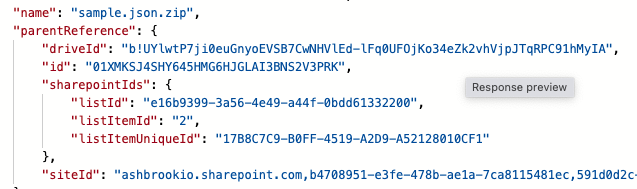
Now that you have a folder and you have at least one file out there, we need to update the `graph.config.js` with the location of this file. The folder will have a drive and item id associated with it. The easiest way I have found to get these is to use the [MS Graph Explorer](https://developer.microsoft.com/en-us/graph/graph-explorer) and simply run a search for the file you put out there.
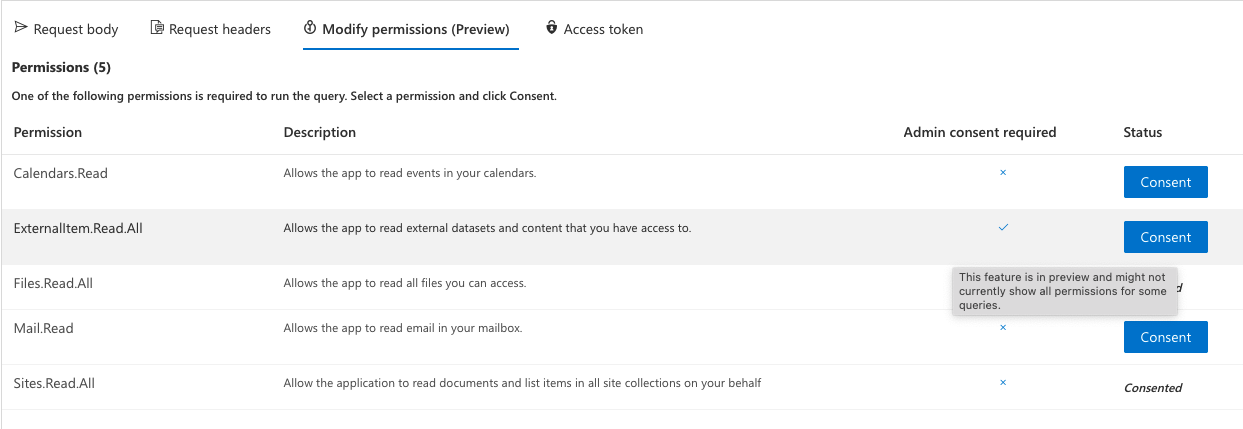
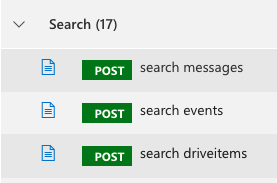
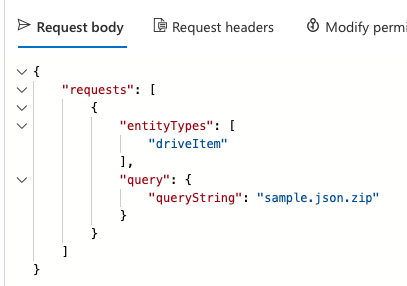
It helps to know how to work with Microsoft Graph here, but basically you need to login to the explorer site, go into modify permissions (currently in preview) tab and consent for Files.Read.All and Sites.Read.All. Maybe you just need one or the other, but I have both of those on and this worked for me. Click on search and choose driveitems. Update the request body with the file name you uploaded, then search. In your response you will see your file and there will be a parentReference that contains a driveId and an id value. Those are the values you need for graph.config.js. Here are some screenshots to help. =)
My consents:
Search action:
Request modification (for sample.json.zip):
parentReference for that file:
# See it
Unfortunately, since part of the pattern here is auto-authentication using MSAL, you'll just keep seeing a 'redirect' to the microsoft login or an error in the console. But you can set things up yourself and deploy a copy to vercel to see it. =)
[](https://stunning-bassoon.vercel.app/)
https://laughing-barnacle.vercel.app/
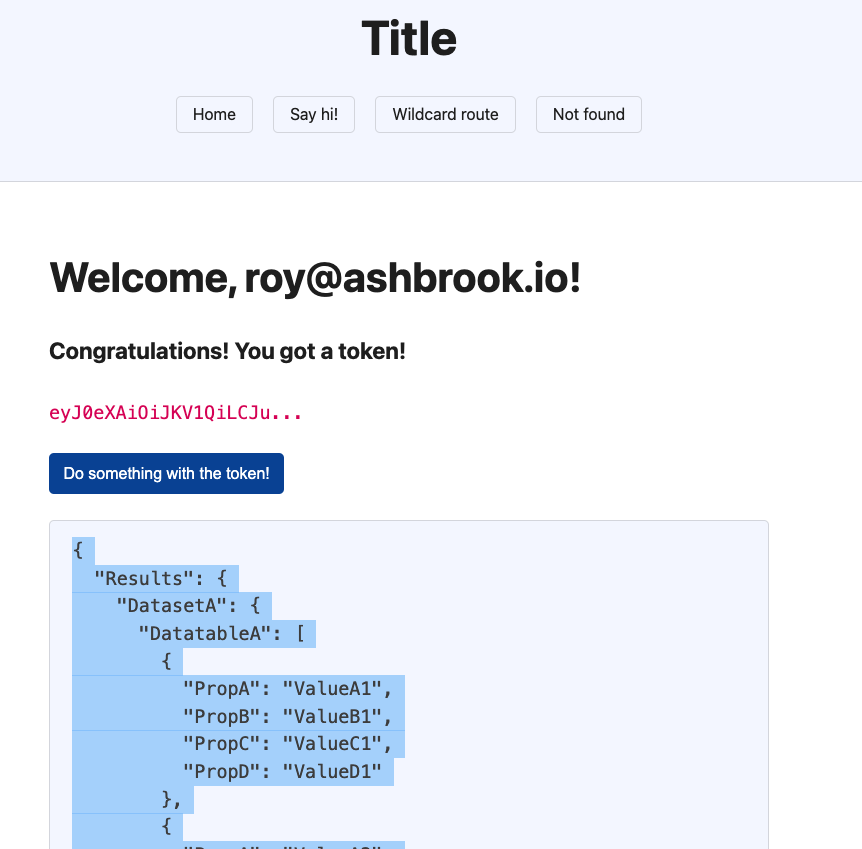
Screenshot of the vercel site after I hit the button:
# Note
When deploying to vercel, ensure the output folder name matches. As configured currently, this template requires the override be set on a project of type 'other' on vercel config.
