https://github.com/ruchee/vimrc
Ruchee's Vim Config Files
https://github.com/ruchee/vimrc
vim
Last synced: 6 months ago
JSON representation
Ruchee's Vim Config Files
- Host: GitHub
- URL: https://github.com/ruchee/vimrc
- Owner: ruchee
- License: mit
- Archived: true
- Created: 2014-03-23T11:42:48.000Z (about 12 years ago)
- Default Branch: master
- Last Pushed: 2023-10-17T02:27:55.000Z (over 2 years ago)
- Last Synced: 2024-07-31T21:53:43.305Z (almost 2 years ago)
- Topics: vim
- Language: Vim Script
- Homepage:
- Size: 36.5 MB
- Stars: 415
- Watchers: 43
- Forks: 176
- Open Issues: 0
-
Metadata Files:
- Readme: README.md
- License: LICENSE
Awesome Lists containing this project
- awesome-mine - ruchee-vimrc - Ruchee's Vim Config Files (Mac OSX)
README
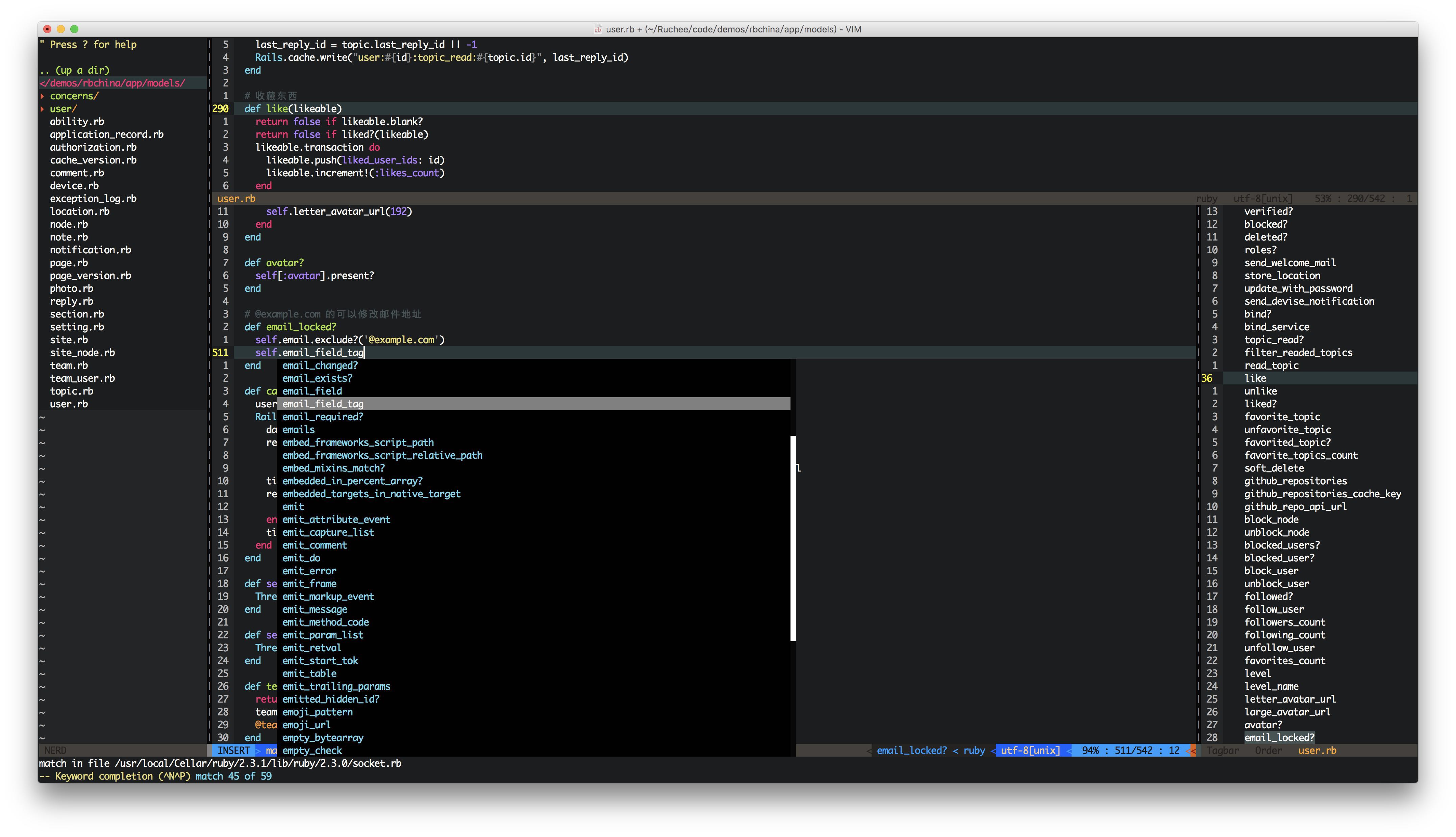
----
## For Vim 8+: [Modern Vim configuration files for Vim 8+](https://github.com/ruchee/modern_vimrc)
----
#### macOS
1. `brew install --cask macvim`
2. `brew install ctags git`
3. 删除个人主目录下的 `.vim` 文件夹和 `.vimrc` 文件(如果存在的话) [ 命令为 `rm -rf ~/.vim ~/.vimrc` ]
4. 使用 `Git` 下载本项目,然后将项目的子目录拷贝到个人主目录下,并将 `vimfiles`、`_vimrc` 分别重命名为 `.vim`、`.vimrc` [ 命令为 `git clone https://github.com/ruchee/vimrc.git ~/vimrc`、`mv ~/vimrc/vimfiles ~/.vim`、`mv ~/vimrc/_vimrc ~/.vimrc` ]
5. 指定在终端使用 `MacVim` [ 命令为 `ln -s /Applications/MacVim.app/Contents/bin/* /usr/local/bin` ]
----
#### Linux
1. `sudo apt-get install vim-gtk exuberant-ctags git` [ 非 `Debian/Ubuntu` 系统安装命令略有不同 ]
2. 删除个人主目录下的 `.vim` 文件夹和 `.vimrc` 文件(如果存在的话) [ 命令为 `rm -rf ~/.vim ~/.vimrc` ]
3. 使用 `Git` 下载本项目,然后将项目的子目录拷贝到个人主目录下,并将 `vimfiles`、`_vimrc` 分别重命名为 `.vim`、`.vimrc` [ 命令为 `git clone https://github.com/ruchee/vimrc.git ~/vimrc`、`mv ~/vimrc/vimfiles ~/.vim`、`mv ~/vimrc/_vimrc ~/.vimrc`]
4. 下载 `Monaco` 字体,下载后使用命令 `mv monaco.ttf ~/.fonts` 完成安装 [ Monaco 字体下载地址 [https://github.com/todylu/monaco.ttf/blob/master/monaco.ttf?raw=true](https://github.com/todylu/monaco.ttf/blob/master/monaco.ttf?raw=true) ]
----
#### Windows
1. 访问 [http://www.vim.org/download.php#pc](http://www.vim.org/download.php#pc) 下载最新的 `gVim`(有可能需要翻墙才能访问)
2. 安装 `gVim` 到任意目录,这儿为方便讲解,我假定你安装到了 `D:\Apps\Vim`
3. 将 `D:\Apps\Vim\vim82` 加入 `path` 环境变量 [ 不知何为环境变量者,请求助于搜索引擎 ]
4. 删除 `Vim` 安装目录下的 `vimfiles` 目录以及 `_vimrc` 文件 [ 如果你自己修改过配置,请注意备份 ]
5. 使用 `Git` 下载本项目,然后将项目的子目录拷贝到 `Vim` 安装目录下,取代已删文件的位置 [ 命令为 `git clone https://github.com/ruchee/vimrc.git` ](也可以点击本页面的 `Code -> Download ZIP` 按钮下载)
6. 访问 [http://ctags.sourceforge.net](http://ctags.sourceforge.net) 下载最新的 `ctags`,将 `ctags.exe` 复制到 `D:\Apps\Vim\vim82` 目录
7. 安装 `Monaco` 字体,本配置默认使用该字体,可上 [https://github.com/todylu/monaco.ttf/blob/master/monaco.ttf?raw=true](https://github.com/todylu/monaco.ttf/blob/master/monaco.ttf?raw=true) 下载,下载后丢到 `C:\WINDOWS\Fonts` 目录即可
----
#### Cygwin
1. 启动 `Cygwin` 安装器,选中 `vim`、`git` 为 `Install` 状态,然后开始安装,直至安装完成
2. 打开 `Cygwin` 终端,用 `Git` 下载本项目
3. 余下各步骤与上述 `Linux` 下的步骤完全一样,这儿不再赘述
4. 字体安装这一步,因为 `Cygwin` 沿用的是 `Windows` 的字体,所以将字体文件放到 `C:\WINDOWS\Fonts` 下即可
----
### 注意事项
1. 使用说明全部集中在 `_vimrc` 文件的头部,配置的后半部分是各插件的具体配置项,初学无需理会
2. 如出现快捷键不响应的情况,请检查你是否开启了其他软件(比如 金山词霸 等),某些软件的快捷键有可能和 `Vim` 相冲突,只需修改或禁用这些软件的快捷键即可
3. 本配置默认显示的是相对行号,如不习惯,可注释掉配置中的 `set relativenumber` 一项,以使用绝对行号
4. 如果条件允许,最好用 `universal-ctags` 替代老旧的 `ctags`
5. 部分插件需要脚本语言的支持,如果条件允许,请安装 `Python3`、`Ruby` 等语言的运行环境
6. 本配置集成了 `vim-sync` 插件,可以和远程服务器相互传输文件,使用此功能需要先配置项目的 `.sync`,详情请参考 [https://github.com/eshion/vim-sync/issues/10](https://github.com/eshion/vim-sync/issues/10)
7. `php-cs-fixer` 的配置,请参考:[https://www.ruchee.com/notes/2021/use_php-cs-fixer_format_php_code.html](https://www.ruchee.com/notes/2021/use_php-cs-fixer_format_php_code.html)
8. 请尽量使用最新的 `Vim 8.x` 版本,低版本部分功能可能无法正常工作
----
### ctags 简易的使用说明,这儿以 Windows 下的 MinGW 为例
1. 首先确保系统能够找到 `ctags`,也就是 `ctags` 添加到了系统的 `path` 环境变量
2. 以 `MinGW` 为例,到编译器安装目录的 `include` 目录上(譬如 `D:\MinGW\include` )执行命令 `ctags -R --languages=c,c++`
3. 在 `_vimrc` 文件中添加两行 `set tags+=D:/MinGW/include/tags`、`set path+=D:/MinGW/include`
4. 以后编辑 `C/C++` 源文件时,键入一小部分字符,然后按 `Ctrl+P` 即可拥有简单的 `C/C++` 代码补全
5. 将光标移到某个函数名上,按 `Ctrl+]`,`Vim` 将自动跳转到该函数的定义,按 `Ctrl+T` 可返回跳转之前的位置
社区还有更强大的补全工具 `YouCompleteMe` 和 `LSP`,本配置未集成,请自行探索安装
----
### LSP 补全配置参考
需要安装四个插件(本配置未集成,请自行下载安装)
1. `lsp`
2. `lsp-settings`
3. `asyncomplete`
4. `asyncomplete-lsp`
我的配置信息如下:
```vim
let g:lsp_diagnostics_enabled = 0 " 不使用 LSP 自带的错误检测
let g:asyncomplete_auto_popup = 0 " 禁止补全窗口自动弹出
" 使用 Ctrl + U 快捷键手动弹出补全窗口
imap (asyncomplete_force_refresh)
" 指定各编程语言使用的 LSP Server
let g:lsp_settings_filetype_elixir = 'elixir-ls'
let g:lsp_settings_filetype_php = 'intelephense'
let g:lsp_settings_filetype_python = 'pylsp-all'
let g:lsp_settings_filetype_ruby = 'solargraph'
let g:lsp_settings_filetype_javascript = 'deno'
let g:lsp_settings_filetype_typescript = 'deno'
```
详细使用方法请参考:[https://github.com/mattn/vim-lsp-settings](https://github.com/mattn/vim-lsp-settings)
----
### 自定义配置
可在指定目录放置一个配置文件来覆盖本配置的默认设置项
1. `macOS` 和 `Linux` 放在 `HOME` 目录下,命名为 `.self.vim`
2. `Windows` 放在 `Vim` 安装目录下,命名为 `_self.vim`
下面是一个配置文件的示例:
```vim
"----------------------------------------------------------------------
let g:snips_author = 'Ruchee'
"----------------------------------------------------------------------
" 进行 LISP 开发时,将此设置值改为0,以关闭默认的 NERD Commenter 按键映射
" NERD Commenter 和 Vlime 的按键有冲突
let g:NERDCreateDefaultMappings = 1
"----------------------------------------------------------------------
" For Elixir
let g:tagbar_type_elixir = {
\ 'ctagstype' : 'elixir',
\ 'kinds' : [
\ 'm:modules',
\ 'f:functions',
\ 'p:protocols',
\ 'c:callbacks',
\ 'd:delegates',
\ 'e:exceptions',
\ 'g:guards',
\ 'i:implementations',
\ 'a:macros',
\ 'o:operators',
\ 'r:records',
\ 't:tests',
\ 'y:types',
\ ]
\ }
au FileType erlang set tags+=~/code/data/sources/languages/erlang/tags
au FileType elixir set tags+=~/code/data/sources/languages/elixir/tags
"----------------------------------------------------------------------
" For TypeScript
let g:tagbar_type_typescript = {
\ 'ctagstype': 'typescript',
\ 'kinds': [
\ 'n:namespaces',
\ 'i:interfaces',
\ 'c:classes',
\ 'g:enums',
\ 'e:enumerators',
\ 'm:methods',
\ 'f:functions',
\ 'z:function parameters',
\ 'p:properties',
\ 'v:variables',
\ 'l:local variables',
\ 'C:constants',
\ 'G:generators',
\ 'a:aliases',
\ ]
\ }
"----------------------------------------------------------------------
```
----
本配置文件的更新以我本机的实际使用情况为准
祝使用愉快