https://github.com/rukshar69/nextjs-gemini-chatbot
NextJS Chatbot with Gemini API to generate textual adventure games
https://github.com/rukshar69/nextjs-gemini-chatbot
automation-testing chatbot docker gemini-api nextjs playwright prompt-engineering
Last synced: 2 months ago
JSON representation
NextJS Chatbot with Gemini API to generate textual adventure games
- Host: GitHub
- URL: https://github.com/rukshar69/nextjs-gemini-chatbot
- Owner: rukshar69
- Created: 2024-11-07T13:10:55.000Z (over 1 year ago)
- Default Branch: master
- Last Pushed: 2024-11-10T09:23:39.000Z (over 1 year ago)
- Last Synced: 2026-04-30T16:36:21.761Z (2 months ago)
- Topics: automation-testing, chatbot, docker, gemini-api, nextjs, playwright, prompt-engineering
- Language: TypeScript
- Homepage:
- Size: 1020 KB
- Stars: 1
- Watchers: 1
- Forks: 0
- Open Issues: 0
-
Metadata Files:
- Readme: README.md
Awesome Lists containing this project
README
# NextJS AI Chatbot to Generate Textual Adventure Game
We use Google's Gemini API to generate text. NextJS app calls the API through a chat interface
The system prompt instructs Gemini to act as an interactive adventure storyteller, generating user-driven narratives with multiple possible paths and endings. It requires the AI to craft immersive scenes that unfold based on user choices. Each choice should lead to unique outcomes and include plot twists to keep the adventure engaging.

A sample **VIDEO DEMO** hosted on Youtube:
[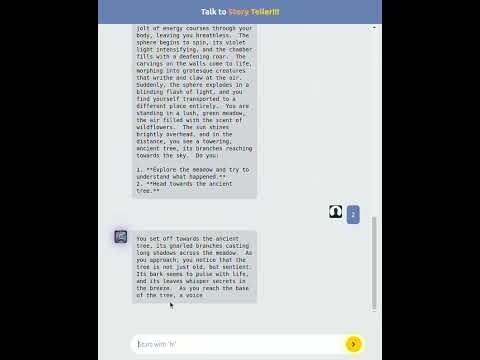](https://youtu.be/82cfLiSjNr0)
There is one component in the app: **Chat.tsx**. The **useChat** function is used to interact with the API found in **api/chat/route.ts**.
## Getting Started
In an *.env* file keep the Gemini API key under the variable **GOOGLE_GENERATIVE_AI_API_KEY**.
To install dependencies, run:
```bash
yarn
```
To start the app, run:
```bash
yarn dev
```
Open [http://localhost:3000](http://localhost:3000) with your browser to see the chat interface.
## Automation Testing with Playwright
Playwright(Python) is used to test the chat flow (in Playwright-test folder). The chatflow for testing includes:
- Send a sample message ("Hi, tell me a story!").
- Check if the user's message appears in the chat bubble.
- Wait for the AI response and verify it is not empty.
A screenshot of the automated Playwright test:

## Dockerization
The app can be deployed as a Docker container using the provided Dockerfile.
```bash
docker build -t nextjs-ai-chatbot .
docker run -p 3000:3000 nextjs-ai-chatbot
```
## Challenge
### Challenge 1
TypeScript detects mismatch due to different versions of *@ai-sdk/provider* and *@ai-sdk/google*
**Solution: Clear node_modules and Reinstall:** Delete the node_modules folder and the lock file (*package-lock.json or yarn.lock*), then reinstall dependencies to ensure all packages are aligned:
```bash
rm -rf node_modules package-lock.json
npm install
```
### Challenge 2
Loading **favicon** in the web title.
**Solution: Add favicon in the head tag.**:
In *layout.tsx*, add the following code:
```tsx
```
The code snippet should be under the html tag.
## References
- [NextJS ChatBot Template Tutorial](https://www.youtube.com/watch?v=sHuIIX79MOs&ab_channel=CodebenderAI)
- [useChat() documentation](https://sdk.vercel.ai/docs/reference/ai-sdk-ui/use-chat)
- [ai-sdk chatbot](https://sdk.vercel.ai/docs/ai-sdk-ui/chatbot)
- [NextJS Dockerization tutorial](https://dev.to/vorillaz/how-to-dockerize-a-nextjs-app-4e4h)