https://github.com/saegey/dj-playlist
https://github.com/saegey/dj-playlist
discogs essentia meilisearch music sematic-search vinyl
Last synced: 4 months ago
JSON representation
- Host: GitHub
- URL: https://github.com/saegey/dj-playlist
- Owner: saegey
- License: mit
- Created: 2025-07-05T19:34:17.000Z (about 1 year ago)
- Default Branch: main
- Last Pushed: 2026-03-09T00:51:26.000Z (5 months ago)
- Last Synced: 2026-03-09T03:30:50.085Z (5 months ago)
- Topics: discogs, essentia, meilisearch, music, sematic-search, vinyl
- Language: TypeScript
- Homepage: https://saegey.com/project/vinyl-playlist-maker/
- Size: 10.6 MB
- Stars: 5
- Watchers: 0
- Forks: 0
- Open Issues: 2
-
Metadata Files:
- Readme: README.md
- License: LICENSE
- Code of conduct: CODE_OF_CONDUCT.md
Awesome Lists containing this project
README
# GrooveNET
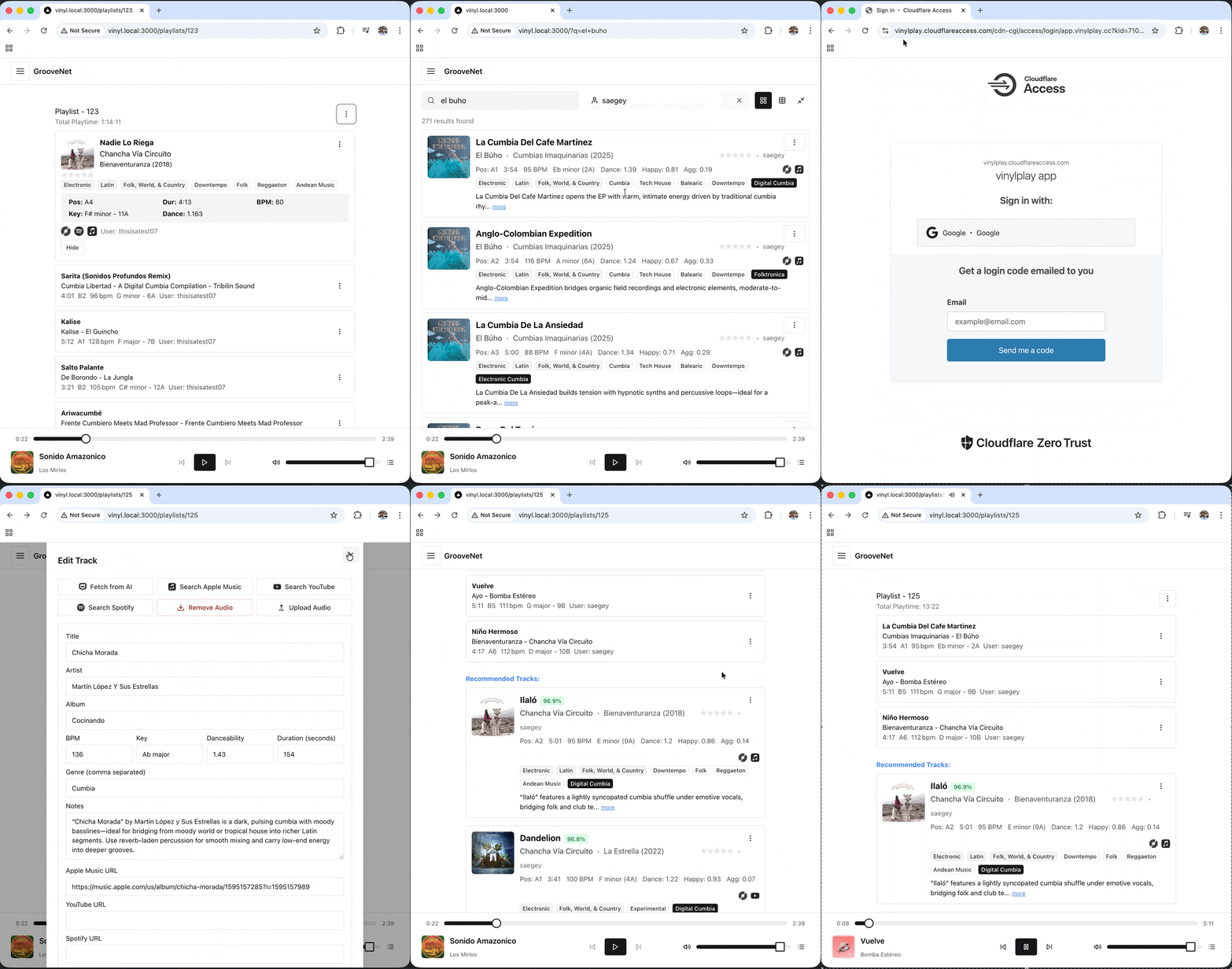
A full-stack Next.js app for managing, analyzing, and syncing vinyl music collections with multiple music platforms. Seamlessly import your Discogs collection, enrich metadata with Apple Music, Spotify, and YouTube, perform audio analysis, and create intelligent playlists.
## Features
- **Modern Frontend**: Next.js 15, React 19, TypeScript, and Chakra UI v3
- **Powerful Search**: MeiliSearch with infinite scroll, full-text search, and advanced filtering
- **Multi-Platform Integration**: Discogs, Apple Music, Spotify, YouTube, and SoundCloud
- **Audio Analysis**: Essentia-powered BPM, key detection, and mood analysis via FastAPI microservice
- **Smart Playlisting**: AI-powered playlist generation using genetic algorithms
- **Metadata Enrichment**: Bulk editing, AI-assisted metadata completion, and track linking
- **Database Management**: PostgreSQL with pgvector for semantic search, backup/restore via web UI
- **Collection Sync**: Share and sync collections with friends
- **Vector Search**: Optional embedding-based similarity search using OpenAI
- **Docker Compose**: Full orchestration for development and production environments
## Project Structure
```
dj-playlist/
├── my-collection-search/ # Main Next.js application
│ ├── src/
│ │ ├── app/ # Next.js 15 app router pages + API routes
│ │ ├── components/ # React components
│ │ ├── hooks/ # React Query hooks and cache management
│ │ ├── server/ # Backend-only: repositories, services
│ │ ├── services/ # Frontend API clients
│ │ ├── types/ # TypeScript type definitions
│ │ └── api-contract/ # Zod schemas shared across routes
│ ├── migrations/ # PostgreSQL migration scripts (node-pg-migrate)
│ └── .env.example # Environment variable template
├── packages/
│ ├── groovenet-client/ # Shared typed API client (@groovenet/client)
│ └── groovenet-cli/ # CLI tool (@groovenet/cli, bin: groovenet)
├── mcp-server/ # MCP server for Claude Code integration
├── essentia-api/ # Python FastAPI audio analysis microservice
├── ga-service/ # Python genetic algorithm playlist generator
├── docker-compose.yml # Base Docker Compose (local builds)
├── docker-compose.dev.yml # Development overrides (hot reload)
└── docker-compose.prod.yml # Production with pre-built images (x86_64 only)
```
## Getting Started
### Prerequisites
- **Docker & Docker Compose** (v2.x or higher)
- **Node.js** 20+ (for local development)
- **Discogs account** with collection data (required)
- **API credentials** (see Environment Variables section below)
### Quick Start (Development)
1. **Clone the repository**:
```sh
git clone
cd dj-playlist
```
2. **Configure environment variables**:
```sh
cd my-collection-search
cp .env.example .env
```
Edit `.env` and add your API credentials (see "Getting API Credentials" section)
3. **Start services with Docker Compose**:
```sh
docker compose -f docker-compose.yml -f docker-compose.dev.yml up --build
```
This will start:
- PostgreSQL database (port 5432)
- MeiliSearch (port 7700)
- Next.js app (port 3000)
- Essentia API for audio analysis (port 8000)
4. **Run database migrations**:
```sh
docker compose run --rm migrate
```
5. **Access the application**:
- Frontend: [http://localhost:3000](http://localhost:3000)
- MeiliSearch admin: [http://localhost:7700](http://localhost:7700)
6. **Import your Discogs collection**:
- Navigate to the import page in the UI
- Click "Sync from Discogs"
- Your collection will be imported and indexed in MeiliSearch
### Production Deployment
There are two production deployment options depending on your platform architecture:
#### Option 1: Production with Pre-built Images (Linux/x86_64)
This option uses tagged container images from GitHub Container Registry. Ideal for Linux servers and deployment tools like Portainer.
1. **Configure environment**:
```sh
cd my-collection-search
cp .env.example .env
```
Edit `.env` with production credentials and strong passwords
2. **Start services using production compose file**:
```sh
docker compose -f docker-compose.prod.yml up -d
```
This configuration:
- Pulls pre-built images from `ghcr.io/saegey/myapp:v1.0.78`
- Includes all services: app, db, MeiliSearch, Redis, Essentia API, GA service, download worker
- Uses named volumes for persistence
3. **Run migrations**:
```sh
docker compose -f docker-compose.prod.yml run --rm migrate
```
4. **Access the app**: Navigate to your server's address on port 3000
**Note**: Currently, pre-built images are only available for x86_64/amd64 architecture. ARM64 images are not yet published to the registry.
#### Option 2: Production with Local Build (Mac/ARM64)
For ARM-based systems (Apple Silicon Macs, ARM servers) where pre-built images aren't available, build locally:
1. **Configure environment**:
```sh
cd my-collection-search
cp .env.example .env
```
Edit `.env` with production credentials
2. **Build and start services**:
```sh
docker compose -f docker-compose.yml up --build -d
```
3. **Run migrations**:
```sh
docker compose run --rm migrate
```
4. **Access the app**: Navigate to `http://localhost:3000`
**Architecture Notes**:
- The main `docker-compose.yml` builds images locally from source
- Works on any architecture (ARM64, x86_64)
- Slower initial startup due to build time
- Recommended for Mac users until ARM64 images are published
#### Deploying with Portainer
If using Portainer on a Linux server (x86_64):
1. **Create a new stack** in Portainer
2. **Upload or paste** the contents of `docker-compose.prod.yml`
3. **Set environment variables** in Portainer's environment section:
- Add all variables from `.env.example`
- Portainer will inject these into the containers
4. **Deploy the stack**
5. **Run migrations**:
- Use Portainer's container console
- Select the `migrate` container
- Or exec into the `app` container: `npx node-pg-migrate up`
**Portainer Benefits**:
- Web UI for container management
- Easy log viewing and monitoring
- Automatic restarts and health checks
- Simple environment variable management
### Local Development (Without Docker)
1. **Start PostgreSQL and MeiliSearch** (use Docker or install locally):
```sh
docker compose up -d db meili
```
2. **Install dependencies**:
```sh
cd my-collection-search
npm install
```
3. **Run migrations**:
```sh
npm run migrate up
```
4. **Start the dev server**:
```sh
npm run dev
```
5. **Access**: [http://localhost:3000](http://localhost:3000)
## Database Migrations
- Migrations are managed with [node-pg-migrate](https://github.com/salsita/node-pg-migrate).
- Migration files are in `migrations/` and ordered by timestamp.
- To run migrations manually:
```sh
docker compose run migrate
```
## Backup & Restore
- Backup: Use the web UI or POST `/api/backup` to create a SQL dump in `dumps/`.
- Restore: Use the web UI or POST a SQL file to `/api/restore`.
- For a full restore, remove the DB volume first:
```sh
docker compose down -v
docker compose up db
# Then restore via UI or API
```
## Key Workflows
### Importing Your Collection
1. Set up Discogs credentials in `.env`
2. Navigate to the import page in the UI
3. Click "Sync from Discogs" to import your collection
4. Tracks are automatically indexed in MeiliSearch for instant search
### Enriching Metadata
- **Auto-match**: Automatically find Apple Music, Spotify, and YouTube links for tracks
- **Bulk edit**: Select multiple tracks and update fields like BPM, key, rating, tags
- **AI assistance**: Use OpenAI to auto-complete missing metadata fields
- **Manual editing**: Edit individual track details with inline forms
### Audio Analysis
- Upload audio files for tracks (MP3, WAV, FLAC)
- Essentia API automatically analyzes:
- BPM (beats per minute)
- Musical key
- Danceability score
- Mood analysis (happy, sad, aggressive, relaxed)
- Analysis results are stored and searchable
### Creating Playlists
- **Manual**: Drag and drop tracks from search results
- **AI-powered**: Use genetic algorithm to generate playlists based on:
- BPM matching
- Key compatibility
- Mood progression
- Genre clustering
### Searching & Filtering
- **Full-text search**: Search across title, artist, album, genres, styles
- **Advanced filters**: Filter by BPM range, key, star rating, tags, platform availability
- **Infinite scroll**: Smooth browsing through large collections
- **Vector similarity**: Find similar tracks using OpenAI embeddings (optional)
### Friend Collections
- Add friends by Discogs username
- Browse and search friends' collections
- Compare collections and find unique tracks
- Sync updates when friends add new records
## Audio Analysis
- Audio files are processed and stored in `/audio` volume
- Essentia microservice runs in its own container (`essentia-api`)
- Analysis results are saved to PostgreSQL and indexed in MeiliSearch
- Supports MP3, WAV, FLAC, and other common audio formats
## USB DAC Audio Playback (Optional)
GrooveNET supports USB DAC (Digital-to-Analog Converter) passthrough for high-quality audio playback directly from the containerized application. This feature is completely optional and disabled by default.
### Prerequisites
- USB DAC connected to your host system
- Docker host must be Linux-based (required for USB device passthrough)
- ALSA utilities installed on the host (recommended for device detection)
### Setup Instructions
#### Step 1: Detect Your Audio Devices
Run the audio detection script on your host machine (not in a container):
```sh
cd my-collection-search/scripts
./detect-audio-devices.sh
```
This script will display:
- Available `/dev/snd` devices
- ALSA sound card information
- USB audio devices
- Configuration guidance
**Example output**:
```
2. ALSA Sound Cards (from /proc/asound/cards):
0 [PCH ]: HDA-Intel - HDA Intel PCH
1 [DAC ]: USB-Audio - FiiO DAC
```
In this example, the USB DAC is card 1.
#### Step 2: Configure Docker Compose
Edit your `docker-compose.prod.yml` or `docker-compose.yml` file:
**Option A - Pass All Audio Devices (Simplest)**:
Uncomment these lines under the `app` service:
```yaml
devices:
- /dev/snd:/dev/snd # Pass through all audio devices
```
**Option B - Pass Specific DAC Only (More Secure)**:
If your USB DAC is card 1 (check the script output):
```yaml
devices:
- /dev/snd/controlC1:/dev/snd/controlC1 # Control interface for card 1
- /dev/snd/pcmC1D0p:/dev/snd/pcmC1D0p # Playback device for card 1
```
Replace `1` with your actual card number from Step 1.
#### Step 3: Configure Environment Variables
Edit your `.env` file:
```env
# Enable audio playback features
ENABLE_AUDIO_PLAYBACK=true
# Set the ALSA device name
# Use 'default' for the system default device
# Or specify a card like 'hw:1,0' for card 1, device 0
AUDIO_DEVICE=hw:1,0
```
**Device name format**:
- `default` - System default audio device
- `hw:X,Y` - Hardware device (card X, device Y)
- `plughw:X,Y` - Hardware with software conversion (more compatible)
#### Step 4: Restart the Stack
**For Docker Compose**:
```sh
docker compose down
docker compose up -d
```
**For Portainer**:
1. Go to **Stacks** → Your Stack → **Editor**
2. Uncomment the `devices:` section under the `app` service
3. Go to **Environment variables** and add/update:
- `ENABLE_AUDIO_PLAYBACK=true`
- `AUDIO_DEVICE=hw:1,0` (adjust card number as needed)
4. Click **Update the stack**
#### Step 5: Test Audio Playback
Run a test tone to verify the USB DAC is working:
```sh
# Test with speaker-test (generates a test tone)
docker exec -it myapp speaker-test -t wav -c 2
# Test with a specific device
docker exec -it myapp speaker-test -D hw:1,0 -t wav -c 2
# Press Ctrl+C to stop the test
```
If you hear audio through your USB DAC, the setup is successful!
### Portainer-Specific Setup
If you're using Portainer on an Intel NUC or other Linux server:
1. **Edit Stack Compose File**:
- Navigate to **Stacks** → Your Stack → **Editor**
- Find the `app` service section
- Uncomment the device mapping:
```yaml
devices:
- /dev/snd:/dev/snd
```
- Click **Update the stack**
2. **Set Environment Variables**:
- In the same stack editor, scroll to **Environment variables**
- Add or edit:
- `ENABLE_AUDIO_PLAYBACK` = `true`
- `AUDIO_DEVICE` = `hw:1,0` (or your device)
- Click **Update the stack**
3. **Verify Deployment**:
- Portainer will recreate the container with the new settings
- Check logs: **Containers** → `myapp` → **Logs**
### Troubleshooting
**No audio output**:
```sh
# Check if the container can see audio devices
docker exec -it myapp ls -la /dev/snd/
# List available ALSA devices inside container
docker exec -it myapp aplay -l
# Check if the specified device exists
docker exec -it myapp cat /proc/asound/cards
```
**Permission denied errors**:
- The container user may need to be in the `audio` group
- Try passing all devices with `/dev/snd:/dev/snd` instead of specific devices
- Check host permissions: `ls -la /dev/snd/`
**Wrong device playing audio**:
- Use `AUDIO_DEVICE=hw:X,Y` to specify the exact card number
- Run the detection script again to verify device numbers haven't changed
- USB device numbers can change after reboot; consider using `by-id` paths
**USB DAC not detected**:
- Ensure the USB DAC is connected before starting containers
- Check `lsusb` on the host to verify USB connection
- Some DACs require specific kernel drivers or firmware
### Audio Playback in Your App
Once configured, your Next.js app can use the `ENABLE_AUDIO_PLAYBACK` and `AUDIO_DEVICE` environment variables to enable audio playback features in the UI.
#### Quick Integration Example
Add the playback mode selector to your player UI:
```typescript
import PlaybackModeSelector from '@/components/PlaybackModeSelector';
import { usePlaybackMode, useLocalPlayback } from '@/hooks/usePlaybackMode';
function MyPlayer() {
const { mode, setMode } = usePlaybackMode();
const { play, pause, stop } = useLocalPlayback();
const { currentTrack, isPlaying } = usePlaylistPlayer();
// Handle play button
const handlePlay = async () => {
if (mode === 'local-dac' && currentTrack?.local_audio_url) {
await play(currentTrack.local_audio_url);
} else {
// Use existing browser playback
browserPlay();
}
};
return (
{/* Playback mode selector */}
{/* Your existing player controls */}
Play
);
}
```
For complete integration details, see [`docs/LOCAL_PLAYBACK.md`](my-collection-search/docs/LOCAL_PLAYBACK.md).
### Platform Limitations
- **Linux only**: USB device passthrough requires Linux host OS
- **Not supported**: macOS, Windows (WSL2 has limited support)
- **Portainer**: Works great on Linux servers (Intel NUC, Raspberry Pi, etc.)
- **Development**: May not work in `docker-compose.dev.yml` on macOS
## AirPlay Receiver (Optional)
Turn your Intel NUC with USB DAC into an AirPlay receiver! Stream audio from iOS devices, Macs, and other AirPlay sources directly to your high-quality DAC.
### Features
- **Network Audio Endpoint**: Your server appears as "GrooveNET Audio" in AirPlay menus
- **Simultaneous Playback**: Use ALSA dmix to play both AirPlay and Next.js app audio simultaneously
- **Auto-Coordination**: Optional hooks to pause app playback when AirPlay starts
- **High Quality**: Supports high sample rates and bit depths (96kHz/24-bit)
### Quick Setup
1. **Enable the service** in `docker-compose.prod.yml`:
```yaml
# Uncomment the shairport-sync service block
shairport-sync:
image: mikebrady/shairport-sync:latest
network_mode: host # Required for AirPlay discovery
devices:
- /dev/snd:/dev/snd
```
2. **Configure for software mixing** (recommended):
```env
# In .env
AIRPLAY_NAME=GrooveNET Audio
AUDIO_DEVICE=dmix:CARD=DAC,DEV=0
```
3. **Mount ALSA config** for dmix:
```yaml
# In docker-compose.prod.yml
volumes:
- ./config/asound.conf:/etc/asound.conf:ro
```
4. **Start the service**:
```bash
docker compose -f docker-compose.prod.yml up -d shairport-sync
```
5. **Test**: Open AirPlay menu on your iPhone/Mac and look for "GrooveNET Audio"
### Configuration Options
**Simple Mode (First-Come-First-Served)**:
- Only one audio source at a time (AirPlay or app)
- Easiest setup, no mixing required
- See [docs/AIRPLAY_RECEIVER.md](my-collection-search/docs/AIRPLAY_RECEIVER.md#option-1-simple-first-come-first-served)
**dmix Mode (Recommended)**:
- Both AirPlay and app can play simultaneously
- Software mixing with minimal CPU overhead
- See [docs/AIRPLAY_RECEIVER.md](my-collection-search/docs/AIRPLAY_RECEIVER.md#option-2-software-mixing-with-dmix-recommended)
**Coordinated Mode**:
- Auto-pause app when AirPlay starts
- Managed via session hooks
- See [docs/AIRPLAY_RECEIVER.md](my-collection-search/docs/AIRPLAY_RECEIVER.md#option-3-coordinated-playback-with-hooks)
For complete setup instructions, troubleshooting, and advanced configuration, see the [**AirPlay Receiver Guide**](my-collection-search/docs/AIRPLAY_RECEIVER.md).
## Environment Variables
### Required Configuration
Copy `my-collection-search/.env.example` to `my-collection-search/.env` and configure the following variables:
```env
# Database
DATABASE_URL=postgres://djplaylist:djplaylist@localhost:5432/djplaylist
# MeiliSearch
MEILISEARCH_API_KEY=mysupersecretkey
MEILISEARCH_HOST=http://meili:7700
MEILISEARCH_EXTERNAL_HOST=http://localhost:7700
MEILI_PARENT_KEY=sample_meili_parent_key
MEILI_PARENT_KEY_UID=sample_parentkey_uid
# Discogs (Required for collection import)
DISCOGS_USER_TOKEN=your_discogs_token
DISCOGS_USERNAME=your_discogs_username
DISCOGS_FOLDER_ID=0
# Optional: Music Platform APIs
APPLE_MUSIC_TEAM_ID=your_team_id
APPLE_MUSIC_KEY_ID=your_key_id
APPLE_MUSIC_PRIVATE_KEY_PATH=./AuthKey_XXXXXXXXXX.p8
SPOTIFY_CLIENT_ID=your_spotify_client_id
SPOTIFY_CLIENT_SECRET=your_spotify_client_secret
SPOTIFY_REDIRECT_URI=http://localhost:3000/api/spotify/callback
YOUTUBE_API_KEY=your_youtube_api_key
# Optional: AI Features
OPENAI_API_KEY=your_openai_api_key
# Optional: USB DAC Audio Playback
ENABLE_AUDIO_PLAYBACK=false
AUDIO_DEVICE=default
```
### Getting API Credentials
#### Discogs (Required)
Discogs is the primary source for importing your vinyl collection.
1. **Create a Discogs Account**: Visit [discogs.com](https://www.discogs.com) and sign up
2. **Get Your User Token**:
- Go to [Settings → Developers](https://www.discogs.com/settings/developers)
- Click "Generate new token"
- Copy the token to `DISCOGS_USER_TOKEN`
3. **Find Your Username**: Your username appears in your profile URL: `discogs.com/user/YOUR_USERNAME`
4. **Folder ID**: Use `0` for "All" or find specific folder IDs in your collection URL
**Documentation**: [Discogs API Docs](https://www.discogs.com/developers)
#### Apple Music Developer (Optional)
Enables metadata enrichment, preview URLs, and Apple Music linking.
1. **Apple Developer Account**: You need a paid Apple Developer account ($99/year)
- Sign up at [developer.apple.com](https://developer.apple.com)
2. **Create a MusicKit Key**:
- Go to [Certificates, Identifiers & Profiles](https://developer.apple.com/account/resources/authkeys/list)
- Click "+" to create a new key
- Enable "MusicKit" checkbox
- Download the `.p8` file (you can only download once!)
3. **Configure Environment**:
- `APPLE_MUSIC_TEAM_ID`: Found in the top-right of your Apple Developer account (10-character ID)
- `APPLE_MUSIC_KEY_ID`: The Key ID shown after creating the key (10-character ID)
- `APPLE_MUSIC_PRIVATE_KEY_PATH`: Path to your downloaded `.p8` file (place in project root)
**Documentation**: [Apple Music API Setup](https://developer.apple.com/documentation/applemusicapi/getting_keys_and_creating_tokens)
#### Spotify (Optional)
Enables Spotify track matching, playlist import, and new release tracking.
1. **Create Spotify App**:
- Go to [Spotify Developer Dashboard](https://developer.spotify.com/dashboard)
- Click "Create app"
- Fill in app name and description
- Add redirect URI: `http://localhost:3000/api/spotify/callback`
2. **Get Credentials**:
- Click on your new app
- Copy "Client ID" to `SPOTIFY_CLIENT_ID`
- Click "Show Client Secret" and copy to `SPOTIFY_CLIENT_SECRET`
3. **Set Redirect URI**: Must match `SPOTIFY_REDIRECT_URI` in your `.env`
**Documentation**: [Spotify Web API](https://developer.spotify.com/documentation/web-api)
#### YouTube Data API (Optional)
Enables YouTube search and video linking for tracks.
1. **Create Google Cloud Project**:
- Go to [Google Cloud Console](https://console.cloud.google.com)
- Create a new project or select existing
2. **Enable YouTube Data API v3**:
- Navigate to "APIs & Services" → "Library"
- Search for "YouTube Data API v3"
- Click "Enable"
3. **Create API Key**:
- Go to "APIs & Services" → "Credentials"
- Click "Create Credentials" → "API Key"
- Copy the key to `YOUTUBE_API_KEY`
- (Optional) Restrict the key to YouTube Data API v3 for security
**Documentation**: [YouTube Data API](https://developers.google.com/youtube/v3/getting-started)
**Note**: Free tier includes 10,000 quota units/day. Each search costs ~100 units.
#### OpenAI (Optional)
Powers AI-assisted metadata completion and semantic vector search.
1. **Create OpenAI Account**: Visit [platform.openai.com](https://platform.openai.com)
2. **Generate API Key**:
- Go to [API Keys](https://platform.openai.com/api-keys)
- Click "Create new secret key"
- Copy the key to `OPENAI_API_KEY`
- **Important**: Save immediately - you won't see it again!
3. **Add Billing**: Add payment method in [Billing settings](https://platform.openai.com/account/billing)
**Documentation**: [OpenAI API Quickstart](https://platform.openai.com/docs/quickstart)
**Usage**: The app uses GPT models for metadata enhancement and embedding models for vector search.
## Docker Compose Configurations
The project includes three Docker Compose files for different deployment scenarios:
### `docker-compose.yml` (Base Configuration)
- Builds all images locally from source
- Works on any architecture (x86_64, ARM64)
- Suitable for production on Mac/ARM systems
- Can be combined with dev overrides
### `docker-compose.dev.yml` (Development Overrides)
- Extends base configuration with development features
- Hot reload for Next.js (volume mounts source code)
- Local development optimizations
- Usage: `docker compose -f docker-compose.yml -f docker-compose.dev.yml up`
### `docker-compose.prod.yml` (Production with Registry Images)
- Uses pre-built images from GitHub Container Registry
- Faster deployment (no build time)
- Includes all production services: app, db, Redis, MeiliSearch, Essentia API, GA service, download worker
- **Currently x86_64/amd64 only** - ARM64 images not yet published
- Ideal for Linux servers and tools like Portainer
- Usage: `docker compose -f docker-compose.prod.yml up -d`
**Recommendation**:
- **Linux servers (x86_64)**: Use `docker-compose.prod.yml` for fastest deployment
- **Mac (Apple Silicon)**: Use `docker-compose.yml` (local build) until ARM images are available
- **Development**: Use `docker-compose.yml` + `docker-compose.dev.yml` combined
## Troubleshooting
### Database connection issues
```sh
# Check if database is running
docker compose ps db
# View database logs
docker compose logs db
# Test connection
docker compose exec db psql -U djplaylist -d djplaylist -c "SELECT 1;"
```
### MeiliSearch not indexing
```sh
# Check MeiliSearch logs
docker compose logs meili
# Verify MeiliSearch is accessible
curl http://localhost:7700/health
# Re-index all tracks (via UI or API)
# Navigate to /admin/reindex in the app
```
### Missing API credentials
- Ensure `.env` file exists in `my-collection-search/` directory
- Verify all required variables are set (especially `DISCOGS_USER_TOKEN`)
- Check that Apple Music `.p8` file path is correct
- Restart services after updating `.env`: `docker compose restart app`
### Port conflicts
If ports 3000, 5432, or 7700 are already in use:
1. Stop conflicting services
2. Or modify ports in `docker-compose.yml` (e.g., `"3001:3000"`)
### Audio analysis failing
```sh
# Check Essentia API logs
docker compose logs essentia-api
# Verify service is running
curl http://localhost:8000/health
# Check audio file permissions in ./audio/ volume
```
## Technology Stack
### Frontend
- Next.js 15 (App Router)
- React 19
- TypeScript
- Chakra UI v3
- TanStack Query v5 (React Query)
- Framer Motion
- Zustand (state management)
### Backend
- Next.js API Routes
- PostgreSQL 16 with pgvector extension
- MeiliSearch (search engine)
- Redis (job queuing)
- node-pg-migrate (database migrations)
### Services
- Essentia API (Python FastAPI) - Audio analysis
- Docker Compose - Orchestration
### External APIs
- Discogs API
- Apple Music API (MusicKit)
- Spotify Web API
- YouTube Data API v3
- OpenAI API (GPT-4 and embeddings)
## CLI (`groovenet`)
A terminal client for your collection, usable from any machine on your network (e.g. over Tailscale). All commands support `--json` for scripting.
### Install
```bash
npm install -g @groovenet/cli
```
Or from source:
```bash
npm install # from repo root
make build-packages
cd packages/groovenet-cli && npm link
```
### Configure
```bash
groovenet config set api_base http://groovenet.tail1234.ts.net/api
groovenet config set api_key your-key-if-needed # optional
groovenet config show
```
Config is stored in `~/.groovenet/config.json`.
### Commands
**Tracks**
```bash
groovenet tracks search "acid house" --bpm-min 120 --bpm-max 135 --limit 20
groovenet tracks show
groovenet tracks update --rating 5 --notes "peak time" --tags "acid,classic"
groovenet tracks missing-apple-music --page 1
```
**Albums**
```bash
groovenet albums list # recently added (default)
groovenet albums list "blue note" --sort year:desc
groovenet albums show
groovenet albums update --rating 5 --condition "NM" --library-id LP042
groovenet albums download # queues missing tracks for download
```
**Playlists**
```bash
groovenet playlists list
groovenet playlists show
groovenet playlists create "Friday Night"
groovenet playlists generate # re-optimizes via genetic algorithm
```
**Playback** (routes through server → MPD)
```bash
groovenet play
groovenet pause
groovenet stop
groovenet now-playing
```
**Other**
```bash
groovenet friends list
groovenet friends add
```
---
## MCP Server (Claude Code Integration)
Allows Claude to browse and manage your collection through natural language.
### Setup
```bash
npm install && make build-packages
# Register with Claude Code (local)
claude mcp add --transport stdio --scope project groovenet \
-- node /path/to/dj-playlist/mcp-server/build/index.js
# Or for remote access over Tailscale
claude mcp add --transport stdio --scope user groovenet \
-- env API_BASE=http://groovenet.tail1234.ts.net/api \
node /path/to/dj-playlist/mcp-server/build/index.js
```
### Available Tools
| Category | Tools |
|---|---|
| Tracks | `search_tracks`, `get_track_details`, `update_track`, `get_missing_apple_music` |
| Albums | `search_albums`, `get_album`, `update_album`, `download_album` |
| Playlists | `list_playlists`, `get_playlist`, `create_playlist`, `generate_ai_playlist`, `get_playlist_tracks` |
| Friends | `get_friends`, `add_friend` |
| External search | `search_apple_music`, `search_youtube` |
See [`mcp-server/README.md`](mcp-server/README.md) for full documentation.
---
## Contributing
Contributions are welcome! Please feel free to submit a Pull Request.
### Development Guidelines
- Follow TypeScript strict mode conventions
- Use the existing query key patterns in `src/lib/queryKeys.ts`
- Update cache optimistically where appropriate
- Add migrations for schema changes
- Test with Docker Compose before submitting
## License
MIT
## Support
For issues, questions, or feature requests, please open an issue on GitHub.