https://github.com/sahanacodes7/jenkins
End-to-end Jenkins CI/CD implementation on AWS EC2 covering Jenkins installation, Docker agent configuration, plugin setup, and pipeline-ready infrastructure for real-world DevOps workflows.
https://github.com/sahanacodes7/jenkins
aws aws-ec2 ci-cd cicd-pipeline cloud-devops devops docker jenkins kubernetes
Last synced: 3 months ago
JSON representation
End-to-end Jenkins CI/CD implementation on AWS EC2 covering Jenkins installation, Docker agent configuration, plugin setup, and pipeline-ready infrastructure for real-world DevOps workflows.
- Host: GitHub
- URL: https://github.com/sahanacodes7/jenkins
- Owner: SahanaCodes7
- License: mit
- Created: 2025-12-19T06:31:39.000Z (7 months ago)
- Default Branch: main
- Last Pushed: 2025-12-19T06:53:13.000Z (7 months ago)
- Last Synced: 2025-12-22T02:08:09.726Z (7 months ago)
- Topics: aws, aws-ec2, ci-cd, cicd-pipeline, cloud-devops, devops, docker, jenkins, kubernetes
- Language: Python
- Homepage:
- Size: 119 KB
- Stars: 0
- Watchers: 0
- Forks: 0
- Open Issues: 0
-
Metadata Files:
- Readme: README.md
- License: LICENSE
- Code of conduct: CODE_OF_CONDUCT.md
Awesome Lists containing this project
README
# Jenkins CI/CD on AWS EC2
This repository demonstrates a complete Jenkins setup on AWS EC2, designed to create a CI/CD-ready environment using Docker-based build agents.
The project highlights practical DevOps implementation commonly used in real-world production pipelines.
Key objectives include installing Jenkins, configuring Docker as a Jenkins agent, enabling CI/CD workflows, and preparing the setup for Kubernetes-based deployments.
---
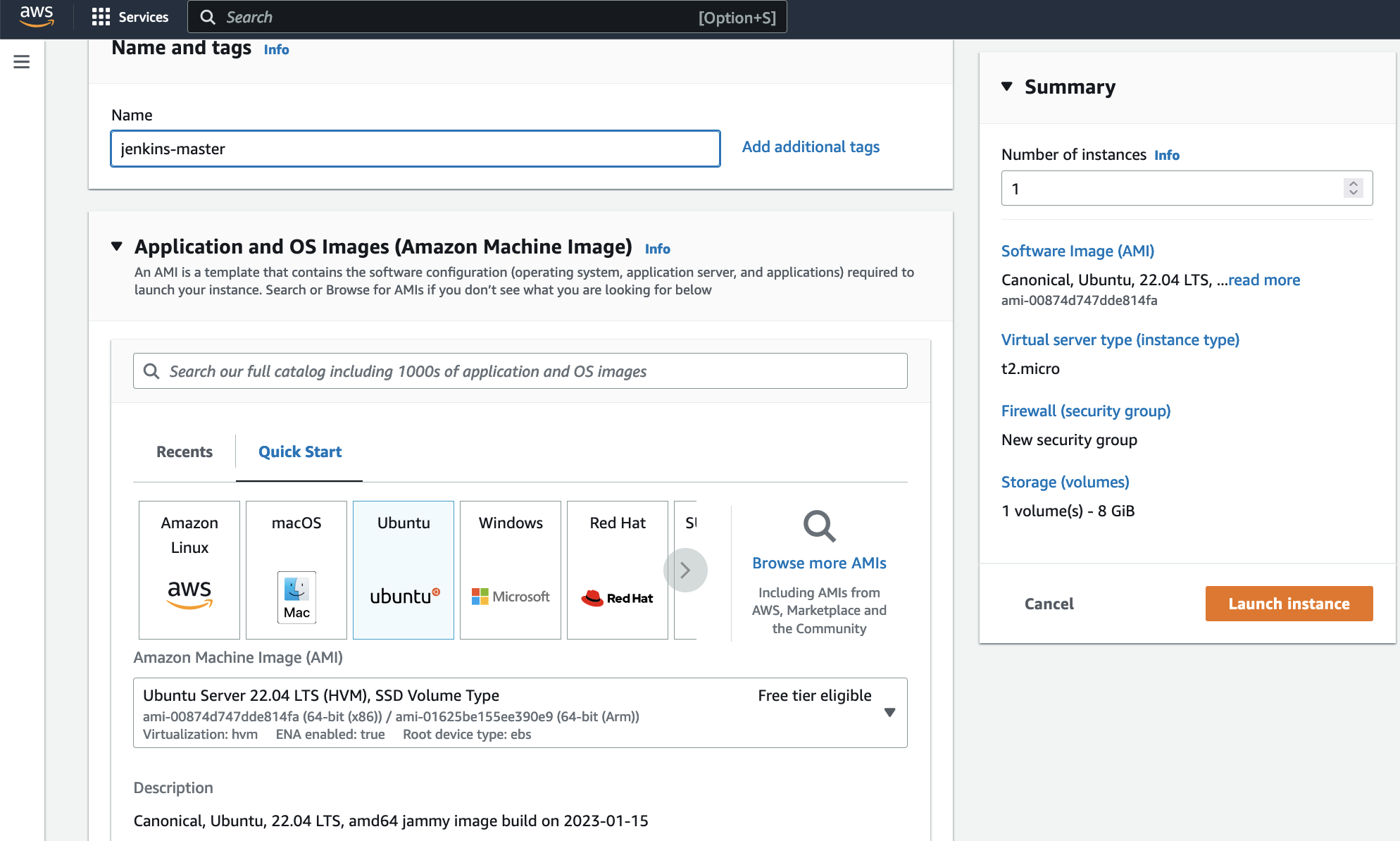
## AWS EC2 Instance Setup
- Log in to the AWS Management Console
- Navigate to **EC2 → Instances**
- Launch a new **Ubuntu-based EC2 instance**
---
## Jenkins Installation
### Prerequisites
- Java (OpenJDK)
### Install Java
```bash
sudo apt update
sudo apt install openjdk-17-jre
````
Verify installation:
```bash
java -version
```
---
### Install Jenkins
```bash
curl -fsSL https://pkg.jenkins.io/debian/jenkins.io-2023.key | sudo tee \
/usr/share/keyrings/jenkins-keyring.asc > /dev/null
echo deb [signed-by=/usr/share/keyrings/jenkins-keyring.asc] \
https://pkg.jenkins.io/debian binary/ | sudo tee \
/etc/apt/sources.list.d/jenkins.list > /dev/null
sudo apt-get update
sudo apt-get install jenkins
```
---
## Network Configuration
Jenkins runs on **port 8080**, which must be allowed in the EC2 security group.
### Steps:
* EC2 → Instances → Select your instance
* Open the **Security** tab
* Edit inbound rules
* Allow **TCP port 8080**

---
## Access Jenkins
Open Jenkins in the browser using:
```text
http://:8080
```
> You can find the EC2 public IP address in the AWS EC2 console.
### Initial Setup
After accessing Jenkins:
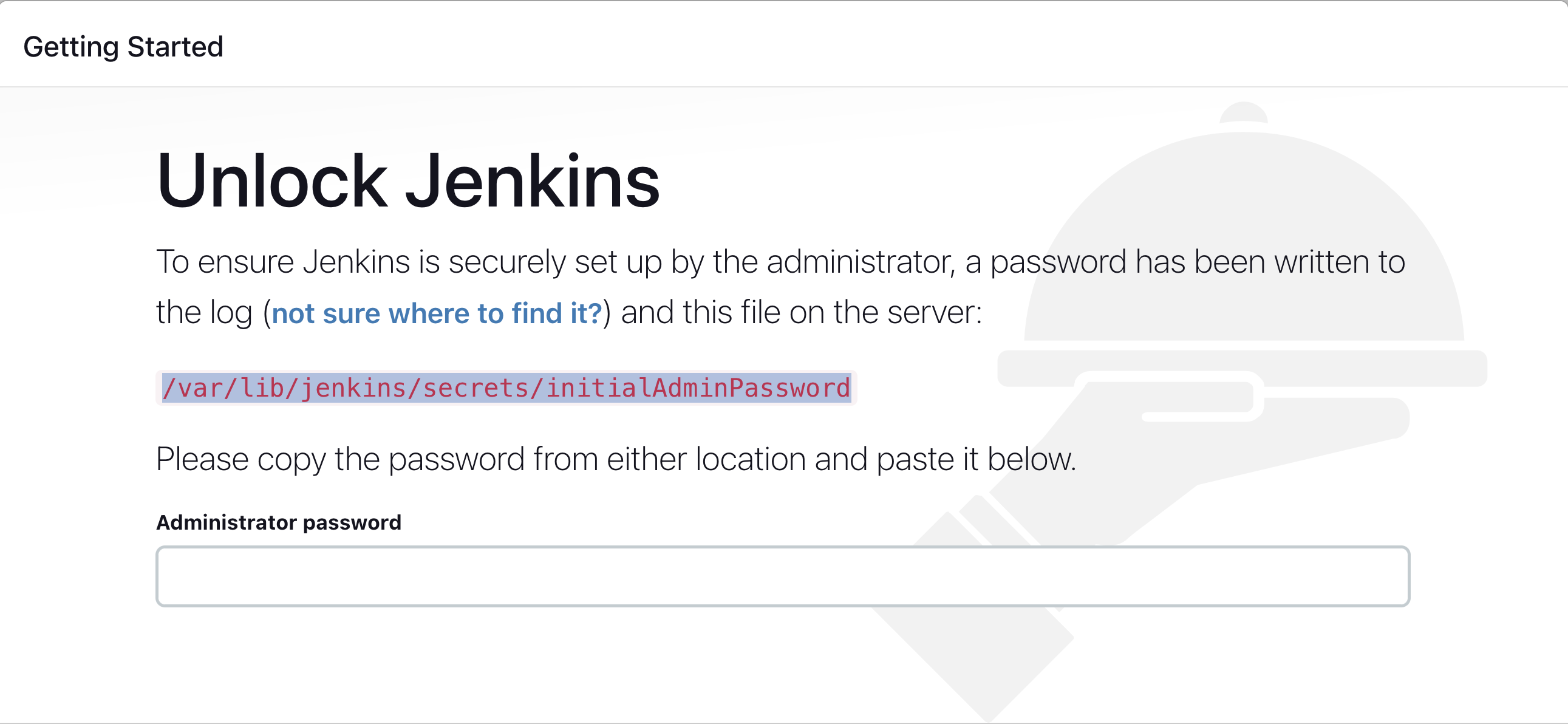
* Retrieve the initial admin password:
```bash
sudo cat /var/lib/jenkins/secrets/initialAdminPassword
```
* Paste the password into the Jenkins setup screen
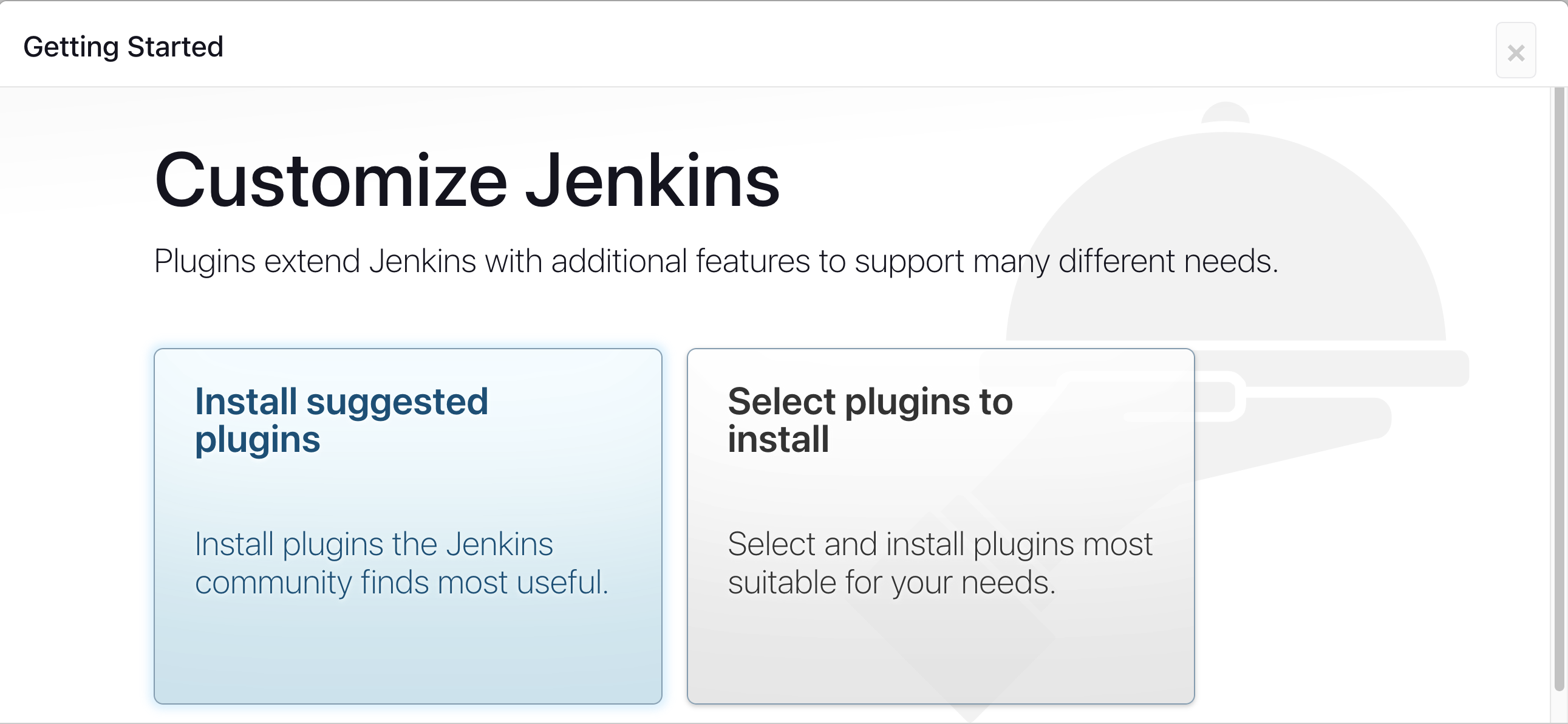
* Install suggested plugins
* Create an admin user (recommended)
---
### Install Suggested Plugins
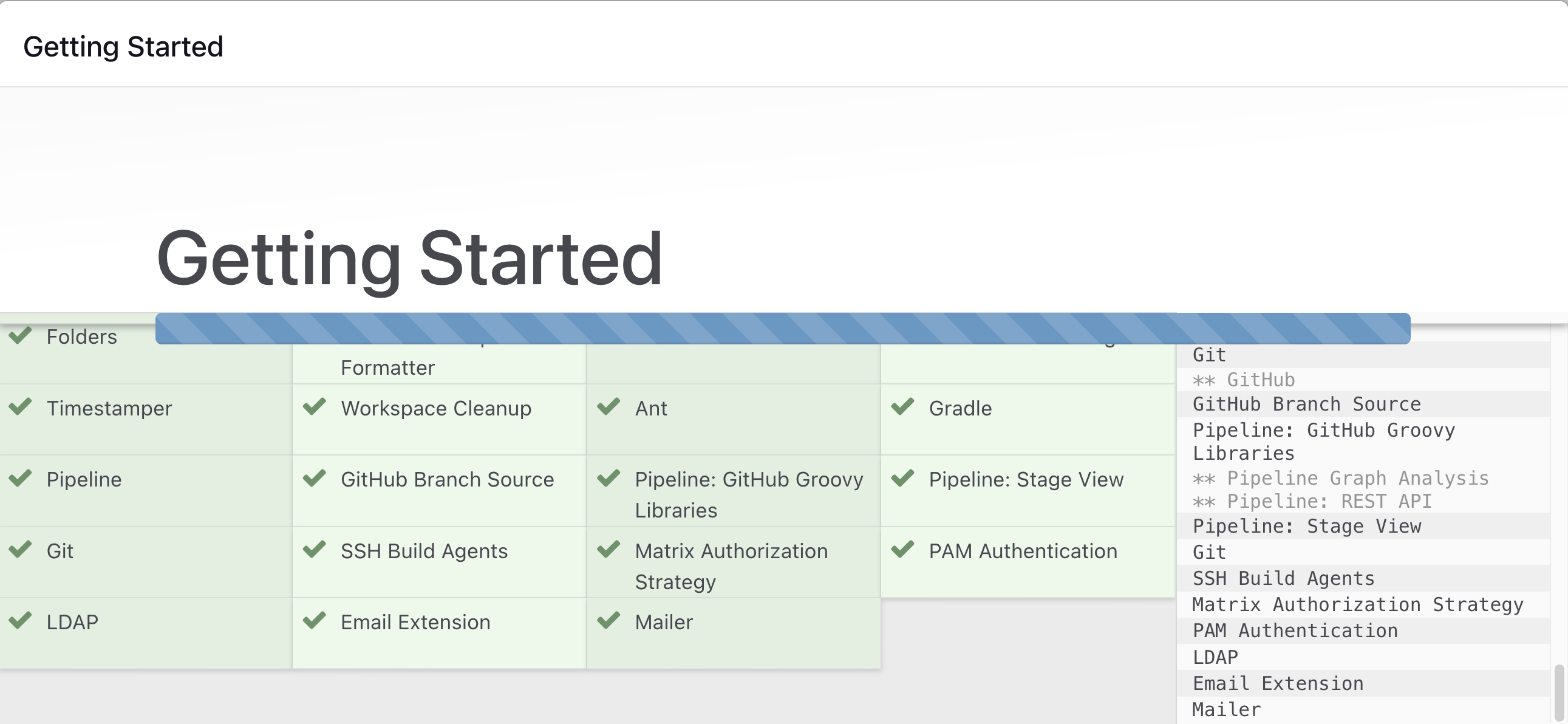
Wait for Jenkins to complete the plugin installation.
---
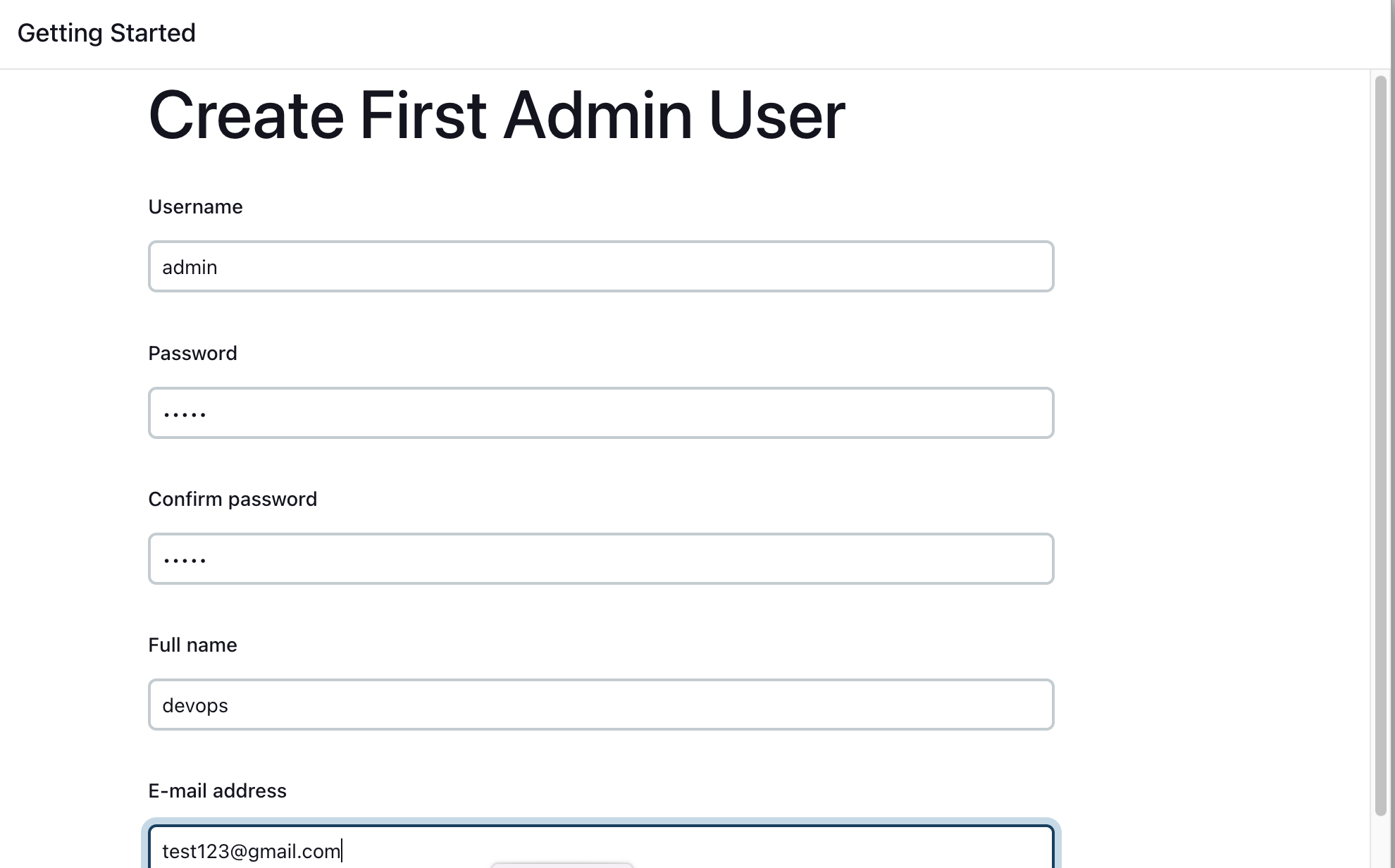
### Create Admin User
Creating an admin user is recommended for long-term and production-like usage.
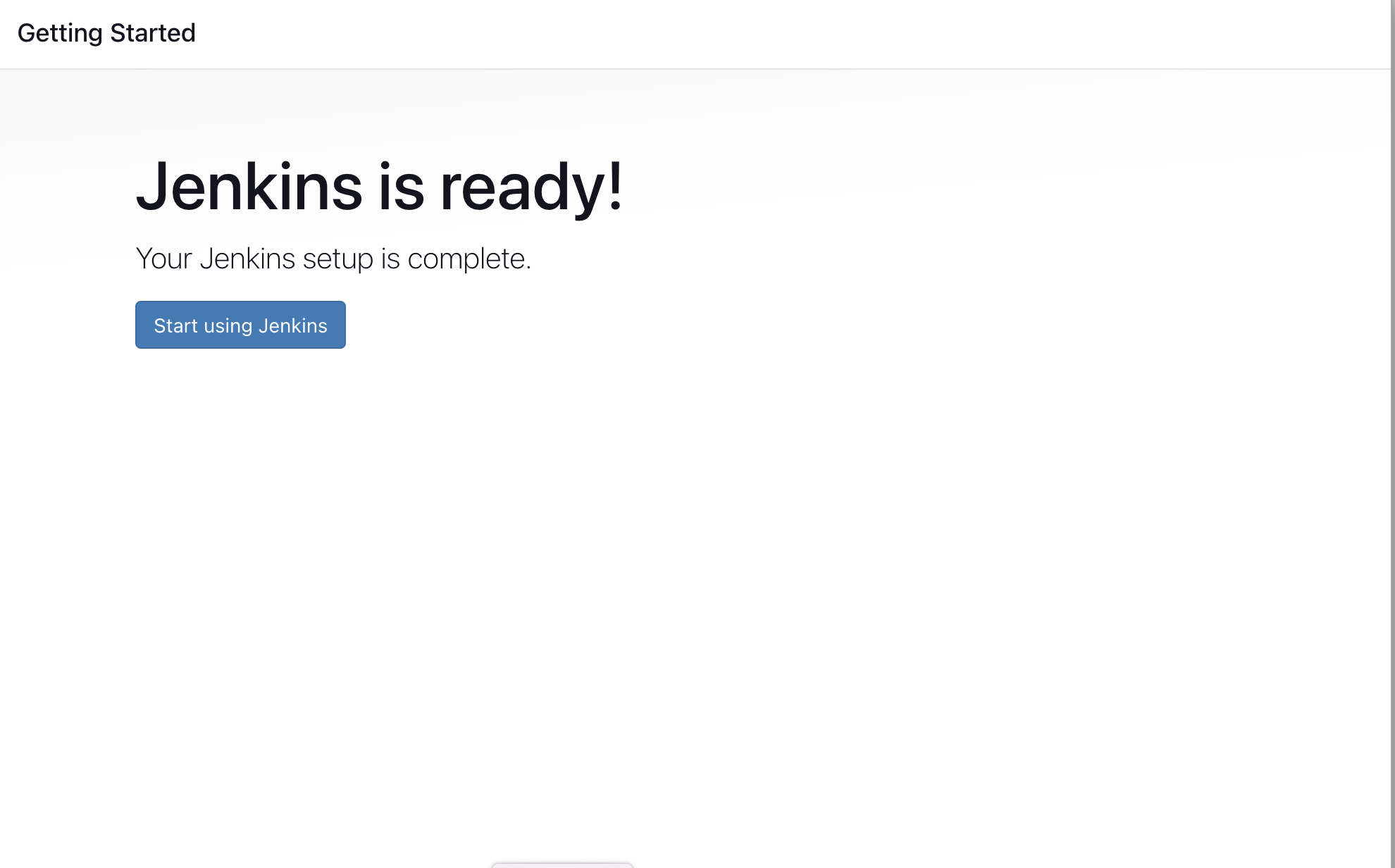
Jenkins installation is now complete and ready for use.
---
## Install Docker Pipeline Plugin
To enable Docker-based builds in Jenkins:
* Log in to Jenkins
* Go to **Manage Jenkins → Manage Plugins**
* Open the **Available** tab
* Search for **Docker Pipeline**
* Install the plugin and restart Jenkins
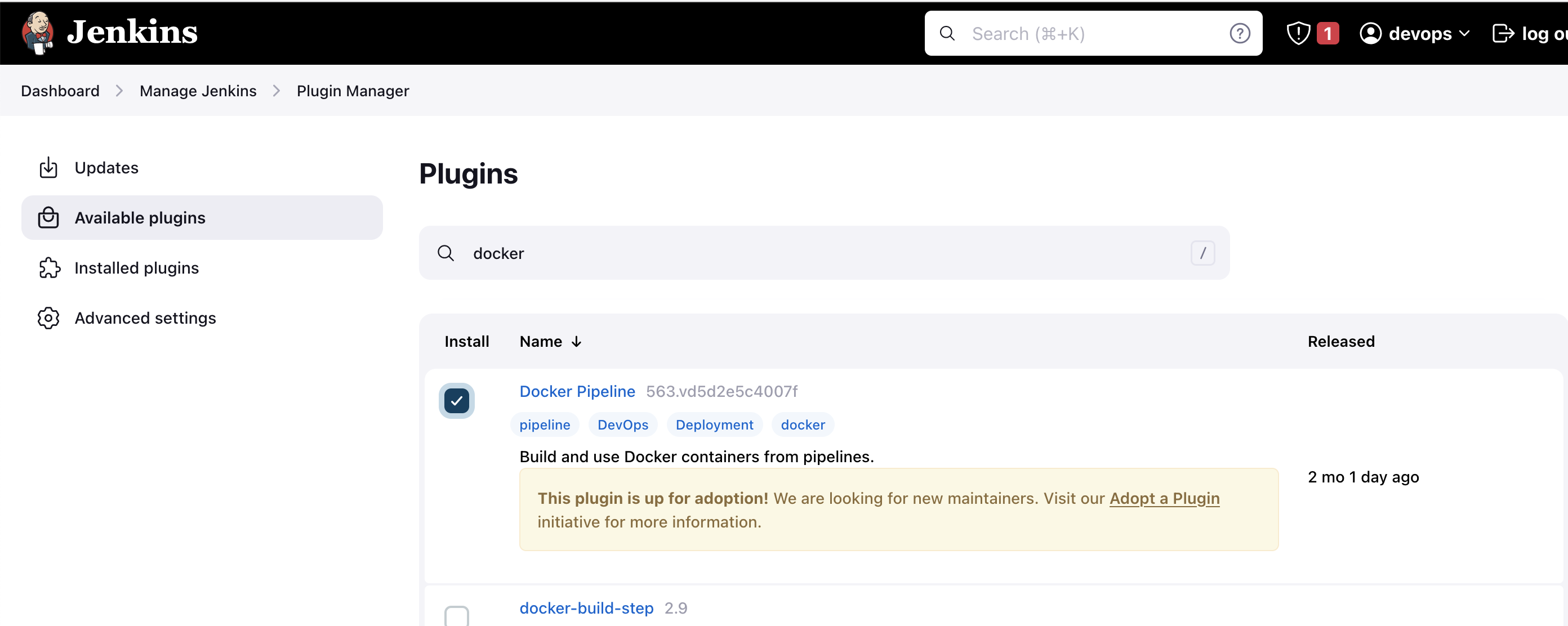
Wait for Jenkins to restart after plugin installation.
---
## Docker Agent Configuration
### Install Docker
```bash
sudo apt update
sudo apt install docker.io
```
---
### Grant Docker Permissions
Add Jenkins and Ubuntu users to the Docker group:
```bash
sudo usermod -aG docker jenkins
sudo usermod -aG docker ubuntu
sudo systemctl restart docker
```
Restart Jenkins to apply permission changes:
```text
http://:8080/restart
```
Docker is now successfully configured as a Jenkins build agent.
---
## Project Outcome
* Jenkins installed and configured on AWS EC2
* Docker integrated as a Jenkins build agent
* CI/CD-ready infrastructure established
* Foundation prepared for Kubernetes and advanced DevOps workflows
---