https://github.com/sam-k0/gmext
Convert GM6 to GMS2.3, GMS2, GMS1.4 extensions!
https://github.com/sam-k0/gmext
converter gamemaker-studio gamemaker-studio-2 gamemaker-studio-2-3 import
Last synced: 3 months ago
JSON representation
Convert GM6 to GMS2.3, GMS2, GMS1.4 extensions!
- Host: GitHub
- URL: https://github.com/sam-k0/gmext
- Owner: sam-k0
- Created: 2022-03-06T17:46:00.000Z (over 4 years ago)
- Default Branch: master
- Last Pushed: 2022-03-12T12:52:09.000Z (over 4 years ago)
- Last Synced: 2025-03-15T01:36:17.065Z (over 1 year ago)
- Topics: converter, gamemaker-studio, gamemaker-studio-2, gamemaker-studio-2-3, import
- Language: Python
- Homepage:
- Size: 104 KB
- Stars: 0
- Watchers: 1
- Forks: 0
- Open Issues: 0
-
Metadata Files:
- Readme: README.md
Awesome Lists containing this project
README
# gmext
Convert GM6 to GMS2.3, GMS2, GMS1.4 extensions!
Although the capacity of this tool is rather limited, it allows for some good use cases on older extensions- why limited?
Because:
- The extension has to include a .gml and .dll file
- The code is really janky
- This tool only exports functions, no macros (yet)
# Known bugs
- Sometimes, the functions get fancy " symbols when you import the extension to GameMaker. Have fun removing them.
- Above Bug is fixed in script, the binary .exe release is behind. I generally advise to use the .py scripts instead of .exe
# Required python modules
```python
json
xmltodict
```
# How to use (Live demo for you)
## Step 1: Getting started
First, get the extension downloaded and unzipped. I am going to use an extension called GMMovie.
(Download: http://gmc.yoyogames.com/index.php?showtopic=68332, *USE WAYBACK MACHINE TO ACCESS THIS WEBPAGE!*)
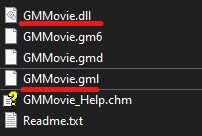
The folder should include the .dll and .gml file as stated above
## Step 2: Moving over
Move these two files over to where you downloaded this tool.
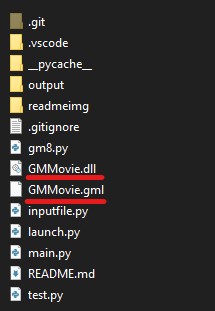
Your directory should look like this. (Both files in the root-folder!)
- If you are using the .exe version, just move the two files in the same directory as the .exe file
## Step 3: Deep Dive
Open the .gml file and look for the `#define *_Init` part. It is most likely one of the first lines.
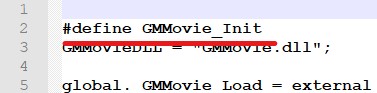
In this case, it is line 2. Copy that line to your clipboard.
## Step 4: Starting the tool
Now, execute the `main.py` file: `python3 main.py` or `python main.py` in your terminal.
**Or, if you use the .exe version, just double click it.**
- *I like to just open the folder in VS Code and run it from there*
After starting, the tool will request two inputs from you:

- The `extension name` is the name of the .gml file without the .gml.
- The `DLL file name` is the name of the dll file in your folder.
Press Enter to continue
## Step 5: Final touches
Remember how I told you to copy the `#define` thing to clipboard?
That comes into play now!
The tool will ask you to provide the section start keyword (more like sentence, lol).
Paste the **exact** line there. It needs this to know where to start reading.
Now if you press Enter, you should see a *.gmez file in the `output` folder!
**UPDATE**: The End-Section keyword is also required now!

## Step 6: Import to GMS
Congrats! It worked!
Importing to GMS2+
- Drag and drop the .gmez onto the window.
Importing to GMS1.4
- For some reason, it doesn't like the generated gmez.
- Instead, open the .extension.gmx file