https://github.com/samsung/vscode-tizentv-wasm
Extension based on VSCode editor
https://github.com/samsung/vscode-tizentv-wasm
Last synced: 9 months ago
JSON representation
Extension based on VSCode editor
- Host: GitHub
- URL: https://github.com/samsung/vscode-tizentv-wasm
- Owner: Samsung
- License: apache-2.0
- Created: 2020-06-16T03:46:24.000Z (about 6 years ago)
- Default Branch: master
- Last Pushed: 2023-04-07T09:56:46.000Z (over 3 years ago)
- Last Synced: 2025-04-11T18:22:07.185Z (over 1 year ago)
- Language: JavaScript
- Size: 9.24 MB
- Stars: 14
- Watchers: 10
- Forks: 5
- Open Issues: 4
-
Metadata Files:
- Readme: README.md
- License: LICENSE.txt
Awesome Lists containing this project
README

VS Code - Tizen TV WASM
Generate/Edit/Package/Run/Debug your applications with Tizen Targets


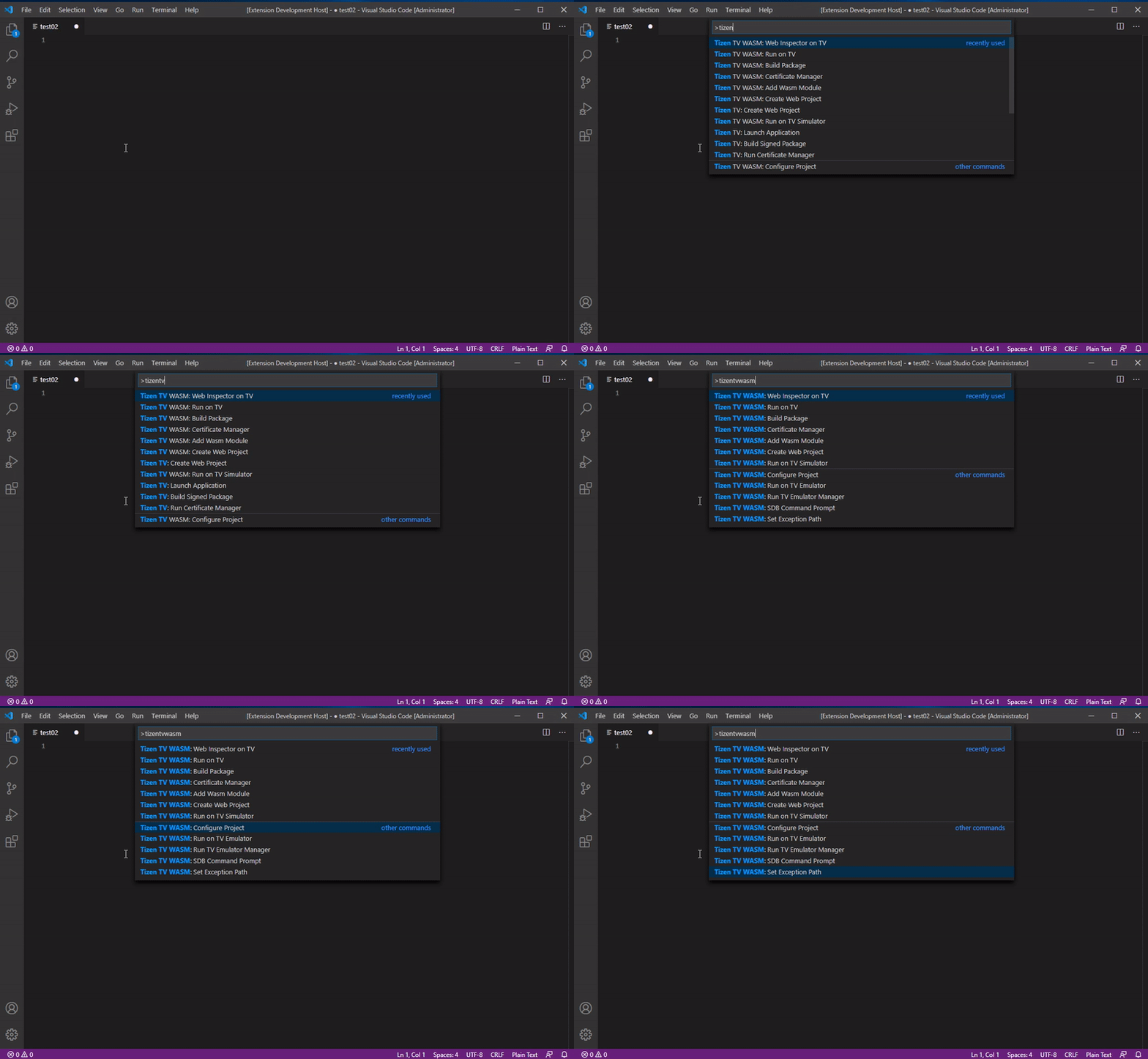
'Tizen TV WASM' is a VS Code extension that provides a lightweight IDE for Tizen Webassembly application developers, helps to generate, update and package an application, also run and debug an application on Tizen targets.
## Supported features
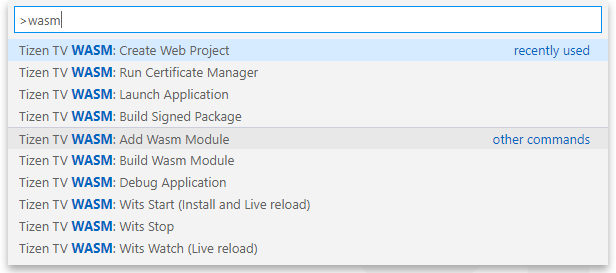
* Tizen TV WASM: **Create Web Project**
Create a Tizen web application from templates or empty projects.
* Tizen TV WASM: **Add Wasm Module**
Add one or more Wasm Module to a Tizen web application.
C++ HelloWorld / C HelloTriangle / C++ Empty / C Empty samples are included as reference modules.
* Tizen TV WASM: **Build Wasm Module**
Build all wasm modules.
* Tizen TV WASM: **Build Signed Package**
Build the Tizen application into a Tizen package, the package will be located in workspace's root directory.
Make sure to create and activate a Tizen Developer Certificate using *Certificate Manager* before proceding to this step.
* Tizen TV WASM: **Debug Application**
Use google-chrome to debug with web inspector, please configure the chrome executable's path in user setting.
* Tizen TV WASM: **Launch Application**
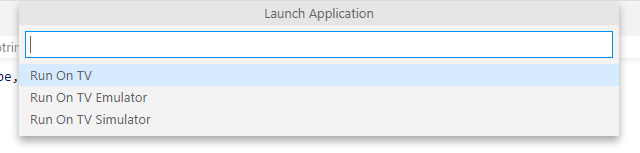
Run On TV/Run On TV Simulator/Run On TV Emulator.
Extension will prompt for configuring respective target types on first attempt.
Make sure to set [Developer Mode to On on TV](https://developer.samsung.com/smarttv/develop/getting-started/using-sdk/tv-device.html).
* Tizen TV WASM: **Run Certificate Manager**
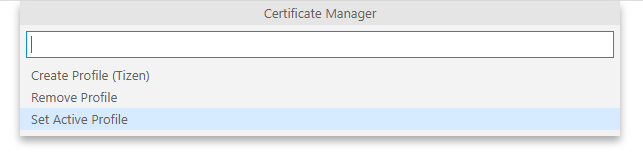
Create Profile (Tizen) / Remove Profile / Set Active Profile
Manages certificate for signing Tizen TV Web application package.
* Tizen TV WASM: **Wits Start (Install and Live reload)**
* Tizen TV WASM: **Wits Watch (Live reload)**
* Tizen TV WASM: **Wits Stop**
More information on using WITS with Tizen TV models released after 2017 is found [here](https://github.com/Samsung/Wits)
## Getting Started
The extension supports most of the basic features required to develop a Tizen TV app. It supports to create application using predefined templates, package the application, sign the application using certificate profile, launch or debug application on TV Simulator, Emulator and Tizen TV.
### Setup Environment
1. Install the latest [Visual Studio Code](https://code.visualstudio.com).
2. Install the **Tizen TV WASM extension** from the market place. **Tizen TV WASM extension** can be installed by searching in the Extensions view ( Ctrl+Shift+X ).
3. Download and extract the [Tizen Emscripten SDK](https://developer.samsung.com/smarttv/develop/extension-libraries/webassembly/download.html) suitable for your OS.
4. Setup the Tizen Emscripten and use it with Visual Studio Code.
> These steps guide using *emsdk* without changing development host environment variables permanently.
- Windows
- Launch the Windows *Command shell*.
- Go to the *emsdk* directory.
- Run the below commands.
```shell
emsdk activate latest-fastcomp
code
```
- Mac & Linux
- Launch the *Terminal*.
- Go to the *emsdk* directory.
- Run the below commands.
```shell
./emsdk activate latest-fastcomp
source ./emsdk_env.sh
code
```
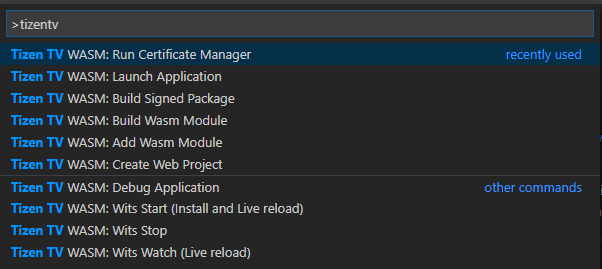
5. Press **F1** to open the *Command Palette* and input **Tizen TV WASM** to find out all the supported commands.
6. Press **F5** to find out supported debuggers.
### Developing a WASM Application
The following section demonstrates the steps essential for developing a Tizen TV WASM application using *Tizen TV WASM* extension. For simplicity, application is created using existing OpenGL based sample application.
> Use CTRL+SHIFT+P to activate the *Command Palette*.
1. Create and activate a certificate profile for signing the Tizen TV Web application package.
Even though this step could be followed later, it is better to have certificate profile created and activated before proceding further.
- Run Certificate manager
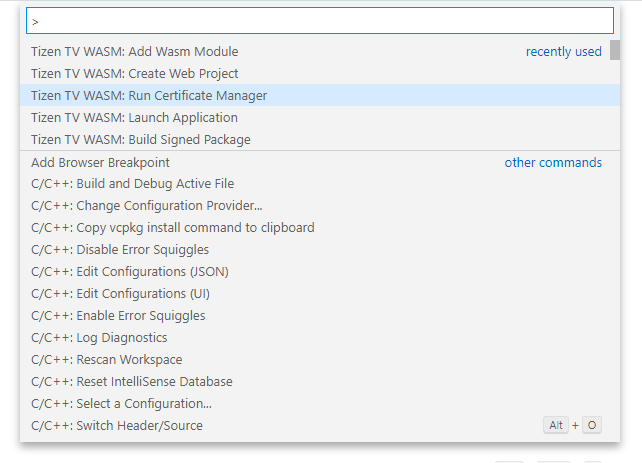
- Create Profile (Tizen)
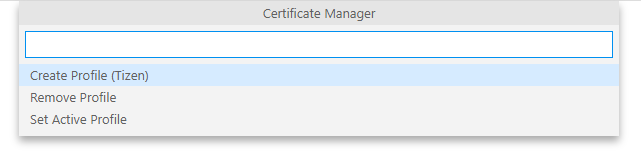
- Provide name for Certificate profile
Example : Development

- Provide filename to store the Certificate Profile
Example : TVDevelopmentCertificate

- Provide author name
Example : My Name

- Enter and confirm password for the certificate

- Set as deafult
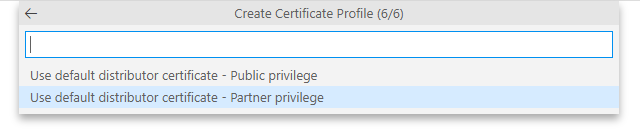
- Run Certificate Manager again and set the active profile
1. Create an empty web project
- Run Create Web Project
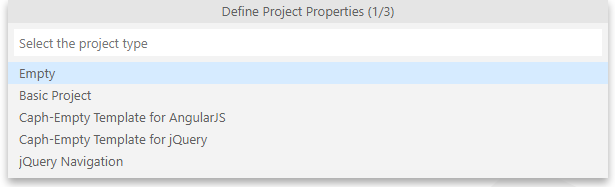
- Select Empty
- Choose the working directory. By default, it chooses current directory

- Provide name
Example : HelloWASM

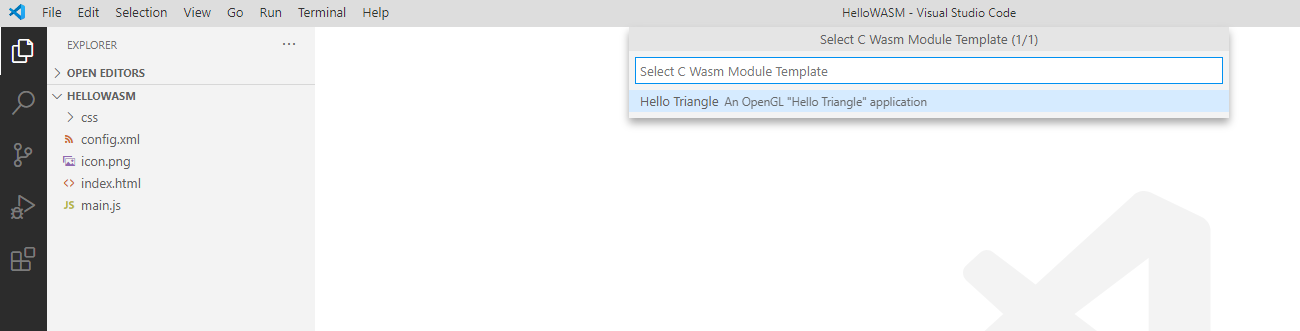
1. Add a WASM module choosing from existing C sample.
- Run Add Wasm Module
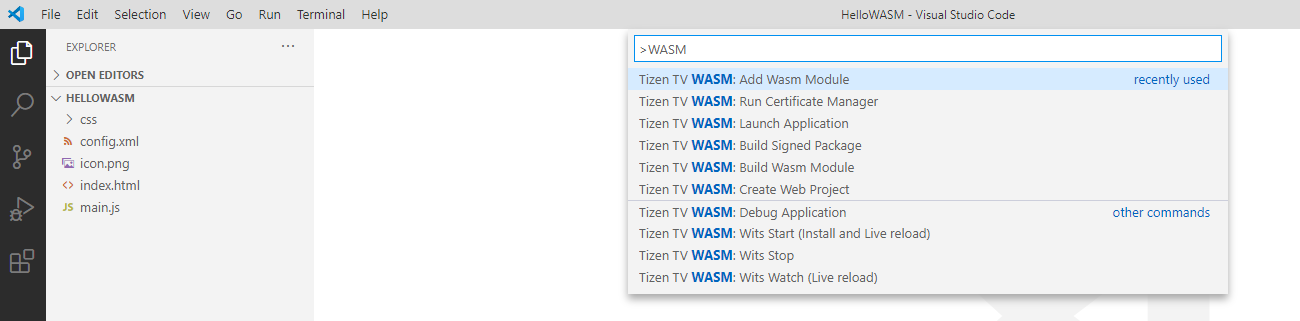
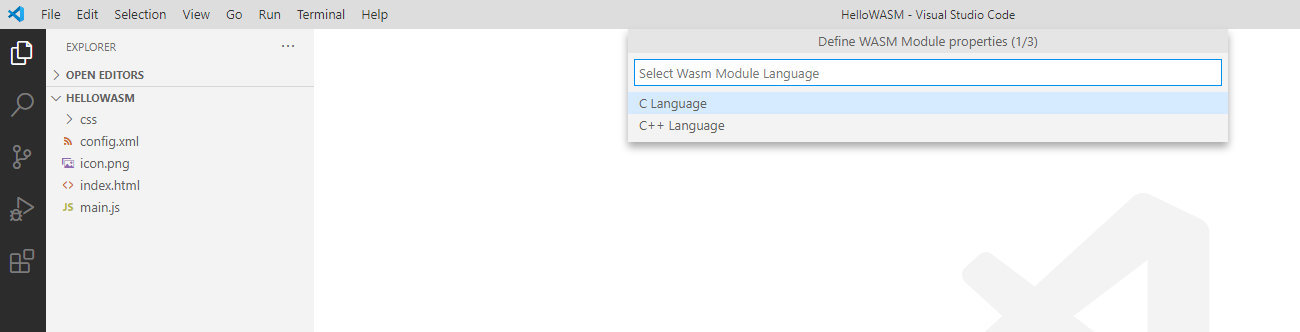
- Choose language
Example : C language for this demo
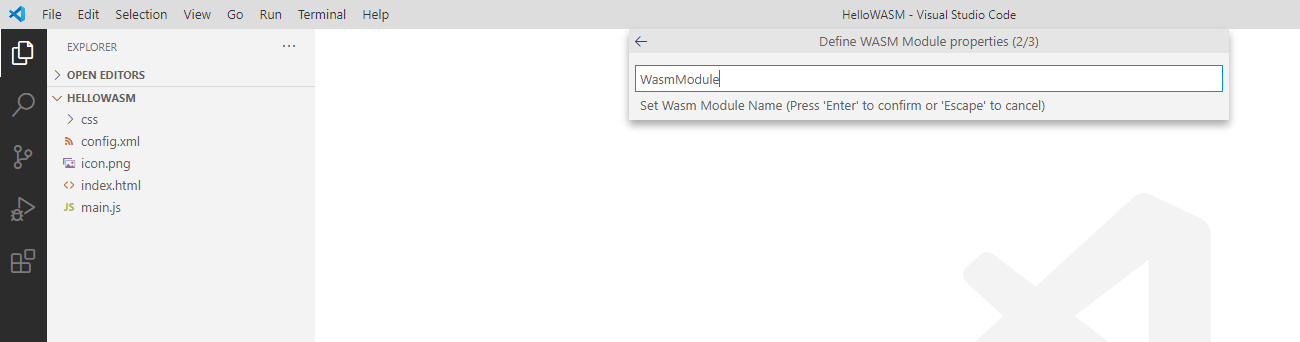
- Provide name for Wasm module
Example : WasmModule
- Select the module mode
Example : Template
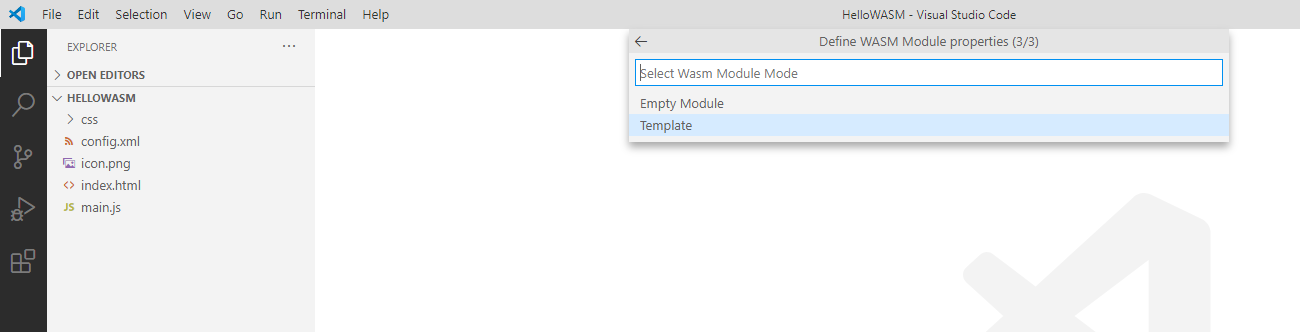
- Choose hello Triangle
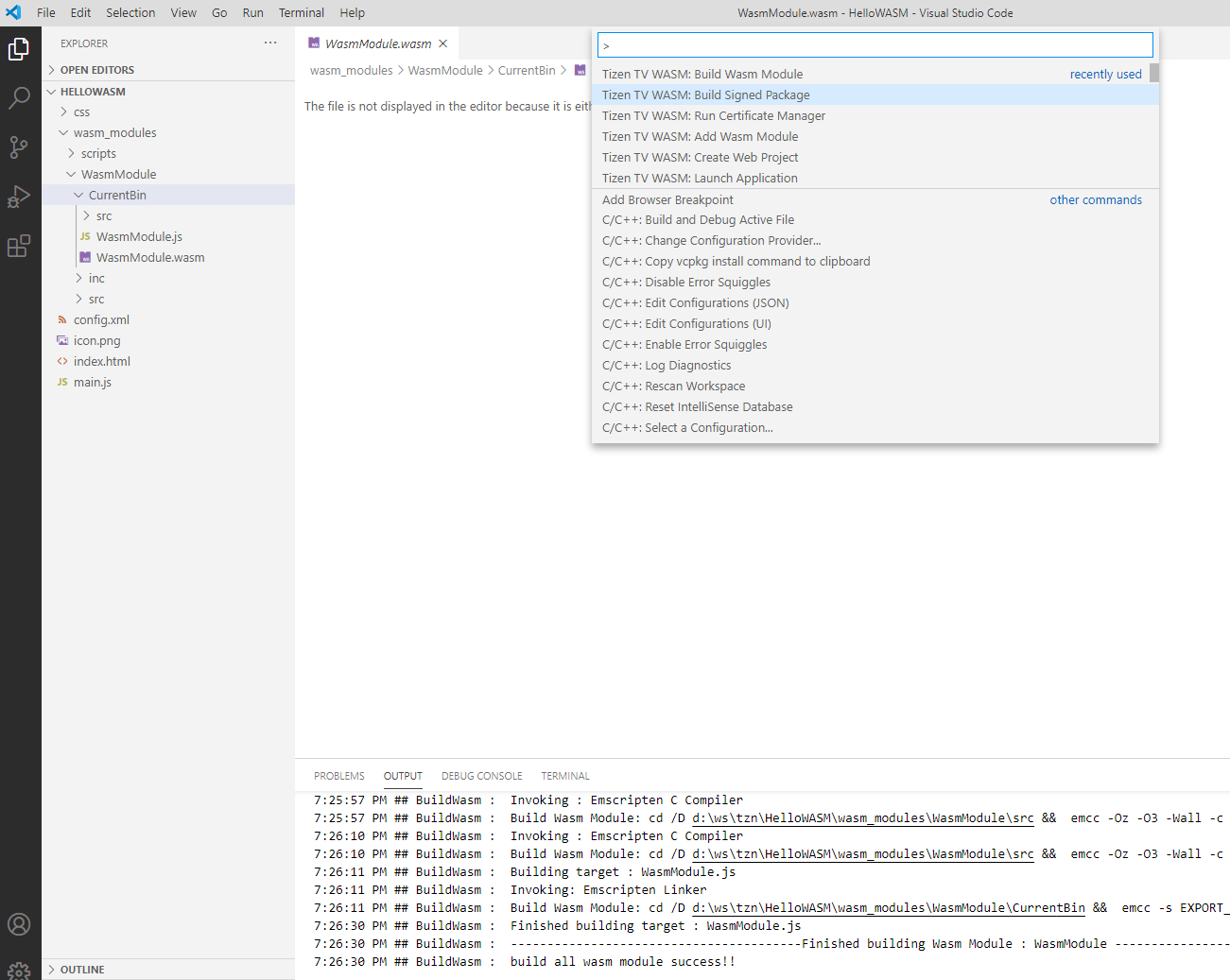
1. Build the WASM module.
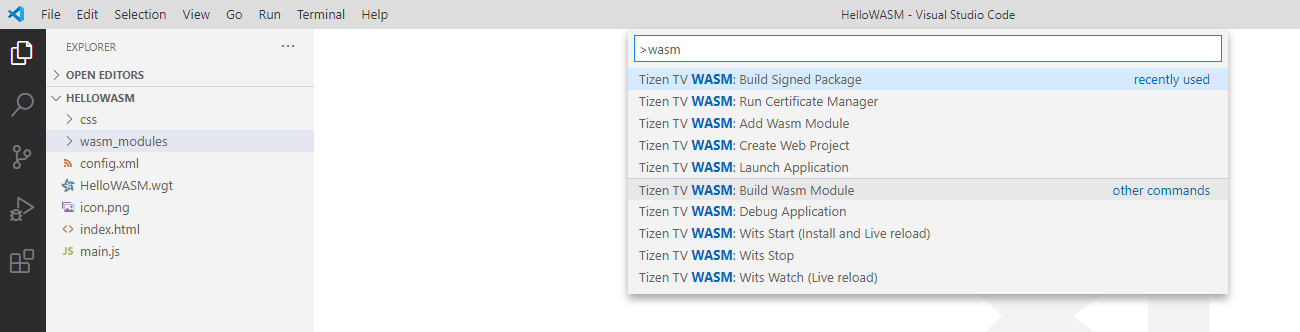
1. Build the signed package.
As we have already created and activated certificate profile, this should be smooth.
### Running on the TV
1. Make sure TV and the development PC are in the same LAN.
1. Set [Developer Mode to On on TV](https://developer.samsung.com/smarttv/develop/getting-started/using-sdk/tv-device.html).
1. Run Launch applicaion
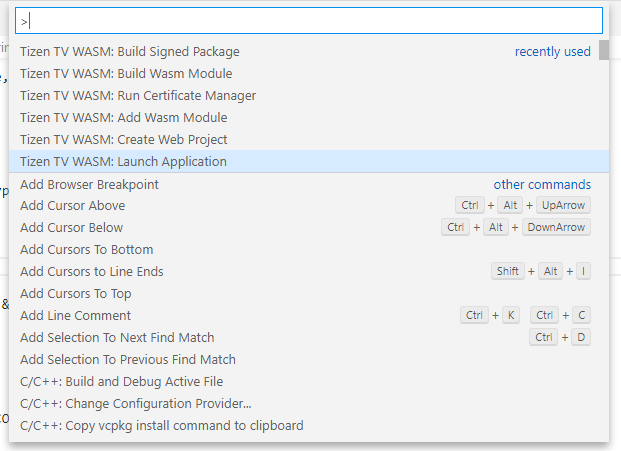
1. Choose Run On TV
1. Set TV IP

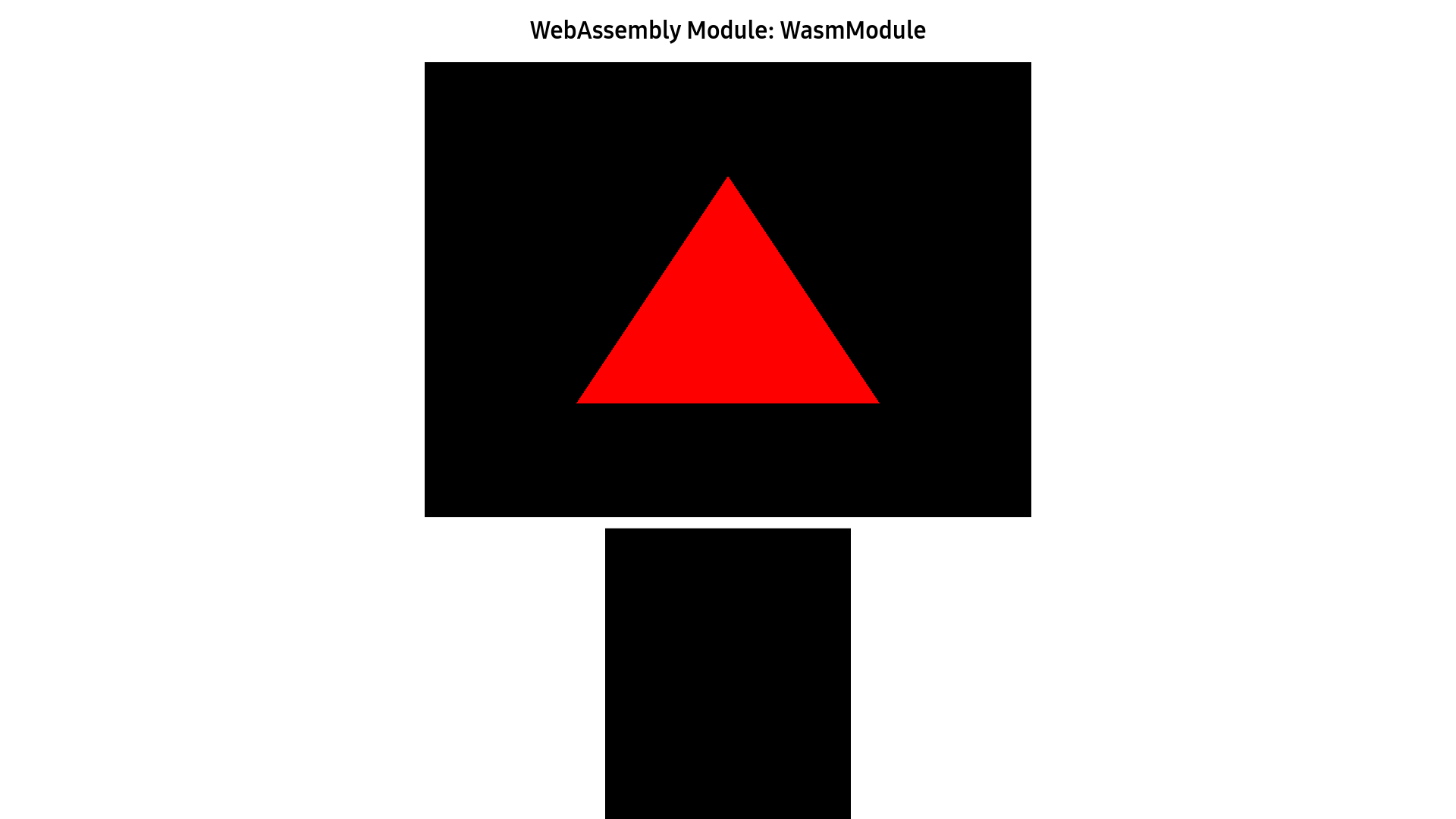
1. If everything went well, you should observe red triangle on the TV as below.
## Command Configuration
Additional **TizenTV SDK configuration**s could be accessed by following below steps:
File > Preferences > Settings > User > TizenTV SDK Configuration
## F.A.Q
Please log your [suggestions, & issues](https://github.com/Samsung/vscode-tizentv-wasm/issues)