https://github.com/sanjay7178/openfortiapauth
Open-source implementation for automatic Fortinet FortiAP (Captive Portal) client login.
https://github.com/sanjay7178/openfortiapauth
application authentication captive captive-portal cli desktop fortiap fortinet fortinet-firewall go openfortiapauth portal script
Last synced: about 1 month ago
JSON representation
Open-source implementation for automatic Fortinet FortiAP (Captive Portal) client login.
- Host: GitHub
- URL: https://github.com/sanjay7178/openfortiapauth
- Owner: sanjay7178
- License: mit
- Created: 2024-04-02T10:21:30.000Z (over 2 years ago)
- Default Branch: main
- Last Pushed: 2024-08-30T16:01:05.000Z (almost 2 years ago)
- Last Synced: 2025-01-13T23:17:37.147Z (over 1 year ago)
- Topics: application, authentication, captive, captive-portal, cli, desktop, fortiap, fortinet, fortinet-firewall, go, openfortiapauth, portal, script
- Language: Go
- Homepage: https://apps.fyne.io/apps/com.sanjay7178.openfortiap.html
- Size: 3.48 MB
- Stars: 2
- Watchers: 1
- Forks: 0
- Open Issues: 1
-
Metadata Files:
- Readme: README.md
- License: LICENSE
Awesome Lists containing this project
README

openfortiapauth
This the repository maintained for fortinet captive port auto login to university/organisation intranet
made with [fyne.io](https://fyne.io)
### Installation
Find out the OS agnostic installation binaries at [latest release](https://github.com/sanjay7178/openfortiapauth/releases)
or
Checkout at [fyne app listing](https://apps.fyne.io/apps/com.sanjay7178.openfortiap.html)
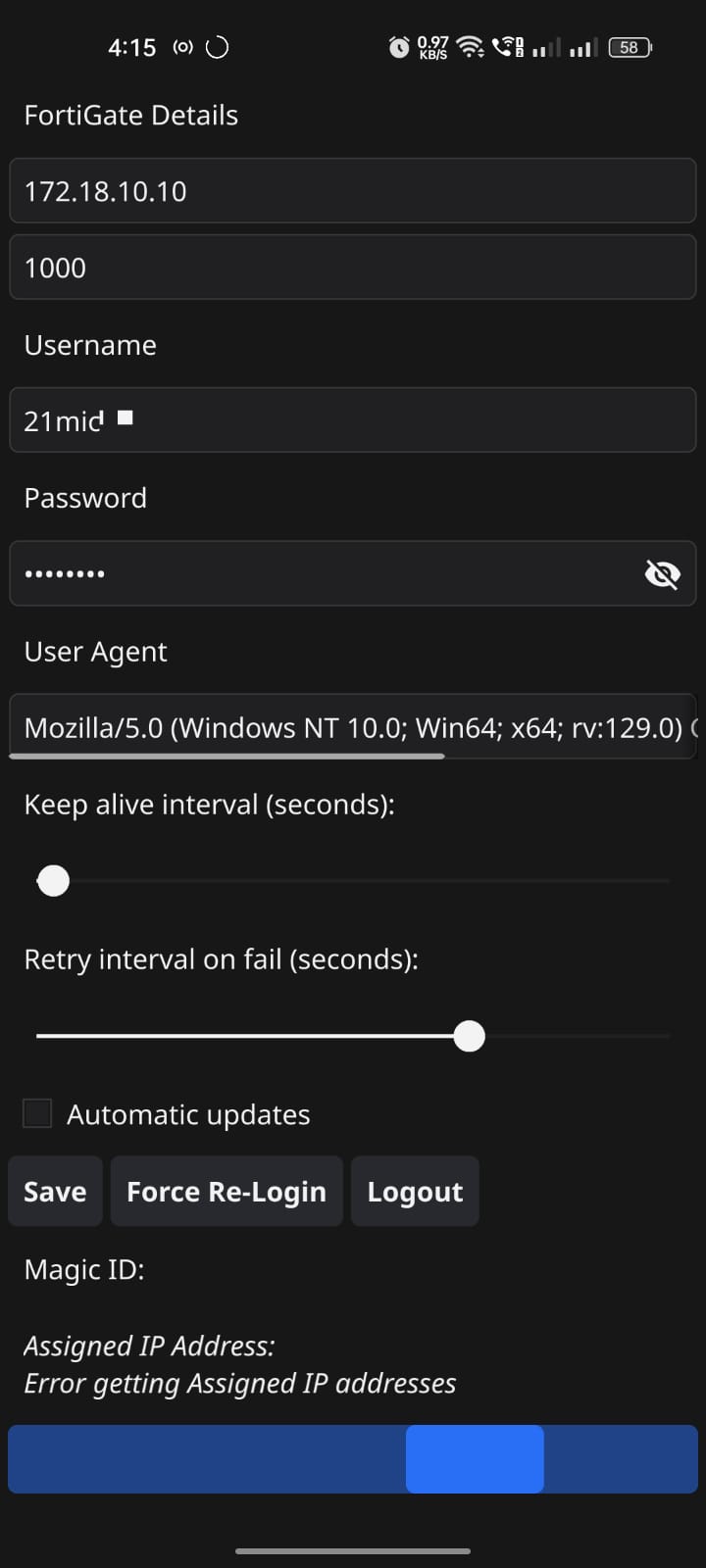
### Preview - Android
### Fortinet FortiAP Captive Portal Auth - POC
login Script
Execution Policy Set
```powershell
Set-ExecutionPolicy -ExecutionPolicy RemoteSigned -Scope CurrentUser
powershell -File auth.ps1
```
`auth.ps1` Script
```powershell
$FGT_IP = "172.18.10.10"
$USERNAME = "xxxxxx"
$PASSWORD = "xxxxxx"
$SESSION_ID = "3511041970b2f678"
$PostData = "magic=$SESSION_ID&username=$USERNAME&password=$PASSWORD"
$RequestParams = @{
Uri = "http://$FGT_IP`:1000/fgtauth"
Method = "Post"
Body = $PostData
ContentType = "application/x-www-form-urlencoded"
}
Invoke-RestMethod @RequestParams
```
logout script
```bash
curl 'http://172.18.10.10:1000/logout?' -H 'User-Agent: Mozilla/5.0 (Windows NT 10.0; Win64; x64; rv:129.0) Gecko/20100101 Firefox/129.0' -H 'Accept: text/html,application/xhtml+xml,application/xml;q=0.9,image/avif,image/webp,image/png,image/svg+xml,*/*;q=0.8' -H 'Accept-Language: en-US,en;q=0.5' -H 'Accept-Encoding: gzip, deflate' -H 'Connection: keep-alive' -H 'Upgrade-Insecure-Requests: 1' -H 'Priority: u=0, i'
```
```powershell
Invoke-WebRequest -UseBasicParsing -Uri "http://172.18.10.10:1000/logout?" `
-UserAgent "Mozilla/5.0 (Windows NT 10.0; Win64; x64; rv:129.0) Gecko/20100101 Firefox/129.0" `
-Headers @{
"Accept" = "text/html,application/xhtml+xml,application/xml;q=0.9,image/avif,image/webp,image/png,image/svg+xml,*/*;q=0.8"
"Accept-Language" = "en-US,en;q=0.5"
"Accept-Encoding" = "gzip, deflate"
"Upgrade-Insecure-Requests" = "1"
"Priority" = "u=0, i"
}
```
Windows POSIX CurRL
```powershell
curl 'http://172.18.10.10:1000/logout?' -H 'User-Agent: Mozilla/5.0 (Windows NT 10.0; Win64; x64; rv:129.0) Gecko/20100101 Firefox/129.0' -H 'Accept: text/html,application/xhtml+xml,application/xml;q=0.9,image/avif,image/webp,image/png,image/svg+xml,*/*;q=0.8' -H 'Accept-Language: en-US,en;q=0.5' -H 'Accept-Encoding: gzip, deflate' -H 'Connection: keep-alive' -H 'Upgrade-Insecure-Requests: 1' -H 'Priority: u=0, i'
```
- magic (session id) generation from FortiAP captive portal

- Upon Successful Auth with Fortinet FortiAP Endpoint got as `200` status code response ie.. with certain magic generated from endpoint
- Observation : if we use the session again with the same magic you'll `444` status code

- if the user the user logged w.r.t to FortiAP server side session will session will get generated with prior MAC address from host `NIC` and you will get auth session failed as html response

References :
https://docs.fortinet.com/document/fortiap/7.6.0/fortiwifi-and-fortiap-configuration-guide/292926/captive-portal-security
https://fortinetweb.s3.amazonaws.com/docs.fortinet.com/v2/attachments/8391206d-966e-11eb-b70b-00505692583a/FortiWiFi_and_FortiAP-7.0.0-Configuration_Guide.pdf
Claude's Response :
#curl #linux
Here's a sample cURL script that you can use to configure an external captive portal:
```bash
#!/bin/bash
# Set the necessary variables
FGT_IP="your_fortigate_ip_address"
USERNAME="your_username"
PASSWORD="your_password"
SESSION_ID="your_session_id"
# Construct the POST data
POST_DATA="magic=$SESSION_ID&username=$USERNAME&password=$PASSWORD"
# Send the POST request to the FortiGate
curl -X POST \
-H "Content-Type: application/x-www-form-urlencoded" \
-d "$POST_DATA" \
"https://$FGT_IP:1000/fgtauth"
```
Here's how the script works:
1. Set the necessary variables:
- `FGT_IP`: The IP address of your FortiGate device.
- `USERNAME`: The username to be authenticated.
- `PASSWORD`: The password to be authenticated.
- `SESSION_ID`: The session ID provided by the FortiGate in the initial request to the web server.
2. Construct the POST data as per the format specified in your description: `magic=$SESSION_ID&username=$USERNAME&password=$PASSWORD`.
3. Use the `curl` command to send the POST request to the FortiGate:
- `-X POST`: Specifies that this is a POST request.
- `-H "Content-Type: application/x-www-form-urlencoded"`: Sets the content type of the request to URL-encoded form data.
- `-d "$POST_DATA"`: Includes the POST data in the request body.
- `"https://$FGT_IP:1000/fgtauth"`: The URL to which the request is sent.
Make sure to replace the placeholder values (`your_fortigate_ip_address`, `your_username`, `your_password`, and `your_session_id`) with the appropriate values for your setup.
You can save this script as a file (e.g., `captive_portal.sh`) and make it executable with the `chmod +x captive_portal.sh` command. Then, you can run the script using `./captive_portal.sh`.
#windows #powershell
Here's the PowerShell version of the cURL script to configure an external captive portal:
```powershell
$FGT_IP = "your_fortigate_ip_address"
$USERNAME = "your_username"
$PASSWORD = "your_password"
$SESSION_ID = "your_session_id"
$PostData = "magic=$SESSION_ID&username=$USERNAME&password=$PASSWORD"
$RequestParams = @{
Uri = "https://$FGT_IP`:1000/fgtauth"
Method = "Post"
Body = $PostData
ContentType = "application/x-www-form-urlencoded"
}
Invoke-RestMethod @RequestParams
```
Here's how the PowerShell script works:
1. Set the necessary variables:
- `$FGT_IP`: The IP address of your FortiGate device.
- `$USERNAME`: The username to be authenticated.
- `$PASSWORD`: The password to be authenticated.
- `$SESSION_ID`: The session ID provided by the FortiGate in the initial request to the web server.
2. Construct the POST data as per the format specified in your description: `magic=$SESSION_ID&username=$USERNAME&password=$PASSWORD`.
3. Create a hash table `$RequestParams` with the necessary parameters for the `Invoke-RestMethod` cmdlet:
- `Uri`: The URL to which the request is sent.
- `Method`: Specifies that this is a POST request.
- `Body`: Includes the POST data in the request body.
- `ContentType`: Sets the content type of the request to URL-encoded form data.
4. Use the `Invoke-RestMethod` cmdlet to send the POST request to the FortiGate.
Make sure to replace the placeholder values (`your_fortigate_ip_address`, `your_username`, `your_password`, and `your_session_id`) with the appropriate values for your setup.
You can save this script as a PowerShell script file (e.g., `captive_portal.ps1`) and run it using the `./captive_portal.ps1` command.
It seems like you're trying to run the PowerShell script, but you're getting an error message saying that the script file is not recognized. Here are a few things you can try to resolve the issue:
1. **Check the script file name**: Ensure that the file name you're trying to run is correct. In the example, the script file is named `captive_portal.ps1`, not `auth.ps1`. Make sure you're running the correct file name.
2. **Check the file path**: Verify that the script file is located in the correct directory. In the example, the script is being run from the `C:\Users\VIT-AP\Desktop` directory. Ensure that the script file is in this directory or update the file path accordingly.
3. **Run the script with the full file path**: Instead of just running the script name, try running the script with the full file path. For example:
```
C:\Users\VIT-AP\Desktop>powershell -File C:\Users\VIT-AP\Desktop\captive_portal.ps1
```
This should run the script regardless of your current working directory.
4. **Check the script execution policy**: PowerShell has a script execution policy that might be blocking the script from running. You can check the current policy by running the following command:
```
Get-ExecutionPolicy
```
If the policy is set to `Restricted`, you'll need to change it to allow script execution. You can do this by running the following command:
```
Set-ExecutionPolicy -ExecutionPolicy RemoteSigned -Scope CurrentUser
```
After changing the execution policy, try running the script again.
If you're still facing issues, double-check the script content and make sure that the variable values are correctly set.