https://github.com/schickling/icomoon.swift
Use your Icomoon fonts with Swift - auto-generates type safe enums for each icon
https://github.com/schickling/icomoon.swift
Last synced: 5 months ago
JSON representation
Use your Icomoon fonts with Swift - auto-generates type safe enums for each icon
- Host: GitHub
- URL: https://github.com/schickling/icomoon.swift
- Owner: schickling
- License: mit
- Created: 2015-12-25T17:26:43.000Z (over 10 years ago)
- Default Branch: master
- Last Pushed: 2020-09-22T18:20:03.000Z (almost 6 years ago)
- Last Synced: 2025-06-03T18:13:02.230Z (about 1 year ago)
- Language: Swift
- Homepage:
- Size: 76.2 KB
- Stars: 26
- Watchers: 1
- Forks: 10
- Open Issues: 1
-
Metadata Files:
- Readme: README.md
- License: LICENSE
Awesome Lists containing this project
README
# Icomoon.swift
Use your **[Icomoon](https://icomoon.io/) fonts with Swift** - auto-generates type safe enums for each icon
## Usage
### API
The generated framework extends `UIFont`, `UIImage` and `String` and generates an `enum Icon`. Cases are automatically created based on the name on Icomoon. (Example: `my-search` becomes `.MySearch`)
```swift
import Icomoon
//UILabel
searchIcon.text = String.iconWithName(.MySearch)
searchIcon.font = UIFont.iconOfSize(30)
//UIButton
buttonChat.titleLabel?.font = UIFont.iconOfSize(30)
buttonChat.setTitle(String.iconWithName(.Chat), for: .normal)
//UIImage
myImage.image = UIImage.icomoonIcon(name: .Chat, textColor: UIColor.black, size: CGSize(width:myImage.frame.width, height:myImage.frame.height))
```
## Installation
### Download and Make
1. [Download](https://github.com/optonaut/Icomoon.swift/archive/master.zip) or clone this repo.
2. Run `make`. That's it. (You can run `make uninstall` to uninstall.)
### Generate framework
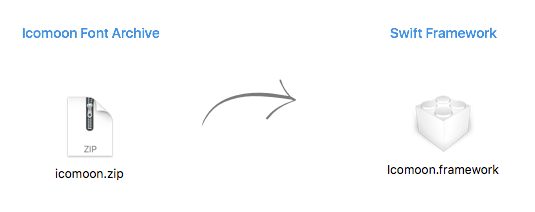
1. Download your font file from Icomoon (usally called `icomoon.zip`)
2. Run `icomoon-swift icomoon.zip`
3. Add the generated `Icomoon.framework` to your Xcode project by following the import instructions below.
### Import Framework
Copy to root of Project
Project -> Target -> General -> Linked Frameworks and Libraries
Add `Icomoon.framework`

### Embed Framework
Project -> Target -> Build Phases
Add a New Section ("New Copy Files Phase"), titled "Embed Frameworks" (if not exist)
Add `Icomoon.framework`

### Strip Architectures

In order to submit to App Store, you'll need to automatically strip unsupported architectures (i386 simulator). Add this "Run Script" to you Build Phases, AFTER *Embed Frameworks*, or as the final entry.
```
APP_PATH="${TARGET_BUILD_DIR}/${WRAPPER_NAME}"
# This script loops through the frameworks embedded in the application and
# removes unused architectures.
find "$APP_PATH" -name '*.framework' -type d | while read -r FRAMEWORK
do
FRAMEWORK_EXECUTABLE_NAME=$(defaults read "$FRAMEWORK/Info.plist" CFBundleExecutable)
FRAMEWORK_EXECUTABLE_PATH="$FRAMEWORK/$FRAMEWORK_EXECUTABLE_NAME"
echo "Executable is $FRAMEWORK_EXECUTABLE_PATH"
EXTRACTED_ARCHS=()
for ARCH in $ARCHS
do
echo "Extracting $ARCH from $FRAMEWORK_EXECUTABLE_NAME"
lipo -extract "$ARCH" "$FRAMEWORK_EXECUTABLE_PATH" -o "$FRAMEWORK_EXECUTABLE_PATH-$ARCH"
EXTRACTED_ARCHS+=("$FRAMEWORK_EXECUTABLE_PATH-$ARCH")
done
echo "Merging extracted architectures: ${ARCHS}"
lipo -o "$FRAMEWORK_EXECUTABLE_PATH-merged" -create "${EXTRACTED_ARCHS[@]}"
rm "${EXTRACTED_ARCHS[@]}"
echo "Replacing original executable with thinned version"
rm "$FRAMEWORK_EXECUTABLE_PATH"
mv "$FRAMEWORK_EXECUTABLE_PATH-merged" "$FRAMEWORK_EXECUTABLE_PATH"
done
```