https://github.com/scientisst/scientisst-sense-api-python
The ScientISST SENSE Python API
https://github.com/scientisst/scientisst-sense-api-python
Last synced: 4 months ago
JSON representation
The ScientISST SENSE Python API
- Host: GitHub
- URL: https://github.com/scientisst/scientisst-sense-api-python
- Owner: scientisst
- License: mit
- Created: 2021-05-07T00:40:32.000Z (about 5 years ago)
- Default Branch: main
- Last Pushed: 2024-11-18T15:06:37.000Z (over 1 year ago)
- Last Synced: 2025-12-27T00:41:14.180Z (6 months ago)
- Language: Python
- Homepage: https://scientisst.github.io/scientisst-sense-api-python/
- Size: 2 MB
- Stars: 0
- Watchers: 3
- Forks: 2
- Open Issues: 1
-
Metadata Files:
- Readme: README.md
- License: LICENSE
Awesome Lists containing this project
README
# scientisst-sense-api-python
The ScientISST SENSE Python API.
Learn how to use it, check examples, and much more [here](https://scientisst.github.io/scientisst-sense-api-python/)!
## Installing
```sh
# Getting this repository
git clone https://github.com/scientisst/scientisst-sense-api-python.git
```
## Dependencies
Dependencies are specified in the requirements.txt file.
Install them using `pip`:
```sh
pip install -r requirements.txt
```
## Using Docker in Linux
When running the API on Linux, if issues arise, it is recommended to try using it inside a docker container.
First, install [docker](https://docs.docker.com/engine/install/).
Then, clone the repository and navigate to the directory:
```sh
# Getting this repository
git clone https://github.com/scientisst/scientisst-sense-api-python.git
cd scientisst-sense-api-python
```
Then, build the docker container with:
```sh
sudo docker build -t sense_docker .
```
It is required to build the container only once. Finally, run the container with:
```sh
sudo docker run -v /var/run/dbus/:/var/run/dbus/:z --privileged -it sense_docker
```
This will open a terminal inside the container with access to bluetooth and Wi-Fi. To exit the container run:
```sh
exit
```
## Running
### Automatic
1. Pair your device
2. Run:
```sh
python sense.py
```
3. Select the device from the list displayed:
```
ScientISST devices:
[1] ScientISST-ab-de - 08:3A:F2:49:AB:DE
[2] ScientISST-ac-be - 08:3A:F2:49:AC:BE
Connect to:
```
4. Hit `CTRL-C` when you wish to stop.
### Help
```
$ python sense.py -h
usage: sense.py [args] address
description: The program connects to the ScientISST Sense device and starts an acquisition, providing the option to store the received data in a .csv file.
positional arguments: address Linux: bluetooth MAC address, Mac: serial port address, Windows: bluetooth serial COM port
optional arguments:
-h, --help show this help message and exit
-f FS, --frequency FS
sampling frequency, default: 1000
-c CHANNELS, --channels CHANNELS
analog channels, default: 1,2,3,4,5,6
-d DURATION, --duration DURATION
duration in seconds, default: unlimited
-o OUTPUT, --output OUTPUT
write report to output file, default: None
-s, --lsl stream data using Lab Streaming Layer protocol
-q, --quiet don't print ScientISST frames
-v, --verbose log sent/received bytes
```
### Manual
#### Linux
Pair and trust the ScientISST Sense board:
```sh
bluetoothctl
scan on
pair XX:XX:XX:XX:XX
trust XX:XX:XX:XX:XX
```
You can now run the `sense.py` script:
```sh
python sense.py XX:XX:XX:XX:XX
```
#### Mac
First, you need to pair the ScientISST sense device in the Bluetooth Settings section.
Then, you'll need to find the serial port address using the Terminal:
```sh
ls /dev/tty.ScientISST*
```
Copy the `String` like: `/dev/tty.ScientISST-XX-XX-SPP_SE`.
You can now run the `sense.py` script:
```sh
python sense.py /dev/tty.ScientISST-XX-XX-SPP_SE
```
#### Windows
Turn the ScientISST Sense board on.
Now, go to Control Panel > Hardware and Sound > Devices and Printers. Select "Add a device". Select the ScientISST Sense board, hit "next" until its set up.
While connected to the board, search "Bluetooth settings" on the Control Panel, then go to the "COM ports" tab and check the port name for the **outgoing** entry. Copy the `String` like: `COMX`
You can now run the `sense.py` script:
```sh
python sense.py COMX
```
## Example
Example usage to acquire AI1 at 10Hz sample rate (Linux):
```
python3 sense.py -f 10 -c 1 -o output.csv 08:3A:F2:49:AC:D2
```
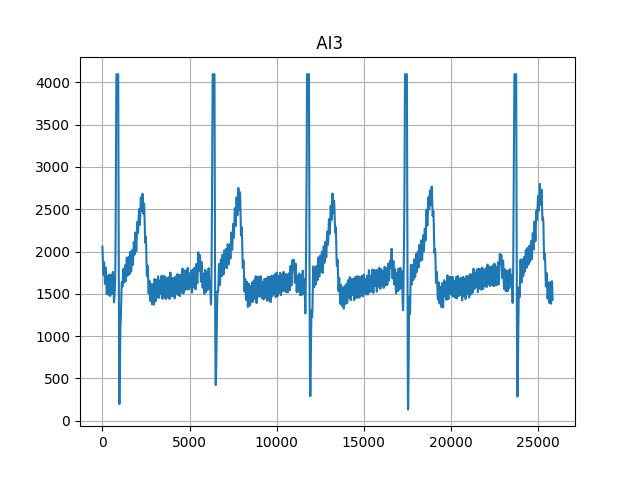
## Plot
Dependencies:
- pandas
- numpy
- matplotlib
```sh
python plot_output.py
```
## Disclaimer
This is not a medical device certified for diagnosis or treatment. It is provided to you as is only for research and educational purposes.
## Acknowledgments
This work was partially supported by Fundação para a Ciência e Tecnologia (FCT) under the projects’ UIDB/50008/2020 and DSAIPA/AI/0122/2020 (AIMHealth) through IT—Instituto de Telecomunicações, which is gratefully acknowledged.