https://github.com/sciinstitute/sci-solver_level-set
SCI-Solver_Level-Set is a C++/CUDA library written to solve a system of level set equations on unstructured meshes. It is designed to solve the equations quickly by using GPU hardware.
https://github.com/sciinstitute/sci-solver_level-set
Last synced: about 1 year ago
JSON representation
SCI-Solver_Level-Set is a C++/CUDA library written to solve a system of level set equations on unstructured meshes. It is designed to solve the equations quickly by using GPU hardware.
- Host: GitHub
- URL: https://github.com/sciinstitute/sci-solver_level-set
- Owner: SCIInstitute
- License: mit
- Created: 2014-12-09T01:05:31.000Z (over 11 years ago)
- Default Branch: master
- Last Pushed: 2019-08-19T18:57:50.000Z (almost 7 years ago)
- Last Synced: 2025-03-24T01:12:27.015Z (about 1 year ago)
- Language: Cuda
- Size: 32.9 MB
- Stars: 19
- Watchers: 6
- Forks: 12
- Open Issues: 1
-
Metadata Files:
- Readme: README.md
- License: LICENSE.md
Awesome Lists containing this project
README
GPUTUM: Level-Set
====================
GPUTUM Level-Set is a C++/CUDA library written to solve a system of level set equations on unstructured meshes. It is designed to solve the equations quickly by using GPU hardware.
The code was written by Zhisong Fu at the Scientific Computing and Imaging Institute,
University of Utah, Salt Lake City, USA. The theory behind this code is published in the papers linked below.
Table of Contents
========
- [LevelSet Aknowledgements](#levelset-aknowledgements)
- [Requirements](#requirements)
- [Building](#building)
- [Linux / OSX](#linux-and-osx)
- [Windows](#windows)
- [Running Examples](#running-examples)
- [Using the Library](#using-the-library)
- [Testing](#testing)
LevelSet Aknowledgements
**Fast Parallel Solver for the
Levelset Equations on Unstructured Meshes**
**AUTHORS:**
Zhisong Fu(*a*)
Sergey Yakovlev(*b*)
Robert M. Kirby(*a*)
Ross T. Whitaker(*a*)
This library solves for the LevelSet values on vertices located on a tetrahedral mesh. Several mesh formats
are supported, and are read by the TetGen Library.
The METIS library is used to partition unstructured
meshes.
Google Test is used for testing.
Requirements
==============
* Git, CMake (2.8+ recommended), and the standard system build environment tools.
* You will need a CUDA Compatible Graphics card. See here You will also need to be sure your card has CUDA compute capability of at least 2.0.
* SCI-Solver_Level-Set is compatible with the latest CUDA toolkit (7.5). Download here.
* This project has been tested on OpenSuse 13.1 (Bottle) on NVidia GeForce GTX 680 HD, Windows 10 on NVidia GeForce GTX 775M, and OSX 10.10 on NVidia GeForce GTX 775M.
* If you have a CUDA graphics card equal to or greater than our test machines and are experiencing issues, please contact the repository owners.
* Windows: You will need Microsoft Visual Studio 2010+ build tools. This document describes the "NMake" process.
* OSX: Please be sure to follow setup for CUDA here. There are several compatability requirements for different MAC machines, including using a different version of CUDA (ie. 5.5).
Building
==============
Linux and OSX
In a terminal:
```console
mkdir SCI-Solver_Level-Set/build
cd SCI-Solver_Level-Set/build
cmake ../src
make
```
Windows
Open a Visual Studio (32 or 64 bit) Native Tools Command Prompt.
Follow these commands:
```console
mkdir C:\Path\To\SCI-Solver_Level-Set\build
cd C:\Path\To\SCI-Solver_Level-Set\build
cmake -G "NMake Makefiles" ..\src
nmake
```
**Note:** For all platforms, you may need to specify your CUDA toolkit location (especially if you have multiple CUDA versions installed):
```console
cmake -DCUDA_TOOLKIT_ROOT_DIR="~/NVIDIA/CUDA-7.5" ../src
```
(Assuming this is the location).
**Note:** If you have compile errors such as undefined reference: atomicAdd, it is likely you need to set your compute capability manually. CMake outputs whether compute capability was determined automatically, or if you need to set it manually. The default minimum compute capability is 2.0.
```console
cmake -DCUDA_COMPUTE_CAPABILITY=20 ../src
make
```
Running Examples
==============
You will need to enable examples in your build to compile and run them.
```console
cmake -DBUILD_EXAMPLES=ON ../src
make
```
You will find the example binaries built in the build/examples directory.
Run the example in the build directory:
```console
examples/Example1
```
Each example has a -h flag that prints options for that example.
Follow the example source code in src/examples to learn how to use the library.
To run examples similar to the paper, the following example calls would do so:
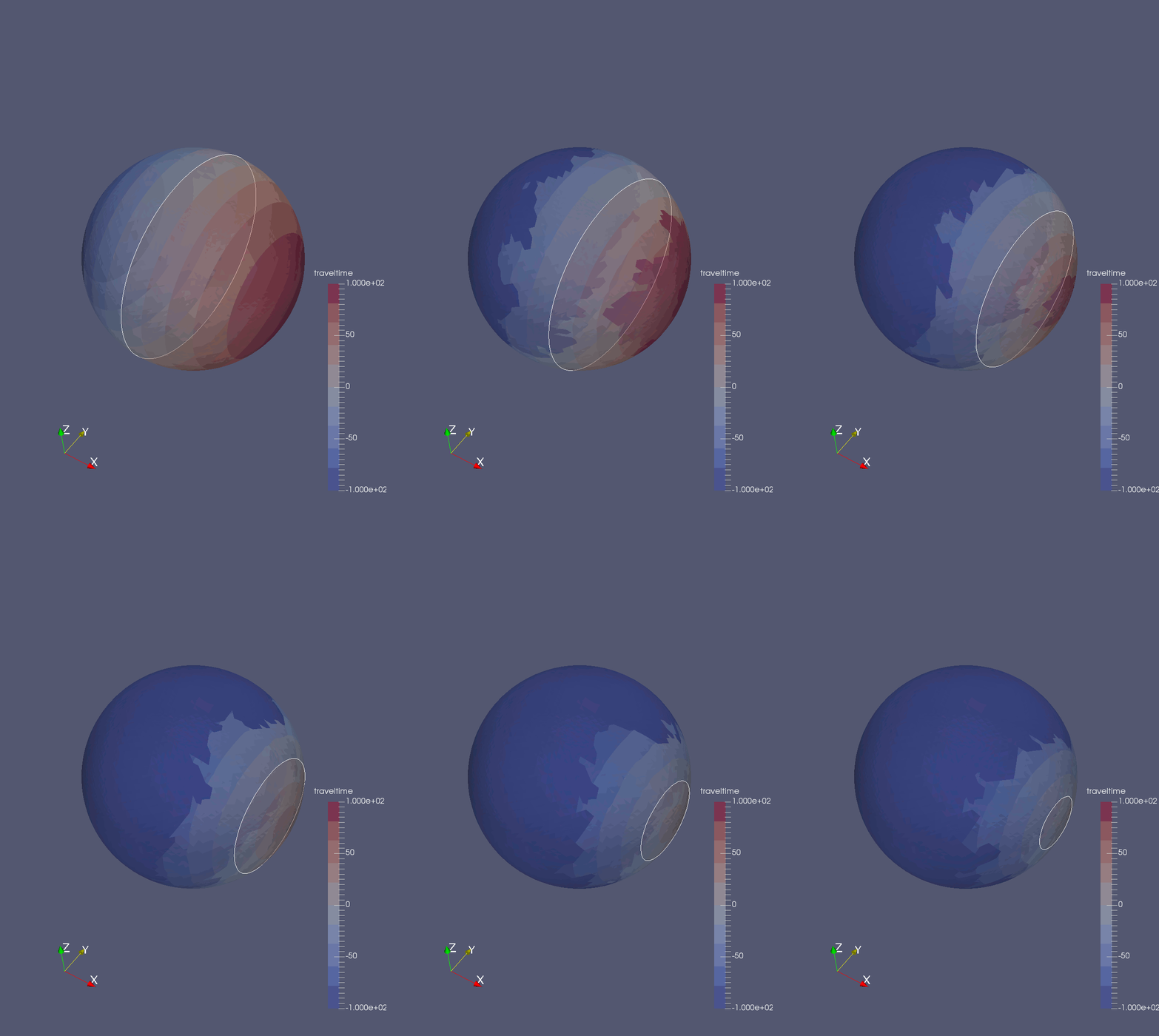
2D LevelSet, Sphere
examples/Example2 -v -i ../src/test/test_data/sphere_1154verts.ply
2D LevelSet Curvature, Square
$ examples/Example2.exe -v -i ../src/test/test_data/SquareMesh_size16.ply -y curvature -o 0.5 -n 1
3D LevelSet, Torus
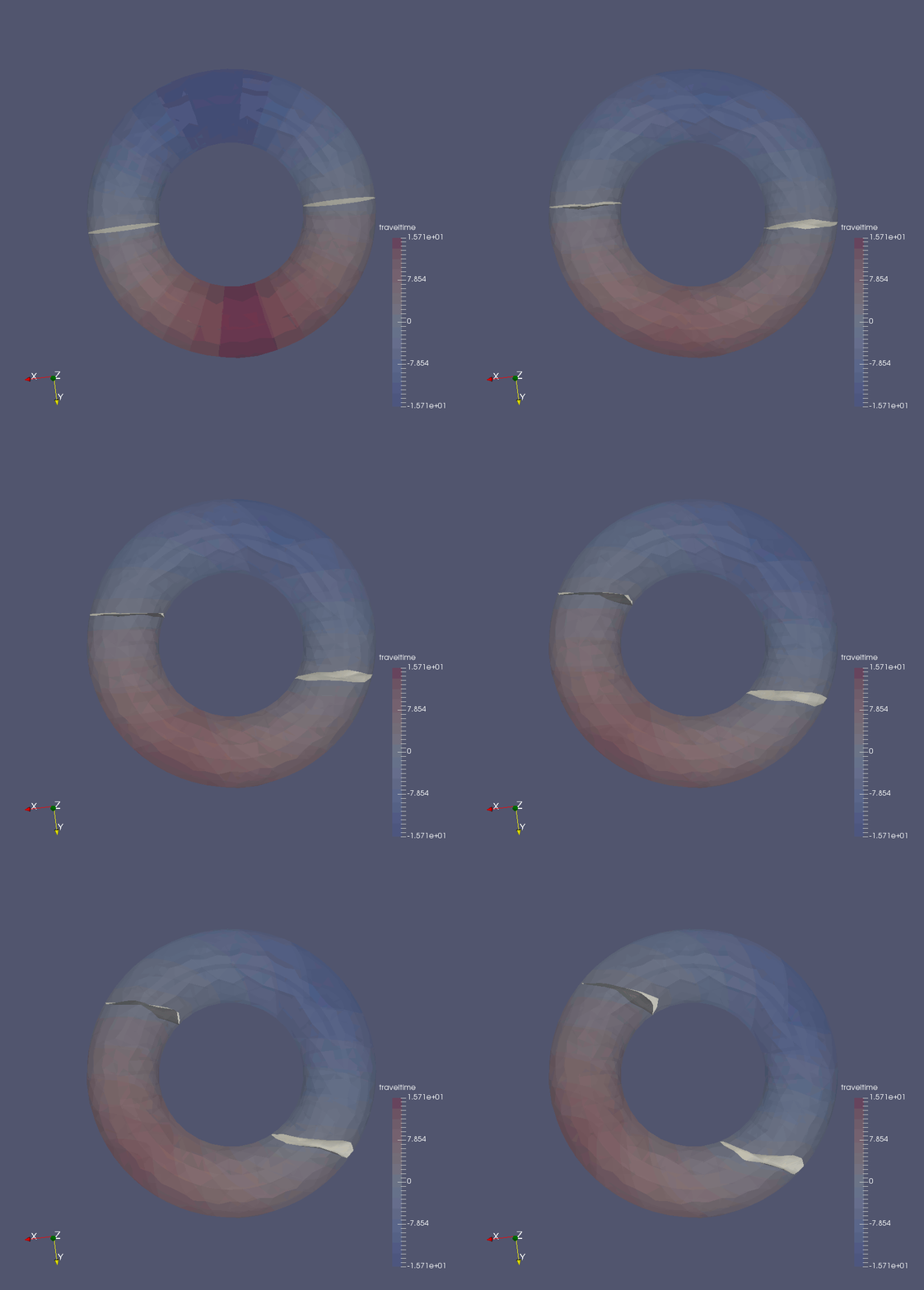
examples/Example1 -v -i ../src/test/test_data/torus -y revolve -n 100
3D LevelSet Curvature, Cube
$ examples/Example1.exe -v -i ../src/test/test_data/CubeMesh_size256step8_correct -y curvature -o 0.5 -n 1 -w 128
**NOTE** All examples output a set of result.vtk VTK files in the current directory
numbered with the time step iterations. These files are easily viewed via VTK readers like Paraview.
You can clip and add iso-values to more distinctly visualize the result. Opening the set of files
at one time allows you to run a time sequence to view the iteration steps.
Using the Library
==============
A basic usage of the library links to the LEVELSET_CORE
library during build and includes the headers needed, which are usually no more than:
```c++
#include
```
Then a program would setup the LevelSet parameters using the
"LevelSet object" object and call
object.solveLevelSet() to generate
the array of vertex values per iteration.
Here is a minimal usage example (using a tet mesh).
```c++
#include
#include
int main(int argc, char *argv[])
{
LevelSet data(false); // tet mesh, not a tri mesh
//the below means ~/my_tet_mesh.node & ~/my_tet_mesh.ele
data.filename_ = "~/my_tet_mesh";
//Run the solver
data.solveLevelSet(data);
//now use the result
data.writeVTK();
return 0;
}
```
The following accessor functions are available before running the solver:
```c++
void LevelSet::initializeVertices(std::vector values);
void LevelSet::initializeAdvection(std::vector values);
void LevelSet::initializeMesh();
```
The following accessor functions are available after running the solver:
```c++
std::vector < float > LevelSet::getResultAtIteration(size_t i);
size_t LevelSet::numIterations();
```
You can also access the results and the mesh directly after running the solver:
```c++
TetMesh * LevelSet::tetMesh_;
TriMesh * LevelSet::triMesh_;
// AND
std::vector < std::vector < LevelsetValueType > > LevelSet::time_values_;
```
LevelSet Options
```C++
class LevelSet {
bool verbose_; //option to set for runtime verbosity [Default false]
std::string filename_; //the input tet mesh filename [Default ../src/test/test_data/sphere334
int partitionType_; //0 for unstructured, 1 for square [Default 0]
int numSteps_; //The number of timed steps to take [Default 10]
double timeStep_; //The length of time for a time step [Default 1.0]
int insideIterations_; //The number of inner iterations [Default 1]
int blockSize_ ; //If structured, the block size [Default 16]
int sideLengths_; //If structured, the cube size [Default 16]
LevelsetValueType bandwidth_; //The algorithm bandwidth [Default 16.]
int metisSize_; //If unstructured, # of METIS patches [Default 16]
int isTriMesh_; //If this is a triangle mesh [Default true]
...
};
```
You will need to make sure your CMake/Makfile/Build setup knows where
to point for the library and header files. See the examples and their CMakeLists.txt.
Testing
==============
The repo comes with a set of regression tests to see if recent changes break
expected results. To build the tests, you will need to set
BUILD_TESTING to "ON" in either ccmake or when calling CMake:
```c++
cmake -DBUILD_TESTING=ON ../src
```
After building, run make test or ctest in the build directory to run tests.
**NOTE** No regression tests have been implemented for this library yet.
Windows
The gtest library included in the repo needs to be built with
forced shared libraries on Windows, so use the following:
```c++
cmake -DBUILD_TESTING=ON -Dgtest_forced_shared_crt=ON ../src
```
Be sure to include all other necessary CMake definitions as annotated above.