https://github.com/sdebby/telegraph
Telegraph project- lets talk to ChatGPT
https://github.com/sdebby/telegraph
chatgpt diy-project hardware openai python raspberry-pi
Last synced: about 2 months ago
JSON representation
Telegraph project- lets talk to ChatGPT
- Host: GitHub
- URL: https://github.com/sdebby/telegraph
- Owner: sdebby
- License: mit
- Created: 2023-12-07T16:45:49.000Z (over 2 years ago)
- Default Branch: main
- Last Pushed: 2023-12-09T15:03:53.000Z (over 2 years ago)
- Last Synced: 2025-03-15T18:54:46.542Z (over 1 year ago)
- Topics: chatgpt, diy-project, hardware, openai, python, raspberry-pi
- Language: Python
- Homepage:
- Size: 51 MB
- Stars: 0
- Watchers: 1
- Forks: 0
- Open Issues: 0
-
Metadata Files:
- Readme: readme.md
- License: LICENSE
Awesome Lists containing this project
README
# TELEGRAPH project
## Wikipedia [link](https://en.wikipedia.org/wiki/History_of_the_telephone)
## About
Lets have a chat with ChatGPT4,
BUT for **REAL**,
Lets have a call.
We are best friends.
This script is using OpenAI STT, chat and TTS models, to have a real feeling chat.
## Equipment:
- Raspberry pi 3 B
- USB headset (microsoft LiveChat)
- Switch
- 5 mm LED
- 2 X 220 kOhm resistors
- Old wireless telephone.
## The process (Connecting the hardware):

1. Taking apart an old DECT telephone.


2. Disconnecting speaker

3. Soldering LED + resistors + switch to cable.

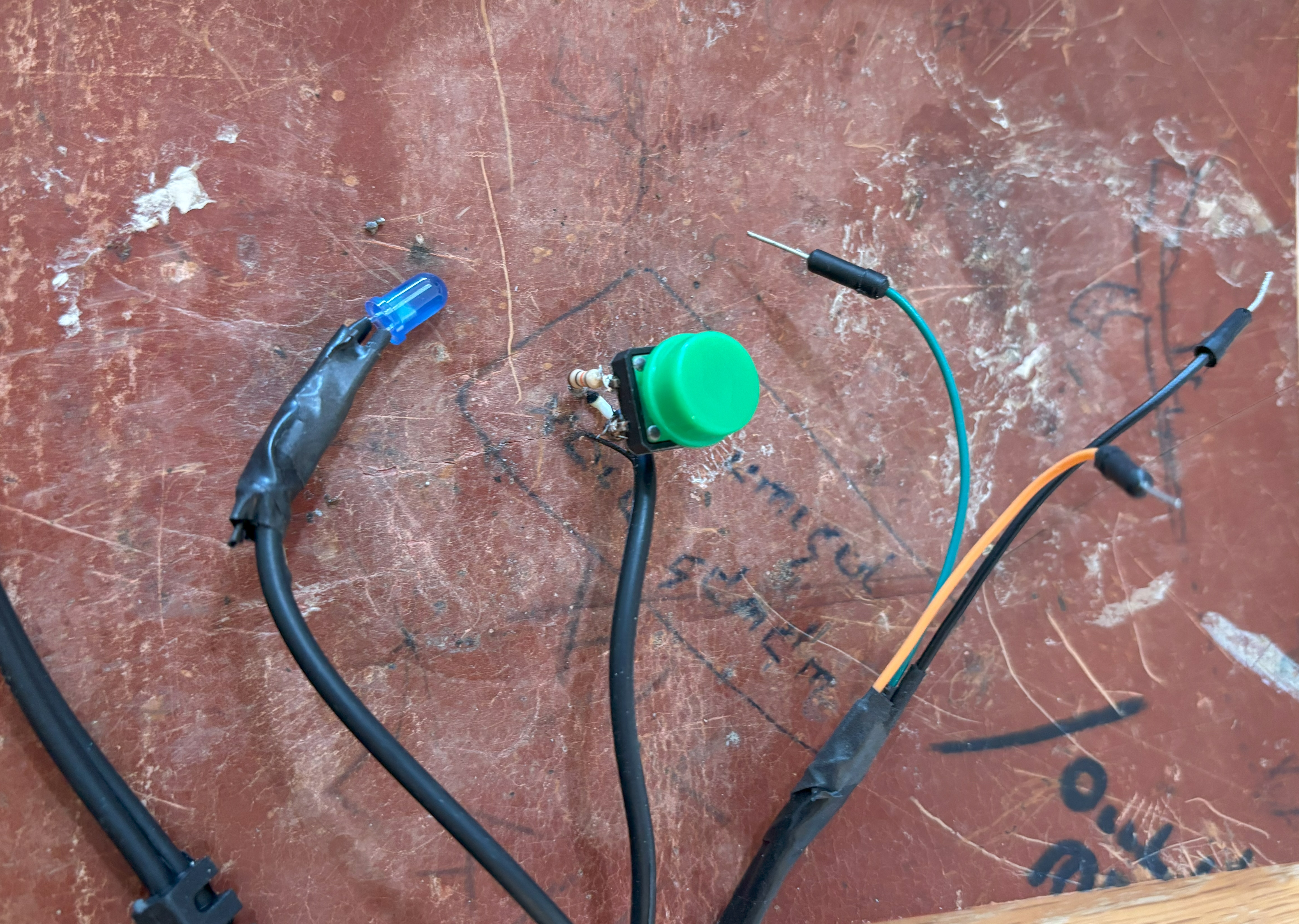
4. Disassemble USB headset:

5. Testing cable on raspberry pi.
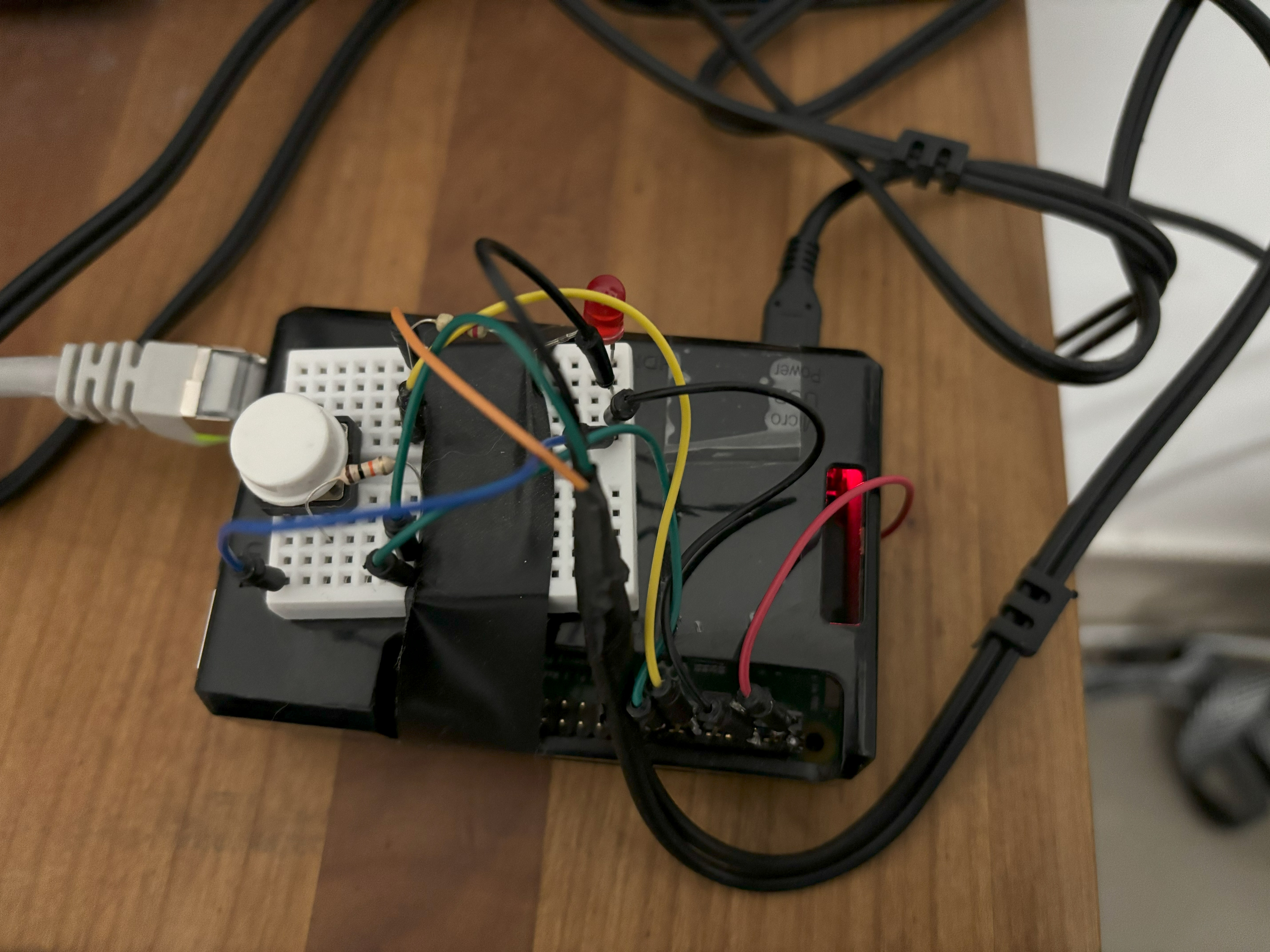
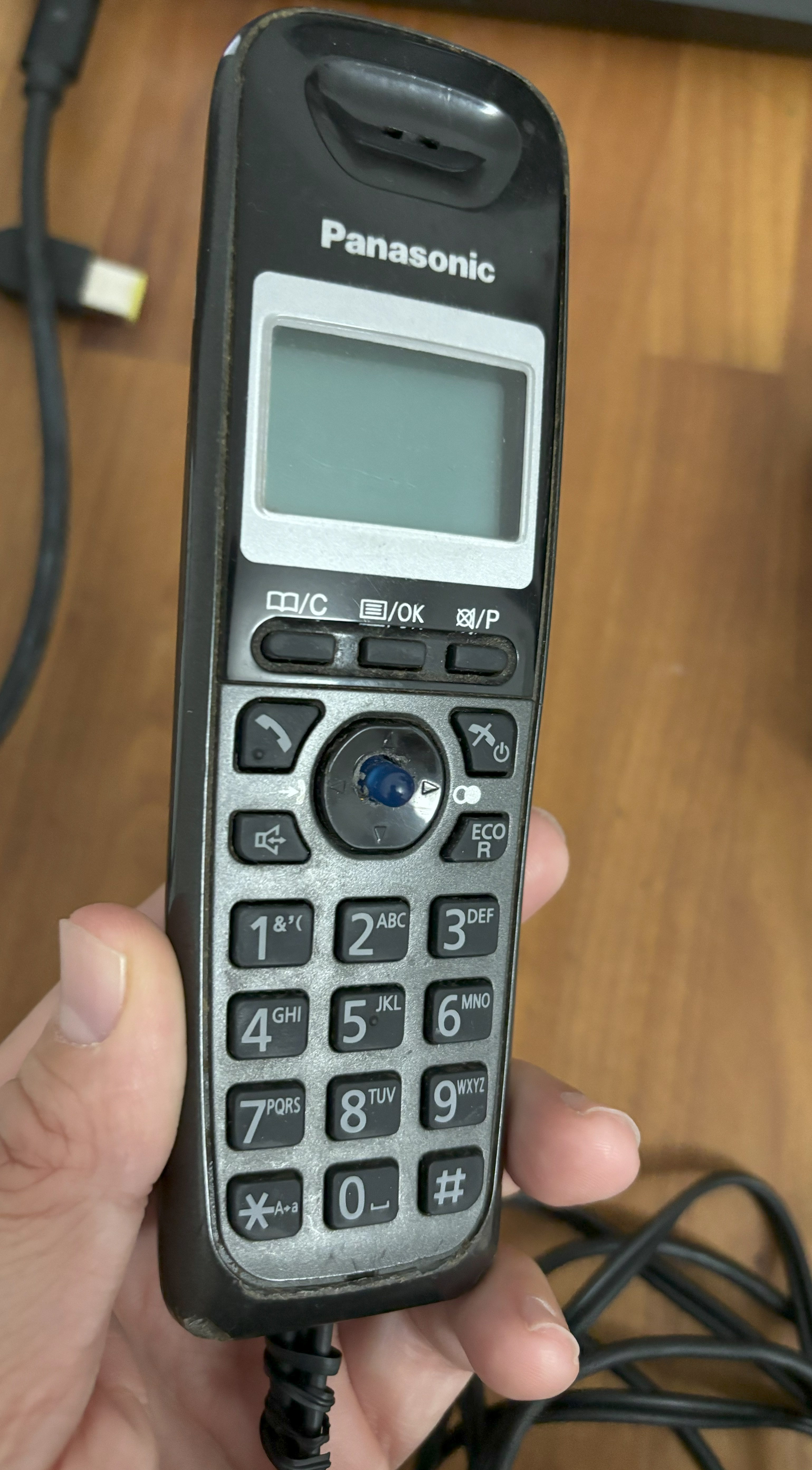
6. Soldering USB speaker and microphone wires to telephone, adhering the button to back cover with hot glue and adhering the LED to front cover with hot glue.

7. Closing all together.


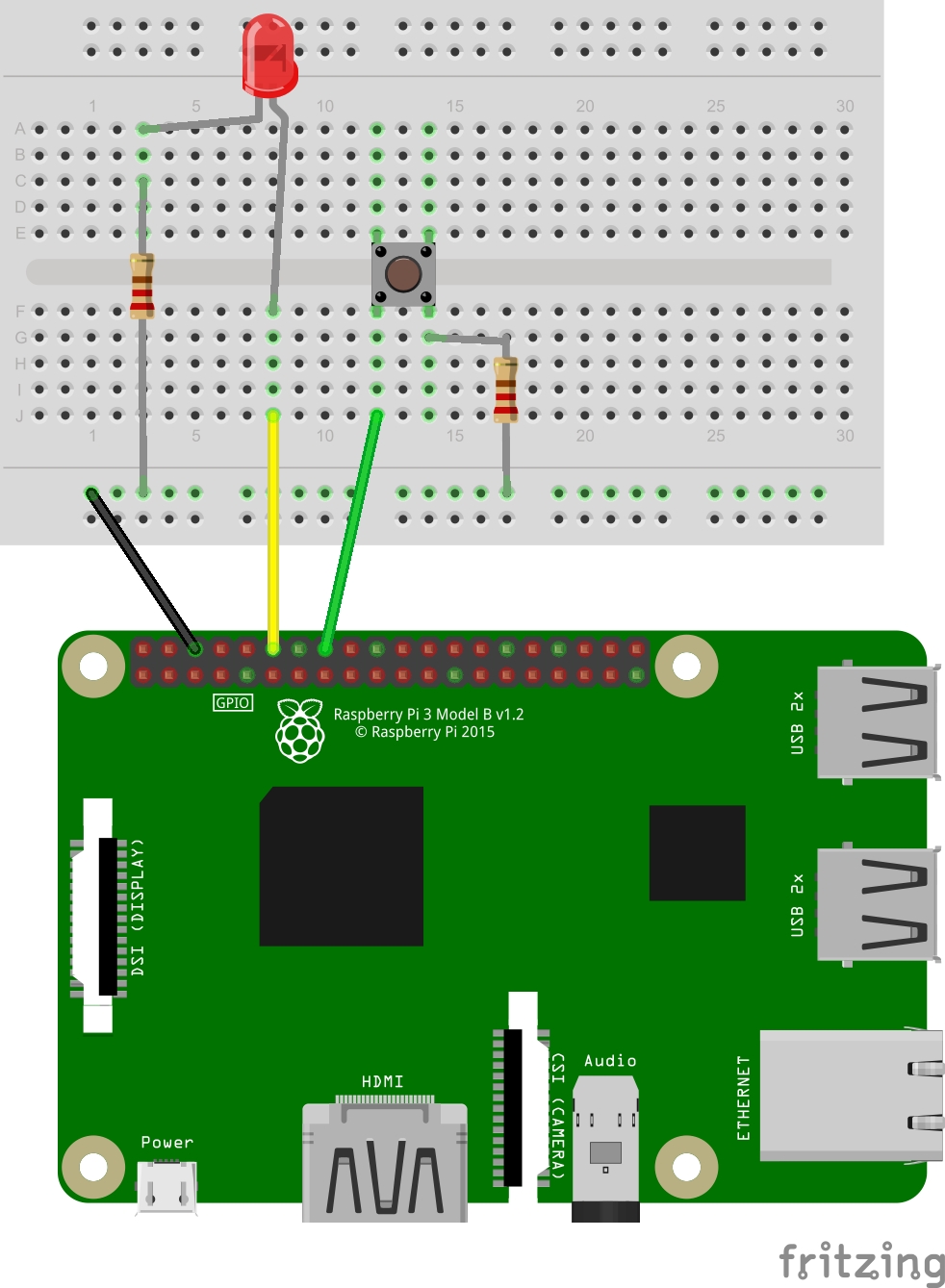
### Schematics
## Behind the scenes:
1. If there where old message files, they will be deleted from the folder.
2. A pre recorded welcome message will play to the user.
3. User press the button and record a new message.
4. When releasing the button, the message converted to MP3 and sent to OpenAI Whisperer module - Speech To Text (STT).
5. The replied transcript then sent to OpenAI ChatGPT 4 module.
6. The replied generated text then sent to OpenAI Text To Speech module (TTS).
7. The replied MP3 then converted to WAV and played back to the user.
## Demo video
[](https://youtu.be/m34_VWeIYn8)
## Install:
Install ffmpeg on machine:
https://ffmpeg.org/
```bash
git clone sdebby/telegraph
pip install -r requirements.txt
python ChatWithLinux1.py -d [x]
```
Obtain Open AI API key and save in in environment as "OpenAI_Key" (or replace the key in file OpenAIHelper.py)
### Usage
parameters:
-h help
-l list of USB devices
-d [x] use USB device no. x
- If using a Raspberry pi (like in this project) and need to adjust volume:
```bash
alsamixer
- Adjust USB device volume and exit
- Save configuration:
sudo alsactl store
```
### Limitations:
- Due to the ping-pong method (sending voice,receiving text, sending text, ect ...) there is a long delay from when talking to receiving answer.