https://github.com/seeed-studio/seeed_platform
https://github.com/seeed-studio/seeed_platform
Last synced: 8 months ago
JSON representation
- Host: GitHub
- URL: https://github.com/seeed-studio/seeed_platform
- Owner: Seeed-Studio
- Created: 2016-11-29T02:55:34.000Z (over 9 years ago)
- Default Branch: master
- Last Pushed: 2025-01-08T09:05:04.000Z (over 1 year ago)
- Last Synced: 2025-08-24T18:57:04.990Z (10 months ago)
- Size: 187 MB
- Stars: 29
- Watchers: 17
- Forks: 23
- Open Issues: 0
-
Metadata Files:
- Readme: readme.md
Awesome Lists containing this project
README
[](http://www.seeedstudio.com)
Seeed had designed so many boards that work with Arduino IDE, include,
* Seeeduino V3/4
* Seeeduino Stalker V2/3/3.1
* Seeeduino Lite
* Seeeduino Lotus
* Seeeduino Mega
* Seeeduino LoRaWAN/GPS
* Seeeduino GPRS
* Seeeduino Ethernet
* LinkIt ONE
* RePhone Series
Thanks to the new features of Arduino IDE, it's easy to add those board to your Arduino IDE now.
There're few step to be followed.
## Step 1. Download the latest Arduino IDE
You need a Arduino IDE that after version 1.6.4, please download one if there's no Arduino IDE in your computer.
[](https://www.arduino.cc/en/Main/Software)
## Step 2. Setting your Arduino IDE
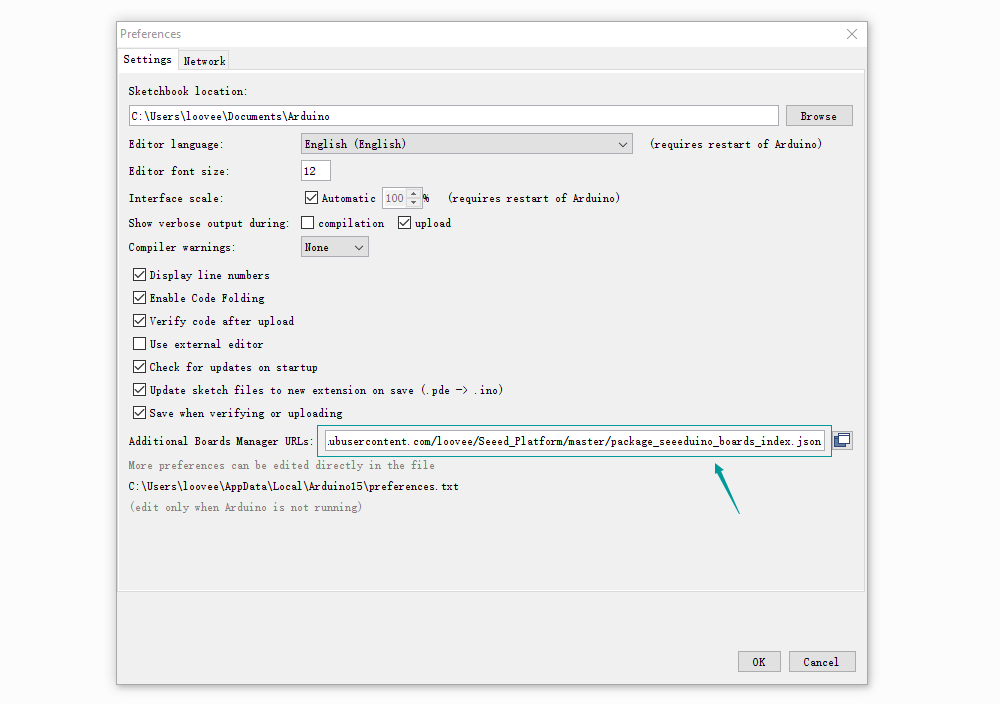
Open your Arudino IDE, click on **File > Preferences**, and copy below url to *Additional Boards Manager URLs*
```
https://raw.githubusercontent.com/Seeed-Studio/Seeed_Platform/master/package_seeeduino_boards_index.json
```
## Step 3. Board Manager
Click on **Toos > Board > Board Manager**.
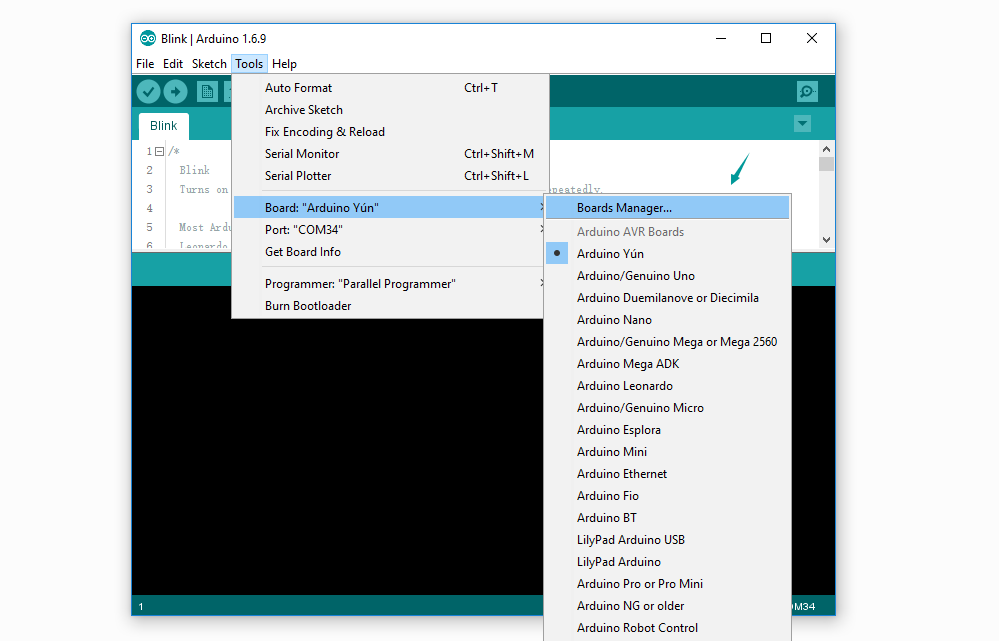
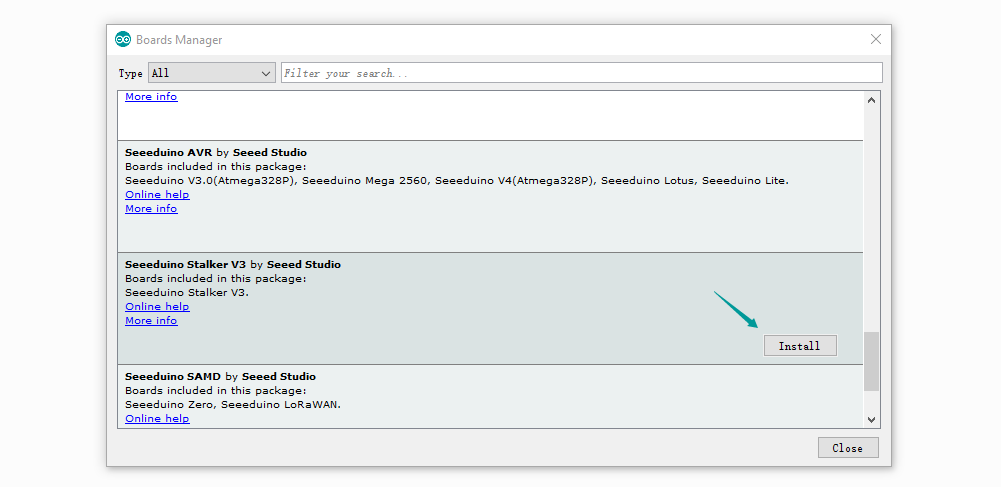
You will get many board that named with Seeed xxxx, let's take Seeeduino Stalker V3 as example.
Click Seeeduino Stalker V3 then an **Install** button appear, click on it to finish the step, this process takes about 5 minutes to half an hour, which depend on the speed of your network.
## Step 4. Select a board
After Step 3 was successful, a board named Seeeduino Stalker V3 will show up at the boards list.
Click on **Tools > Board**, *Seeeduino Stalker V3* is available now.
