https://github.com/seratch/apidays-workshop-2020
Apidays: Slack app workshop
https://github.com/seratch/apidays-workshop-2020
Last synced: 3 months ago
JSON representation
Apidays: Slack app workshop
- Host: GitHub
- URL: https://github.com/seratch/apidays-workshop-2020
- Owner: seratch
- License: mit
- Created: 2020-08-18T10:49:15.000Z (almost 6 years ago)
- Default Branch: main
- Last Pushed: 2020-09-15T02:11:30.000Z (almost 6 years ago)
- Last Synced: 2026-03-28T00:22:46.989Z (3 months ago)
- Language: Python
- Homepage: https://git.io/apidays-slack
- Size: 49.8 KB
- Stars: 4
- Watchers: 1
- Forks: 4
- Open Issues: 0
-
Metadata Files:
- Readme: README.md
- License: LICENSE.txt
Awesome Lists containing this project
README
# Welcome to Slack App Development!
This repository is the workshop material for [Apidays live Singapore](https://www.apidays.co/singapore/) and [Apidays live Australia](https://www.apidays.co/australia/). If you're not an attendee of the workshop, don't worry! You can try this sample project just by reading this.
## Go to **git.io/apidays-slack**
This project template is available at **git.io/apidays-slack** (https://github.com/seratch/apidays-workshop-2020). Use the shortened URL for sharing this material with others!
## The App We're Going to Build - Helpdesk App
In this workshop, we're going to build a **helpdesk workflow app** from scratch. Building the app helps us learn how to start Slack App development and utilize the latest Slack Platform features.
Here is the quick demo of the complete version of the helpdesk workflow:
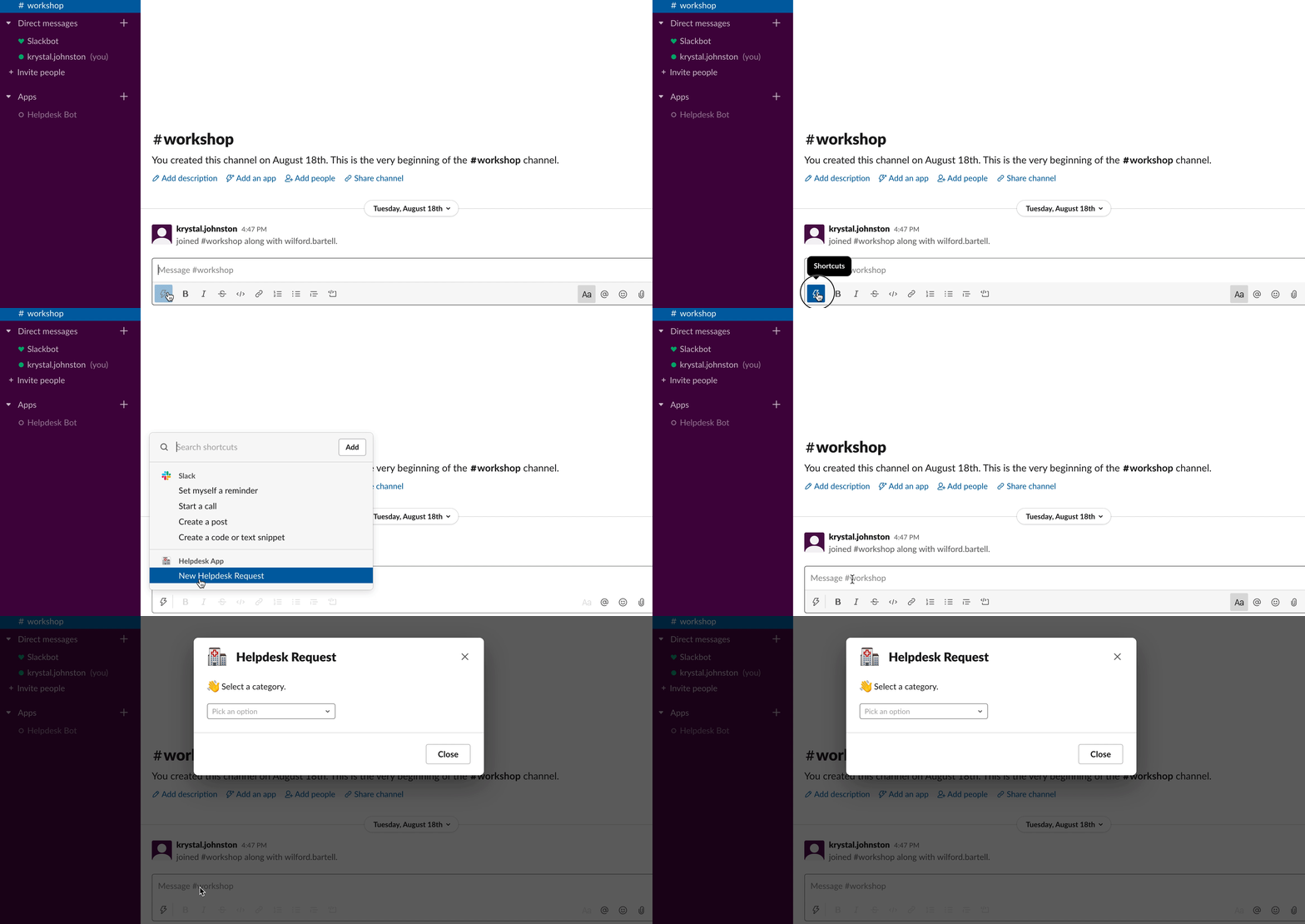
### Run a Global Shortcut
When an end-user clicks a **shortcut** from the text composer (or the search bar), a **modal window** pops up.
### Multiple Steps in a Modal
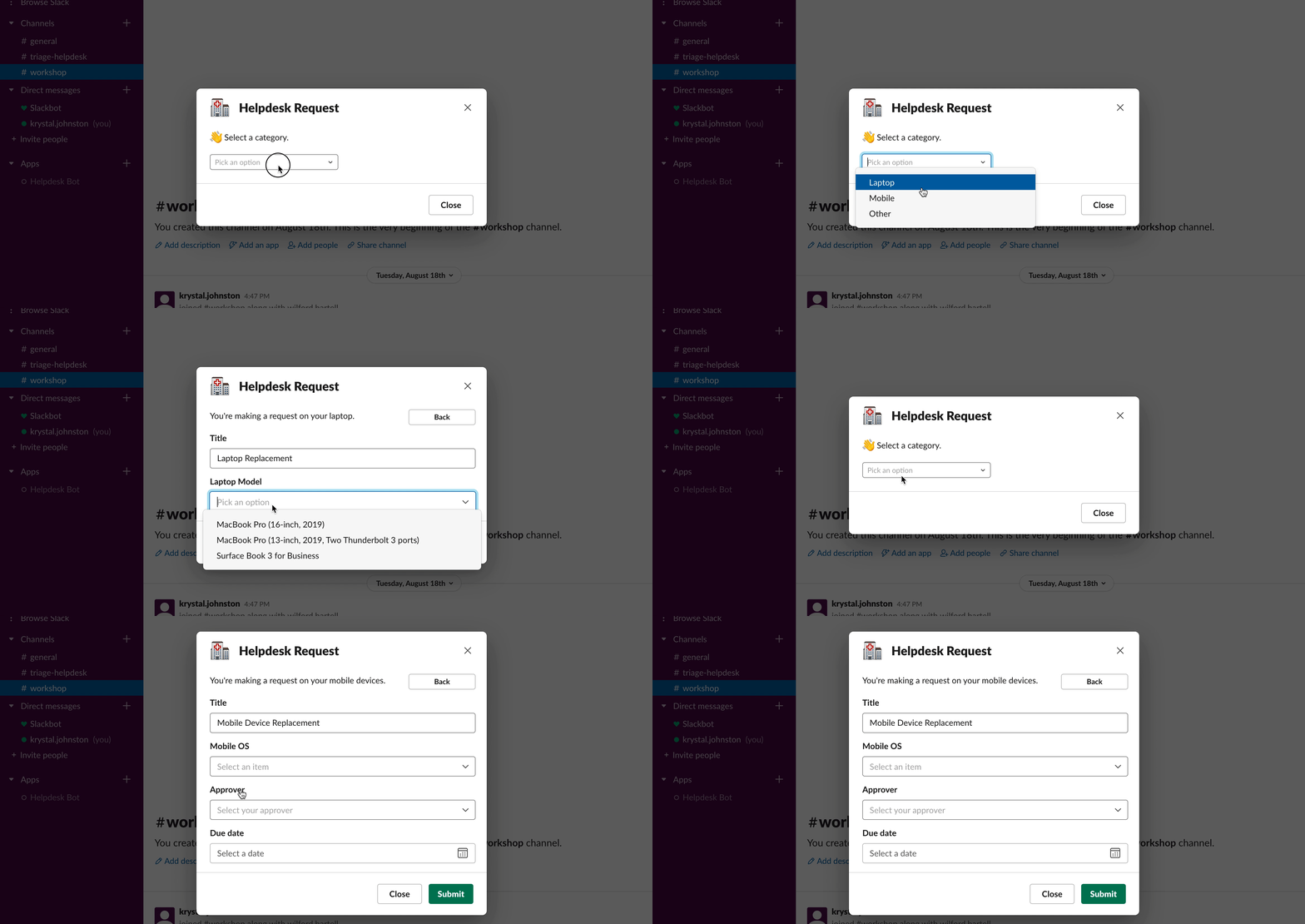
When the user selects a category from the select menu, **the modal immediately transforms itself** to show input fields for the chosen category. Also, **"Back" button** in the modal allows the user to go back to the initial step.
### Custom Validations in a Modal
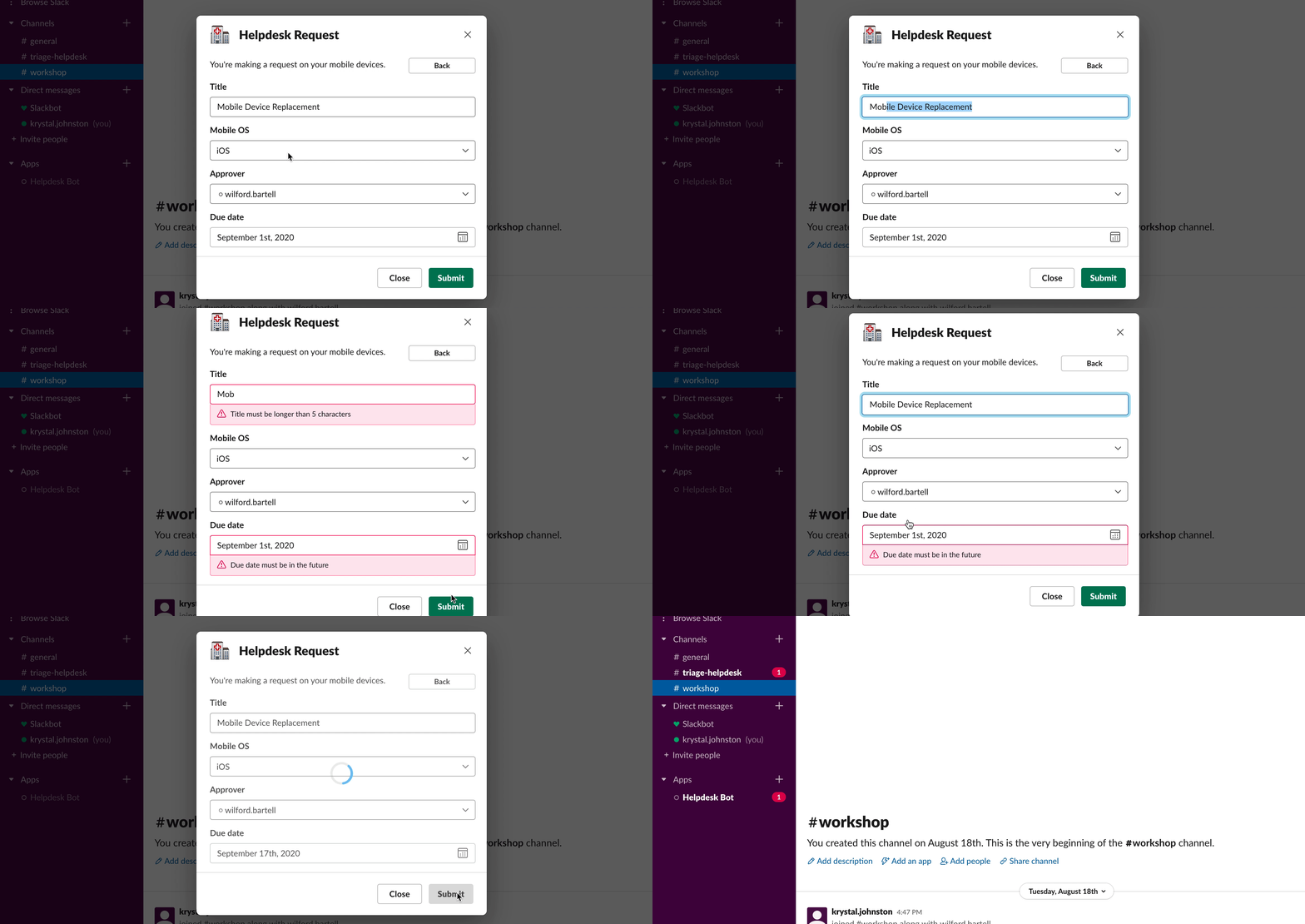
The app applies **custom input validation rules** for the title and due-date inputs.
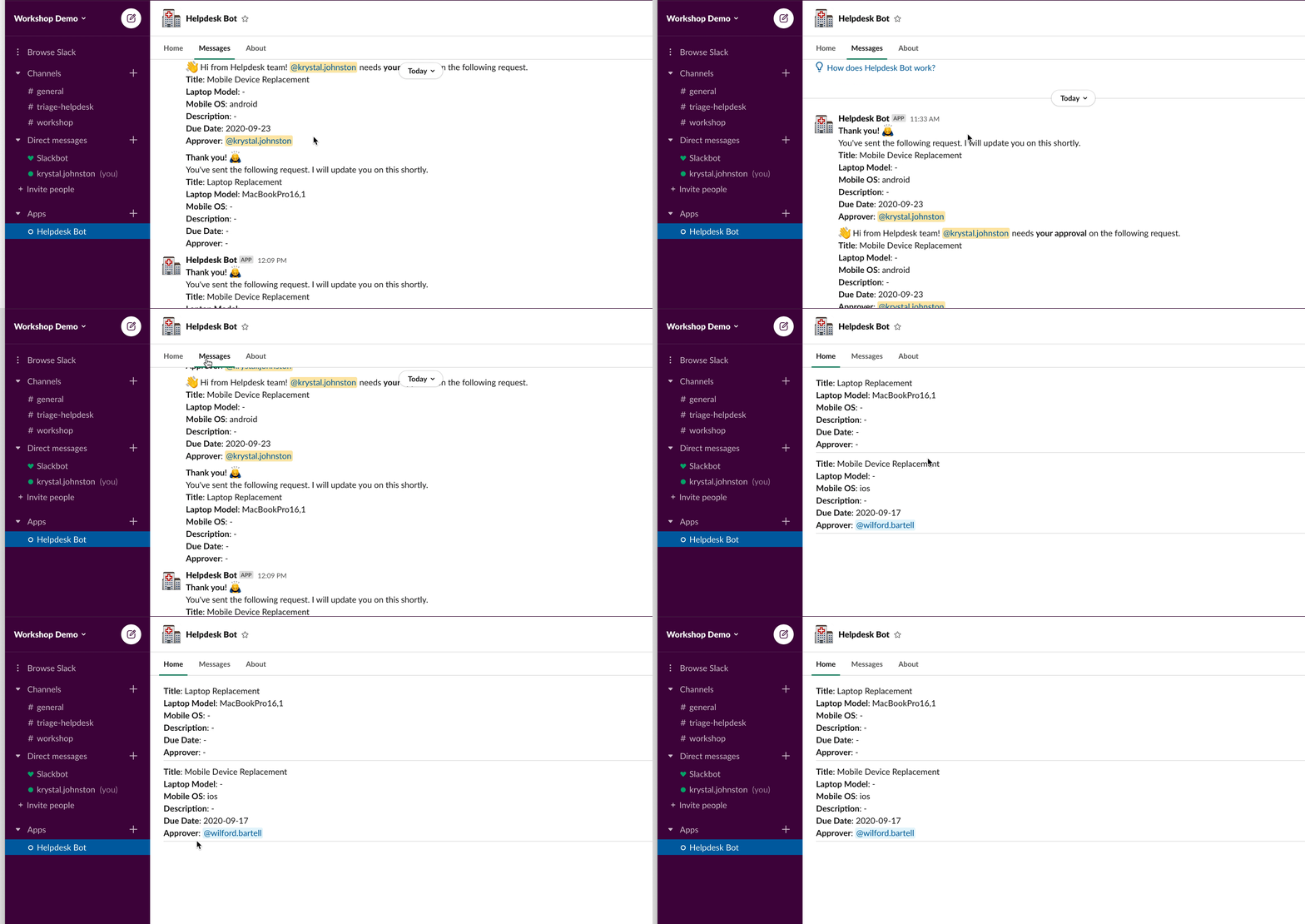
### Send Notifications
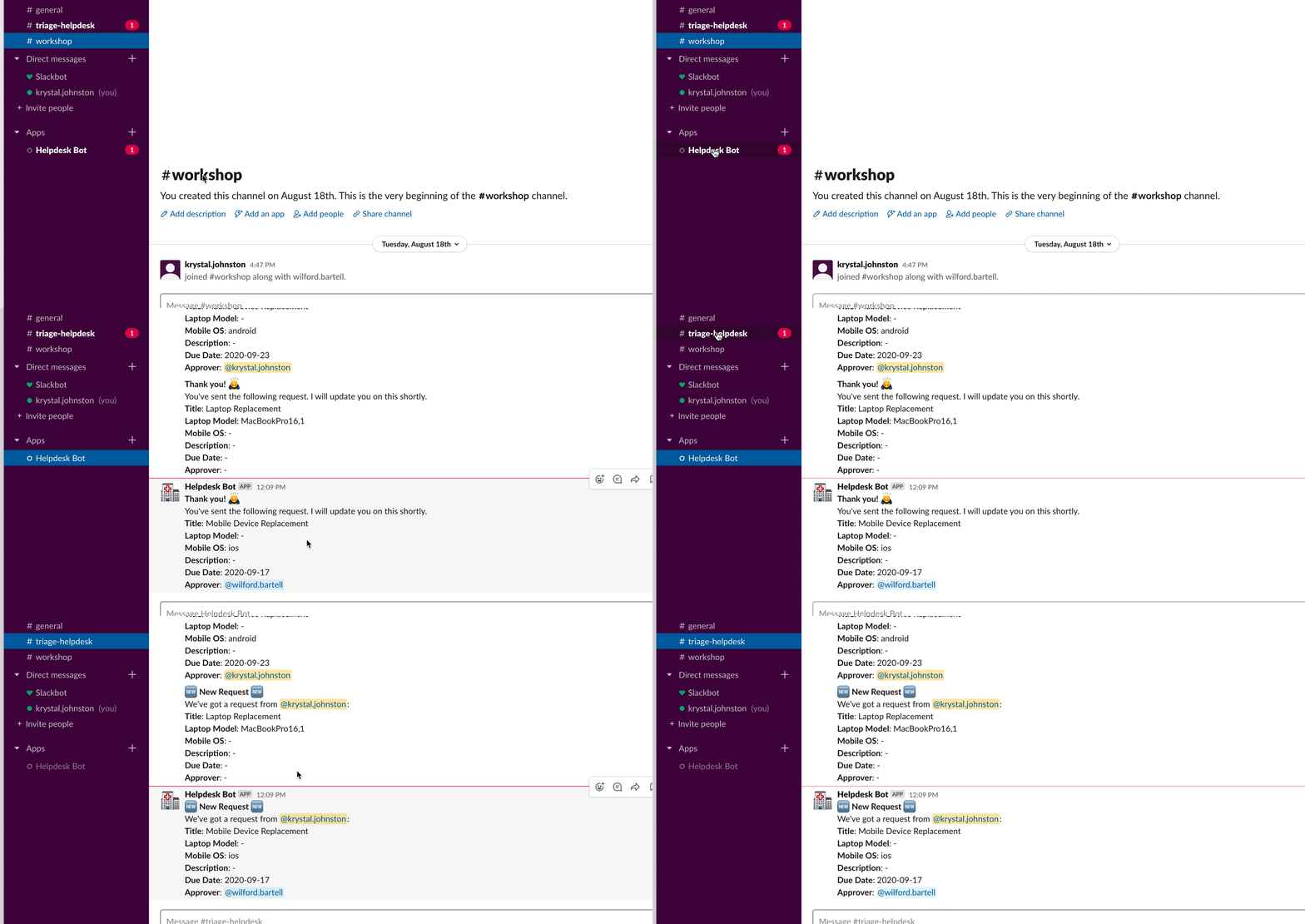
When the app receives a valid data submission from the user, the app **sends notifications** to the helpdesk team's channel, the DM with the submitter, and the DM with the approver (only for mobile device requests).
### Refresh Home Tabs
In addition, the app updates **Home tab** for the submitter with the up-to-date list of the person's submissions.
## The Slack Platform Features
We'll meet the above requirements by leveraging many of the latest Slack Platform features. We'll learn effective ways to take advantage of [Block Kit](https://api.slack.com/block-kit), [Global Shortcuts](https://api.slack.com/interactivity/shortcuts), and [Modals](https://api.slack.com/surfaces/modals).
* [Block Kit](https://api.slack.com/block-kit): Block Kit is the Slack's UI framework for building an rich user interface. From a Slack app developer perspective, it is just a kind of JSON data structure to comply with. Slack properly renders your specifically structured JSON for both desktop and mobile.
* [Global Shortcuts](https://api.slack.com/interactivity/shortcuts): A Global Shortcut is a quick and easy way to start a workflow from anywhere in Slack. Users can access global shortcuts from either the menu in text composer or search bar. Try a built-in one to learn how it works.
* [Modals](https://api.slack.com/surfaces/modals): A modal is a popover window built with Block Kit components. You use this for collecting user inputs or displaying information in an organized way. A modal can have multiple steps in its flow.

## Bolt for JavaScript
We're going to use [Bolt for JavaScript](https://slack.dev/bolt-js/), a Slack app framework optimized for taking full advantage of the Platform features. With Bolt, you won't be bothered by Slack-specific non-functional requirements:
* Verify requests from Slack for security (Your API endpoint is exposed to the internet. That means not only Slack, but any random clients may try to send requests to your endpoint. So, it's highly recommended to distinguish Slack's requests from others.)
* Parse a variety of payloads (For historical reasons, the data structure of payloads varies among features.)
* Dispatch requests to their right code path (similarly to well-designed full-stack Web app frameworks)
* Avoid infinite loop errors by reacting to events triggered by the app itself (particularly when using Events API)
* Pick up the right access token for an incoming request
As Bolt takes care of these things, your Slack app development becomes even more productive.
## All The Steps to Build This App
### Get the Project Template
Access **git.io/apidays-slack**!
```bash
git clone git@github.com:seratch/apidays-workshop-2020.git
cd apidays-workshop-2020/
node --version # need to be v10.13 or higher
npm i # install dependencies
code . # Open the project with Visual Studio Code
```
### Create a New Slack App
Visit https://api.slack.com/apps to create a new Slack App configuration.
[Signing in](https://slack.com/signin) to the Slack workspace you're going to use for development in the browser is required.
### Add Required Bot Token Scopes
Go to the **OAuth & Permissions** page and add the following **Bot Token Scopes** to the app.
* [`commands`](https://api.slack.com/scopes/commands) for creating a Global Shortcut
* [`chat:write`](https://api.slack.com/scopes/chat:write) for [`chat.postMessage`](https://api.slack.com/methods/chat.postMessage) API calls
* [`chat:write.public`](https://api.slack.com/scopes/chat:write.public) for [`chat.postMessage`](https://api.slack.com/methods/chat.postMessage) API calls in public channels where the bot user is not yet invited
* [`im:write`](https://api.slack.com/scopes/im:write) for [`conversations.open`](https://api.slack.com/methods/conversations.open) API calls
### Give Your Bot User a Relevant Name
The Slack App's name automatically determines the default bot user name. If you prefer a different name over the name automatically set, go to **App Home** page and change it. As a bot user name is user-facing, making it nice is crucial for better user experiences.
### Install The App Onto Your Development Workspace
As long as you use this app only in its development workspace, you don't need to implement [the standard OAuth flow](https://api.slack.com/authentication/oauth-v2) for acquiring OAuth access tokens. You can go with the simplified way offered by the Slack Platform. Go to the **Install App** page and just click the install button and complete the OAuth flow. You'll use the **Bot User OAuth Access Token** when booting your Bolt app.
If you're interested in distributing your app to multiple workspaces, refer to [the Bolt JS's guide](https://slack.dev/bolt-js/concepts#authenticating-oauth).
### Run the Bolt App
All the steps to follow for booting your Bolt app are:
* Create `.env` file at the root directory of this project
* Make sure if you're using Node.js 10.13 or higher (`node --version`)
* Run `npm install` to fetch all required dependencies
* Run `npm run local` to start the local app
* Install ngrok if you don't have yet - https://ngrok.com/
* Open another terminal and run `ngrok http 3000` to establish a public endpoint
#### Place .env and Save Your Credentails
```
SLACK_BOT_TOKEN=xoxb-111-111-xxx
SLACK_SIGNING_SECRET=xxx
```
#### Run the Local App
The procedure is actually quite simple. Run the following commands.
```bash
node --version # should be v10.13.0 or higher
npm install
npm run local # This starts an app at http://localhost:3000/slack/events
```
#### Run ngrok for Forwarding Slack Requests To Your Local App
If you don't have [ngrok](https://ngrok.com/), download it.
```bash
# Check if the local app is running
curl -I -XPOST http://localhost:3000/slack/events # You should get HTTP/1.1 401 Unauthorized
# on another terminal
./ngrok http 3000
# if you're a paid user
./ngrok http 3000 --subdomain {whatever-you-want}
# You can verify if it's working by the following on yet another terminal:
curl -I -XPOST https://{your random subdomain here}.ngrok.io/slack/events # You should get HTTP/1.1 401 Unauthorized
```
### Set Request URL and add a Global Shortcut
* Visit the Slack App configuration page (https://api.slack.comc/apps) and choose your app
* Go to the **Interactivity & Shortcuts** page
* Turn on the Interactivity feature
* Set `https://{your random subdomain here}.ngrok.io/slack/events` as the Request URL
* Create a new Shortcut (Global -> Callback ID: `new-helpdesk-request`)
* Click the **Save Changes** button at the bottom
### Implement Listeners in Your Bolt App
Check the [./src/solution.js](./src/solution.js) to know the complete version of the app.
* Add a [Global Shortcut listener](https://slack.dev/bolt-js/concepts#shortcuts) for callback_id: `new-helpdesk-request`
* Add an [Action listener](https://slack.dev/bolt-js/concepts#action-listening) for action_id: `helpdesk-request-modal-category-selection`
* Add an [Action listener](https://slack.dev/bolt-js/concepts#action-listening) for action_id: `helpdesk-request-modal-reset`
* Add a [View Submission listener](https://slack.dev/bolt-js/concepts#view_submissions) for callback_id: `helpdesk-request-modal`
#### Tip: Block Kit Preview Tool
[Block Kit Builder](https://api.slack.com/block-kit-builder) is a preview tool in the browser to see how your `blocks` look like in Slack. I recommend checking the validity and the appearance of your `blocks` using this tool before embedding them into your app.
* [Step 1 modal in Block Kit Builder](https://app.slack.com/block-kit-builder#%7B%22type%22:%22modal%22,%22callback_id%22:%22helpdesk-request-modal%22,%22title%22:%7B%22type%22:%22plain_text%22,%22text%22:%22Helpdesk%20Request%22%7D,%22close%22:%7B%22type%22:%22plain_text%22,%22text%22:%22Close%22%7D,%22blocks%22:%5B%7B%22type%22:%22section%22,%22text%22:%7B%22type%22:%22mrkdwn%22,%22text%22:%22:wave:%20Select%20a%20category.%22%7D%7D,%7B%22type%22:%22actions%22,%22elements%22:%5B%7B%22type%22:%22static_select%22,%22action_id%22:%22helpdesk-request-modal-category-selection%22,%22options%22:%5B%7B%22text%22:%7B%22type%22:%22plain_text%22,%22text%22:%22Laptop%22%7D,%22value%22:%22laptop%22%7D,%7B%22text%22:%7B%22type%22:%22plain_text%22,%22text%22:%22Mobile%22%7D,%22value%22:%22mobile%22%7D,%7B%22text%22:%7B%22type%22:%22plain_text%22,%22text%22:%22Other%22%7D,%22value%22:%22other%22%7D%5D%7D%5D%7D%5D%7D)
* [Step 2 modal in Block Kit Builder](https://app.slack.com/block-kit-builder#%7B%22type%22:%22modal%22,%22callback_id%22:%22helpdesk-request-modal%22,%22private_metadata%22:%22%7B%5C%22category%5C%22:%5C%22mobile%5C%22%7D%22,%22title%22:%7B%22type%22:%22plain_text%22,%22text%22:%22Helpdesk%20Request%22%7D,%22submit%22:%7B%22type%22:%22plain_text%22,%22text%22:%22Submit%22%7D,%22close%22:%7B%22type%22:%22plain_text%22,%22text%22:%22Close%22%7D,%22blocks%22:%5B%7B%22type%22:%22section%22,%22text%22:%7B%22type%22:%22mrkdwn%22,%22text%22:%22You're%20making%20a%20request%20on%20your%20mobile%20devices.%22%7D,%22accessory%22:%7B%22type%22:%22button%22,%22action_id%22:%22helpdesk-request-modal-reset%22,%22text%22:%7B%22type%22:%22plain_text%22,%22text%22:%22Back%22%7D,%22value%22:%221%22%7D%7D,%7B%22type%22:%22input%22,%22block_id%22:%22title%22,%22label%22:%7B%22type%22:%22plain_text%22,%22text%22:%22Title%22%7D,%22element%22:%7B%22type%22:%22plain_text_input%22,%22action_id%22:%22element%22,%22initial_value%22:%22Mobile%20Device%20Replacement%22%7D%7D,%7B%22type%22:%22input%22,%22block_id%22:%22os%22,%22label%22:%7B%22type%22:%22plain_text%22,%22text%22:%22Mobile%20OS%22%7D,%22element%22:%7B%22type%22:%22static_select%22,%22action_id%22:%22element%22,%22placeholder%22:%7B%22type%22:%22plain_text%22,%22text%22:%22Select%20an%20item%22%7D,%22options%22:%5B%7B%22text%22:%7B%22type%22:%22plain_text%22,%22text%22:%22iOS%22%7D,%22value%22:%22ios%22%7D,%7B%22text%22:%7B%22type%22:%22plain_text%22,%22text%22:%22Android%22%7D,%22value%22:%22android%22%7D%5D%7D%7D,%7B%22type%22:%22input%22,%22block_id%22:%22approver%22,%22label%22:%7B%22type%22:%22plain_text%22,%22text%22:%22Approver%22%7D,%22element%22:%7B%22type%22:%22users_select%22,%22action_id%22:%22element%22,%22placeholder%22:%7B%22type%22:%22plain_text%22,%22text%22:%22Select%20your%20approver%22%7D%7D%7D,%7B%22type%22:%22input%22,%22block_id%22:%22due-date%22,%22element%22:%7B%22type%22:%22datepicker%22,%22action_id%22:%22element%22%7D,%22label%22:%7B%22type%22:%22plain_text%22,%22text%22:%22Due%20date%22,%22emoji%22:true%7D%7D%5D%7D)
## Recap
* Create a Slack app configuration at https://api.slack.com/apps
* Signing in with your Slack workspace account is required
* Configure the Slack app with sufficient permissions
* Go to the "OAuth & Permissions" page and add bot token scopes
* Turn the features you use on (Interactivity, Events Subscriptions, Home tab, and so on)
* Install the app onto its Development Slack Workspace
* Grab the "Bot User OAuth Access Token" starting with "xox**b**-"
* Create a Bolt app
* Set env variables - `SLACK_BOT_TOKEN`, `SLACK_SIGNING_SECRET`
* Start the app (`app.start()`)
* By default, Bolt apps receive requests coming to `POST http://localhost:3000/slack/events`
* Have a public endpoint to receive requests from Slack
* You may use ngrok or similar for it (`ngrok http 3000`)
* Add listeners for incoming requests
* Check ngrok access logs (`http://localhost:4040`)
* Check the error messages in stdout
* Read [the Bolt for JS documents](https://slack.dev/bolt-js)
* Have fun with Slack app development
# License
The MIT License