https://github.com/servicestack/servicestack.gap
Creating cross-platform Native Desktop apps with ServiceStack
https://github.com/servicestack/servicestack.gap
Last synced: 5 months ago
JSON representation
Creating cross-platform Native Desktop apps with ServiceStack
- Host: GitHub
- URL: https://github.com/servicestack/servicestack.gap
- Owner: ServiceStack
- Created: 2014-05-12T19:18:58.000Z (over 11 years ago)
- Default Branch: master
- Last Pushed: 2015-02-05T21:01:35.000Z (almost 11 years ago)
- Last Synced: 2025-07-29T03:05:39.966Z (5 months ago)
- Language: JavaScript
- Size: 87.6 MB
- Stars: 44
- Watchers: 6
- Forks: 9
- Open Issues: 0
-
Metadata Files:
- Readme: README.md
Awesome Lists containing this project
README
ServiceStack.Gap
================
#### Creating cross-platform Native Desktop Single Page apps with ServiceStack.
In the same way that [Phone Gap](http://phonegap.com/) allows you to create mobile apps for different
platforms with web technologies, you can also create Native Desktop apps running of an embedded version of ServiceStack.
ServiceStack has a number of features that's particularly suited for these kind of apps:
- It allows your services to be self-hosted using .NET's HTTP Listener
- It supports pre-compiled Razor Views
- It supports Embedded resources
- It supports an embedded database in Sqlite and OrmLite
- It can be ILMerged into a single .exe
Combined together this allows you to encapsulate your ServiceStack application into a single cross-platform **.exe** that can run on Windows or OSX.
To illustrate this we'll encapsulate the [Http Benchmarks](https://github.com/ServiceStack/HttpBenchmarks) project into a portable embedded Native Desktop app that can be run locally.
## Benchmarks Analyzer
`BenchmarksAnalyzer.exe` lets you quickly visualize Apache benchmark outputs stored in plain `.txt` files or groups of benchmark outputs stored within `.zip` batches.
### Usage
By default `BenchmarksAnalyzer.exe` will scan the directory where it's run from, it also supports being called with the path to `.txt` or `.zip` files to view or even a directory where output files are located. Given this there are a few popular ways to use Benchmarks Analyzer:
- Drop `BenchmarksAnalyzer.exe` into a directory of benchmark outputs before running it
- Drop a `.zip` or folder onto the `BenchmarksAnalyzer.exe` to view those results
> Note: It can also be specified as a command-line argument, e.g: "BenchmarksAnalyzer.exe path\to\outputs"

### Download
The Benchmarks Analyzer app is available for download in a number of different flavors below:
> **[BenchmarksAnalyzer.zip](https://github.com/ServiceStack/ServiceStack.Gap/raw/master/deploy/BenchmarksAnalyzer.zip)** - Single .exe that opens the BenchmarksAnalyzer app in the users browser
[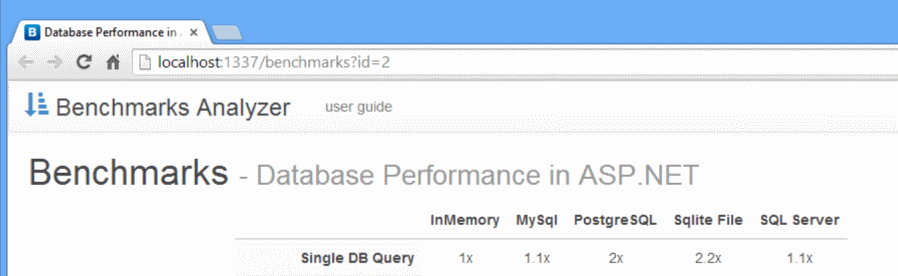](https://github.com/ServiceStack/ServiceStack.Gap/raw/master/deploy/BenchmarksAnalyzer.zip)
> **[BenchmarksAnalyzer.Mac.zip](https://github.com/ServiceStack/ServiceStack.Gap/raw/master/deploy/BenchmarksAnalyzer.Mac.zip)** - Self-hosted app running inside a OSX Cocoa App Web Browser
[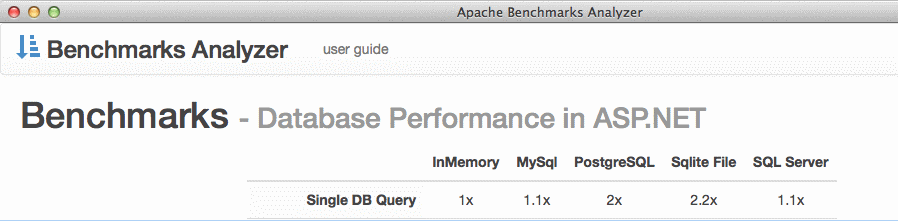](https://github.com/ServiceStack/ServiceStack.Gap/raw/master/deploy/BenchmarksAnalyzer.Mac.zip)
> **[BenchmarksAnalyzer.Windows.zip](https://github.com/ServiceStack/ServiceStack.Gap/raw/master/deploy/BenchmarksAnalyzer.Windows.zip)** - Self-hosted app running inside a Native WinForms app inside [CEF](https://code.google.com/p/chromiumembedded/)
[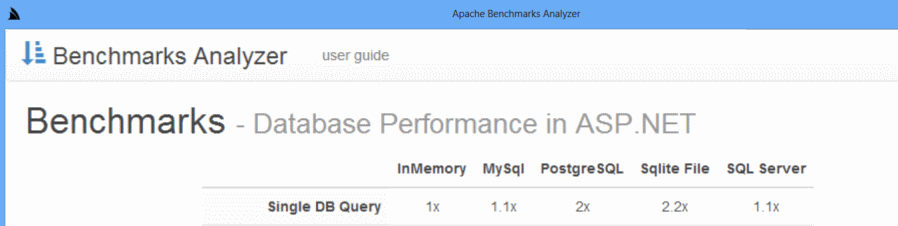](https://github.com/ServiceStack/ServiceStack.Gap/raw/master/deploy/BenchmarksAnalyzer.Windows.zip)
#### Viewing the bundled Example
`BenchmarksAnalyzer.zip` also comes with example data so you can run it to see an example of it in action:
- **Database Performance in ASP.NET.zip** - Example dataset containing Benchmark outputs in a single .zip
- **server.labels** - Holds Custom Labels to markup different servers in charts
- **test.labels** - Holds Custom Labels to markup different tests in charts
To view the built-in example just extract the .zip file and double-click on `BenchmarksAnalyzer.exe`
to run the Program to view the above example dataset with the custom configuration.
See the included [README.txt](https://github.com/ServiceStack/ServiceStack.Gap/blob/master/src/BenchmarksAnalyzer/build/README.txt)
for more Benchmark Analyzer features and how to markup the charts with custom labels.
## Redis Server Events Chat
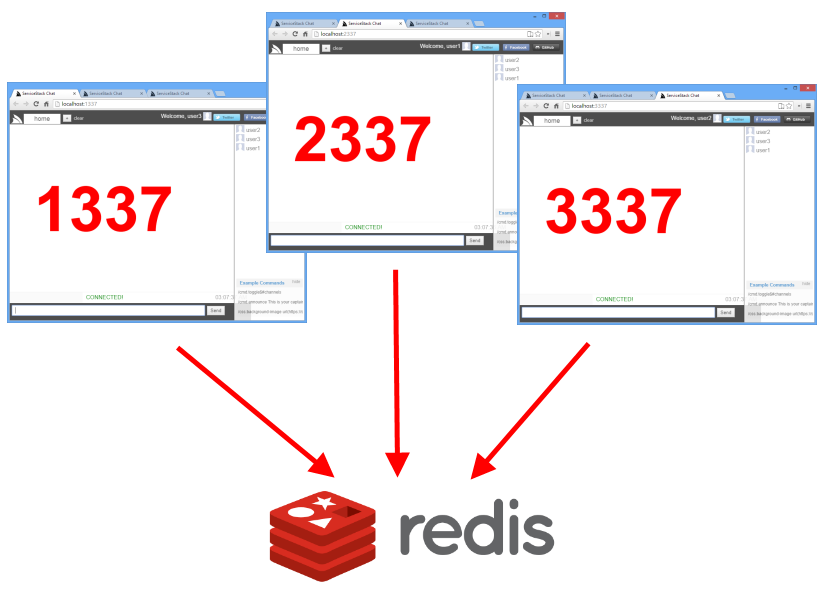
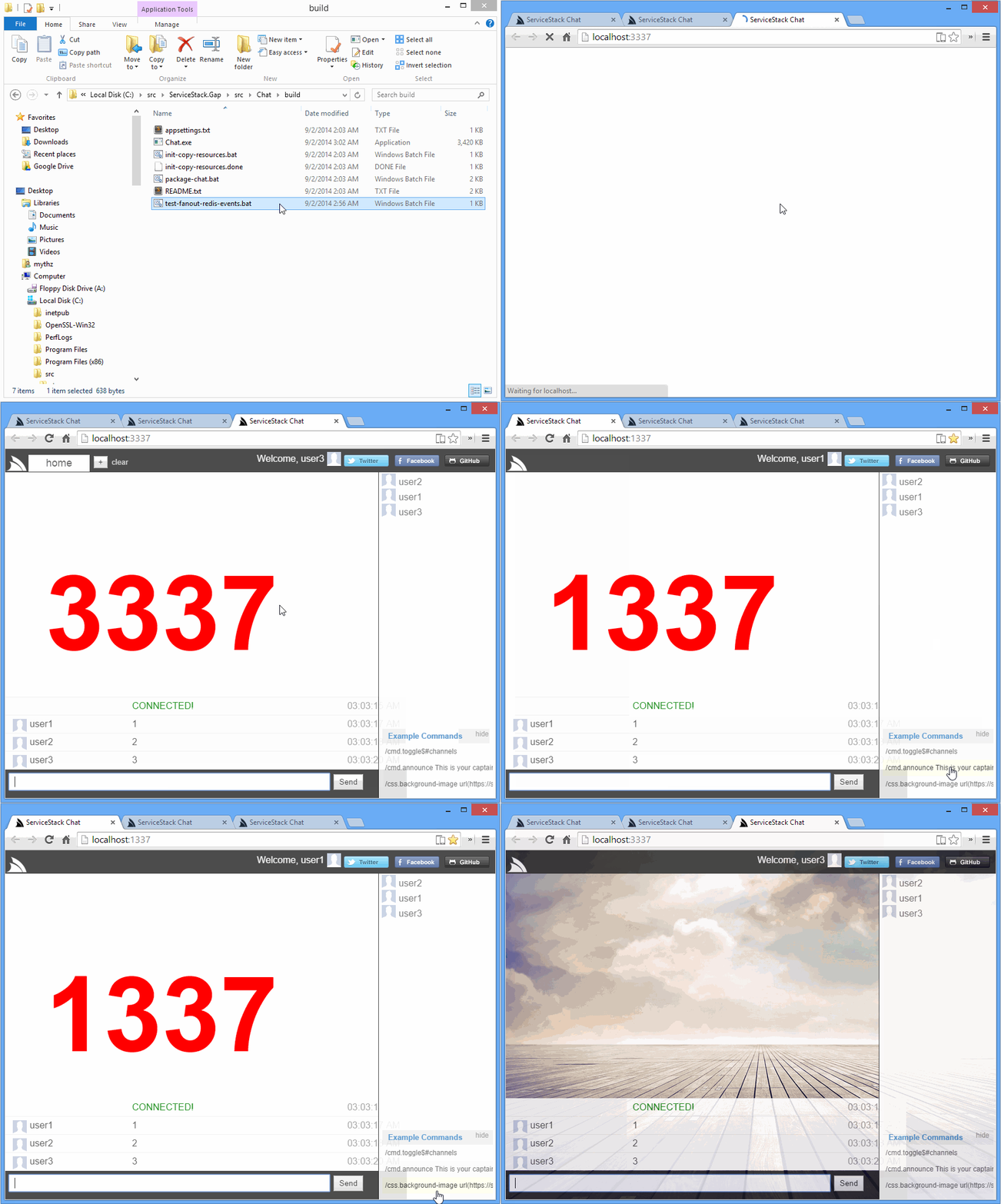
### Cross-platform Memory and Redis ServerEvent Enabled Chat.exe
To showcase [Redis ServerEvents](https://github.com/ServiceStack/ServiceStack/wiki/Redis-Server-Events) in action, we've prepared a stand-alone [ServiceStack.Gap](https://github.com/ServiceStack/ServiceStack.Gap) version of [Chat](http://chat.servicestack.net) compiled down into a single **Chat.exe** that can run on either Windows and OSX with Mono which can be downloaded from:
### [Chat.zip](https://github.com/ServiceStack/ServiceStack.Gap/raw/master/deploy/Chat.zip) (1.2MB)
[](https://github.com/ServiceStack/ServiceStack.Gap/raw/master/deploy/Chat.zip)
[Usage instructions for Redis ServerEvents Chat App](https://github.com/ServiceStack/ServiceStack/wiki/Redis-Server-Events#redis-serverevents-chat-usage)
----
# Creating an embedded ServiceStack App
To create the portable version of Benchmarks Analyzer we simply
[copied the resources from HttpBenchmarks](https://github.com/ServiceStack/ServiceStack.Gap/blob/master/src/BenchmarksAnalyzer/build/init-copy-resources.done) project
into a new [BenchmarksAnalyzer.Resources](https://github.com/ServiceStack/ServiceStack.Gap/tree/master/src/BenchmarksAnalyzer/BenchmarksAnalyzer.Resources)
project that contains all the websites html/cshtml/js/css/img/etc assets.
### Install ServiceStack.Gap package
We can then compile all the Razor Views and embed all the resouces inside the single `BenchmarksAnalyzer.Resources.dll`
by adding the ServiceStack.Gap NuGet package:
> Install-Package ServiceStack.Gap
All this package does is change all the `*.cshtml` pages **BuildAction** to `Content` and change the web assets to
`EmbeddedResource` so they all get compiled into the `BenchmarksAnalyzer.Resources.dll`. It also adds a MS Build task
to `BenchmarksAnalyzer.Resources.csproj` to get VS.NET to pre-compile the Razor views.
### Registering Embedded Resources and Compiled Razor Views to your AppHost
To get ServiceStack to make use of your compiled Razor Views you need to specify the Assembly ServiceStack
should scan when you're registering the `RazorFormat`, i.e:
```csharp
Plugins.Add(new RazorFormat {
LoadFromAssemblies = { typeof(Resources.BaseTypeMarker).Assembly },
});
```
To tell ServiceStack that it should serve resources embedded inside dlls we just need to add it the HostConfig:
```csharp
SetConfig(new HostConfig {
EmbeddedResourceBaseTypes = { GetType(), typeof(Resources.BaseTypeMarker) },
});
```
> We need to specify base types instead of assemblies so their namespaces are preserved once they're ILMerged into a single .exe
## Optimizing Benchmarks Analyzer as a portable app
There are a few things in [httpbenchmarks.servicestack.net](https://httpbenchmarks.servicestack.net/) that doesn't
make sense as a portable app, primarily it requires authentication and supports multiple OAuth providers. It also
supports maintaining a history of test runs and a more complicated Admin UI to manage it.
As we want to make this app as easy as possible to use, we've removed the required authentication and have changed it to
suit a "one-shot stateless execution" where it doesn't save any state in the Sqlite database between runs, instead
it just automatically imports all the Apache Benchmark Outputs in `.txt` or `.zip` files in the directory where it's run from.
### Uploading Files to a HTTP Service In Memory
Luckily this is simple to do where we're able to re-use the existing HTTP Upload service that processses HTTP File uploads
of multiple `.txt` and `.zip` files, where instead of passing a HTTP Request with the uploads we inject it with a
`BasicRequest` context that contains File metadata sourced from the `FileSystemVirtualPathProvider`, e.g:
```csharp
using (var admin = Resolve())
{
//...
var dir = new FileSystemVirtualPathProvider(this, Config.WebHostPhysicalPath);
var files = dir.GetAllMatchingFiles("*.txt")
.Concat(dir.GetAllMatchingFiles("*.zip"));
admin.Request = new BasicRequest
{
Files = files.Map(x => new HttpFile {
ContentLength = x.Length,
ContentType = MimeTypes.GetMimeType(x.Name),
FileName = x.Name,
InputStream = x.OpenRead(),
} as IHttpFile).ToArray()
};
if (admin.Request.Files.Length > 0)
{
admin.Post(new UploadTestResults
{
TestPlanId = 1,
TestRunId = testRun.Id,
CreateNewTestRuns = true,
});
}
}
```
After running the import we can determine which page to open based on whether any files were imported or not.
If some results were imported then we open up immediately to view the results, otherwise we open the Admin UI
so users can manually upload the Apache Benchmark outputs themselves, e.g:
```csharp
public string GetStartUrl()
{
using (var db = Resolve().Open())
{
var testResult = db.Single(q => q.OrderBy(x => x.Id));
var testPlan = testResult != null ? db.SingleById(testResult.TestPlanId) : null;
return testPlan != null
? BaseUrl.CombineWith("{0}?id={1}".Fmt(testPlan.Slug, testResult.TestRunId))
: BaseUrl;
}
}
```
## Self-Hosting Console App
The Console Application works like any other [Self Host](https://github.com/ServiceStack/ServiceStack/wiki/Self-hosting) app,
the only difference is because it needs to also run as a single ILMerged .exe we need to call
[ExportMonoSqliteDll()](https://github.com/ServiceStack/ServiceStack.Gap/blob/66d9fc19616f924f2bbae7c8ef8ddb14ae6b612b/src/BenchmarksAnalyzer/BenchmarksAnalyzer/AppHost.cs#L175) to write the unmanaged `sqlite3.dll` out to a file so it can be found by Sqlite's ADO.NET provider.
Other than that we just show a friendly reminder when it can't find any files to import, e.g:
```csharp
static void Main(string[] args)
{
AppUtils.ExportMonoSqliteDll();
var appHost = new AppHost("http://localhost:1337/")
.Start();
"Listening on {0}".Print(appHost.BaseUrl);
"Type Ctrl+C to quit..\n".Print();
var startUrl = appHost.GetStartUrl();
if (startUrl == appHost.BaseUrl)
{
"No .txt or .zip Apache Benchmark Results found, skipping initial import...".Print();
"Use ab utility to generate Apache Benchmark .txt files to analyze.".Print();
}
Process.Start(startUrl);
Thread.Sleep(Timeout.Infinite);
}
```

## WinForms with Chromium Embedded Framework
Whilst running a Self-Hosting app that launches the System browser provides a working solution, we can provide an
even better integrated solution by instead viewing the application inside a Native Desktop App which is essentially
just a lightweight shell containing a full-width browser widget.
Unfortunately the WebBrowser widget available in .NET WinForms and WPF applications is an old underperforming version
of IE which doesn't yield a great experience for the types of Single Page Apps that you'd want to host within a
Native Desktop App.
### The Chromium Embedded Framework
The best chance to get a great Desktop Web experience on Windows is to use the
[Chromium Embedded Framework](https://code.google.com/p/chromiumembedded/) builds for Windows hosted at
[cefbuilds.com](http://cefbuilds.com). These builds provide native dlls for an embedded version of Chromium
for Windows.
To be able to use them in .NET we need .NET bindings, which there are currently 2 Open Source .NET projects to do this:
- [CefSharp](https://github.com/cefsharp/CefSharp)
- [CefGlue](http://xilium.bitbucket.org/cefglue/)
We've decided on CefSharp for the WinForms App since it includes the CEF builds it's built against and requires
very little boilerplate to wrap.
#### Creating a WinForms CefSharp-enabled App
After Creating a New **Windows Forms Application** from VS.NET's Add New Project template:
1. Reference all the `CefSharp.*` .NET dlls in [/lib](https://github.com/ServiceStack/ServiceStack.Gap/tree/master/lib)
2. Open `Build > Configuration Manager...` and change the **Active Solution Plaform** to `x86`
3. Build the solution then copy all the native cef files in [/lib/cef](https://github.com/ServiceStack/ServiceStack.Gap/tree/master/lib/cef) into the `/bin/x86/Release` directory
> Note: The native CEF files will also need to be deployed with your app
From there, making use of the CEF WebBrowser widget is easy, just add a single `Panel` from the Toolbox to your
main **Form** (docked at full-width) using the designer. Then in the Forms constructor you can add a new instance
of `WebView` to the panel you just created, e.g:
```csharp
public partial class FormMain : Form
{
private readonly WebView webView;
public FormMain(string loadUrl)
{
InitializeComponent();
WindowState = FormWindowState.Maximized;
webView = new WebView(loadUrl) {
Dock = DockStyle.Fill,
};
this.panelMain.Controls.Add(webView);
}
}
```
#### Initializing CEF and ServiceStack
The only thing that needs to be done before then is to call `Cef.Initialize()` with optional settings you can use
to modify its behavior which you can do in `Program.Main()`:
```csharp
[STAThread]
static void Main()
{
Cef.Initialize(new CefSettings());
Application.EnableVisualStyles();
Application.SetCompatibleTextRenderingDefault(false);
var appHost = new AppHost("http://localhost:1337/")
.Start();
Application.Run(new FormMain(appHost.GetStartUrl()));
}
```
Other than that all we have to do is start ServiceStack's AppHost and pass the url we want to the form to launch with.

## Mac OSX Cocoa App with Xmarain.Mac
[Xamarin.Mac](http://developer.xamarin.com/guides/mac/getting_started/hello,_mac/) provides managed .NET bindings to access OSX's underlying Obj-C/C API's letting you create full-featured native apps using C#.
### 1. Create Mac Project
We can use [Xamarin Studio](http://xamarin.com/studio) to create Mac apps with C#, by Creating a **Xamarin.Mac Project** from the **New Solution** dialog:

### 2. Design the App's MainWindow using XCode's Interface Builder
Xamarin Studio includes integration with XCode which lets you design your Application's UI using Interface Builder by double-clicking on any **.xib** (Interface Builder file). A new Mac project already includes an empty `MainWindow.xib` which holds the layout of the Main Window in your Mac app, double-clicking it will open it inside a new XCode project.
### 3. Add a full-width WebView widget to your App
The WebKit-based WebView widget built-in OSX provides a high-quality web browser that we can use in our app by finding it in XCode's **Object Library** (located in the bottom-right corner of XCode) and dragging it onto our **MainWindow**.
To make this widget available in C# we then need to create an **Outlet** for the WebView widget by pressing `Ctrl` whilst clicking on the WebView and dragging the connecting line onto the body of the `MainWindow.h` header file, e.g:

This will open up a small dialog that lets you name the Outlet for the webView which is used for the property name in C#.
Unfortunately as `WebView` is not a core component XCode will show some build errors saying it can't find WebView. To resolve this we need to add the **WebKit Framework** to your project (similar to NuGet package in .NET). To do this we need to:
1. Click on the **BenchmarksAnalyzer.Mac** XCode project file in the Project Navigator
2. Click on the **BenchmarksAnalyzer.Mac** target to open its settings window
3. Click on the **Build Phases** tab
4. Expand the **Link Binary With Libraries** section and clock on the `+` button
5. Select **Webkit.framework** to add it to your project

Now that it's added to your project we can reference it by going back to `MainWindow.h` header file and add the import statement:
#import
To the list of imports, after saving the file we can close XCode and return to Xamarin Studio which will resync the changes you made so they're available in your C# source files.
If you look into `MainWindow.designer.cs` source file you will notice there's a `WebView webView { get; set; }` property in the code-behind partial `MainWindow` class. We can interact with this widget when the Main Window is first loaded by overriding the `AwakeFromNib()` method with our custom initialization logic:
```csharp
public partial class MainWindow : MonoMac.AppKit.NSWindow
{
...
public override void AwakeFromNib()
{
base.AwakeFromNib();
webView.MainFrameUrl = "http://google.com";
}
}
```
### 4. Starting the ServiceStack Self-Host
Starting a ServiceStack Self-Host App is the same as any other app where we initialize it on AppStart which for Mac apps is conventionally in the `Main.cs` file, i.e:
```csharp
public static class MainClass
{
public static AppHost App;
static void Main(string[] args)
{
App = new AppHost("http://localhost:1337/")
.Start();
NSApplication.Init();
NSApplication.Main(args);
}
}
```
As we've made AppHost a static property we can access it from anywhere to retrieve the starting url, e.g:
```csharp
webView.MainFrameUrl = MainClass.App.GetStartUrl();
```
Which once run, will open your ServiceStack application withing a full-width OSX App, e.g:
