https://github.com/servicestack/studio
ServiceStack Studio
https://github.com/servicestack/studio
Last synced: 11 months ago
JSON representation
ServiceStack Studio
- Host: GitHub
- URL: https://github.com/servicestack/studio
- Owner: ServiceStack
- License: other
- Created: 2020-04-12T22:12:56.000Z (over 6 years ago)
- Default Branch: master
- Last Pushed: 2022-06-02T12:31:24.000Z (about 4 years ago)
- Last Synced: 2025-08-28T18:58:29.501Z (11 months ago)
- Language: TypeScript
- Size: 496 KB
- Stars: 7
- Watchers: 5
- Forks: 3
- Open Issues: 0
-
Metadata Files:
- Readme: README.md
- License: license.txt
Awesome Lists containing this project
README
# ServiceStack Studio
is a capability-based UI to manage multiple remote ServiceStack instances from either a Chromium Desktop App or cross-platform .NET Core Web App.
The richer metadata in ServiceStack Services allows Studio to logically group Services around Data Models, enabling its high-level semantic features like its native data-grid like UX over all AutoQuery Services to quickly discover, search, create, update and delete entities based on the available AutoQuery APIs and whether Authenticated Users have access to them.
> YouTube: [youtu.be/2FFRLxs7orU](https://youtu.be/2FFRLxs7orU)
[](https://youtu.be/2FFRLxs7orU)
**Studio** replaces the [ServiceStack Admin UI](https://github.com/ServiceStack/Admin) where it provides a UX-friendly UI for accessing AutoQuery & Crud Services but will also gain UI features for taking advantage of various ServiceStack Plugins & Features, e.g. in this initial release it includes UI's for **Managing DB Validation Rules** & for viewing the **Executable Audit History of Tables** updated through AutoCrud Services.
### Requires v5.9+
**Studio** capability-based Admin UI is enabled via the `/metadata/app` endpoint which returns metadata information about which plugins are enabled, what features they're configured with and what User Roles they're protected behind (if any). As such it's only able to manage **v5.9+** ServiceStack instances.
You'll need the latest [app dotnet tool](https://docs.servicestack.net/netcore-windows-desktop) which is bundled with the latest Chromium which provides the Desktop UI:
$ dotnet tool update -g app
Which you'll need to run once to register the `app://` url scheme, e.g:
$ app -version
### Starting ServiceStack Studio
This initial release of ServiceStack Studio primarily provides a UI around AutoQuery Services and the latest features in this release like **Executable Audit History** and declarative **RDBMS validators**.
If you don't have a project using the **v5.9+** features on hand you can launch a copy of [NetCoreApps/NorthwindCrud](https://github.com/NetCoreApps/NorthwindCrud) which uses the new AutoCrud features to generate AutoQuery Services around all its RDBMS tables, that can be run locally with:
$ x download NetCoreApps/NorthwindCrud
$ cd NorthwindCrud
$ dotnet run
Where you can use `app` URL scheme support to launch **Studio** & automatically register the **NorthwindCrud** instance with:
[app://studio?connect=https://localhost:5001](app://studio?connect=https://localhost:5001)
This URL scheme gets translated & is equivalent to running **Studio** on the command-line with:
$ app open studio -connect https://localhost:5001
Which downloads the [Studio Gist Desktop App](https://gist.github.com/gistlyn/d8e7a56027ed6ec3060d9a9896931909), loads it as a [Gist VFS](https://docs.servicestack.net/virtual-file-system#gistvirtualfiles) whose static assets are then served by the .NET Core Server and loaded in the CEF Chromium browser.
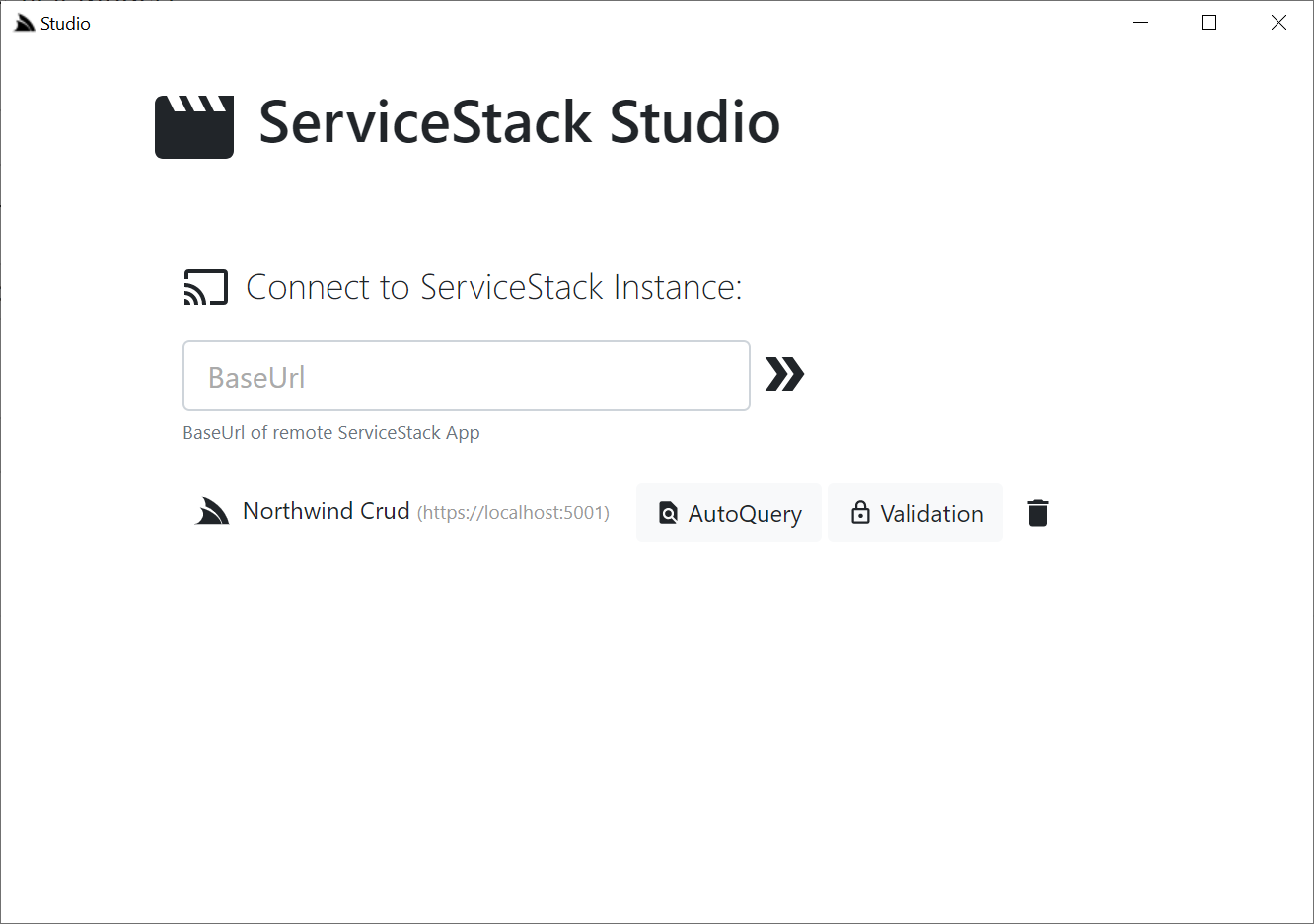
The `connect` param is used by **Studio** to auto register the remote **NorthwindCrud** instance where it auto downloads its App Metadata containing its enabled plugins & features & within a few seconds you should see it appear on the home page:

#### Desktop-less x-plat app
Whilst not optimized for it, **Studio** can also be launched headless in your default Browser using the `x` x-plat tool:
[xapp://studio?connect=https://localhost:5001](xapp://studio?connect=https://localhost:5001)
$ x open studio -connect https://localhost:5001
Where you'll then be able to view it by going to `https://localhost:5002`. Note if not launched in a browser **Studio** will have limited capacity and features, but will eventually be a supported mode for accessing **Studio** from macOS or Linux.
### Home Page
From the home page you'll see all the top-level Admin Sections available that's enabled on the remote instance, in the initial release there's a UI for accessing **AutoQuery Services** and a UI for maintaining **DB Validation Rules**.
### AutoQuery UI
Studio uses the rich declarative metadata of AutoQuery & Crud Services to infer the **data model** that each AutoQuery Service operates on and the **Operation Type** they provide. As a result it can logically group each Service around the Data Model they operate on to provide a more intuitive & natural UI for each of the different AutoQuery/CRUD operation types.

What UI features & tables are visible is reflected by whether the AutoQuery Service for that type exists and whether the currently authenticated User has access to them (i.e. Have the role required by each Service). So an unauthenticated user will see Northwind Crud's read-only **Region** table with no ability to update it & the **Territory** table, which as it isn't protected by a role will be visible to everyone,
but as all CRUD Write operations require authentication, all edit controls require authentication - as shown in the screenshot above where they're replaced with auth **Sign In** buttons.
Here are the relevant [NorthwindCrud auto-generation rules](https://github.com/NetCoreApps/NorthwindCrud/blob/master/Startup.cs) which defines this behavior:
```csharp
var readOnlyTables = new[] { "Region" };
GenerateCrudServices = new GenerateCrudServices {
ServiceFilter = (op,req) => {
// Require all Write Access to Tables to be limited to Authenticated Users
if (op.IsCrudWrite())
{
op.Request.AddAttributeIfNotExists(new ValidateRequestAttribute("IsAuthenticated"),
x => x.Validator == "IsAuthenticated");
}
},
//Don't generate the Services or Types for Ignored Tables
IncludeService = op => !ignoreTables.Any(table => op.ReferencesAny(table)) &&
!(op.IsCrudWrite() && readOnlyTables.Any(table => op.ReferencesAny(table))),
}
```
Clicking on any of the **Auth** icons or the **Sign In** button on the top right will open up the Sign In dialog.
### Integrated Auth Component
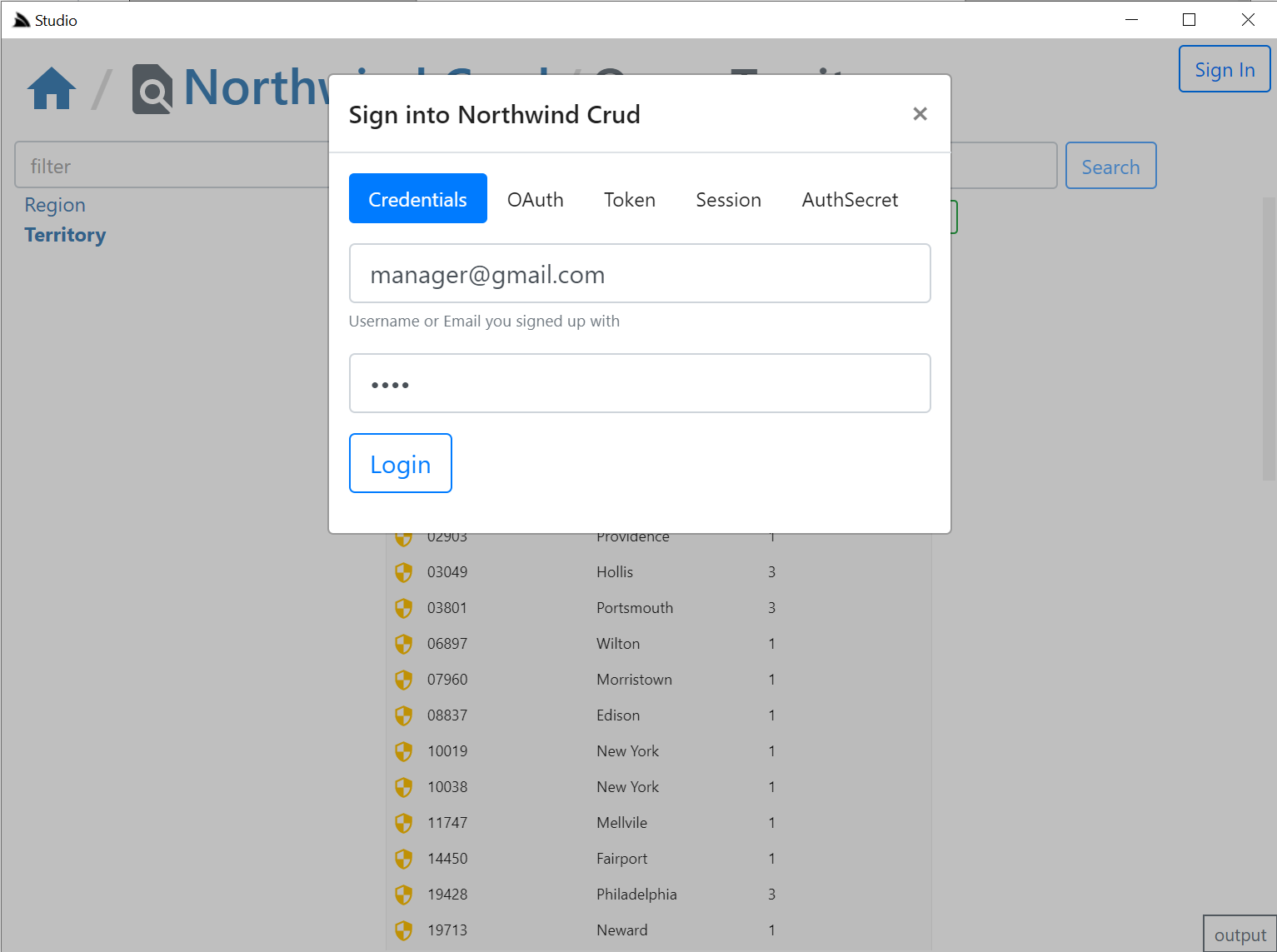
The **Sign In** dialog supports most of ServiceStack's built-in Auth Providers with a different Auth Dialog tab depending which Auth Providers are enabled.
It looks at "auth family type" to determine how to Authenticate with each Auth Provider so it should still support your Custom Auth Providers if they inherit from existing Auth Providers, otherwise they can explicitly specify which Type of Auth they use by overriding the `Type` property getter with one of the following:
- **Bearer** - Authenticate with HTTP Authentication Bearer Token (e.g. JWT or API Key)
- **credentials** - Authenticate with Username/Password at `/auth/credentials`
- **oauth** - Authenticate with OAuth
- **session** - Alternative [session-based Auth Provider](https://docs.servicestack.net/authentication-and-authorization#session-authentication-overview)
The **session** tab is also displayed if a `credentials` or `auth` provider is enabled. It should serve as a fallback Auth option if your Custom Auth Provider doesn't fit into the existing family types as it opens the `/auth` page of the remote ServiceStack instance:
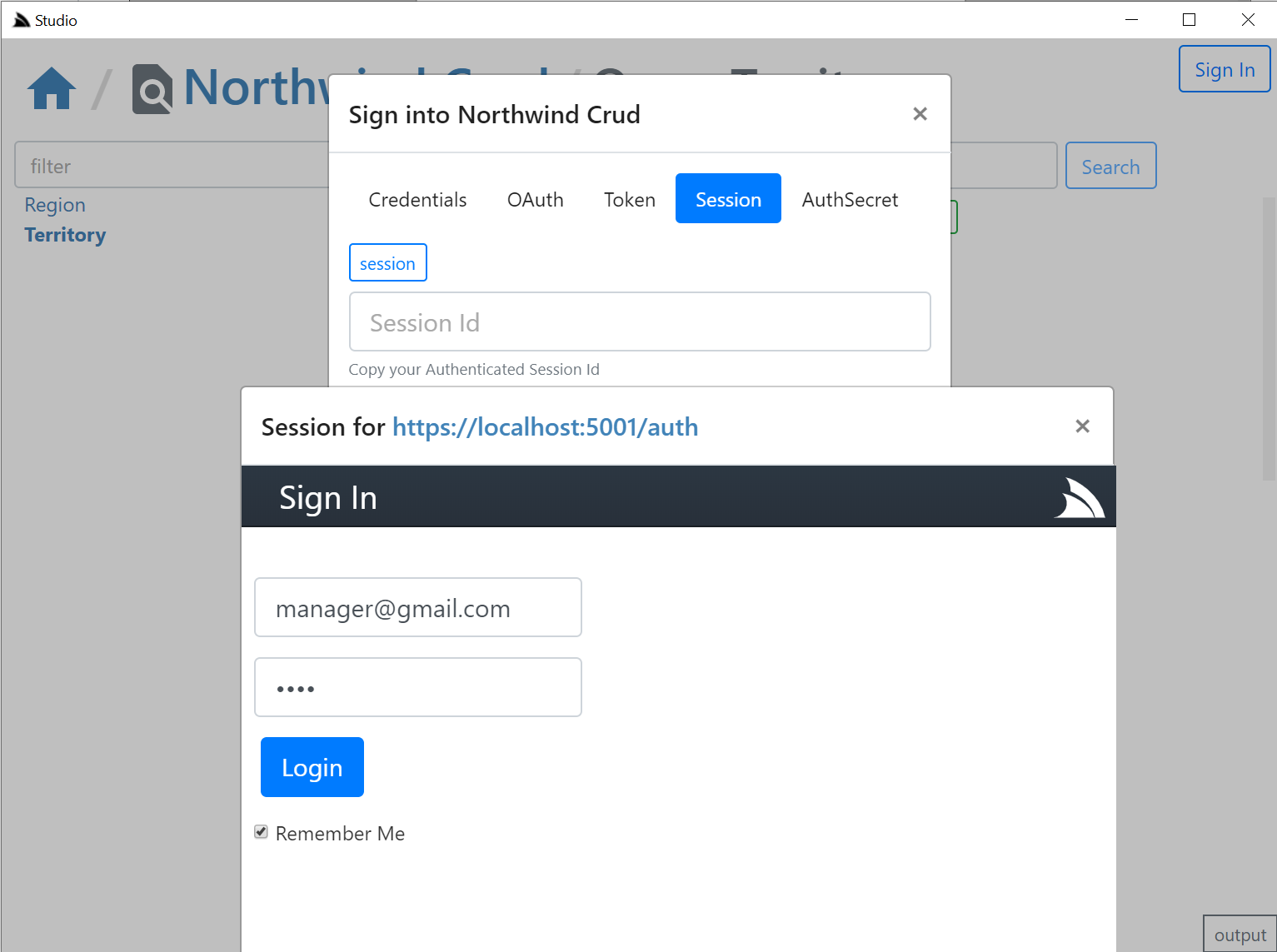
Where you can login to the remote site via the new fallback `/login` page or uses your custom Login Page if exists. If your remote instance is configured to allow Studio CORS access, i.e:
```csharp
appHost.Plugins.Add(new CorsFeature(allowOriginWhitelist:new[]{ "https://localhost:5002" }));
```
Clicking on the **copy** button will then be able to post the session Id back to Studio & close the auth popup otherwise you'd need to
manually close the popup and paste the session in.
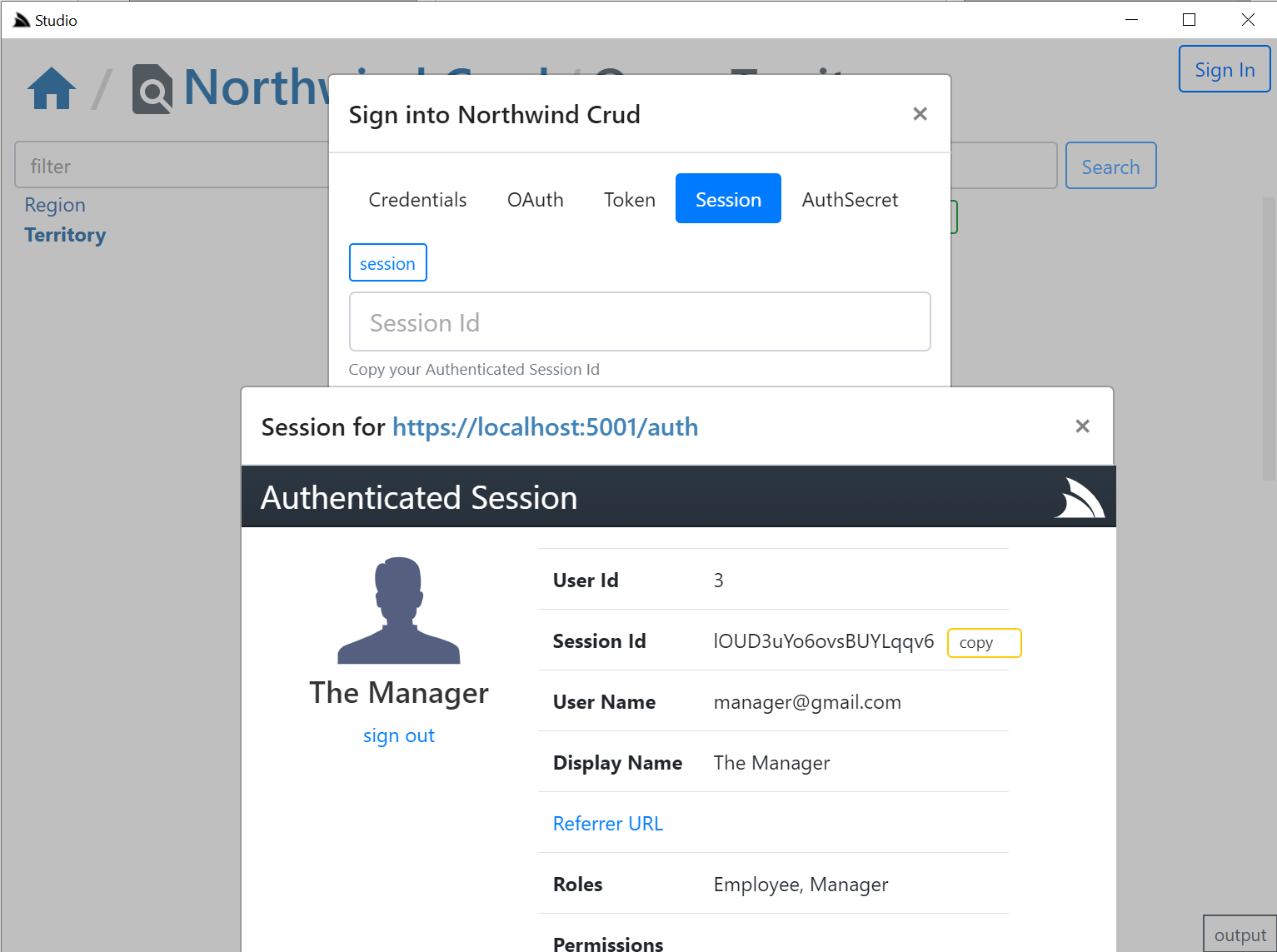
The **OAuth** tab is a little different since it requires an OAuth redirect and since most 3rd Party OAuth providers disallow embedding in iframes,
it needs to popup an external url in your default browser which still provides a nice auth UX as you'd typically already be Signed In with your
Default browser, where it will redirect you back to your `/auth` page where you can copy either the **Session Id** or the OAuth **Access Token**
if you enable including OAuth Access Tokens in your `AuthenticateResponse` DTO with:
```csharp
appHost.Plugins.Add(new AuthFeature(...) {
IncludeOAuthTokensInAuthenticateResponse = true, // Include OAuth Keys in authenticated /auth page
});
```
This allows you to [Authenticate via OAuth Access Token](https://docs.servicestack.net/authentication-and-authorization#authentication-via-oauth-accesstokens) where you can test
the same Authentication that Mobile and Desktop using pre-existing Sign In Widgets who also authenticate via OAuth Access Tokens obtained by their native UI widget:
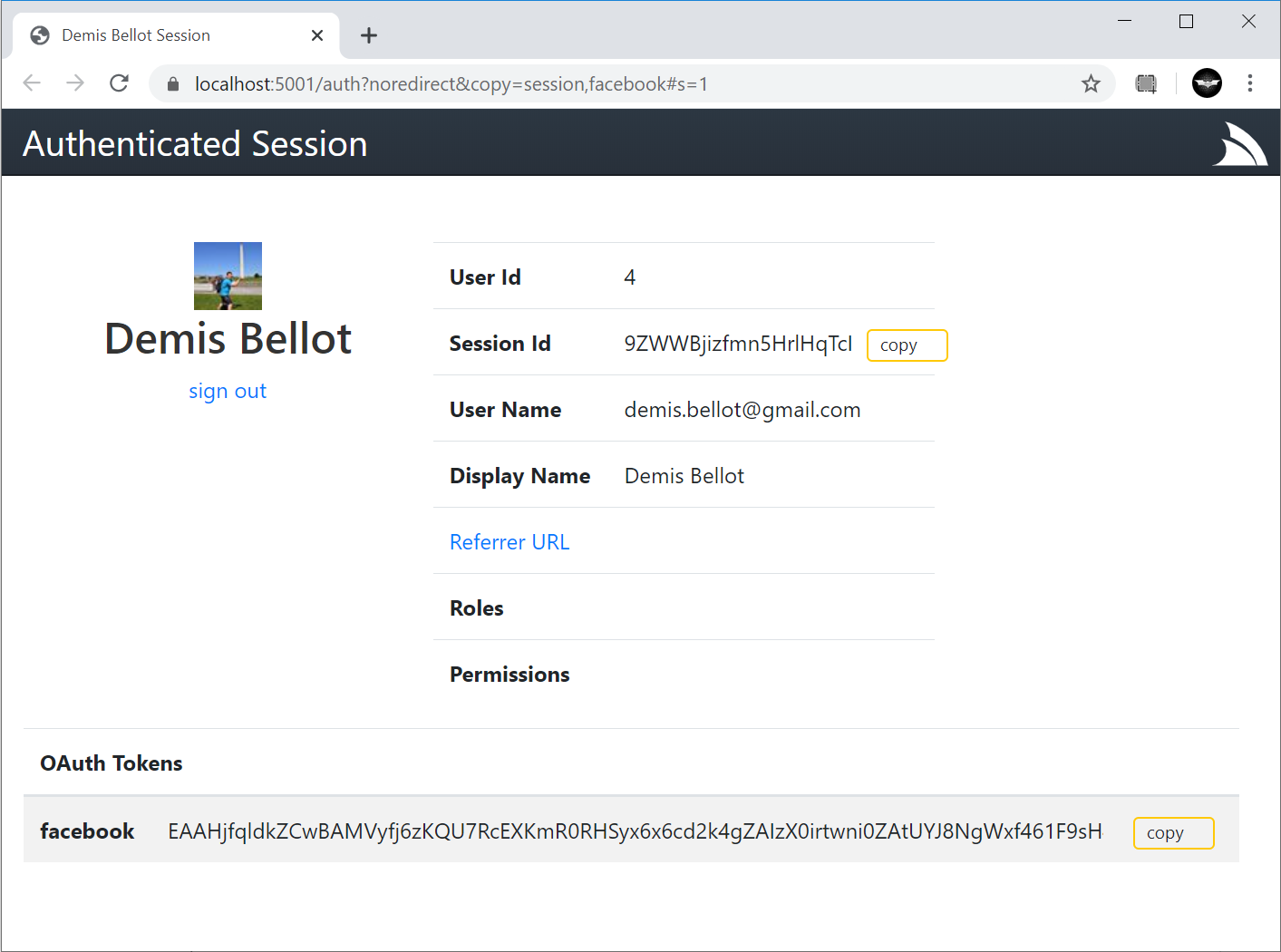
**Studio** is able to provide a seamless UX where it's able to monitor the Windows clipboard for changes & when detected close the window, return focus back to Studio who uses it to automatically Sign In with the copied token.
### Desktop User State & Preferences
As is expected from a normal Desktop App, the User State of the App is preserved across restarts, which Studio maintains in its `$HOME/.servicestack/studio/site.settings` JSON file which preserves amongst other things what remote ServiceStack instances you've connected to & last queries made on each table, etc. When
not running in a Desktop App it will save it to your browsers `localStorage`. You can force a save with `Ctrl+S` or by clicking on the **save icon** on the top right.
### AutoCrud Querying
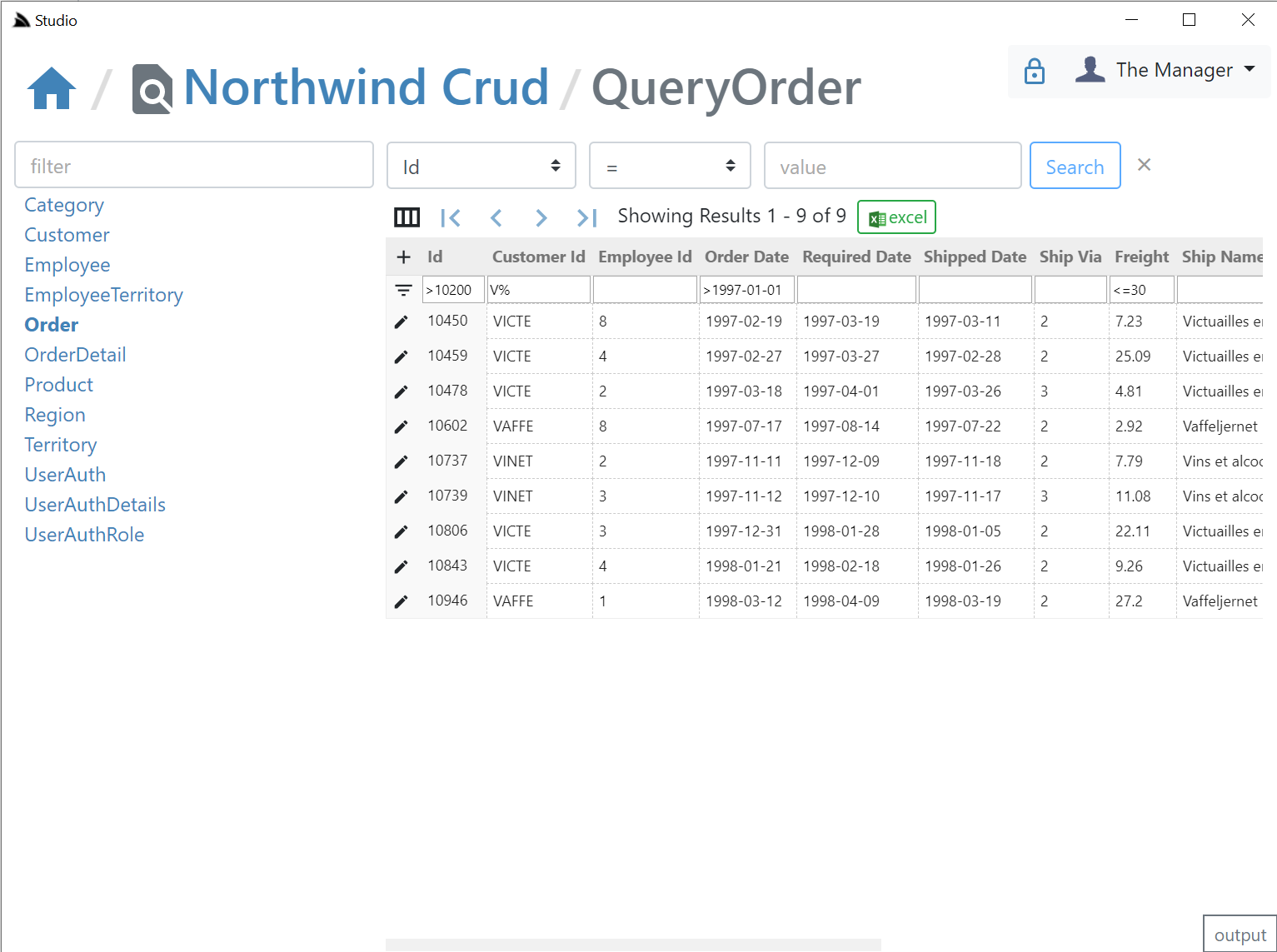
The same querying behavior, supported filters, custom fields, paging, order by's, etc. demonstrated in **SharpData** above are also available in **Studio**, but implemented differently, where instead of calling the SharpData API directly, the filters are translated into the equivalent AutoQuery request and
the remote AutoQuery Services are called instead, but as they both result in the same UX and end result, users knowledge is transferable:
#### Search Filters
- Use `=null` or `!=null` to search `NULL` columns
- Use `<=`, `<`, `>`, `>=`, `<>`, `!=` prefix to search with that operator
- Use `,` trailing comma to perform an `IN (values)` search (integer columns only)
- Use `%` suffix or prefix to perform a `LIKE` search
### Export to Excel
Likewise the fast, direct export into Excel is also available, one difference is that the total results returned in a query is controlled by the remote ServiceStack AutoQuery plugin whereas **SharpData** allows for unlimited sized queries:

### AutoCrud Partial Updates
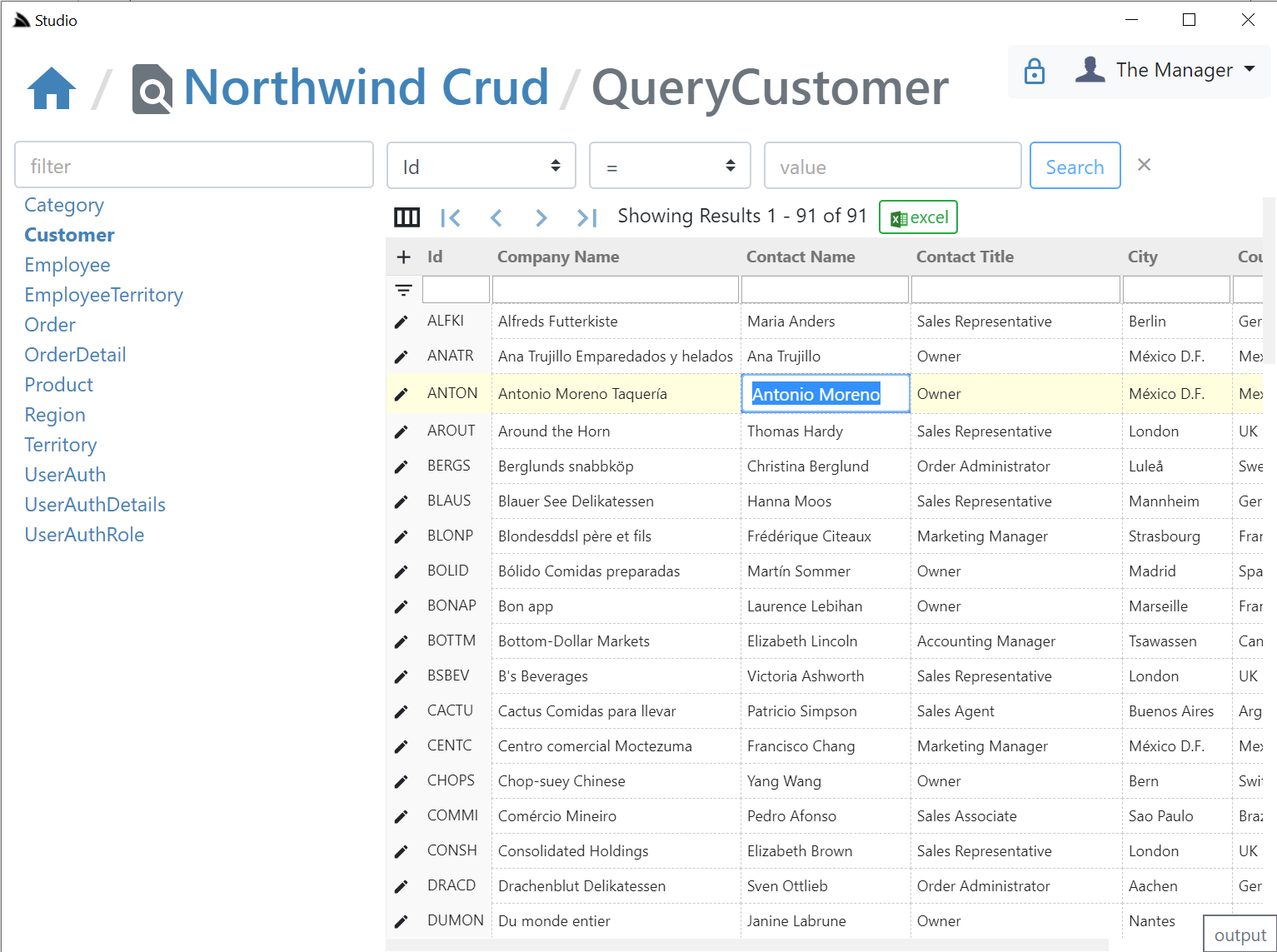
The UI is designed to look similar to a generic RDBMS Admin UI Table Editor where you can edit records in a table grid. If a `IPatchDb` AutoQuery Service exists for the Data Model & the Authenticated User has access to it.
If enabled all fields (excl PK) on that Request DTO will be editable in the UI, otherwise they'll appear Read-only like the **Id** column:
### AutoCrud Create
If the user has access to the `ICreateDb` Service they'll be able to add records by clicking the *+* icon on the top-right of the resultset which brings up the Create Entity modal:

### AutoCrud Update and Delete
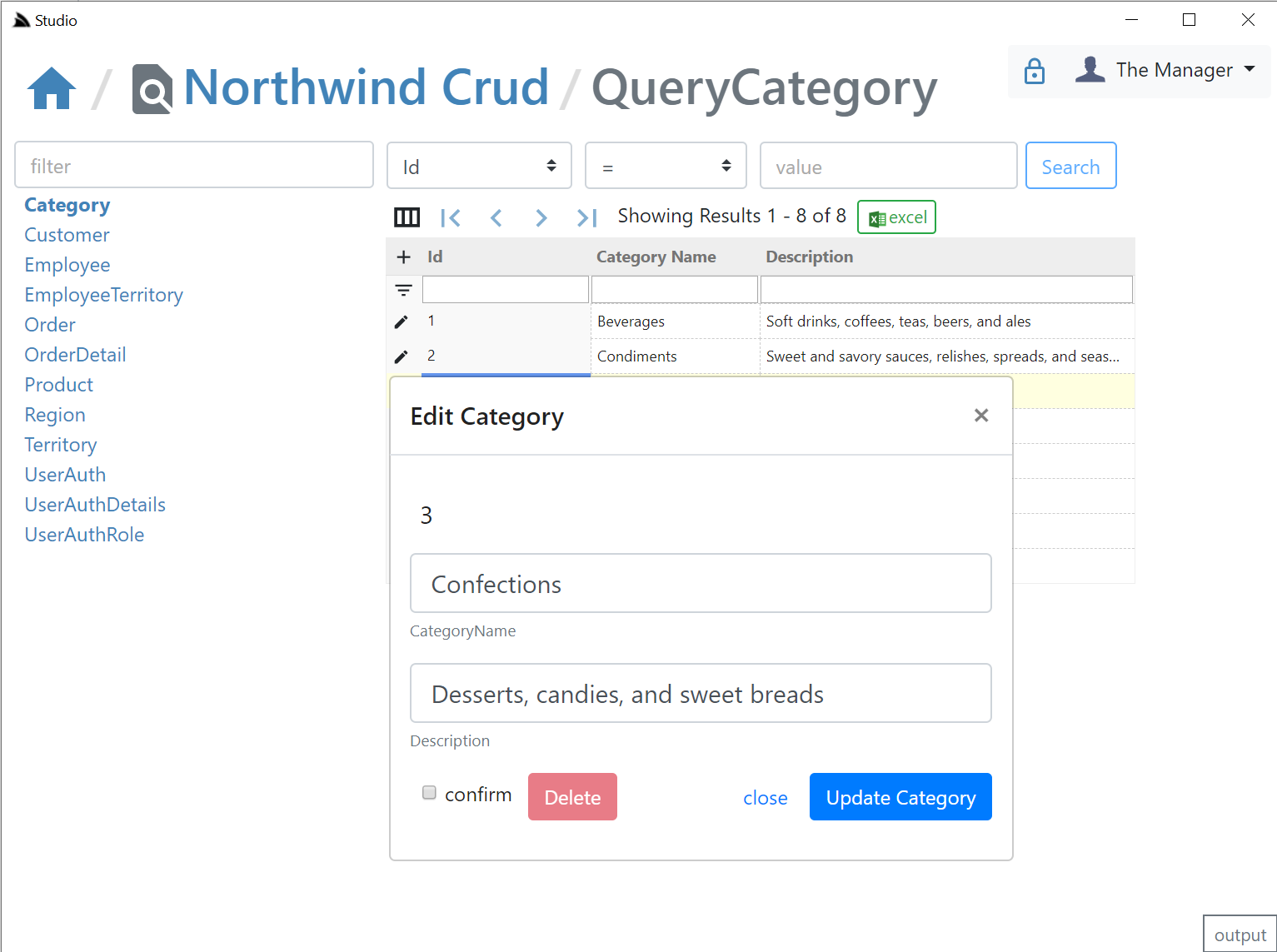
If the user has access to the `IUpdateDb` Service they'll be able to update records by clicking on the **edit** icon which will bring up the Edit Entity dialog. If they have access to the `IDeleteDb` Service they'll also be able to delete the entity from the same screen:
### API Log Viewer
All API Requests the UI makes to remote ServiceStack instances are made via a generic .NET Core back-end Service Proxy which attaches the Signed In Authentication Info to each Request. Each API Request Studio makes is recorded in the log viewer at the bottom, showing the Verb and Parameters each API was called with:
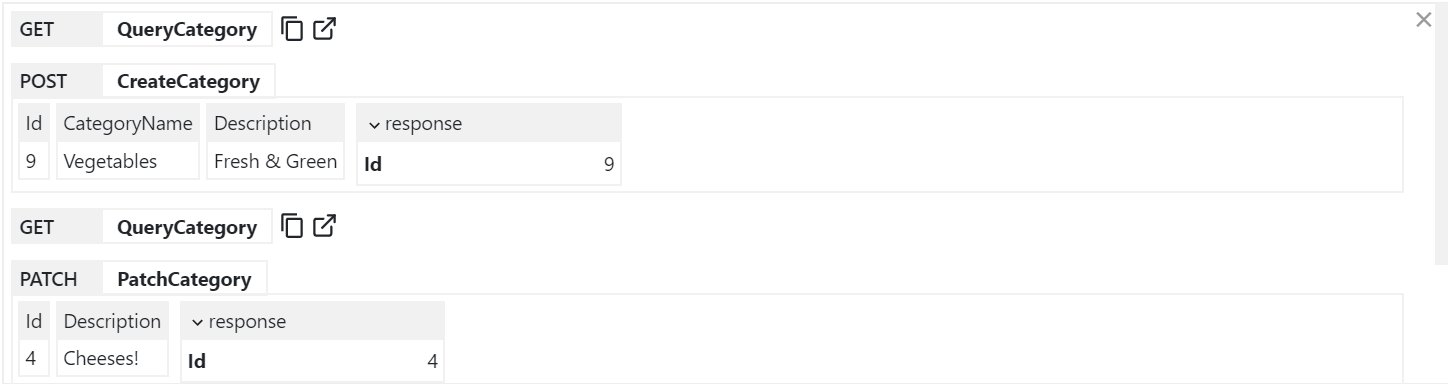
> You can copy the URL from **GET** API Requests or open them up in a new browser to view it in isolation.
### Executable Audit History
If you Sign In as the **Admin** User (i.e. using `AuthSecret=zsecret`) you'll get super user access to access the other protected features like being able to view an **Audit History** of updates made to each record via AutoQuery that's enabled in **NorthwindCrud** with:
```csharp
// Add support for auto capturing executable audit history for AutoCrud Services
container.AddSingleton(c => new OrmLiteCrudEvents(c.Resolve()));
container.Resolve().InitSchema();
```
Where users in the `AutoQueryFeature.AccessRole` (default: Admin) role will be able to view the Audit history of each row:
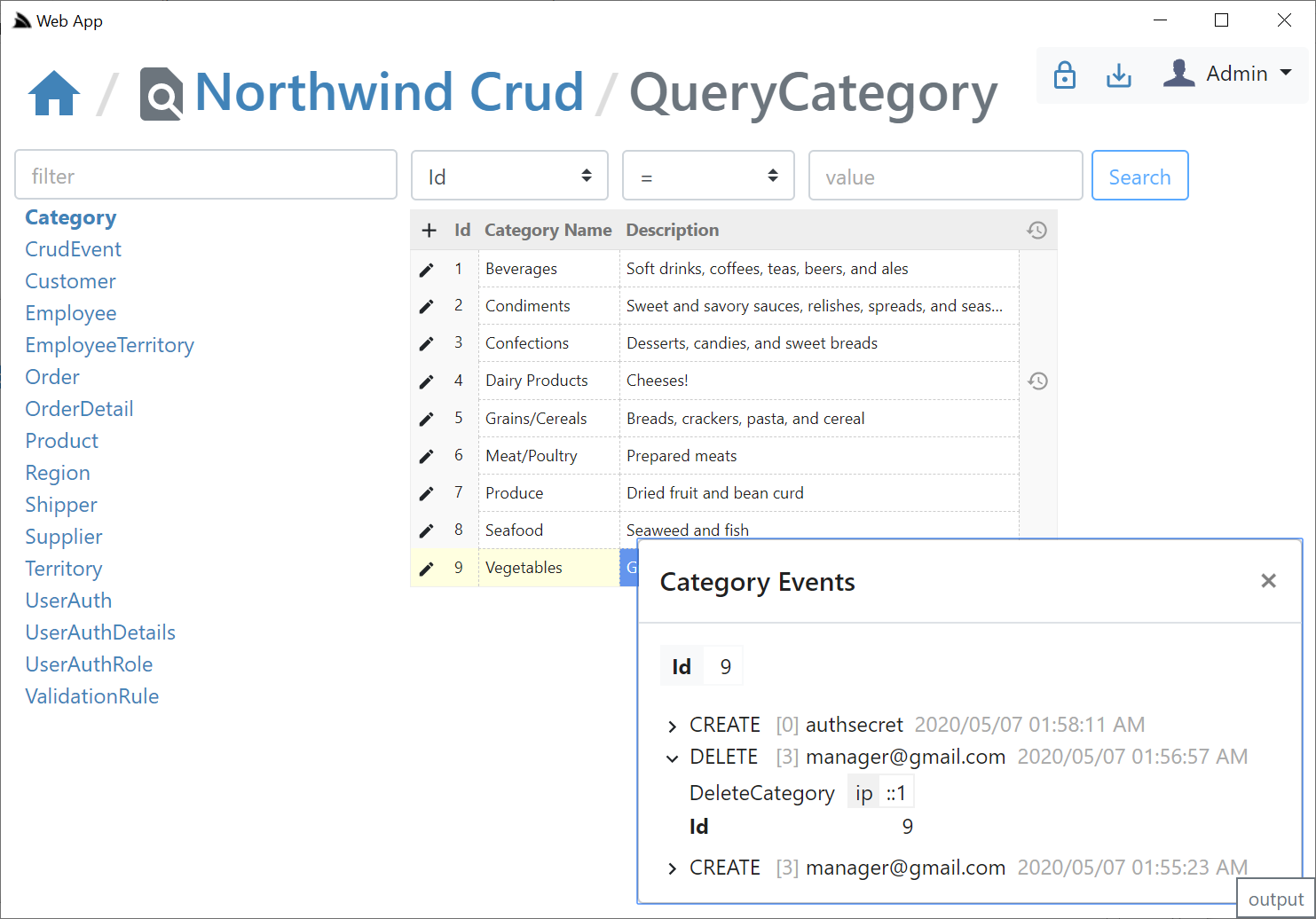
> If creating & deleting an entity with the same Id, the Audit History of the previous entity will be retained & visible
### Validators UI
As an **Admin** you'll also have access to the [DB Validation Source](https://forums.servicestack.net/t/autocrud-preview/8298/29?u=mythz) Admin UI which will let you add declarative Type and Property Validators for each Request DTO in Studio. This is enabled in NorthwindCrud in [Configure.Validation.cs](https://github.com/NetCoreApps/NorthwindCrud/blob/master/Configure.Validation.cs):
```csharp
// Add support for dynamically generated db rules
services.AddSingleton(c =>
new OrmLiteValidationSource(c.Resolve()));
//...
appHost.Plugins.Add(new ValidationFeature());
appHost.Resolve().InitSchema();
```
Management of this feature is limited to users in the `ValidationFeature.AccessRole` (default: Admin).
Clicking on the Validation **Lock Icon** on the top right will take you to the Validation Editor for that AutoQuery Request DTO which will include quick links to jump to different AutoQuery/Crud Services for the same Data Model.
In the validation editor you'll be able to create **Type** and **Property** Validation Rules that either make use of an existing **Validator** or you can enter a custom `#Script` expression that must validate to `true`. The Validator UI is smart and will list all built-in and Custom Script Methods returning `ITypeValidator` or `IPropertyValidator` that's registered in the remote instance. The pre-defined list of validators are displayed in a list of "quick pick" buttons that enables fast adding/editing of validation rules.
#### Verified Rules
The `ModifyValidationRules` Service that Studio calls performs a lot of validation to ensure the Validation rule is accurate including executing the validator to make sure it returns the appropriate validator type and checking the syntax on any **Script** validation rules to ensure it's valid.
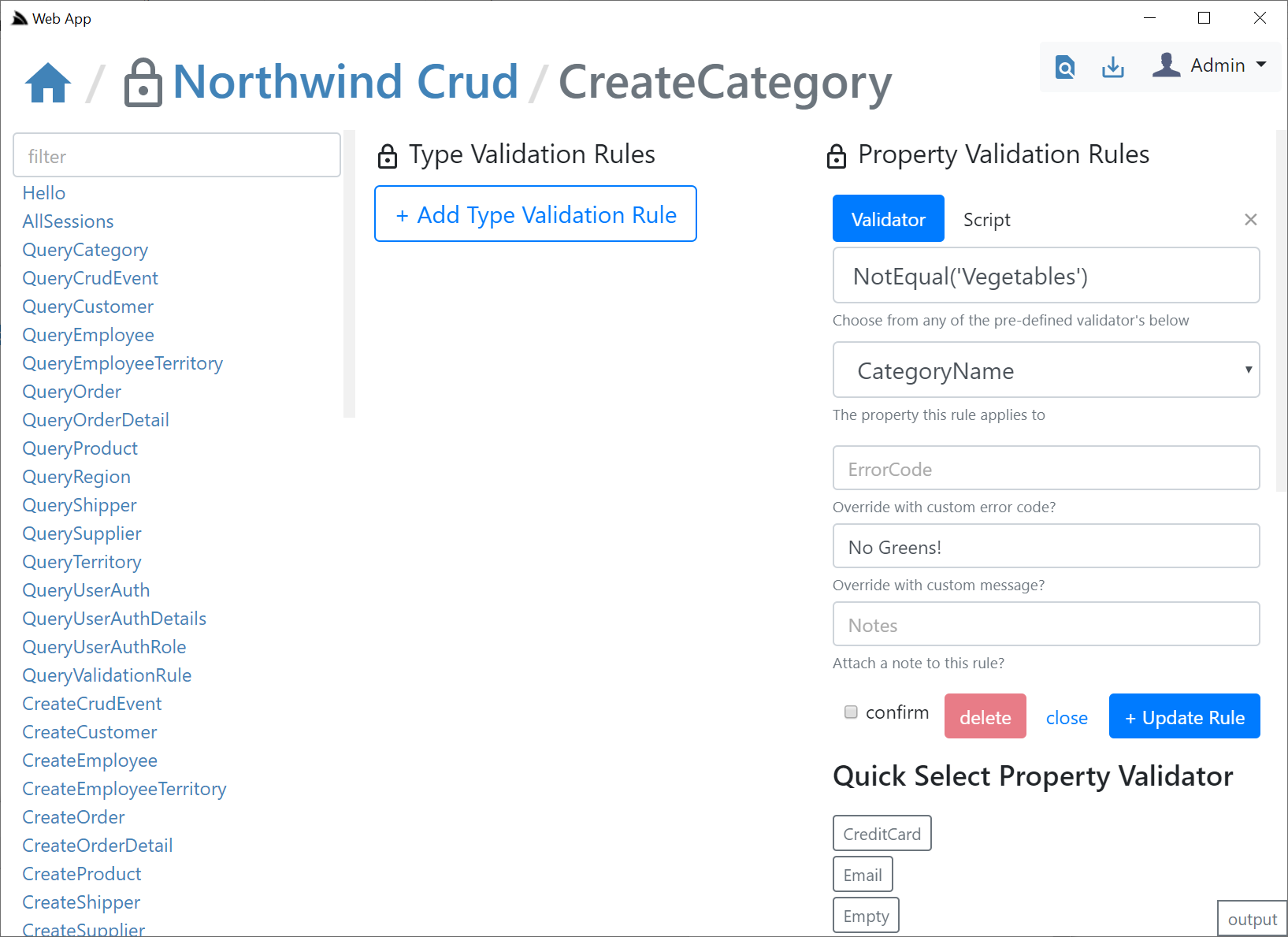
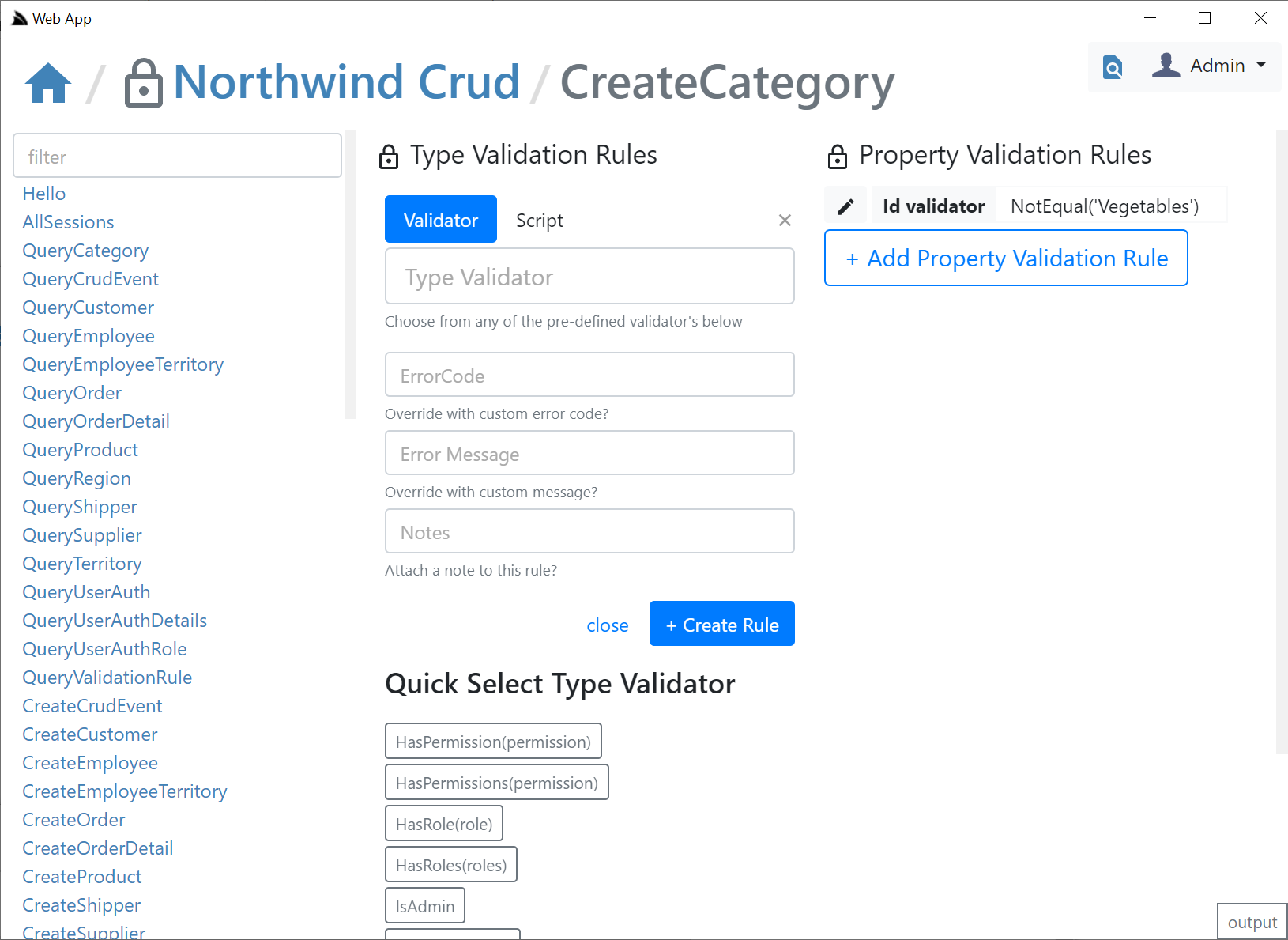
The `ModifyValidationRules` back-end Service also takes care of invalidating the validation rule cache so that any saved Validators are immediately applied.
Despite being sourced from a DB, after the first access the validation rules are cached in memory where they'd have similar performance to validators declaratively added on Request DTOs in code.
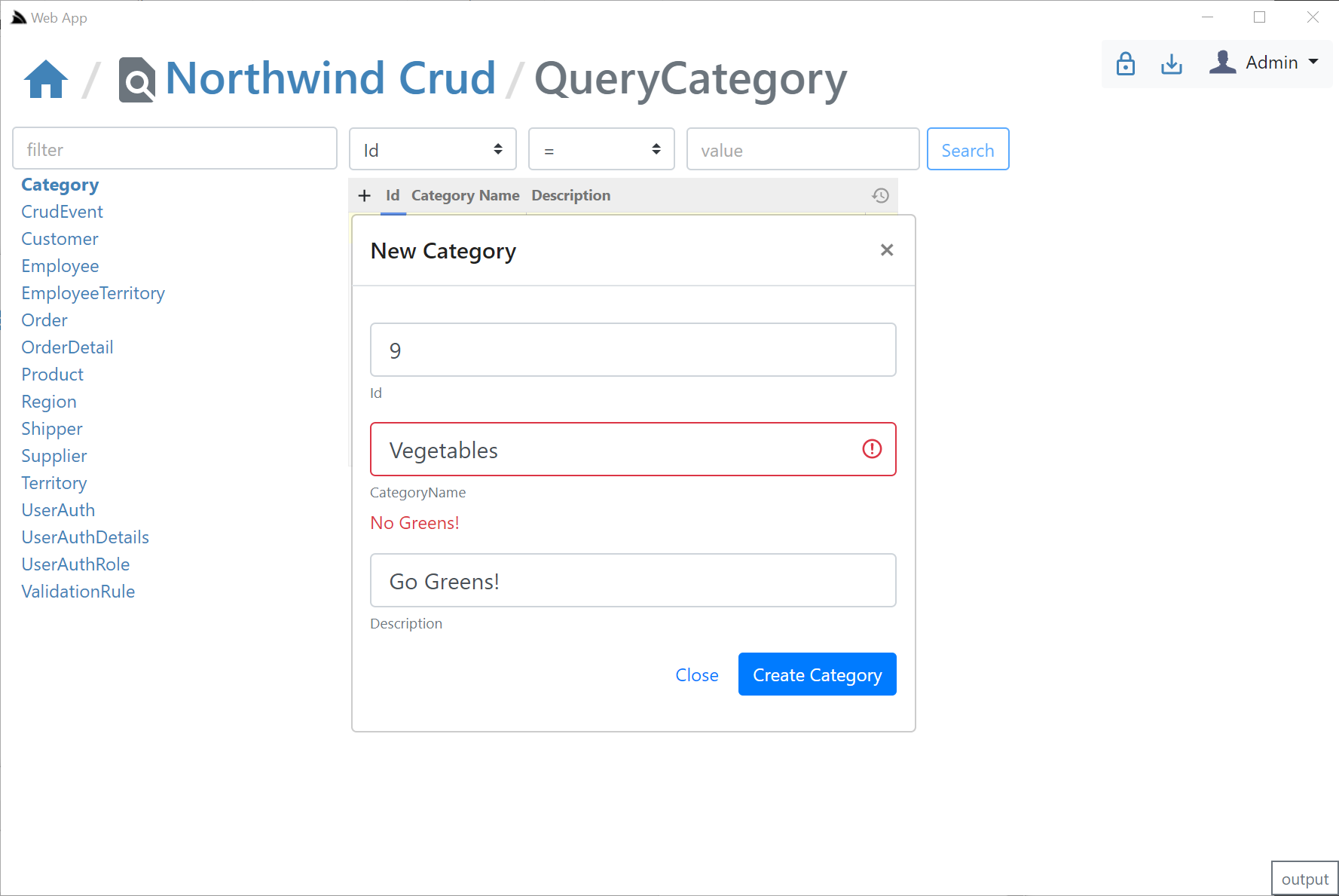
After you add your validation rules you will be able to click the **AutoQuery** icon on the top right to return to the AutoQuery editor. Be mindful of what Validation Rule you're adding to which DTO, e.g. a validation rule added to **CreateCategory** Service will only be applied to that Service which is used when creating entities, e,g. not for full entity or partial field updates.
### Metadata App Export / Discovery
The way a generic capability-based Admin UI's like Studio is possible is via the `/metadata/app` API descriptor which describes what plugins and features are enabled on the remote ServiceStack instance. All built-in plugins which provide functionality that can be remotely accessed add their info to the App's metadata.
This functionality is also available to your own plugins should you wish to attach info about your plugin where you can use the `AddToAppMetadata` extension method to return a populated `CustomPlugin` DTO describing the features made available by your plugin:
```csharp
public class MyPlugin : IPlugin
{
public void Register(IAppHost appHost)
{
appHost.AddToAppMetadata(meta => {
meta.CustomPlugins[nameof(MyPlugin)] = new CustomPlugin {
AccessRole = RoleNames.AllowAnyUser, // Required Role to access Services
ServiceRoutes = new Dictionary {
{ nameof(MyPluginService), new[] { "/myplugin/{Id}" } }, // Available Plugin Services
},
Enabled = new List { "feature1", "feature2" }, // What plugin features are enabled
Meta = new Dictionary {
["custom"] = "meta" // additional custom metadata you want returned for this plugin
}
};
});
}
}
```
### Studio Desktop App vs ServiceStack.Admin
The primary limitations with [ServiceStack Admin](https://github.com/ServiceStack/Admin) was its deployment model where it had to be explicitly registered as a plugin in each ServiceStack instance, this means it could only be used on ServiceStack instances that explicitly had it registered, also it maintained the long release cadence of ServiceStack major releases which means the UI couldn't be updated frequently resulting in a stale long feedback loop.
### Frequent out-of-band release cadence
To overcome this ServiceStack Studio is delivered as a [Gist Desktop App](https://sharpscript.net/docs/gist-desktop-apps) which, like a website will be running the latest version each time it's run. To reduce its download footprint the `app` and `x` dotnet tools now include the new [ServiceStack.Desktop](https://github.com/ServiceStack/ServiceStack/tree/master/src/ServiceStack.Desktop) project which includes the common framework libraries that most Vue & React Apps use which saves it from needing to be included in each Download. It also includes Google Material Design Icons SVGs & a copy of [fontawesome free icons](https://fontawesome.com/how-to-use/on-the-web/setup/hosting-font-awesome-yourself) that all Desktop Apps will be able to use without the bandwidth cost for using them.
### Light Footprint + Always use latest version
[ServiceStack/Studio](https://github.com/ServiceStack/Studio) is a [vue-lite](https://github.com/NetCoreTemplates/vue-lite) App that only uses SVG icons as they're small, high-quality at every scale, are customizable & have built-in css classes making them easy to use declaratively where it takes advantage of [ServiceStack's built-in SVG](https://docs.servicestack.net/svg) support which allows optimal css bundles containing only the SVGs your App's use. All SVG icons used in Studio are defined in its [_init.ss](https://github.com/ServiceStack/Studio/blob/master/wwwroot/_init.ss) startup script which defines which Material Design SVG to make available under which css bundle. It also registers its own custom SVG icons not contained in ServiceStack.Desktop's embedded resources and includes them as part of its `/css/app.css` bundle.
As a result of its architecture Studio gets bundled down to a **55kb .zip** which includes its 46kb (Uncompressed) `Studio.dll` plugin containing all its C# back-end logic (thanks to all ServiceStack .dll's being deployed with the dotnet tools as well). As it's [published as a Gist](https://gist.github.com/gistlyn/d8e7a56027ed6ec3060d9a9896931909) it adds a bit more overhead (and Gist APIs aren't particularly fast) so there's a slight delay in loading from a Gist but still is able to load its home page in around **2-3s**, which includes the start time of the ServiceStack .NET Core App and the Chromium CEF Browser. The number of restarts should be minimal thanks to Studio being designed as a single UI to manage all your ServiceStack instances so you can reuse the same running Desktop App to manage multiple remote ServiceStack instances.