https://github.com/sgranade/choicescript_vscode
VS Code plugin for ChoiceScript development
https://github.com/sgranade/choicescript_vscode
choicescript editor-plugin ide vscode
Last synced: 3 months ago
JSON representation
VS Code plugin for ChoiceScript development
- Host: GitHub
- URL: https://github.com/sgranade/choicescript_vscode
- Owner: sgranade
- License: mit
- Created: 2019-12-05T23:51:40.000Z (over 6 years ago)
- Default Branch: main
- Last Pushed: 2026-01-01T20:56:03.000Z (6 months ago)
- Last Synced: 2026-01-07T06:16:57.726Z (6 months ago)
- Topics: choicescript, editor-plugin, ide, vscode
- Language: TypeScript
- Homepage:
- Size: 2.43 MB
- Stars: 10
- Watchers: 2
- Forks: 2
- Open Issues: 2
-
Metadata Files:
- Readme: README.md
- Changelog: CHANGELOG.md
- Contributing: contributing.md
- License: License.txt
Awesome Lists containing this project
README
# ChoiceScript VS Code

[](https://codecov.io/gh/sgranade/choicescript_vscode)
A VS Code plugin for [ChoiceScript], a language for writing choose-your-own-path text games.
## Features
- Autocomplete
- Syntax highlighting
- Error highlighting
- Go to definition
- Highlight usage
- Scene outline
- Rename variables project-wide
- Run your game in the browser
- Run [Randomtest and Quicktest] automated tests
- Snippets to match Choice of Games style rules
- Italicizing and bolding text
- Word count that counts only what the player will see
- Generate stats about your stats
## Installation
[Install from the VSCode extension marketplace][marketplace].
## Getting Started
Open your ChoiceScript folder, often named `mygame`, and the language server will index the entire project.
Note that, since ChoiceScript files are just text files, the extension treats all `.txt` files as ChoiceScript files. To avoid that, only enable the extension for workspaces that contain your ChoiceScript game.
## Running Your Game
To run the game, press the Run Game button on the left side of the bottom status bar.
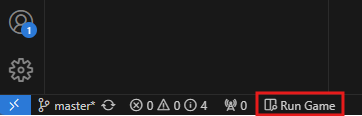
The game will open in a separate tab in Visual Studio Code. To restart the game, close that tab and then press the Run Game button again. The game will update with any changes you've made to your files.
## Testing Your Game
You can test your game using ChoiceScript's [Randomtest and Quicktest] utilities. Randomtest plays your game repeatedly to find bugs, making random selections at each choice. Quicktest methodically tests each #option in every choice.
To run the tests, right-click on one of your game files and select the test you want from the context menu.
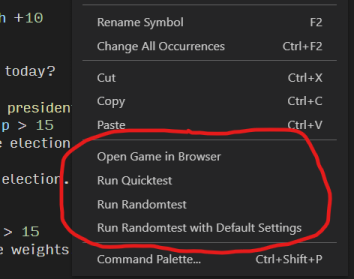
Quicktest results will appear in the Output window at the bottom of VS Code. If Quicktest finds an error, the extension will add an annotation to the line with the error.
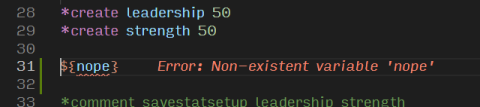
Randomtest requires more steps. When you run Randomtest, the extension will prompt you for how many times to run randomtest, whether to show the game's text, and more. To skip that step, you can set default Randomtest settings in the [extension's settings][settings].
If you run Randomtest without it printing the game's text, the results will appear in the Output window. If it prints the game's text, the results will open in a separate editor window that you can save. However, Randomtest can produce larger files than VS Code will allow the extension to open. In that case, it will save the results to a text file in your workspace. You can then open the file yourself.
## Generate Statistics About Your Stats
You can take snapshots of your stats and save them to `.csv` files that Excel and other spreadsheet programs can read. Start by defining what variables to save by putting the following comment in your `startup.txt` file:
```
*comment savestatsetup [stat1] [stat2] [stat3] ...
```
Replace `[stat1]` and the rest with a list of the variables you want to save. Put a space between each variable's name.
Then, whenever you want to take a snapshot of the variables' values, add the following comment:
```
*comment savestats
```
The results will be saved to a file called `mygame-stats.csv`.
For more information about what you can do with information about your stats, please see [this Choice of Games forum post](https://forum.choiceofgames.com/t/generate-statistics-about-your-stats/76175).
## Extensions to ChoiceScript Features
When running RandomTest and printing the text, the resulting file can be very large. The extension allows you to capture the text from just a portion of your game by adding special comments to it. The line
```
*comment text off
```
will turn off text printing entirely.
```
*comment text on
```
will turn it back on.
Because of how ChoiceScript parses text, the comments must be surrounded by blank lines:
```
This will be shown.
*comment text off
This will be hidden.
*comment text on
This will also be shown.
```
## Settings
To use the style snippets that turn `...` into an ellipsis and `--` into an em-dash, [enable snippet tab completion][snippets]. Then type three periods and hit tab to turn them into an ellipsis.
For writing ChoiceScript games, VS Code's auto-word suggestions can be annoying. To turn it off for ChoiceScript:
- Press `F1` to open the command palette
- Type in `Preferences: Configure Language Specific Settings...` and run that command
- Select "ChoiceScript" from the dropdown
- Add the following text to the `settings.json` file that VS Code opens
```
{
"[choicescript]": {
"editor.quickSuggestions": {
"other": false,
"comments": false,
"strings": false
}
}
}
```
## Showing Images When Running Your Game
The ChoiceScript [`*image`][image] command displays remote and local image. For the extension to show your local images when you run your game, put those image files either in the same directory as your scene files (such as `startup.txt`) or in the directory above it.
## Currently Unsupported Features
- [Array notation]. Right now it ignores arrays entirely.
## Release Notes
### [3.1.1]
- Creating a variable that starts with `choice_` is now properly flagged as an error.
- `*save_checkpoint` and `*restore_checkpoint` now don't give an error when they don't include a slot's name.
- `*save_checkpoint` and `*restore_checkpoint` now autocomplete properly.
- `choice_just_restored_checkpoint` and `choice_saved_checkpoint` are now properly treated as built-in variables.
- Updated Choicescript to latest version (c9b1a39).
### [3.1.0]
- Games are now opened in a VS Code tab instead of opening a browser window. (Courtesy Carey Williams).
### [3.0.0]
- Stats can now be generated and saved.
- Achievements are now fully checked for correctness.
- `*image` commands that refer to non-existent files are now flagged.
- `*kindle_search`, `*product`, `*save_checkpoint`, and `*restore_checkpoint` commands are now parsed.
- Images can now either be in the same directory as scene files or one directory up (the `mygame` directory).
- Minor bug fixes.
### [2.6.0]
- Ability to turn on showing text for only parts of a randomtest run using `*comment text off` and `*comment text on`.
- Count of the Randomtest test now shows on the status bar while the test is running.
- Choices in the outline now include a summary of the first choice.
- Randomtest settings are now updated properly, even when a test fails.
- Fixed a handful of bugs around `*param` and array variables.
### [2.5.0]
- The extension now disables auto-complete for text. To get the old behavior back, uncheck the "Disable Quick Suggestions" option in Settings.
- Added support for the [`*ifid`][ifid] command.
### [2.4.0]
- The extension now shows local images when running a game.
- [Nested choices]? No problem! They work now.
- A new setting allows you to turn off warnings when your game doesn't follow Choice of Games's in-house style guide (like using ellipses and limiting option length to 15 words).
- Re-ordered randomtest options in the context menu.
- Fixed numerous syntax highlighting, parsing, and error-marking bugs.
### [2.3.0]
- You can now re-run Randomtest using the previous run's settings, to make it easier to repeat Randomtest runs with custom settings.
- By default, each Randomtest run that captures output saves it to a unique document. A new setting lets you save results to the same document so it's easier to make changes to your game, re-run Randomtest, and immediately see the results.
- Improved Quicktest error message handling to properly identify what file the error occurred in.
- Several fixes to syntax highlighting and parsing `#options` and their associated `*if`s.
### [2.2.0]
- To support [workspace trust], the extension disables running, quicktesting, or randomtesting games in workspaces you haven't marked as trusted.
- No longer incorrectly flags multireplaces like `@{var dashed-word adjective|}` as potentially missing parentheses.
### [2.1.0]
- When running Quicktest or Randomtest, all open files are saved so that your latest code is used.
- Better error messages for using negative numbers in comparisons (like `*if var < -2`), which aren't allowed.
### [2.0.0]
This update brings big new features: the ability to run your game in a browser for live-testing, and a way to run ChoiceScript Quicktest and Randomtest utilities from VS Code without having to download ChoiceScript.
[Array notation]: https://forum.choiceofgames.com/t/new-choicescript-features-for-programmers/8423
[Choicescript]: https://github.com/dfabulich/choicescript/
[ifid]: https://forum.choiceofgames.com/t/new-in-choicescript-ifid-command/112889
[image]: https://choicescriptdev.fandom.com/wiki/Image
[marketplace]: https://marketplace.visualstudio.com/items?itemName=StephenGranade.choicescript-vscode
[nested choices]: https://choicescriptdev.fandom.com/wiki/Choice#Nested_choices
[Randomtest and Quicktest]: https://www.choiceofgames.com/make-your-own-games/testing-choicescript-games-automatically/
[settings]: https://code.visualstudio.com/docs/getstarted/settings
[snippets]: https://code.visualstudio.com/docs/editor/userdefinedsnippets#_creating-your-own-snippets
[workspace trust]: https://code.visualstudio.com/docs/editor/workspace-trust