https://github.com/shivanshukgupta/remote
A app which can be used to remotely control presentations
https://github.com/shivanshukgupta/remote
android flutter remote remote-control socket-programming
Last synced: 4 months ago
JSON representation
A app which can be used to remotely control presentations
- Host: GitHub
- URL: https://github.com/shivanshukgupta/remote
- Owner: ShivanshuKGupta
- License: bsd-3-clause
- Created: 2023-04-14T12:56:08.000Z (about 3 years ago)
- Default Branch: master
- Last Pushed: 2024-05-19T14:17:32.000Z (about 2 years ago)
- Last Synced: 2024-05-19T14:29:53.884Z (about 2 years ago)
- Topics: android, flutter, remote, remote-control, socket-programming
- Language: Dart
- Homepage:
- Size: 910 KB
- Stars: 13
- Watchers: 1
- Forks: 1
- Open Issues: 1
-
Metadata Files:
- Readme: README.md
- License: LICENSE
Awesome Lists containing this project
README
# Remote
Flutter app that serves as a remote control for your laptop. Before getting started, please make sure you have Python installed on your machine.
## Screenshots

## Installation Steps
To set up the app, follow these steps:
1. Go to the following link: [https://github.com/shivanshukgupta/remote/releases/latest](https://github.com/shivanshukgupta/remote/releases/latest)
2. Download the `remote-server.zip` file and extract its contents.
3. Run `runMe.bat` on your Windows machine to start the server, it may install some required Python dependencies.
4. Additionally, download the `remote.apk` file from the same link and install it on your Android device.
To establish a connection, ensure that your phone and PC are connected to the same Wi-Fi network. You can also use personal hotspot if desired.
## Usage
1. Run the `runMe.bat` script to start the server if not done already.
2. Connect your PC automatically or manually by following the steps below.
### Automatic Connection
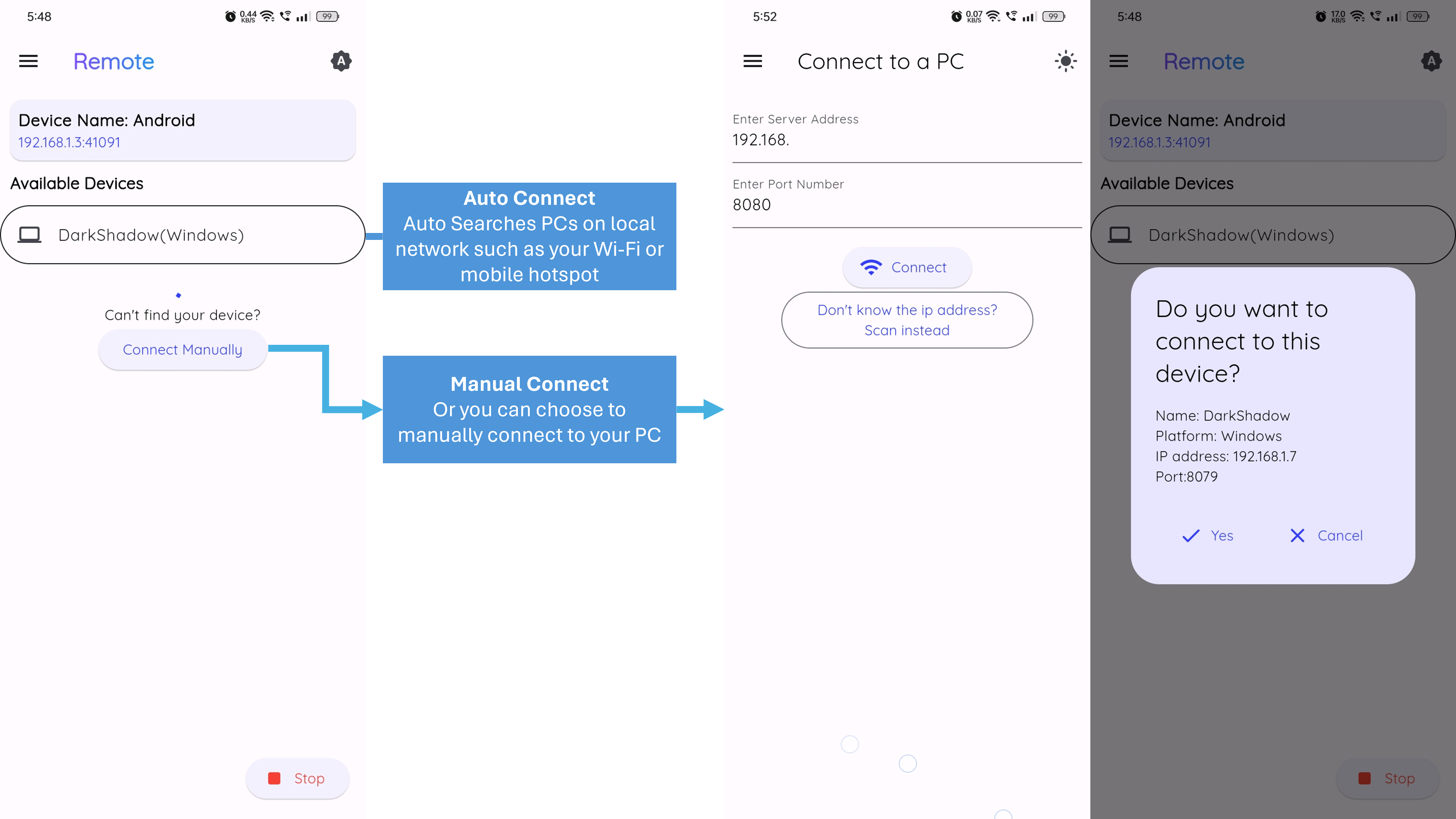
1. As soon as your phone app opens up, you will see a screen where you can find your pc's name on it (ensure that your pc and phone are on the same wifi and you pc has the server running).
2. Click on your device to connect.
### Manual Connection
1. Take note of the IP address and port number displayed on the PC screen.
2. In the app, click the ```Connect Manually``` button.
3. Enter the IP address and port number shown on the PC screen, and click "Connect" in the app. This will establish a connection between your phone and PC.
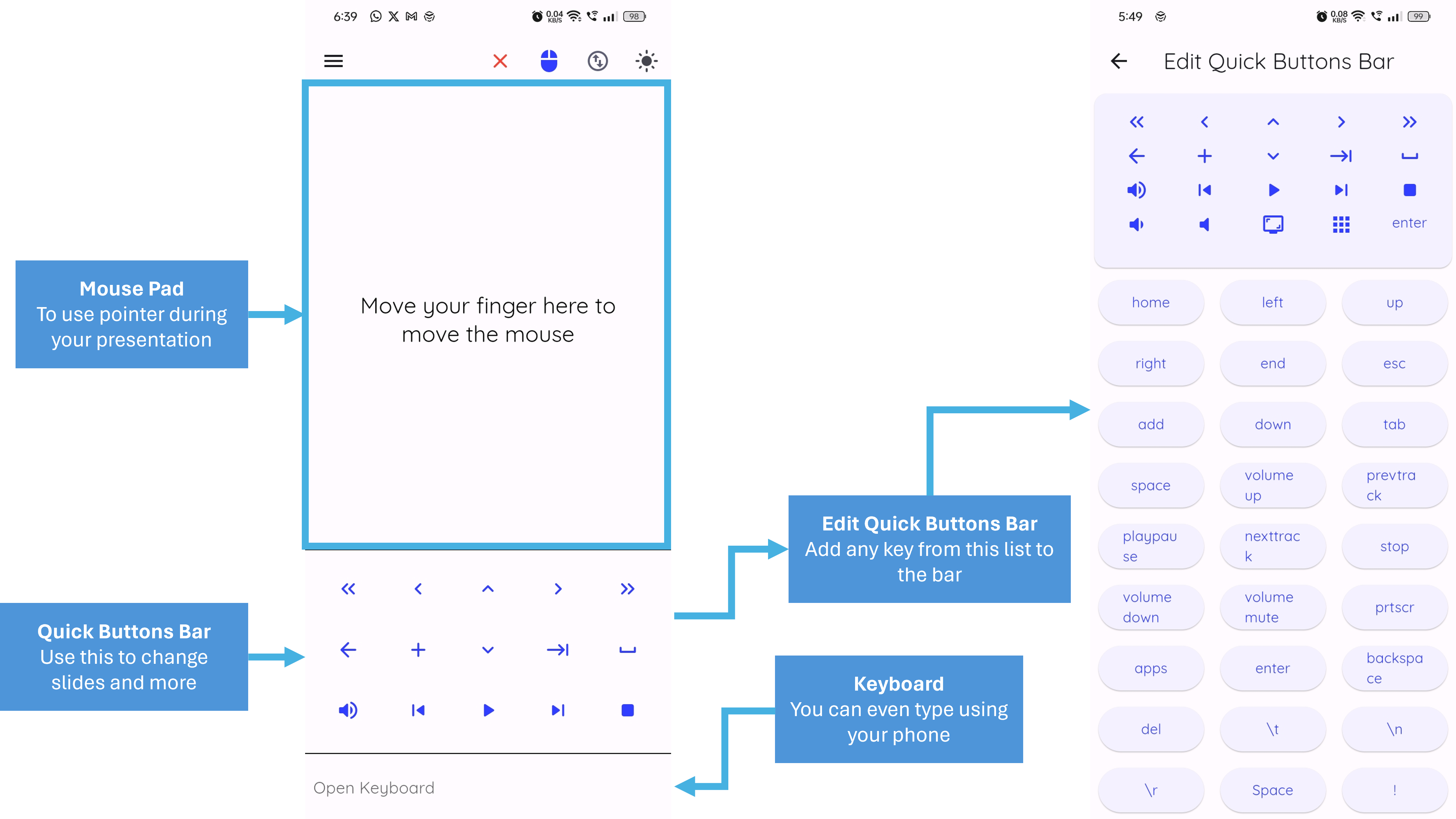
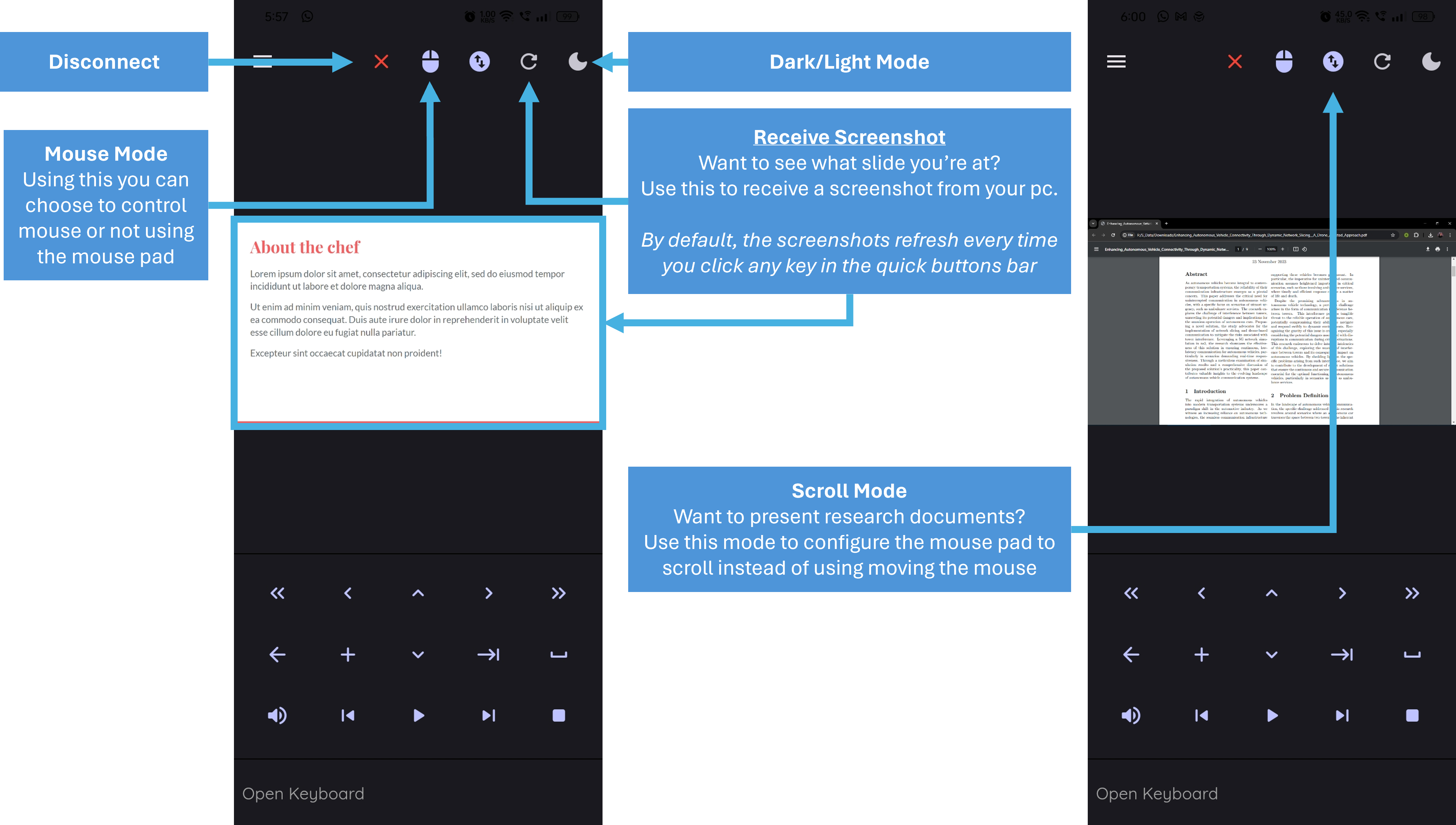
Once connected, you can use your phone as a remote control for your laptop. The app provides various functionalities, including mouse control, screen scrolling, keyboard control and screenshot feedback.
If you find this project useful, I would appreciate it if you could give it a star ⭐️. Enjoy using your phone as a remote controller!
_Please note that the initial purpose of this project was to act as a remote controller specifically for controlling presentations on your laptop using your phone. But now you can do much more than that._