https://github.com/simonbs/homebridge-roomba
Roomba plugin for Homebridge
https://github.com/simonbs/homebridge-roomba
homeautomation homebridge homekit roomba smarthome
Last synced: about 1 year ago
JSON representation
Roomba plugin for Homebridge
- Host: GitHub
- URL: https://github.com/simonbs/homebridge-roomba
- Owner: simonbs
- Created: 2017-01-08T17:50:45.000Z (over 9 years ago)
- Default Branch: master
- Last Pushed: 2017-01-15T19:41:06.000Z (over 9 years ago)
- Last Synced: 2025-03-31T04:36:24.696Z (over 1 year ago)
- Topics: homeautomation, homebridge, homekit, roomba, smarthome
- Language: JavaScript
- Size: 446 KB
- Stars: 17
- Watchers: 3
- Forks: 0
- Open Issues: 2
-
Metadata Files:
- Readme: README.md
Awesome Lists containing this project
README
# homebridge-roomba
Roomba plugin for [Homebridge](https://github.com/nfarina/homebridge). Tested with a Roomba 960 but is expected to work with the entire 900 series.
## Installation
1. Install using `npm install -g git+ssh://git@github.com/simonbs/homebridge-roomba.git `
2. Add your Roomba to `~/.homebridge/config.json` as shown below. Continue reading for information on fiding the blid, robotpwd and asset ID.
```
"accessories": [{
"accessory": "Roomba",
"name": "Roomba",
"blid": "theblid",
"robotpwd": "therobotpwd",
"assetid": "theassetid"
}]
```
3. Restart homebridge.
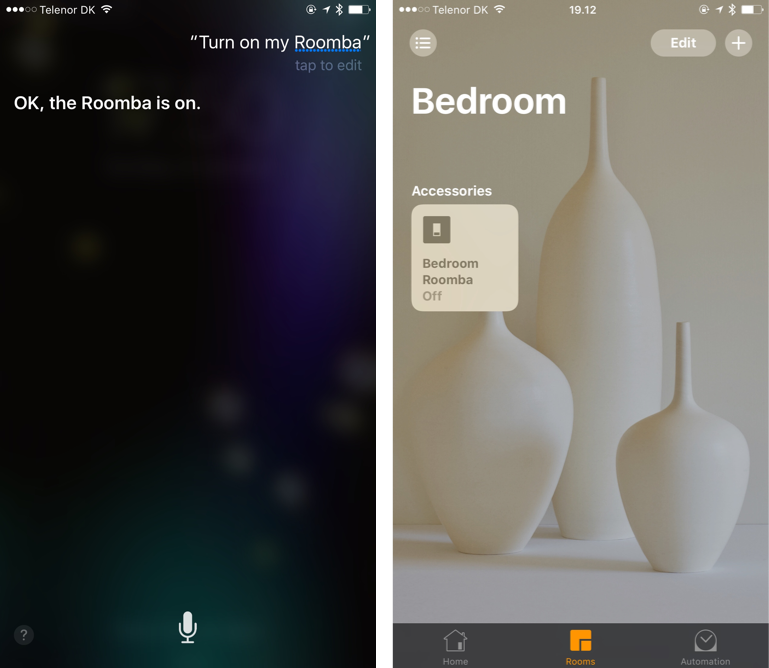
4. Your Roomba should now appear in your Home app.
## Finding your blid, robotpwd and asset ID
The blid, robotpwd and asset ID are used to identify your Roomba and authorize API calls. In order to find these values, you must inspect the HTTP requests made by the Roomba iOS app.
I recommend using [Charles](https://www.charlesproxy.com) for this. The following will assume you are comfortable with Charles.
1. Open up Charles and configure the proxy on your iOS device in the WiFi settings.
2. Open the Roomba iOS app and make sure you have recorded some calls to `https://irobot.axeda.com` in Charles. In particular, you should have recorded requests to `https://irobot.axeda.com/services/v1/rest/Scripto/execute/AspenApiRequest`.
3. Find one of the requests and browse the contents of the request, e.g. in the raw format. The body of the request will contain your blid and robotpwd. There will be a header named `ASSET-ID` containing your asset ID.