https://github.com/skywind3000/quickmenu.vim
A nice customizable popup menu for vim
https://github.com/skywind3000/quickmenu.vim
Last synced: 12 months ago
JSON representation
A nice customizable popup menu for vim
- Host: GitHub
- URL: https://github.com/skywind3000/quickmenu.vim
- Owner: skywind3000
- License: mit
- Created: 2017-07-11T10:34:13.000Z (almost 9 years ago)
- Default Branch: master
- Last Pushed: 2024-09-12T08:39:25.000Z (almost 2 years ago)
- Last Synced: 2025-06-10T00:09:07.455Z (about 1 year ago)
- Language: Vim Script
- Homepage:
- Size: 27.3 KB
- Stars: 279
- Watchers: 12
- Forks: 12
- Open Issues: 7
-
Metadata Files:
- Readme: README.md
- License: LICENSE
Awesome Lists containing this project
README
## Preface
There are many keymaps defined in my `.vimrc`. Getting tired to check my `.vimrc` again and again when I forget some, so I made this `quickmenu` plugin which can be fully customized:
- Well formatted and carefully colored to ensure neat and handy.
- Press `` to popup `quickmenu` on the right, use `j` and `k` to move up and down.
- Press `` or `1` to `9` to select an item.
- `Help` details will display in the cmdline when you are moving the cursor around.
- Items can be filtered by `filetype`, different items for different filetypes.
- Scripts in the `%{...}` form from `text` and `help` will be evaluated and expanded.
- No longer have to be afraid for forgetting keymaps.
Just see this GIF demonstration below:

Trying to share my configuration to my friends, I found that they did't have patience to remember all the keymaps in my vimrc, but a quickmenu is quite accaptable for them.
**Note**: Active development on this plugin has stopped. The only future changes will be bug fixes.
Please see [vim-quickui](https://github.com/skywind3000/vim-quickui).
## Install
Copy `autoload/quickmenu.vim` and `syntax/quickmenu.vim` to your `~/.vim/autoload` and `~/.vim/syntax`. or use Vundle to install it from `skywind3000/quickmenu.vim`. Add these lines to your `.vimrc`:
```VimL
" choose a favorite key to show/hide quickmenu
noremap :call quickmenu#toggle(0)
" enable cursorline (L) and cmdline help (H)
let g:quickmenu_options = "HL"
```
## Tutorial
Simply use the function below:
```VimL
function quickmenu#append(text, action [, help = ''])
```
- `text` will be show in the quickmenu, vimscript in `%{...}` will be evaluated and expanded.
- `action` is a piece of vimscript to be executed when a item is selected.
- `help` will display in the cmdline if g:quickmenu_options contains `H`.
A item will be treated as "static text" (unselectable) If `action` is empty. `text` starting with "#" represents a new section.
Example for `.vimrc`:
```
" enable cursorline (L) and cmdline help (H)
let g:quickmenu_options = "LH"
" clear all the items
call g:quickmenu#reset()
" bind to F12
noremap :call quickmenu#toggle(0)
" section 1, text starting with "#" represents a section (see the screen capture below)
call g:quickmenu#append('# Develop', '')
call g:quickmenu#append('item 1.1', 'echo "1.1 is selected"', 'select item 1.1')
call g:quickmenu#append('item 1.2', 'echo "1.2 is selected"', 'select item 1.2')
call g:quickmenu#append('item 1.3', 'echo "1.3 is selected"', 'select item 1.3')
" section 2
call g:quickmenu#append('# Misc', '')
call g:quickmenu#append('item 2.1', 'echo "2.1 is selected"', 'select item 2.1')
call g:quickmenu#append('item 2.2', 'echo "2.2 is selected"', 'select item 2.2')
call g:quickmenu#append('item 2.3', 'echo "2.3 is selected"', 'select item 2.3')
call g:quickmenu#append('item 2.4', 'echo "2.4 is selected"', 'select item 2.4')
```
And then quickmenu is ready:
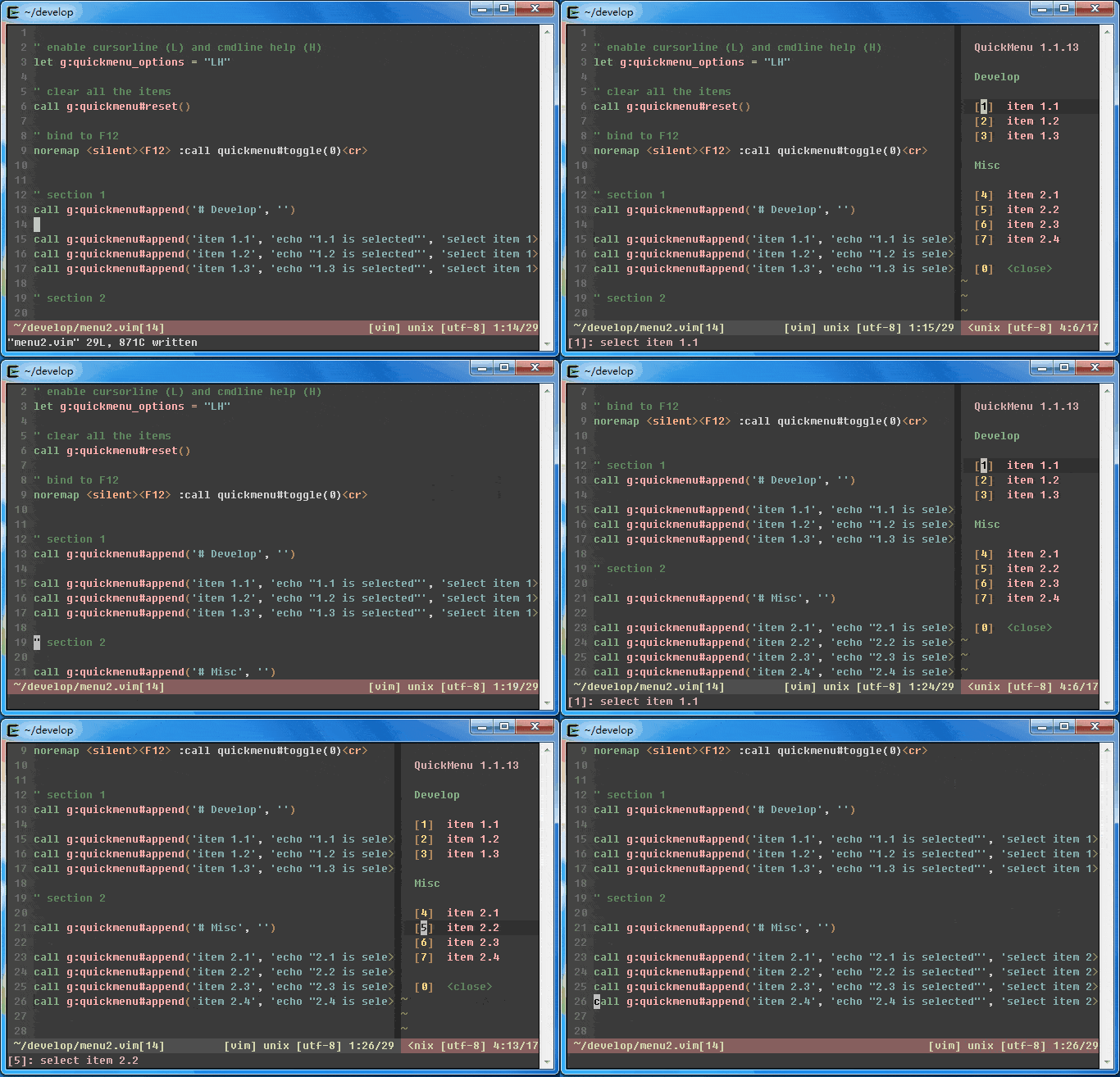
Vim is lack of basic ui components, that's ok for experienced users, but hard for the others. A quickmenu is quite easier for them. Now we have this cute menu and show/hide it with F12. and no longer have to worry about forgetting keymaps.
## Documentation
#### Add new items into menu
```VimL
function quickmenu#append(text, action [, help = '' [, ft = '']])
```
- `text` will be show in the quickmenu, vimscript in `%{...}` will be evaluated and expanded.
- `action` is a piece of vimscript to be executed when a item is selected.
- `help` will display in the cmdline if g:quickmenu_options contains `H`.
- `ft` filter to decide if item is enabled for specific filetypes.
A item will be treated as "static text" (unselectable) If `action` is empty. `text` starting with "#" represents a new section.
Note that, script evaluation of `%{...}` is happened **before** quickmenu open, you can get information from current document and display them in the menu, like current filename or word under cursor.
And `action` will be executed **after** quickmenu closed. All the `action` will affect current document (not the quickmenu window).
If you want your item enabled for C/C++ set the parameter of `ft` to "c,cpp,objc,objcpp", otherwise just leave it empty.
#### Clear items
```VimL
function quickmenu#reset()
```
This will reset the quickmenu
#### Set header
```VimL
function quickmenu#header(text)
```
Replace the origin title of `QuickMenu X.X.X`
#### Show / hide quickmenu
```VimL
function quickmenu#toggle(menuid)
```
You have unlimited menus to use, not only one. The `menuid` is used to indicate which menu to be displayed. 0 can be used by default.
#### Set current menuid
```VimL
function quickmenu#current(menuid)
```
If current menu changed (which is 0 by default), `quickmenu#append()` will insert new items into the new menu and `quickmenu#reset()` will clear items in it either.
#### Popup quickmenu on the bottom (cmdline)
```VimL
function quickmenu#bottom(menuid)
```
Use cmdline to show quickmenu.
## Options
#### g:quickmenu_padding_left (integer)
Left padding size of the quickmenu window
```VimL
default = 3
```
Set it to 2 or 1 if you are running vim in a small window, so quickmenu will not occupy much space.
#### g:quickmenu_padding_right (integer)
Right padding size of the quickmenu window
```VimL
default = 3
```
Set it to 2 or 1 if you are running vim in a small window, so quickmenu will not occupy much space.
#### quickmenu_max_width (integer)
Max quickmenu window size
```VimL
default = 40
```
Window width of quickmenu is adaptive to the content of items. This control the max value of the window size.
#### g:quickmenu_disable_nofile (integer)
Quickmenu will not popup if `buftype` is "nofile" when set it to 1
```VimL
default = 1
```
Prevent quickmenu accidently popup in some non-file window like: quickfix, location list or tagbar, etc. whose `buftype` has been set to "nofile".
#### g:quickmenu_ft_blacklist (list)
Quickmenu will not popup if current `filetype` matchs the blacklist.
```VimL
default = ['netrw', 'nerdtree', 'startify']
```
It is not enough to use `g:quickmenu_disable_nofile` to detect non-file buffers, some plugins like netrw forgot to set their `buftype` to "nofile".
#### g:quickmenu_options (string)
Quickmenu gui options, each character represents a feature.
```VimL
default = ''
```
The available options are `"H"` (show help in the cmdline), `"L"` (show cursorline) and `"T"` (open on the left).
## Example
The configuration for the first GIF screencapture:
```VimL
" clear all the items
call quickmenu#reset()
" enable cursorline (L) and cmdline help (H)
let g:quickmenu_options = "HL"
" use your favorite key to show / hide quickmenu
noremap :call quickmenu#toggle(0)
" new section: empty action with text starts with "#" represent a new section
call quickmenu#append("# Debug", '')
" script between %{ and } will be evaluated before menu open
call quickmenu#append("Run %{expand('%:t')}", '!./%', "Run current file")
" new section
call quickmenu#append("# Git", '')
" use fugitive to show diff
call quickmenu#append("git diff", 'Gvdiff', "use fugitive's Gvdiff on current document")
call quickmenu#append("git status", 'Gstatus', "use fugitive's Gstatus on current document")
" new section
call quickmenu#append("# Misc", '')
call quickmenu#append("Turn paste %{&paste? 'off':'on'}", "set paste!", "enable/disable paste mode (:set paste!)")
call quickmenu#append("Turn spell %{&spell? 'off':'on'}", "set spell!", "enable/disable spell check (:set spell!)")
call quickmenu#append("Function List", "TagbarToggle", "Switch Tagbar on/off")
```
For more advanced usage, you may be interested in my own config:
https://github.com/skywind3000/vim/blob/master/asc/menu.vim
## More
UltiSnips is great, but remembering all the snipet's names is really painful. There are more nearly 130+ snippets for C++ in UltiSnips's database, but I can remember only three of them.
Using quickmenu to select snippets is much easier for me than using UltiSnips directly, I am going to write a wiki page about it.
## History
- 1.2.4 (2017-08-08): supports funcref now.
- 1.2.3 (2017-07-27): add `` befor noremap to avoid delay when you press 'c'
- 1.2.2 (2017-07-17): clear help text after pressing '0', remember cursor pos after closed.
- 1.2.1 (2017-07-16): use redraw to clear help text in the cmdline after quickmenu closed.
- 1.2.0 (2017-07-16): new feature `quickmenu#bottom` to popup on the bottom.
- 1.1.16 (2017-07-15): improve unicode character support
- 1.1.15 (2017-07-15): fixed: quickmenu will always popup on the right, no matter `splitright` is set or unset.
- 1.1.14 (2017-07-14): fixed: incompatible with vim before 7.4.2202
- 1.1.13 (2017-07-14): New option to set default left/right padding size, useful when running vim in a small window.
- 1.1.12 (2017-07-13): Initial commit.
## Credits
Thanks to [vim-startify](https://github.com/mhinz/vim-startify), quickmenu uses its syntax and some idea.
It is a great honor if you like it and star this repository or vote it in: [script #5589](http://www.vim.org/scripts/script.php?script_id=5589).
If you are interested in this plugin you may also like [AsyncRun](https://github.com/skywind3000/asyncrun.vim).