https://github.com/slack-samples/javascript-channel-prefixes
Encourage channel naming conventions
https://github.com/slack-samples/javascript-channel-prefixes
slack-blueprint slack-workflow-sample
Last synced: 8 months ago
JSON representation
Encourage channel naming conventions
- Host: GitHub
- URL: https://github.com/slack-samples/javascript-channel-prefixes
- Owner: slack-samples
- License: mit
- Archived: true
- Created: 2017-06-12T17:46:16.000Z (about 9 years ago)
- Default Branch: main
- Last Pushed: 2024-01-11T08:15:51.000Z (over 2 years ago)
- Last Synced: 2025-07-22T11:46:49.427Z (11 months ago)
- Topics: slack-blueprint, slack-workflow-sample
- Language: JavaScript
- Homepage:
- Size: 74.2 KB
- Stars: 28
- Watchers: 5
- Forks: 15
- Open Issues: 6
-
Metadata Files:
- Readme: README.md
- Contributing: .github/CONTRIBUTING.md
- License: LICENSE
- Code of conduct: .github/CODE_OF_CONDUCT.md
Awesome Lists containing this project
README
# Channel Naming Slack App Template
> :sparkles: *Updated October 2018: As we have introduced some new features, this tutorial and the code samples have been updated! All the changes from the previous version of this example, read the [DIFF.md](DIFF.md)*
---
An example app that helps enforce channel naming conventions.
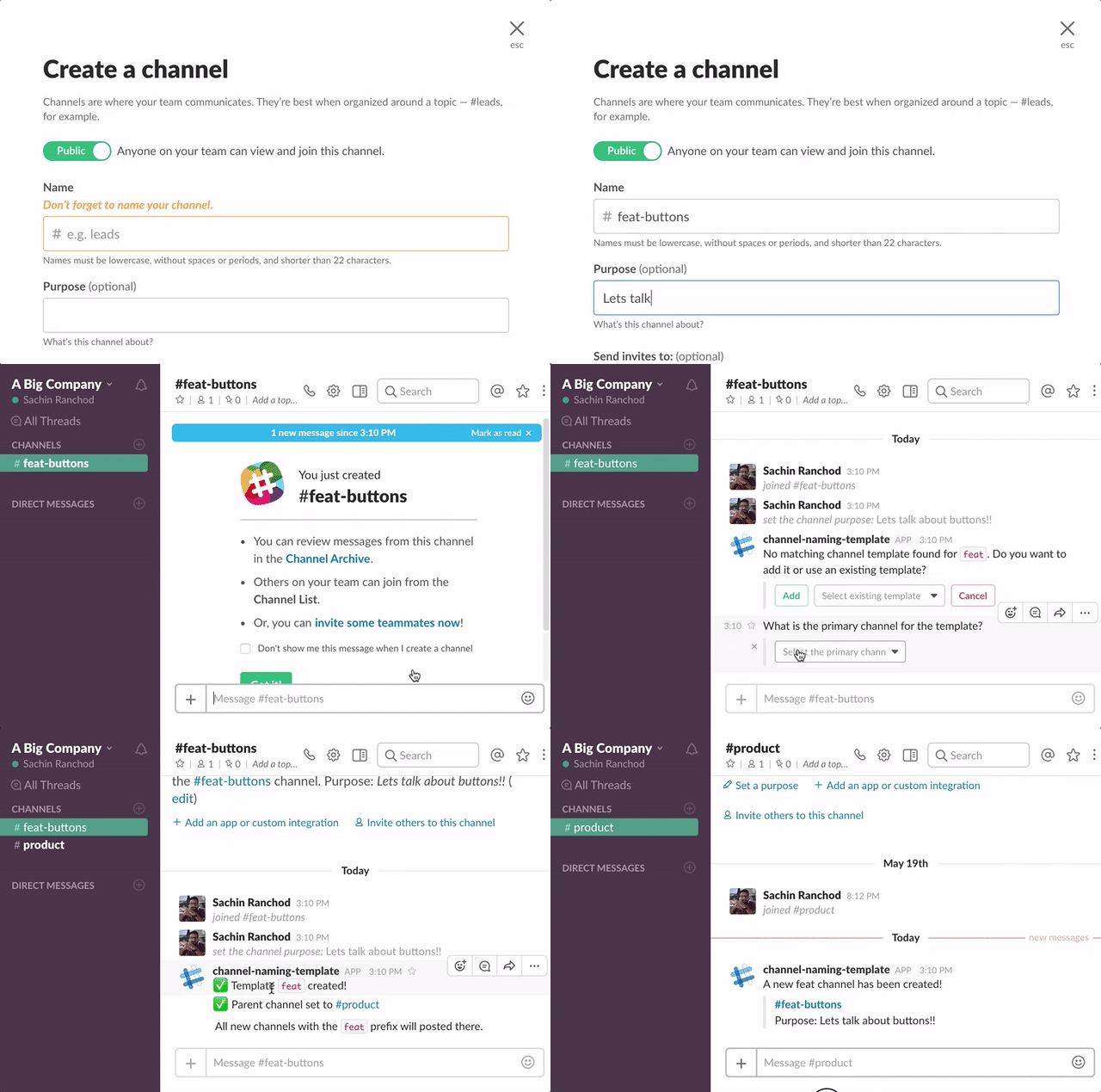
*(The GIF image is outdated, however, the functionality of this sample app reminds the same! 🙇♀️)*
## Setup
### 1. Clone this repo, or remix this on Glitch
> git clone https://github.com/slackapi/template-channel-naming.git
[](https://glitch.com/edit/#!/remix/slack-channel-naming-blueprint)
### 2. Create a Slack app
1. Create an app at [https://api.slack.com/apps](https://api.slack.com/apps)
1. At **Bot Users**, add a new bot user.
1. Click on **OAuth & Permissions** and select the following scopes: `chat:write`, `channels:read`, `chat:write.public`
1. Enable the interactive messages (See below *Enable Interactive Messages*)
1. Enable events (See below *Enable the Events API*)
1. Click 'Save Changes' and install the app to all channels (You should get an OAuth access token after the installation
#### 3. Run locally or [](https://glitch.com/edit/#!/remix/slack-channel-naming-blueprint)
1. Set the following environment variables in `.env` (copy from `.env.sample`):
* `SLACK_ACCESS_TOKEN`: Your app's `xoxa-` token (available on the Install App page)
* `SLACK_SIGNING_SECRET`: Your app's Verification Token (available on the Basic Information page)
* `PORT`: The port that you want to run the web server on (Default: 5000)
1. If you're running the app locally:
* Start the app (`npm start`)
### 4. Enable Interactive Messages
1. Click on **Interactive Components** and enable the feature.
1. Set the Request URL to your server URL + `/interactions`
If you did "Remix" on Glitch, it auto-generate a new URL with two random words, so your Request URL should be like: `https://fancy-feast.glitch.me/command`.
#### Enable the Events API
1. Click on **Events Subscriptions** and enable events.
1. Set the Request URL to your server (*e.g.* `https://yourname.ngrok.com`) or Glitch URL + `/events`
1. On the same page, scroll down to *Subscribe to Bot Events* and subscribe to the `channel_created` and `channel_rename` events.