https://github.com/smarkets/react-native-paypal
React Native library that implements PayPal Checkout flow using purely native code
https://github.com/smarkets/react-native-paypal
android braintree ios paypal paypal-checkout react-native
Last synced: 4 months ago
JSON representation
React Native library that implements PayPal Checkout flow using purely native code
- Host: GitHub
- URL: https://github.com/smarkets/react-native-paypal
- Owner: smarkets
- License: mit
- Created: 2018-10-12T11:53:04.000Z (almost 8 years ago)
- Default Branch: master
- Last Pushed: 2024-08-01T05:28:42.000Z (almost 2 years ago)
- Last Synced: 2026-04-07T07:48:14.887Z (4 months ago)
- Topics: android, braintree, ios, paypal, paypal-checkout, react-native
- Language: Objective-C
- Homepage:
- Size: 1.23 MB
- Stars: 117
- Watchers: 12
- Forks: 54
- Open Issues: 38
-
Metadata Files:
- Readme: README.md
- License: LICENSE
Awesome Lists containing this project
README
# react-native-paypal
[](https://www.npmjs.com/package/react-native-paypal)

[](https://github.com/smarkets/react-native-paypal/blob/master/LICENSE)
React Native library that implements PayPal [Checkout](https://developers.braintreepayments.com/guides/paypal/checkout-with-paypal/) flow using purely native code.
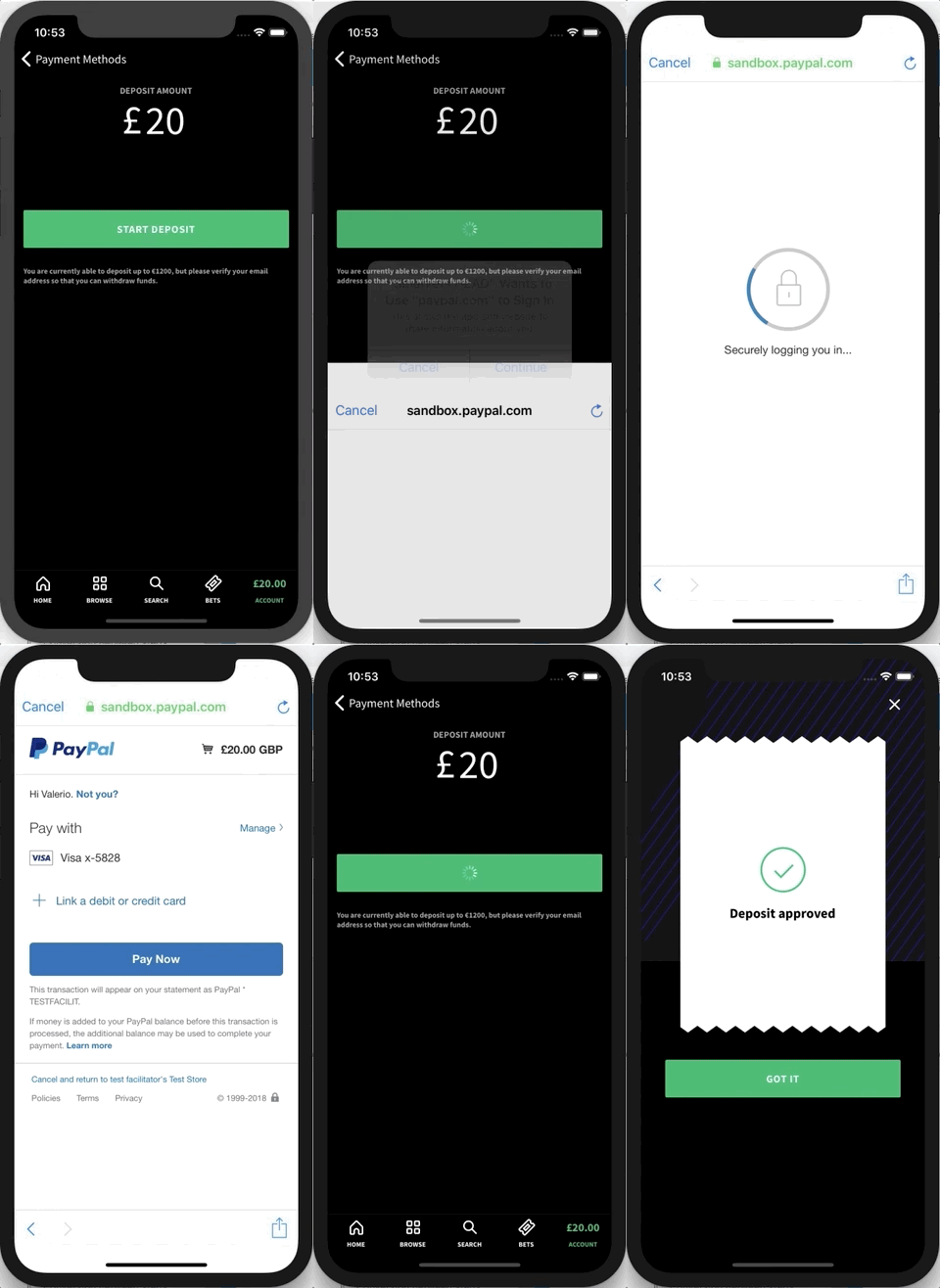
## Getting started
`$ npm install react-native-paypal --save` or `$ yarn add react-native-paypal`
### Mostly automatic installation
1. `$ react-native link react-native-paypal`. Check the result, if iOS and/or Android project files are unchanged, do the steps described in Manual installation.
1. [Android] Add `implementation "com.braintreepayments.api:braintree:3.+"` and `implementation "com.braintreepayments.api:data-collector:3.+"` in `android/app/build.gradle`.
1. [iOS] Add `pod 'Braintree', '~> 4'` and `pod 'Braintree/DataCollector'` to your Podfile.
1. [iOS] Run `pod install`
1. [iOS] Register a URL scheme in Xcode (**must** always start with your Bundle Identifier and end in `.payments` - e.g. `your.app.id.payments`). See details [here](https://developers.braintreepayments.com/guides/paypal/client-side/ios/v4#register-a-url-type).
1. [iOS] Edit your `AppDelegate.m` as follows:
```objc
#import "RNPaypal.h"
- (BOOL)application:(UIApplication *)application
didFinishLaunchingWithOptions:(NSDictionary *)launchOptions
{
[[RNPaypal sharedInstance] configure];
}
// if you support only iOS 9+, add the following method
- (BOOL)application:(UIApplication *)application openURL:(NSURL *)url
options:(NSDictionary *)options
{
return [[RNPaypal sharedInstance] application:application openURL:url options:options];
}
// otherwise, if you support iOS 8, add the following method
- (BOOL)application:(UIApplication *)application openURL:(NSURL *)url
sourceApplication:(NSString *)sourceApplication annotation:(id)annotation
{
return [[RNPaypal sharedInstance] application:application openURL:url sourceApplication:sourceApplication annotation:annotation];
}
```
At this point you should be able to build both Android and iOS.
#### Extra setup step
If your application ID has underscores in it (e.g. `com.example_app`), an additional setup step is required. Otherwise, you can skip this section.
Inside `ApplicationManifest.xml` add a `BraintreeBrowserSwitchActivity`. Specify the `android:scheme` to be your application id without underscores and `.braintree` appended to it:
```xml
```
### Manual installation
#### iOS
1. In XCode, in the project navigator, right click `Libraries` ➜ `Add Files to [your project's name]`
1. Go to `node_modules` ➜ `react-native-paypal` and add `RNPaypal.xcodeproj`
1. In XCode, in the project navigator, select your project. Add `libRNPaypal.a` to your project's `Build Phases` ➜ `Link Binary With Libraries`
1. In XCode, in the project navigator, select your project. Add `$(SRCROOT)/../node_modules/react-native-paypal/ios` to your project's `Build Settings` ➜ `Header Search Paths`
#### Android
1. Open up `android/app/src/main/java/[...]/MainApplication.java`
- Add `import com.smarkets.paypal.RNPaypalPackage;` to the imports at the top of the file
- Add `new RNPaypalPackage()` to the list returned by the `getPackages()` method
1. Append the following lines to `android/settings.gradle`:
```
include ':react-native-paypal'
project(':react-native-paypal').projectDir = new File(rootProject.projectDir, '../node_modules/react-native-paypal/android')
```
1. Insert the following lines inside the dependencies block in `android/app/build.gradle`:
```
implementation project(':react-native-paypal')
```
## Usage
First you need to get a valid token from your server. Refer to [this](https://developers.braintreepayments.com/start/hello-client/ios/v3#get-a-client-token).
Then you can execute the following code, for example reacting to a button press.
```javascript
import { requestOneTimePayment, requestBillingAgreement } from 'react-native-paypal';
// For one time payments
const {
nonce,
payerId,
email,
firstName,
lastName,
phone
} = await requestOneTimePayment(
token,
{
amount: '5', // required
// any PayPal supported currency (see here: https://developer.paypal.com/docs/integration/direct/rest/currency-codes/#paypal-account-payments)
currency: 'GBP',
// any PayPal supported locale (see here: https://braintree.github.io/braintree_ios/Classes/BTPayPalRequest.html#/c:objc(cs)BTPayPalRequest(py)localeCode)
localeCode: 'en_GB',
shippingAddressRequired: false,
userAction: 'commit', // display 'Pay Now' on the PayPal review page
// one of 'authorize', 'sale', 'order'. defaults to 'authorize'. see details here: https://developer.paypal.com/docs/api/payments/v1/#payment-create-request-body
intent: 'authorize',
}
);
// For vaulting paypal account see: https://developers.braintreepayments.com/guides/paypal/vault
const {
nonce,
payerId,
email,
firstName,
lastName,
phone
} = await requestBillingAgreement(
token,
{
billingAgreementDescription: 'Your agreement description', // required
// any PayPal supported currency (see here: https://developer.paypal.com/docs/integration/direct/rest/currency-codes/#paypal-account-payments)
currency: 'GBP',
// any PayPal supported locale (see here: https://braintree.github.io/braintree_ios/Classes/BTPayPalRequest.html#/c:objc(cs)BTPayPalRequest(py)localeCode)
localeCode: 'en_GB',
}
);
// For device data collection see: https://developers.braintreepayments.com/guides/advanced-fraud-management-tools/device-data-collection/
const { deviceData } = await requestDeviceData(token);
```
## Creating/Finding client token
Note that the client token should be served via a backend service but can be hardcoded:
1. Go to https://www.braintreegateway.com or https://sandbox.braintreegateway.com/ and login or create an account
2. Click the gear at the top and select to API
3. You can find your token under `Tokenization Keys`. You will need to create one if none exists
## Backend implementation
For an overview of the braintree payment flow see https://developers.braintreepayments.com/start/overview
This library covers the client setup here: https://developers.braintreepayments.com/start/hello-client
It does NOT however cover the server portion here: https://developers.braintreepayments.com/start/hello-server
You will need the server portion in order to complete your transactions. See a simple example of this server in /exampleServer. The example app is pointed to this on default
## Troubleshooting
* Check native code logs (in xCode for iOS or `adb logcat *:E` for Android). These may give additional information about issues
* Try comparing your app implementation to the example app. It may help you find a step you missed. If you experience any issues with the example app or instructions missing from the Readme, please open an issue (or fix with a PR :))