https://github.com/softwareag/transform-math
Following instructions will get you a copy of the specific Date transform in your webMethods.io Integration tenant.
https://github.com/softwareag/transform-math
webmethods webmethods-io-integration
Last synced: about 1 year ago
JSON representation
Following instructions will get you a copy of the specific Date transform in your webMethods.io Integration tenant.
- Host: GitHub
- URL: https://github.com/softwareag/transform-math
- Owner: SoftwareAG
- License: apache-2.0
- Created: 2020-07-30T12:26:48.000Z (almost 6 years ago)
- Default Branch: master
- Last Pushed: 2023-12-08T13:34:06.000Z (over 2 years ago)
- Last Synced: 2025-02-13T09:30:01.820Z (over 1 year ago)
- Topics: webmethods, webmethods-io-integration
- Homepage:
- Size: 234 KB
- Stars: 0
- Watchers: 3
- Forks: 0
- Open Issues: 0
-
Metadata Files:
- Readme: README.md
- License: LICENSE
Awesome Lists containing this project
README
# Transform-Math
## Getting Started
Following instructions will get you a copy of the specific Date transform in your webMethods.io Integration tanent.
List of Date transform available in the webMethods.io Integration are:
1. Absolute : This operation lets you fetch the absolute value of the given number.
2. Division: This operation lets you fetch the result of the division of two numbers.
3. Max : This operation lets you fetch the largest element from the given array.
4. Min : This operation lets you fetch the smallest element from the given array.
5. Multiply : This operation lets you multiply two or more numbers.
6. Multiply List Values: This operation lets you multiply all elements of the given array.
7. Random: This operation lets you generate a random number.
8. Round Number: This operation lets you round off the specified number.
9. Subtract: This operation lets you subtract two numbers.
10. Sum: This operation lets you add two or more numbers.
11. Sum List Values : This operation lets you fetch the sum of all elements of the given array.
### Prerequisites
1. An account in [webmethod.io](https://www.softwareag.cloud/site/product/webmethods-io-integration.html) with webMethods.io Integration access.
### Importing the recipie to your webMethods.io Integration tanent:
1. Download the specific zip file which transform you want test, from this github page.
2. Log in to your webmethod.io account then go to `webMethods.io Integration`.
3. Select `Reciepes` the click on `Import`.

4. Then select the downloaded file and click on `open`.

5. After that you will be able the workflow in your recipie list.

6. Click on that workflow and then select the project name where you want to import the workflow and click on `Done`.

7. After that you will see a short description about that transform along with the workflow name. Click on `Import` here.

Yeee now you have succesfully imported the work flow.
### Run the workflow:
1. Go to that specific project where you have imported the workflow. Hover over the workflow that you have imported and click on `edit`.

2. Click on the `edit` icon present in the top left corner.
.
3. Now go to the workflow description and coppy the requested body. `only the JSON part`. And click `Done`. If There is no request body present you can dirctly run the workflow (Step 8).

4. Now `double click` on the start .
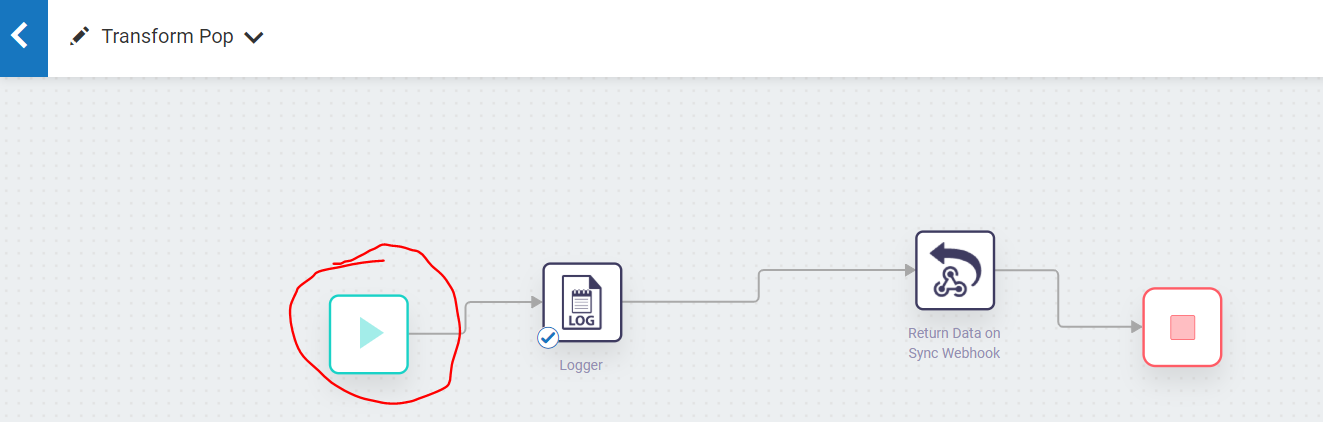.
5. From the list click on webhook.

6. Click `Next`.
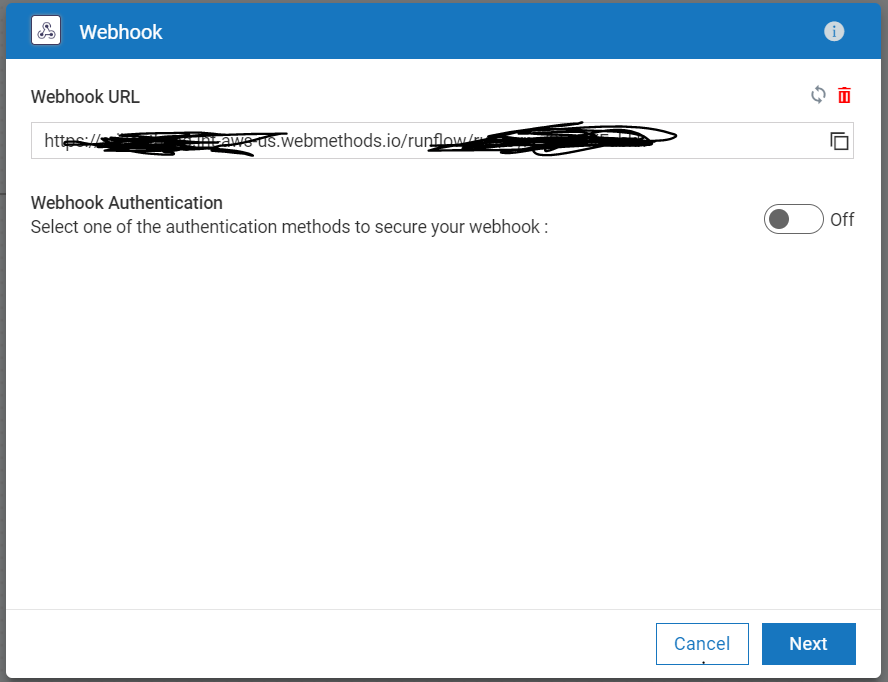
7. Now paste the coppied data in to the body and click `Next` and then `Done`.

8. Now run the workflow it will give you output in the logger. Here you can see the sum result of number 1 and number 2.

### Test With other input:
1. Open the weebhook and change the data inside the body. Donot change the key value and the formte of the data. ie. "num1", "num2" are key here and formate of the data is integer .

2. Now run the workflow it will give you output in the logger.
--------
These tools are provided as-is and without warranty or support. They do not constitute part of the Software AG product suite. Users are free to use, fork and modify them, subject to the license agreement. While Software AG welcomes contributions, we cannot guarantee to include every contribution in the master project.