https://github.com/soham109/cpos
CPOS — capture Codeforces & CSES problems, run tests, and submit from VS Code or the terminal. Extensions on the VS Code Marketplace and Chrome Web Store.
https://github.com/soham109/cpos
cli codeforces competitive-programming cses ratatui rust terminal tui
Last synced: 30 days ago
JSON representation
CPOS — capture Codeforces & CSES problems, run tests, and submit from VS Code or the terminal. Extensions on the VS Code Marketplace and Chrome Web Store.
- Host: GitHub
- URL: https://github.com/soham109/cpos
- Owner: Soham109
- License: mit
- Created: 2026-05-31T06:12:09.000Z (about 1 month ago)
- Default Branch: main
- Last Pushed: 2026-06-09T15:13:37.000Z (about 1 month ago)
- Last Synced: 2026-06-09T17:14:08.541Z (about 1 month ago)
- Topics: cli, codeforces, competitive-programming, cses, ratatui, rust, terminal, tui
- Language: Rust
- Homepage: https://cpos.sohamaggarwal.com
- Size: 20.3 MB
- Stars: 53
- Watchers: 1
- Forks: 6
- Open Issues: 5
-
Metadata Files:
- Readme: README.md
- Changelog: CHANGELOG.md
- Contributing: CONTRIBUTING.md
- Funding: .github/FUNDING.yml
- License: LICENSE
- Security: SECURITY.md
Awesome Lists containing this project
README
CPOS
Competitive Programming Operating System
Open a problem in your browser. CPOS creates the file, loads the samples, and lets you run and submit — without copy-pasting anything.







## Demo

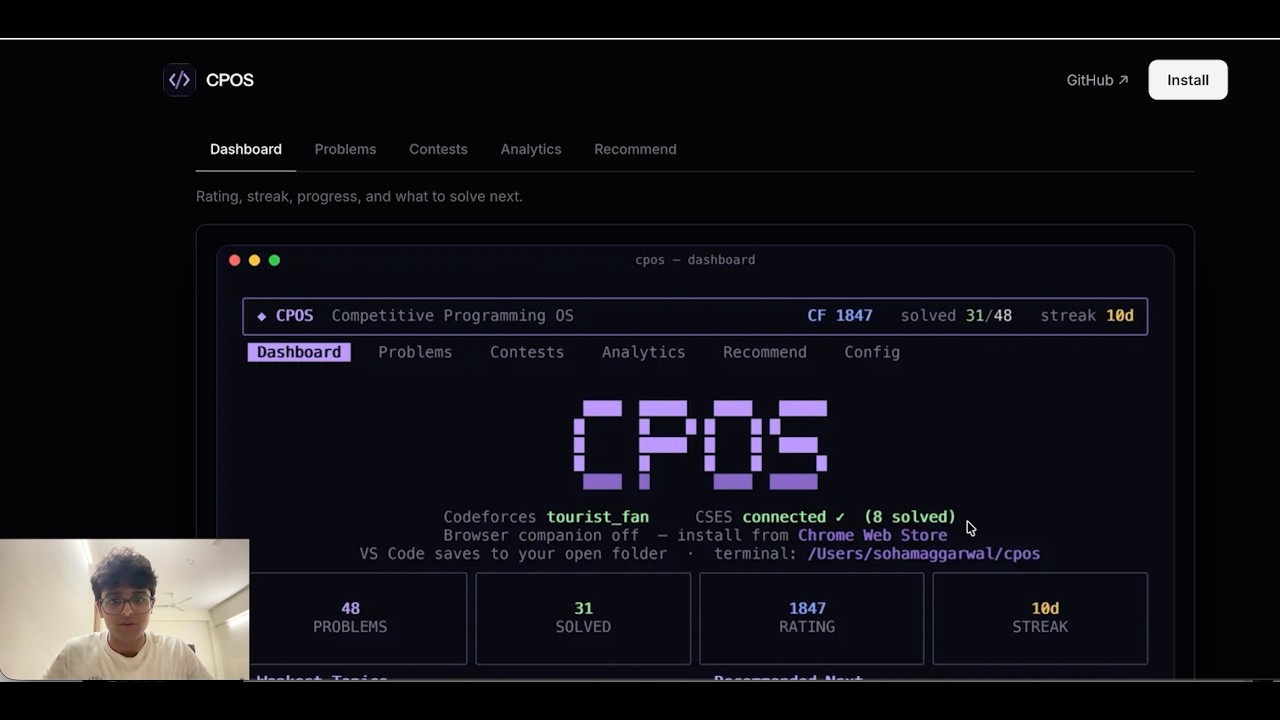
Capture a problem · auto-create your file · run samples · submit from VS Code
---
## How it works
CPOS has three parts — a **browser companion**, a **terminal app**, and a **VS Code extension**. Install all three; they share the same files and stay in sync over localhost.
**The flow:**
1. **Pick your folder** — open any folder in VS Code, or let the terminal app use `~/cpos`.
2. **Open a problem in your browser** — any Codeforces or CSES problem page.
3. **CPOS captures it** — the browser companion reads samples and sends them to CPOS on your machine.
4. **A file appears** — e.g. `1971D.cpp`, with sample tests attached.
5. **Write your solution** — in VS Code.
6. **Run samples** — from the panel or with `T` in the terminal.
7. **Submit** — CPOS autofills the judge form in your browser (log in to Codeforces/CSES first).
No copying samples. No manually creating files.
---
## VS Code
Write code in the editor. The CPOS panel runs samples and submits.

Install from the [Marketplace](https://marketplace.visualstudio.com/items?itemName=sohamaggarwal.cpos-vscode). Open your folder, capture a problem from the browser, then use the **CPOS panel**:
- **Tests / Statement tabs** — switch between samples and the captured problem statement, rendered natively with MathJax
- **Run All** — compile and test every sample
- **Submit** — autofill the judge submit page in your logged-in browser
- **Problem** — open the statement again
- **Search** — Google search for editorials and solutions for the linked problem
- **GitHub** — open the CPOS repository
- **Test cases** — edit samples; multi-case inputs show linked input/output blocks when captured from Codeforces
- **Theme** — five panel themes (see [Settings](#settings))
---
## Terminal
Browse the catalog, sync rating, track contests, and get recommendations — without opening Codeforces in a tab.
```bash
brew tap Soham109/cpos https://github.com/Soham109/cpos
brew install cpos
cpos
```
Windows with Scoop:
```powershell
scoop bucket add cpos https://github.com/Soham109/cpos
scoop install cpos
cpos
```
| Key | What it does |
| --- | --- |
| `o` / `Enter` | Open a problem — creates the file in your project folder when VS Code has synced a path, otherwise in `~/cpos` or your configured workspace |
| `T` | Run against samples |
| `s` | Submit |
| `b` | Open problem in browser |
| `U` | Open by URL |
| `/` · `f` · `p` | Search · filter by rating · switch platform |
| `Tab` | Switch between Dashboard, Problems, Contests, Analytics, Recommend, Target |
| `r` | Sync with Codeforces and CSES |
Keep the terminal running while you code in VS Code — same captures, same submits, same progress.
### First run
The first time you launch `cpos` (before a Codeforces handle is set) a quick 4-step wizard runs:
1. **Handle** — type your Codeforces handle.
2. **Language** — pick your default language (`←/→` to browse).
3. **Template** — choose how to supply your solution template:
- **Paste** (default): copy your template, then press **`v`** (or `Ctrl+V` / `⌘V`) to paste the whole thing — multi-line formatting is preserved.
- **Upload**: press **`Tab`** to switch modes, type or paste a file path, then **Enter** to load it. A live preview shows the loaded template.
- Leave it blank to use the built-in template.
4. **CSES** *(optional)* — press `o` to open the CSES login, then paste your `PHPSESSID` cookie to sync solved problems. You can skip this and set it later in Config.
Re-run the wizard any time by clearing your handle in `config.toml` (or deleting the config file — see [Config location](TROUBLESHOOTING.md#config-location)).
---
## Your folder, your files
You choose where solution files live:
- **VS Code:** open a project folder before you capture. CPOS creates files such as `1982C.cpp` in that folder.
- **Terminal:** defaults to `~/cpos/`, or uses the same project folder as VS Code when captures have been synced.
Configure the VS Code save location under **Settings → Extensions → CPOS** (`cpos.saveLocation`, `cpos.fixedDir`). Configure the terminal workspace in `config.toml` (`workspace_dir`).
---
## Install
| What | Where |
| --- | --- |
| Browser companion | [Chrome Web Store](https://chromewebstore.google.com/detail/gjnbapmjonegeeamdeahcoojgokeogmm) (Chrome, Edge, Brave) |
| Browser companion | [Firefox source install](extensions/firefox) (temporary/self-installed for now; AMO publishing later) |
| VS Code extension | [VS Code Marketplace](https://marketplace.visualstudio.com/items?itemName=sohamaggarwal.cpos-vscode) |
| Terminal app | macOS/Linux: `brew tap Soham109/cpos https://github.com/Soham109/cpos` then `brew install cpos` |
| Terminal app | Windows: `scoop bucket add cpos https://github.com/Soham109/cpos` then `scoop install cpos` |
Install all three for the full experience. The browser companion is required for capture and submit.
The package-manager installs use prebuilt binaries from GitHub Releases, so users do not need Rust, Cargo, Visual Studio Build Tools, or a linker. Developers can still build from source with:
```bash
cargo install --git https://github.com/Soham109/cpos
```
See [INSTALL.md](INSTALL.md) for release assets, manual downloads, and publishing notes.
## Updating
When the terminal app starts, CPOS does a quick best-effort update check for the
terminal app. If the terminal app is outdated, CPOS asks before running an
update; it never updates silently. If the check is slow or offline, CPOS opens
normally.
You can also update manually:
```bash
cpos update
```
For Homebrew installs, CPOS delegates to Homebrew. For Scoop installs, CPOS delegates to Scoop. Your config, cache, templates, and problem data are kept.
Set `CPOS_NO_UPDATE_CHECK=1` to skip startup checks.
**VS Code extension** — updates from the Marketplace automatically (or **Extensions → CPOS → Update**).
**Browser companion** — Chrome/Edge/Brave update automatically from the Chrome Web Store. Firefox source installs do not auto-update yet; pull the latest repo changes, reload `extensions/firefox/manifest.json`, or rebuild/sign a new XPI.


---
## Features
- **Auto file creation** — open a problem, get a ready-to-edit solution file in your folder
- **Sample capture** — public tests pulled from the problem page, with multi-case grouping on Codeforces when available
- **Run & submit** — from the VS Code panel or terminal keys; submit autofills your browser
- **Multi-language templates** — start new solutions in your configured language
- **Progress & analytics** — rating history, topic breakdown, activity heatmap
- **Recommendations** — personalized unsolved problems aimed at your weak topics (see below)
- **Targeted practice** — set a rating goal and get the topics you still need plus an ordered plan to reach it (see below)
- **Contests** — upcoming and running Codeforces contests with countdowns
- **Private** — everything stays on your machine (`127.0.0.1`, no external servers)
---
## Recommendations
After you sync (`r` in the terminal), CPOS builds a focused list of unsolved problems to practice next. Find them on the **Recommend** tab or the **Recommended Next** panel on the Dashboard.
### How problems are picked
CPOS only considers **unsolved** problems with a Codeforces rating in a band around your level (roughly −250 to +350 from your current rating, targeting about +100 above you).
Each candidate gets a score from:
| Signal | What it means |
| --- | --- |
| **Weak topics** | Tags where your solve rate is low get the most weight — a topic you fail 100% of the time counts more than one you're half-comfortable with |
| **Multiple weak tags** | Problems that combine several weak areas get a small bonus |
| **Unfinished attempts** | Problems you tried but didn't solve are boosted so you can finish what you started |
| **Rating fit** | Problems near your target practice rating score higher |
| **Popularity** | Well-known problems (many solves on Codeforces) are preferred — they're usually better written |
The top scorers are then **diversified**: CPOS caps how many problems share the same primary tag or exact rating so the list isn't fifteen identical DP problems.
### Cold start (no solves yet)
If you haven't accepted anything yet, CPOS can't infer weak topics. It falls back to **popular problems around 1200**, spread across tags and ratings, until your submission history fills in.
Press **`r`** after solving more problems to refresh recommendations.
---
## Targeted practice
Recommend answers "what's a good next problem." The **Target** tab answers the goal-shaped question: *where am I, what's left, and in what order.*
Set a goal — cycle Codeforces rank milestones with `[` / `]`, or press `t` to type an exact rating (e.g. `1600`). CPOS then shows:
- **Status** — your effective level, the gap to your goal, an overall **readiness %**, and how many problems you've solved in the goal band.
- **Topics to Cover** — each prerequisite topic for the goal, labelled **Ready / Developing / Gap / Untouched** (weakest and most relevant first), with the rating it starts to matter at and your best solve so far.
- **A step-by-step plan** — unsolved problems on rating rungs from your level up to the goal, with weak and uncovered topics front-loaded, labelled **Base → Build → Push → Target**. Press `enter`/`o` on a step to start it in the normal solve flow.
The plan is Codeforces-only, since CSES tasks don't carry ratings.
---
## Settings
**VS Code** — `Settings → Extensions → CPOS`:
| Setting | Default | What it does |
| --- | --- | --- |
| `cpos.saveLocation` | `workspaceFolder` | Save files in your open folder |
| `cpos.fixedDir` | `~/cpos` | Folder when save location is `fixed` |
| `cpos.defaultLanguage` | `cpp` | Language for new files |
| `cpos.runTimeoutMs` | `5000` | Per-test timeout |
**Panel themes** — use the theme control in the CPOS panel header. Your choice is remembered.
| Theme | Look |
| --- | --- |
| `CPOS` | Signature purple — the default |
| `Midnight` | Calm slate-blue |
| `Amber` | Warm terminal / sepia |
| `Paper` | High-contrast grayscale, minimal color |
| `Native` | Inherits your active VS Code color theme — Run All matches VS Code button styling |
**Terminal app** — `~/.config/cpos/config.toml` (Linux), `~/Library/Application Support/cpos/config.toml` (macOS), or `%APPDATA%\cpos\config.toml` (Windows):
```toml
default_language = "cpp"
theme = "purple" # purple | cyan | green | amber | mono | plain | light
editor = "code {file}"
[handles]
codeforces = "your_handle"
```
> `plain` is a neutral grayscale theme for a low-color terminal interface; `mono` is the single-accent minimal one; `light` is a bright canvas for light terminal / VS Code light-theme users.
> **macOS C++:** run `brew install gcc` if you need `bits/stdc++.h` — CPOS auto-detects Homebrew's g++.
Having issues? See **[TROUBLESHOOTING.md](TROUBLESHOOTING.md)** (TUI install, Run All errors, submit, source builds, and more).
---
## Roadmap
- AtCoder & CodeChef support
- Contest mode with per-problem timers
- Read submission verdicts back into CPOS
---
## Sponsor
CPOS is built and maintained by one person, in the open, for the competitive programming community. It's free, MIT-licensed, and runs entirely on your own machine — no accounts, no servers, no tracking, no paywalled features.
If CPOS saves you time on every problem, sponsoring keeps it that way and funds what's next:
- **More judges** — AtCoder and CodeChef support
- **Contest mode** — per-problem timers and a focused contest workflow
- **Verdicts in CPOS** — read submission results back without leaving the editor
- **Maintenance** — keeping capture and submit working as Codeforces and CSES change

Not in a position to sponsor? Starring the repo, filing a clear bug report, or sending a PR helps just as much — see [CONTRIBUTING.md](CONTRIBUTING.md).
---
## License
MIT — see [LICENSE](LICENSE).
---
## Open source
CPOS is fully open source. You're free to use it, fork it, and build on it.
Contributions are welcome and appreciated — whether that's a bug report, a doc fix, a new platform, or a polish pass on the TUI. Start with **[CONTRIBUTING.md](CONTRIBUTING.md)** for dev setup and PR guidelines.
| Doc | Purpose |
| --- | --- |
| [INSTALL.md](INSTALL.md) | TUI binary install, update, and release publishing |
| [TROUBLESHOOTING.md](TROUBLESHOOTING.md) | Common fixes (TUI install, Run All, submit, source builds) |
| [CONTRIBUTING.md](CONTRIBUTING.md) | How to contribute |
| [ARCHITECTURE.md](ARCHITECTURE.md) | How the components connect |
| [CHANGELOG.md](CHANGELOG.md) | Version history |
| [SECURITY.md](SECURITY.md) | Report vulnerabilities |
Questions or ideas: [GitHub Issues](https://github.com/Soham109/cpos/issues).