https://github.com/solesen1992/wifi-light-control
Project for a company. When staff connects to the WiFi, the lights turn on. When staff leaves (disconnects), the lights turn off. The project works with Philips Hue lights and the network. A user interface is provided for settings and maintenance. The program runs as a console application.
https://github.com/solesen1992/wifi-light-control
csharp css database dependency-injection dependency-inversion html html-css-javascript interfaces javascript light philips-hue-api philips-hue-lights visual-studio visual-studio-code vue vuejs wifi
Last synced: 3 months ago
JSON representation
Project for a company. When staff connects to the WiFi, the lights turn on. When staff leaves (disconnects), the lights turn off. The project works with Philips Hue lights and the network. A user interface is provided for settings and maintenance. The program runs as a console application.
- Host: GitHub
- URL: https://github.com/solesen1992/wifi-light-control
- Owner: solesen1992
- Created: 2025-06-23T14:16:54.000Z (about 1 year ago)
- Default Branch: master
- Last Pushed: 2025-06-24T13:00:40.000Z (about 1 year ago)
- Last Synced: 2025-06-24T14:19:43.235Z (about 1 year ago)
- Topics: csharp, css, database, dependency-injection, dependency-inversion, html, html-css-javascript, interfaces, javascript, light, philips-hue-api, philips-hue-lights, visual-studio, visual-studio-code, vue, vuejs, wifi
- Homepage:
- Size: 5.86 KB
- Stars: 0
- Watchers: 0
- Forks: 0
- Open Issues: 0
-
Metadata Files:
- Readme: README.md
Awesome Lists containing this project
README
# WiFi Light Control
The WEXO project is an automatic light control system that uses Wi-Fi network to detect presence. When no approved devices are connected to the network, the lights automatically turn off. The program runs as a console application.
The system offers a user-friendly interface for settings and maintance - with features such as:
- Setting active time periods
- Device blacklisting
- Manual system activation/deactivation
- Login system for access control
An animation that shows how the system works:

The user gets on WiFi and the light turns on. If the user turns off WiFi (or leave the workplace) the light turns off.
This project is a part of my education and was a group project in the spring of 2025.
# Mockups of the frontend

The frontend allows you to maintain the system by adding blacklisted devices based on their MAC address, hostname, and description. You can also configure settings, such as enabling or disabling the program and setting the time intervals for it to run.
# Testing the code in the console application
[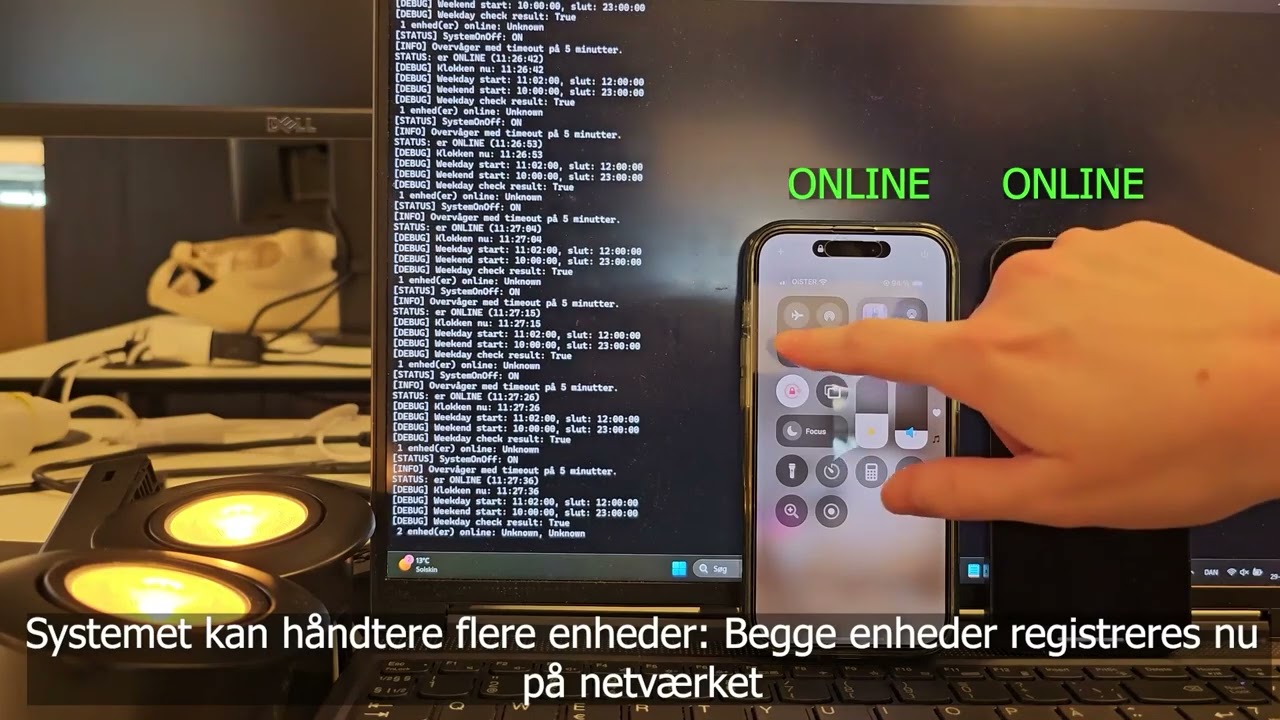](https://youtu.be/nLG5FucuSAk)
### [Watch this video on YouTube](https://youtu.be/nLG5FucuSAk)
# 🛠️ Technologies and Tools
- Backend: C# (.NET)
- Frontend: Vue.js
- Database: Microsoft SQL Server (MSSQL)
- Languages: JavaScript, C#
- IDE: Visual Studio & Visual Studio Code
# How to run the code
## 🚀 Database Setup
- Ensure the correct database is selected
- A folder under resources contains an SQL script that needs to be executed
## 🚀 Installation and Setup
This guide helps you set up the project locally. You’ll need:
- Visual Studio (for the backend)
- Node.js + npm (for the frontend)
- SQL Server (for the database)
1. Start the Backend
- Open the backend project in Visual Studio
- Make sure the connection string to MSSQL is correctly configured in appsettings.json
- Also configure your WiFi API and Philips Hue Lights in appsettings.json
- Run the project
2. Configure the Frontend baseURL
- Navigate to frontend/src/components/icons/baseURLconfig.js and set the correct backend URL.
- If the system is hosted, you can replace this with a domain
3. Run the Frontend
- Open a terminal (or command prompt) and navigate to the frontend folder:
``
cd [path-to-frontend]
npm install
npm run build
This will generate a /dist folder. Deploy /dist to your server.
``
- This will generate a /dist folder. Deploy /dist to your server.
- The frontend server typically starts at http://localhost:5173
4. Log In and Configure the System
- Open the web interface in your browser
- Log in with a valid user (you can create one through the backend)
- Configure the system as needed:
- Set active time periods for light control
- Add devices to the blacklist
- Enable/disable the system
- For security reasons, CORS can be configured to only accept input from a specific URL (recommended)
📋 Requirements
- .NET SDK (for backend)
- Node.js and npm (for frontend)
- Microsoft SQL Server
- Access to Wi-Fi (or simulated network mode)
- Philips Hue Lights
🔐 Login
- The system uses a login to access the configuration page. We recommend clearing the login database before use to ensure only your own users exist.
Steps to create a login:
- In the HashingTest.cs program, insert your desired password inside ""
- Run the program; the hashed password will be printed in the terminal
- Insert the hashed password and your desired username using this query:
``
"INSERT INTO Users (username, password) VALUES ('YourName', 'HashedPassword')"
``
- Run the query in your database — your login should now work