https://github.com/soonland/vscode-optidev
OptiDev Terminals
https://github.com/soonland/vscode-optidev
cypress dev node npm startup-script terminal vscode vscode-extension
Last synced: 3 months ago
JSON representation
OptiDev Terminals
- Host: GitHub
- URL: https://github.com/soonland/vscode-optidev
- Owner: soonland
- License: mit
- Created: 2024-05-22T01:52:08.000Z (about 2 years ago)
- Default Branch: main
- Last Pushed: 2026-03-18T04:07:06.000Z (3 months ago)
- Last Synced: 2026-03-18T20:26:20.857Z (3 months ago)
- Topics: cypress, dev, node, npm, startup-script, terminal, vscode, vscode-extension
- Language: TypeScript
- Homepage: https://marketplace.visualstudio.com/items?itemName=soonland.optidev-terminals
- Size: 915 KB
- Stars: 0
- Watchers: 1
- Forks: 0
- Open Issues: 0
-
Metadata Files:
- Readme: README.md
- Changelog: CHANGELOG.md
- License: LICENSE
Awesome Lists containing this project
README
# VS Code Extension: OptiDev Terminals
This VS Code extension has been completely redesigned with a modern and intuitive interface while maintaining full compatibility with existing configurations. It provides powerful terminal management features through a dedicated sidebar view and streamlined interactions.
The extension preserves all your existing terminal configurations and settings, ensuring a seamless transition to the new interface. Whether you're an existing user or new to the extension, you'll find it easier than ever to configure and manage your terminals across workspaces.
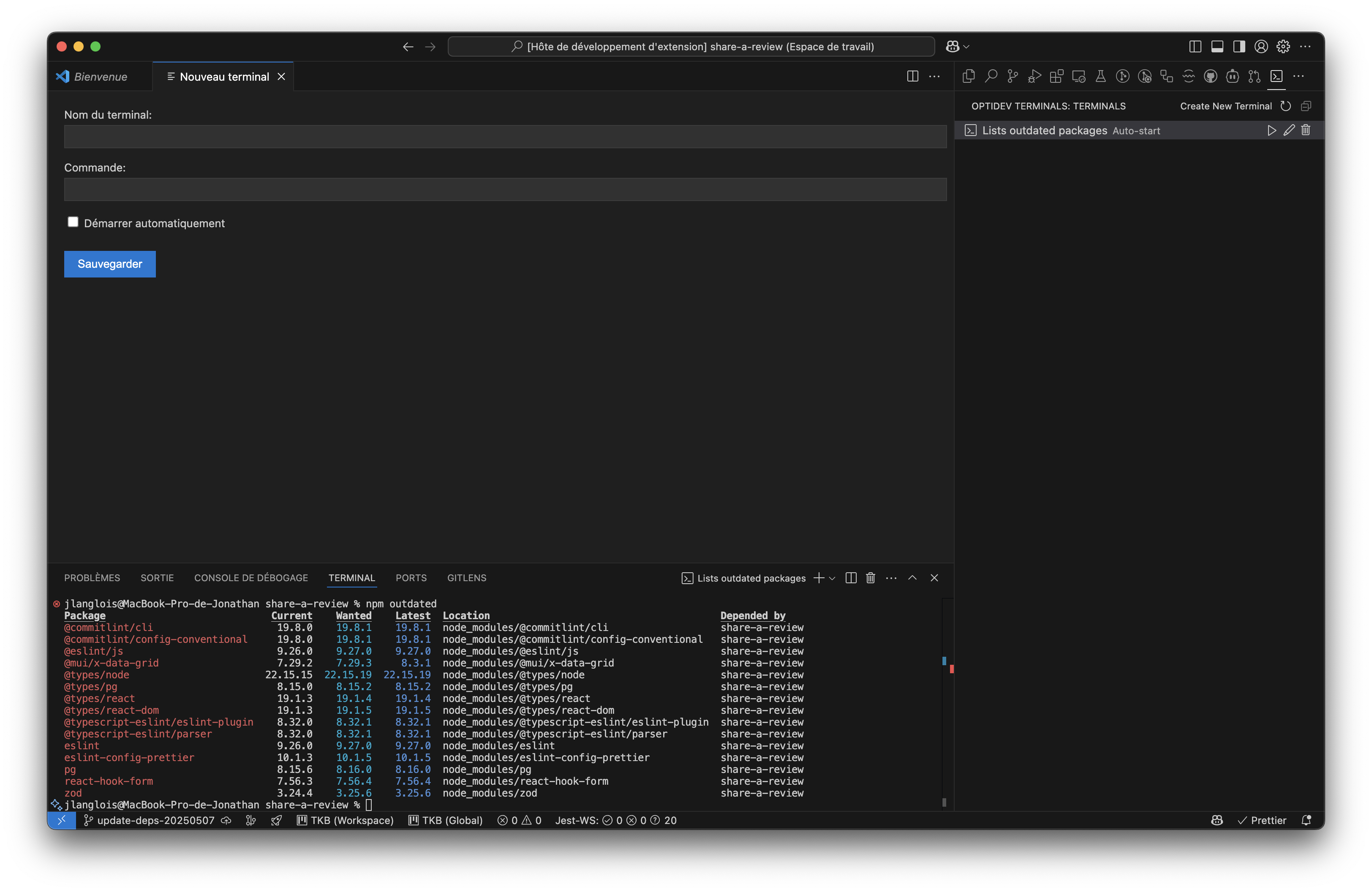
## Features
- **Dedicated Side Bar View:** Quick access to all your configured terminals
- **Quick Actions:**
- ▶️ Start terminal
- ⏹️ Stop terminal
- ✏️ Edit configuration
- 🗑️ Delete terminal
- **Multi-terminal Management:** Create and edit multiple terminals simultaneously
- **Persistent Configuration:** Automatic saving of your settings
- **Auto-start:** Option to launch terminals automatically on startup
## Usage
### Terminals View
1. Click on the terminal icon in the activity bar to open the OptiDev Terminals view
2. Use the "+" button to create a new terminal
3. Each terminal displays quick actions on hover:
- Start: runs the terminal with configured command
- Stop: terminates the terminal
- Edit: opens the modification form
- Delete: removes the configuration (with confirmation)
### Creating/Editing a Terminal
1. A modern form opens in a tab
2. Fill in:
- Terminal name
- Command to execute
- Auto-start option
3. Multiple terminals can be edited simultaneously
4. Changes are applied immediately
### Default Configuration
- **terminals**: `[]` (array of terminal configurations)
### Configuration Format
```json
{
"optiDev.terminals": [
{
"name": "Dev Server",
"command": "npm run dev",
"start": true
},
{
"name": "Tests",
"command": "npm run test",
"start": false
}
]
}
```
### Migration
If you were using a previous version of the extension, you don't need to do anything special - your configurations will be automatically migrated to the new format on next startup. The extension will preserve:
- All your terminal configurations
- Auto-start settings
- Command definitions
- Workspace-specific settings
This ensures a zero-configuration transition to the new interface while maintaining all your existing workflows.
## What's New
This redesign brings several improvements to enhance your terminal management experience:
- **Streamlined Interface**: New sidebar view with all terminals and actions in one place
- **Quick Actions**: Directly accessible controls for each terminal (start, stop, edit, delete)
- **Multi-Terminal Management**: Edit multiple terminals simultaneously in separate tabs
- **Modern Forms**: Enhanced terminal configuration interface
- **Improved Feedback**: Clear visual indicators and confirmations for all actions
All these improvements come without breaking changes to your existing configurations or workflows.
## Initial Setup
If no terminals are configured, the extension will prompt you to create one at startup. You can also:
1. Open the OptiDev Terminals view
2. Click the "+" button to create a new terminal
3. Configure your terminals as needed
## Notes
- Each workspace can have its own configuration
- Settings are saved in workspace settings
- Interface adapts to VS Code theme
- Terminal actions are context-aware and accessible
- Multiple terminal configurations can be managed simultaneously