https://github.com/sourcegraph/sourcegraph-jira
Jira extension for Sourcegraph
https://github.com/sourcegraph/sourcegraph-jira
Last synced: 4 months ago
JSON representation
Jira extension for Sourcegraph
- Host: GitHub
- URL: https://github.com/sourcegraph/sourcegraph-jira
- Owner: sourcegraph
- License: apache-2.0
- Created: 2019-04-14T12:01:01.000Z (about 7 years ago)
- Default Branch: master
- Last Pushed: 2022-09-07T09:40:20.000Z (almost 4 years ago)
- Last Synced: 2026-01-15T17:03:46.875Z (5 months ago)
- Language: TypeScript
- Size: 116 KB
- Stars: 3
- Watchers: 56
- Forks: 0
- Open Issues: 2
-
Metadata Files:
- Readme: README.md
- License: LICENSE
Awesome Lists containing this project
README
# Jira extension for Sourcegraph
## ⚠️ Deprecation notice
**Sourcegraph extensions have been deprecated with the September 2022 Sourcegraph
release. [Learn more](https://docs.sourcegraph.com/extensions/deprecation).**
The repo and the docs below are kept to support older Sourcegraph versions.
## Description
A [Sourcegraph extension](https://docs.sourcegraph.com/extensions) that enhances GitHub with better [Jira](https://www.atlassian.com/software/jira) integration.
[**🗃️ Source code**](https://github.com/sourcegraph/sourcegraph-jira)
[**➕ Add to Sourcegraph**](https://sourcegraph.com/extensions/sourcegraph/jira)
**Status:** beta
## Usage
This extension currently only works on GitHub (and GitHub Enterprise), not on Sourcegraph or other code hosts.
1. Install the [Sourcegraph browser extension](https://docs.sourcegraph.com/integration/browser_extension).
- In the Sourcegraph browser extension options menu, click the gear (⚙️) and enable **Experimental link previews** and **Experimental text field completion**.
1. [Enable the Jira extension](https://sourcegraph.com/extensions/sourcegraph/jira) in the Sourcegraph extension registry (requires sign-in to Sourcegraph).
1. Configure the Jira extension in [Sourcegraph user settings](https://sourcegraph.com/user/settings): `jira.apiToken`, `jira.url`, and `jira.username`. See info below.
1. Visit any text area, comment, PR, or issue on GitHub and try the [features](#features) below.
If using GitHub Enterprise, right-click on the Sourcegraph browser extension icon when you're on a GitHub Enterprise page and select **Enable Sourcegraph on this domain**.
## Configuring user settings
The `jira.apiToken`, `jira.url`, and `jira.username` values should be added as top-level keys in the user settings (outside of the `extensions` object), eg:
```
{
"extensions": {
"sourcegraph/jira": true
},
"jira.apiToken": "token",
"jira.url": "https://example.atlassian.net",
"jira.username": "user@example.com"
}
```
Follow [Atlassian's instructions on API tokens](https://confluence.atlassian.com/cloud/api-tokens-938839638.html) to generate a Jira Cloud API token. The `jira.url` should be the base URL for your Jira instance, e.g. `https://example.atlassian.net/`. The `jira.username` is the email address you use to authenticate with Jira.
## Features
### Autocompletion of Jira issues
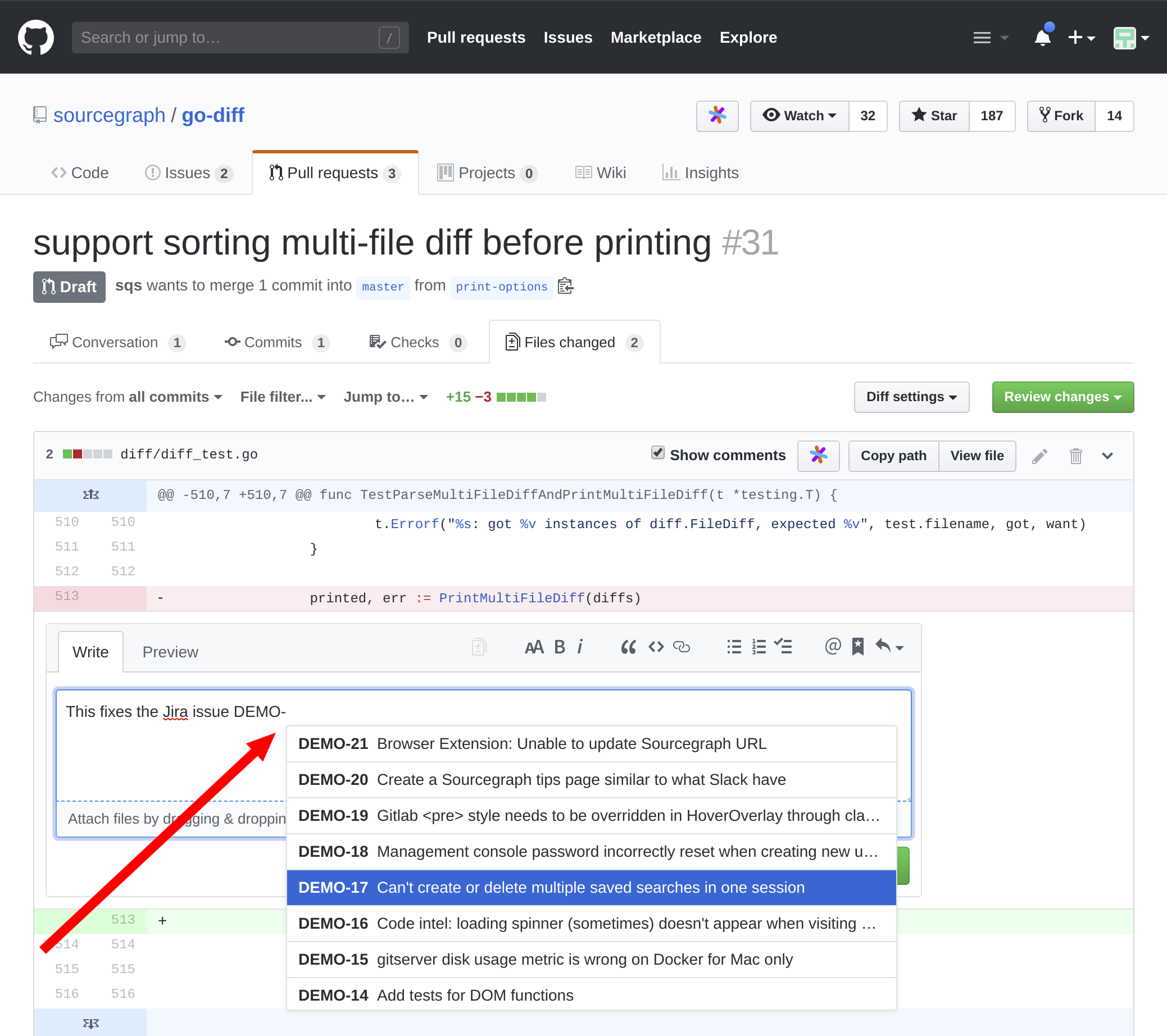
Just start typing a Jira issue key (like `DEMO-123`) to complete it! You can type the issue number or words that appear in the issue summary. Select an issue to insert its URL into the text area. It works just like GitHub's built-in autocompletion for issues, PRs, and users.
### Link previews for Jira issue links
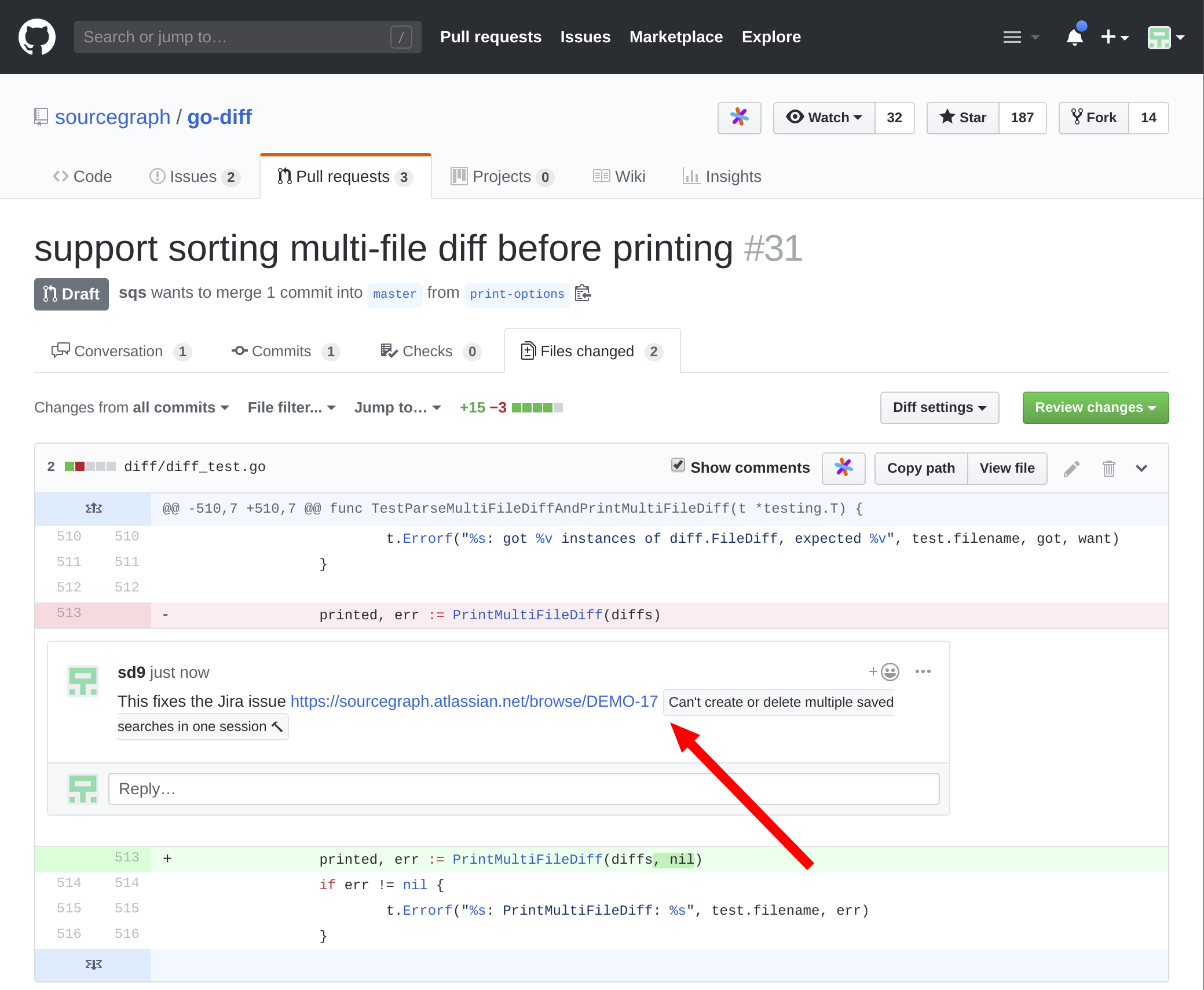
For any Jira issue link that appears on GitHub (in a comment, issue, PR, or rendered Markdown file), you'll see a preview with the title and status.