https://github.com/sreehariskumar/automate-docker-image-build
CI/CD Pipeline to initiate build automatically on a commit using ansible and jenkins.
https://github.com/sreehariskumar/automate-docker-image-build
ansible-playbook automation docker github-webhook jenkins-pipeline
Last synced: 5 months ago
JSON representation
CI/CD Pipeline to initiate build automatically on a commit using ansible and jenkins.
- Host: GitHub
- URL: https://github.com/sreehariskumar/automate-docker-image-build
- Owner: sreehariskumar
- Created: 2023-03-01T04:41:31.000Z (over 3 years ago)
- Default Branch: main
- Last Pushed: 2023-03-01T08:50:55.000Z (over 3 years ago)
- Last Synced: 2025-07-13T08:46:12.083Z (12 months ago)
- Topics: ansible-playbook, automation, docker, github-webhook, jenkins-pipeline
- Homepage:
- Size: 20.5 KB
- Stars: 0
- Watchers: 1
- Forks: 1
- Open Issues: 0
-
Metadata Files:
- Readme: README.md
Awesome Lists containing this project
README
# Automate-Docker-Image-Build (Jenkins & Ansible)

In this article, we will use Ansible to automate the Docker image build process on every commit on the GitHub repo. We will use a playbook that will build a Docker image from a Flask app repository, push it to Docker Hub, and run it on a test server.
### Set Up the Environment
- A Git repository containing the code.
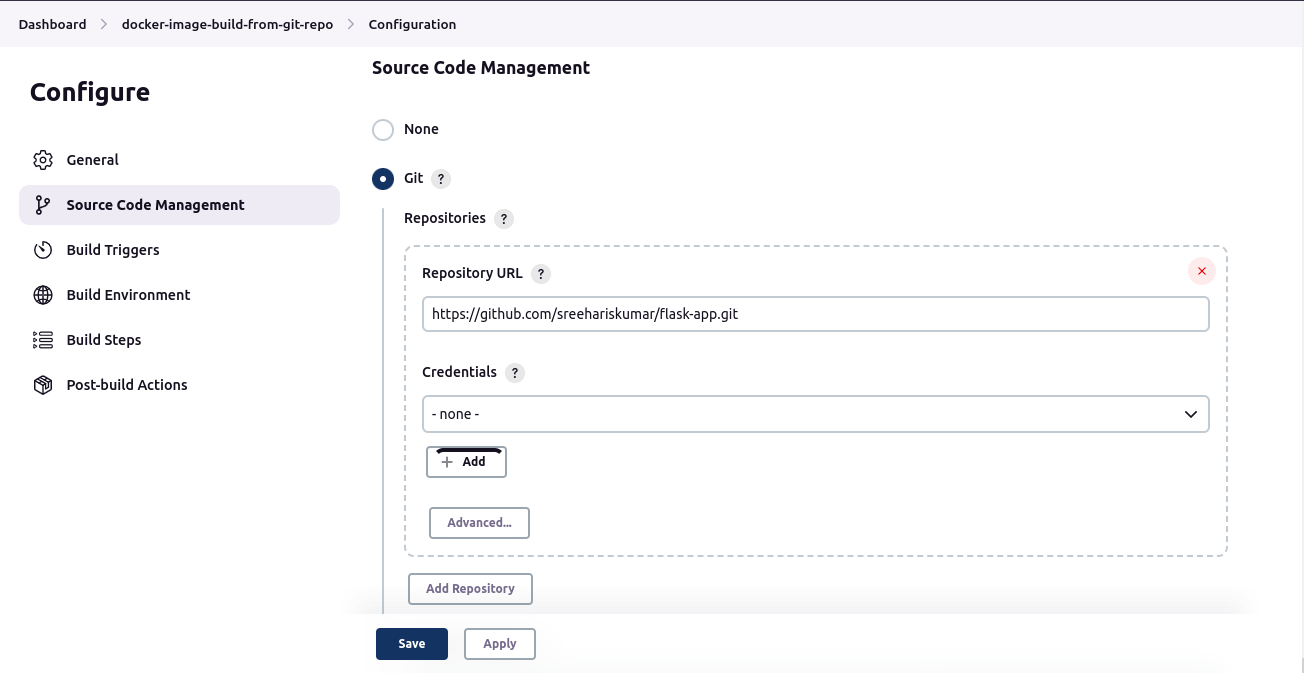
- An Ansible control node with Jenkins [installed](https://www.jenkins.io/doc/tutorials/tutorial-for-installing-jenkins-on-AWS/) and [configured](https://plugins.jenkins.io/ansible/).
- A Docker Hub account.
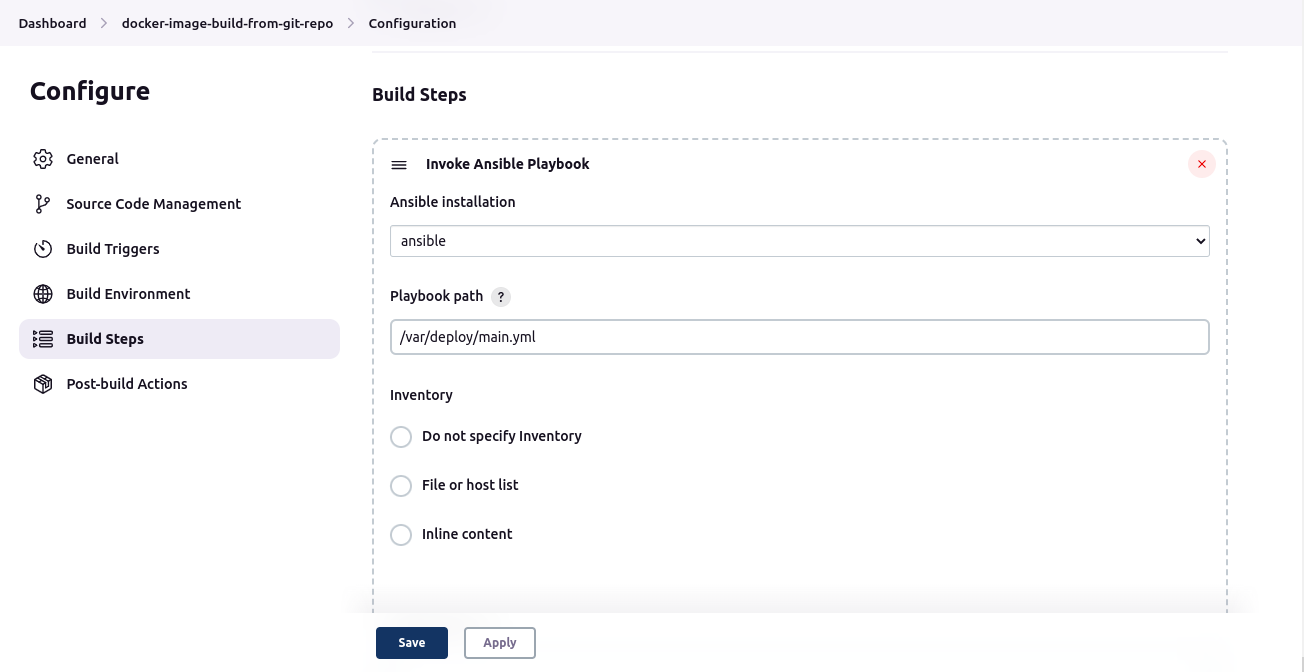
We will create a deployment directory and move all the necessary files.
Remember to change the ownership of the directory to “jenkins” as the jenkins process will be run under the privilege of this user, making it easier for the user to access the files.
```s
sudo mkdir /var/deploy
sudo mv main.yml dockerhub_creds.yml aws.pem hosts /var/deploy/
sudo chown -R jenkins:jenkins /var/deploy/
```
### Create the Ansible Playbook
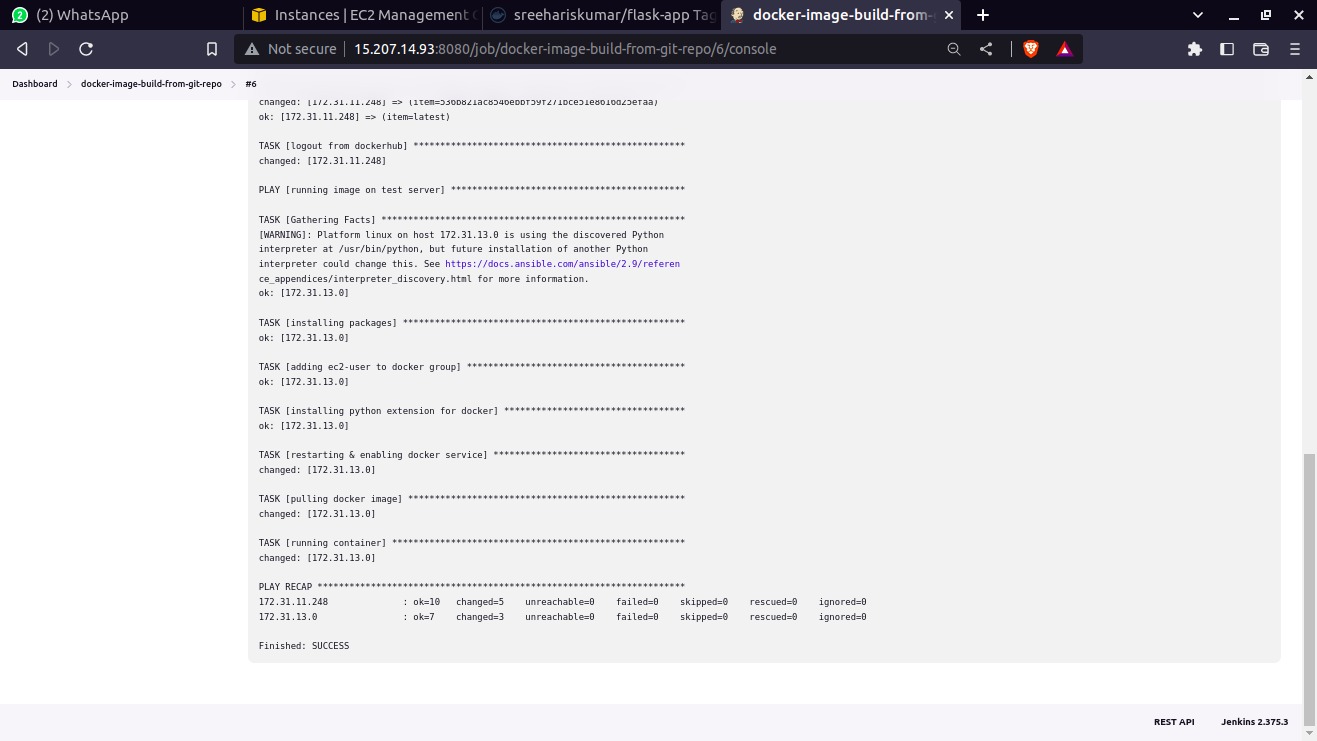
The playbook is organized into two plays, each of which targets a different set of hosts. The first play targets the “build” hosts and contains tasks to build the Docker image and push it to Docker Hub. The second play targets the “test” hosts and contains tasks to pull the image from Docker Hub and run it in a container.
**Play 1: Building Docker Image and Pushing to Docker Hub**
- **installing packages**: installs required packages such as git, pip, and docker.
- **adding ec2-user to docker group**: adds the ec2-user to the docker group, which grants permission to use Docker without sudo.
- **installing python extension for docker**: installs the docker-py Python library, which allows Ansible to interact with Docker.
- **restarting & enabling docker service**: restarts the Docker service and ensures it is set to start on boot.
- **creating cloning repo**: creates a directory to store the cloned repository.
- **cloning from repo**: clones the GitHub repository specified in repo_url to the clone_dir.
login to docker hub: logs in to Docker Hub using the credentials specified in the dockerhub_creds.yml file.
building docker image and pushing image to dockerhub: builds a Docker image from the cloned repository and pushes it to Docker Hub with the specified name and tags.
- **logout from dockerhub**: logs out of Docker Hub to prevent unauthorized access.
**Play 2: Running Docker Image on Test Server**
- **installing packages**: installs required packages such as docker and pip.
- **adding ec2-user to docker group**: adds the ec2-user to the docker group, which grants permission to use Docker without sudo.
- **installing python extension for docker**: installs the docker-py Python library, which allows Ansible to interact with Docker.
- **restarting & enabling docker service**: restarts the Docker service and ensures it is set to start on boot.
- **pulling docker image**: pulls the Docker image from Docker Hub with the specified name and tag.
- **running container**: runs the Docker image in a container with the specified port mappings
### Integrate with Git
Now that we have created the Ansible playbook, we need to integrate it with Git to automate the Docker image build process on every commit.
To do this, we will use a Git webhook that will trigger the Ansible playbook whenever a commit is made to the Git repository. We will use the ansible-playbook command to run the playbook on the Ansible control node.
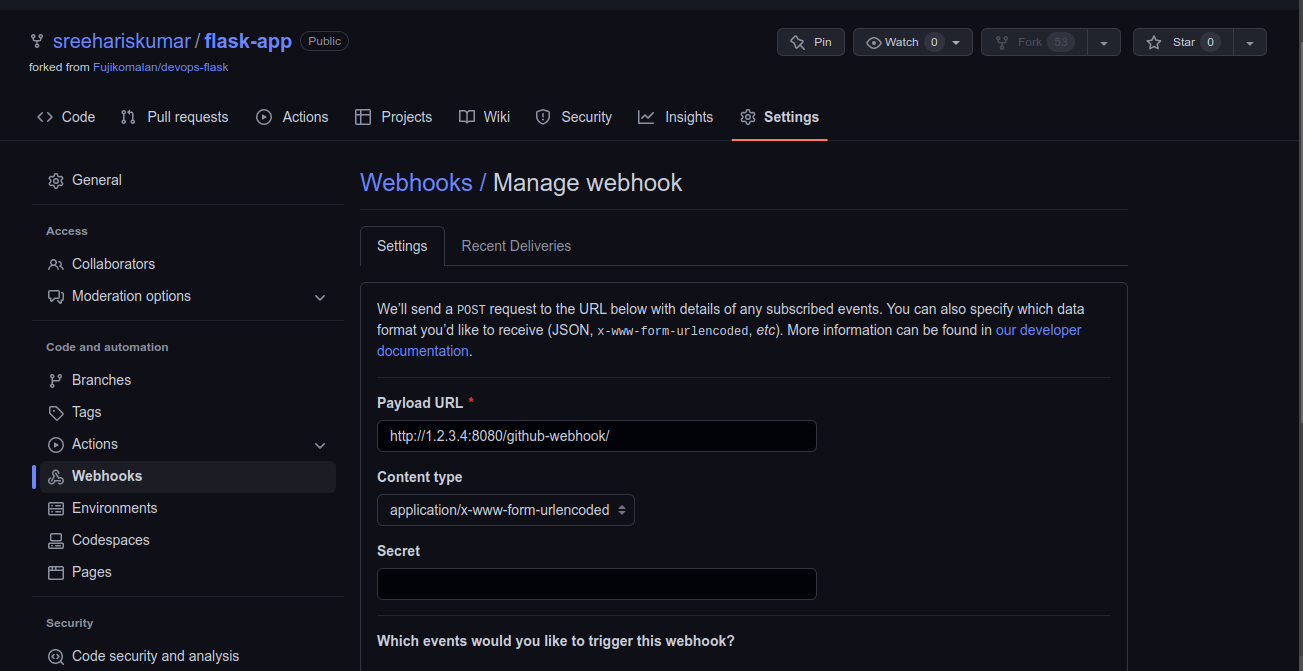
To set up the webhook, we need to create a new webhook on the Git repository settings page. We will configure the webhook to trigger on push events, and we will provide the URL of the Ansible control node along with the path to the Ansible playbook.
- Go to the settings page of your GitHub project and select “Webhook” option. Now add a new webhook with the public IP of the Jenkins server.
_eg: http://1.2.3.4:8080/github-webhook/_
### Test the Automation
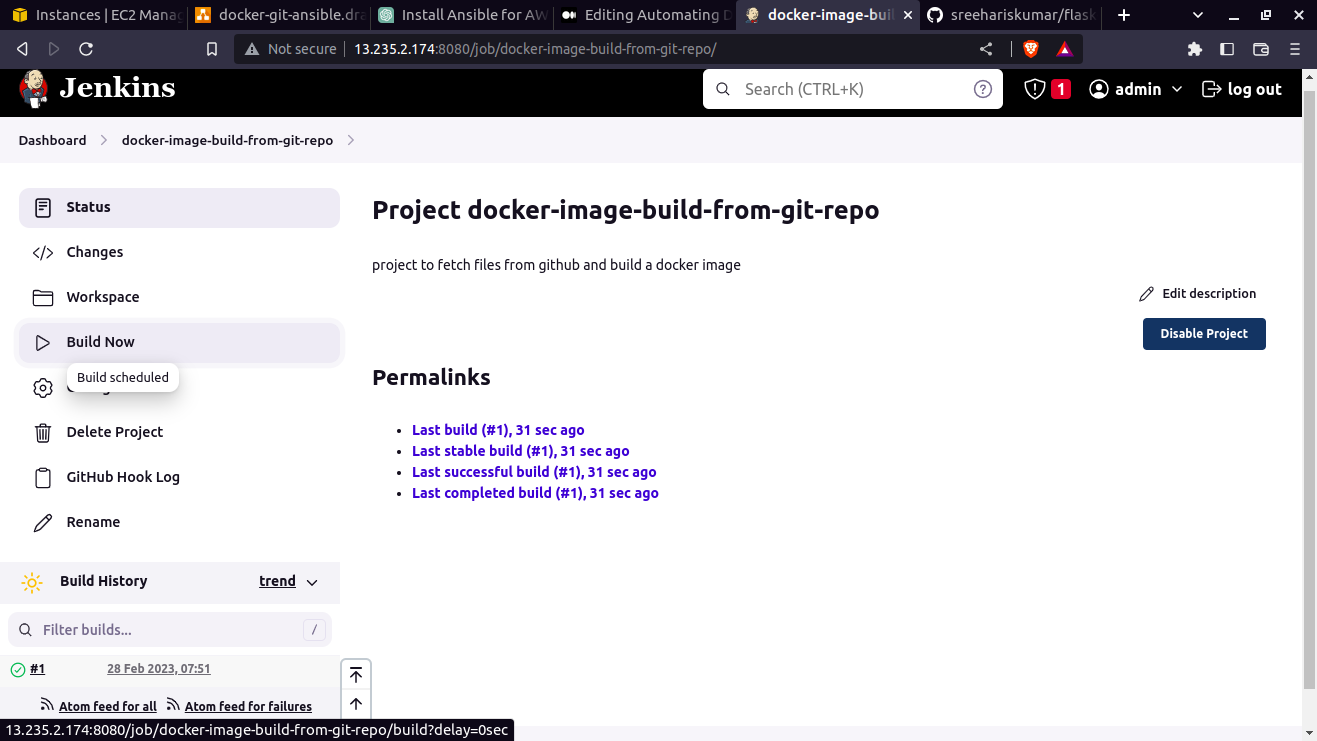
Finally, we need to test the automation to ensure that the Docker image is built and pushed to Docker Hub on every commit.
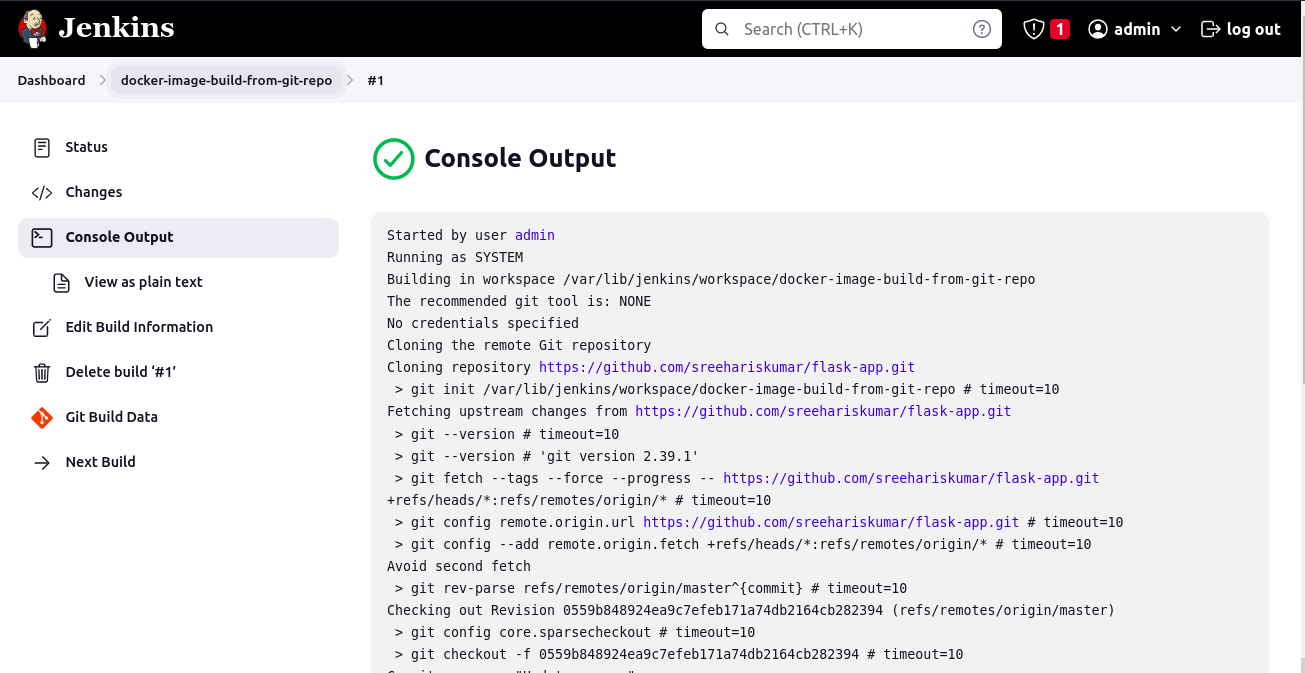
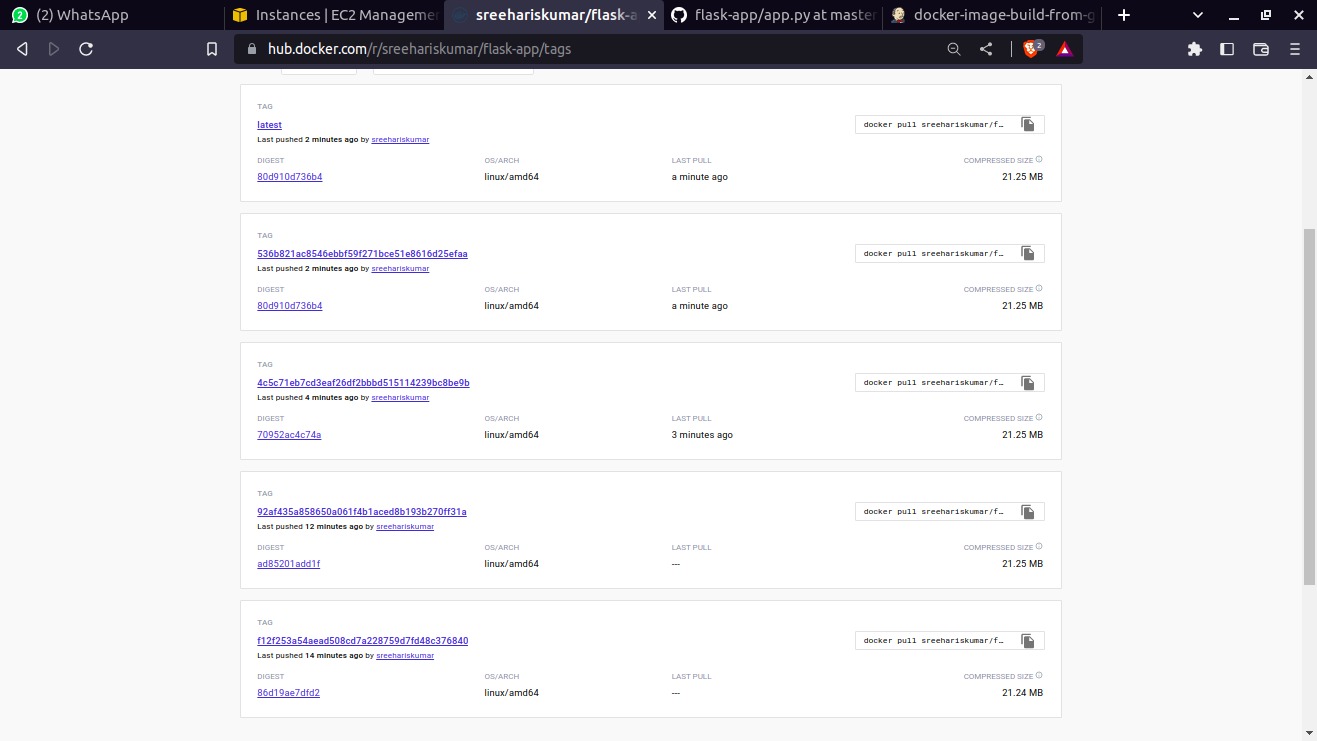
To test the automation, we will make a commit to the GitHub repository containing the Flask app code. We will then check Docker Hub to ensure that the Docker image has been built and pushed successfully.


### Conclusion
By automating the Docker image build process, we can ensure that our applications are always up-to-date and consistent across all environments. It also allows us to focus on developing and improving our applications without worrying about the deployment process.