https://github.com/starburst997/android-code-sign
Code Signing for Android via Github Actions
https://github.com/starburst997/android-code-sign
android code-sign code-signing codesign codesigning playstore tutorial
Last synced: 2 months ago
JSON representation
Code Signing for Android via Github Actions
- Host: GitHub
- URL: https://github.com/starburst997/android-code-sign
- Owner: starburst997
- License: mit
- Created: 2025-02-05T18:08:55.000Z (over 1 year ago)
- Default Branch: main
- Last Pushed: 2025-02-22T15:08:34.000Z (over 1 year ago)
- Last Synced: 2025-04-05T09:15:13.896Z (over 1 year ago)
- Topics: android, code-sign, code-signing, codesign, codesigning, playstore, tutorial
- Language: Kotlin
- Homepage: https://jd.boiv.in/post/2025/02/05/android-publish.html
- Size: 214 KB
- Stars: 0
- Watchers: 1
- Forks: 0
- Open Issues: 0
-
Metadata Files:
- Readme: README.md
- License: LICENSE
Awesome Lists containing this project
README
# android-code-sign
Sample project to code-sign and publish an Android App to the Play Store.
The following text is a copy of my blog post: [**Code Signing for Android via Github Action**](https://jd.boiv.in/post/2025/02/05/android-publish.html).
**TL;DR**: By using [fastlane supply](https://docs.fastlane.tools/actions/supply/) and [Github Action](https://github.com/features/actions) we can compile and publish a code-signed Android app on the Play Store.
*(Part three of my series on code-signing / distributing apps, check [Part 2 on Apple](https://github.com/starburst997/apple-code-sign))*
## Create Github Repository
Create a Github Repository for your project. Feel free to use [this repository](https://github.com/starburst997/android-code-sign) as a template since it already contains all the workflows files.
## Installing fastlane
We need to install [fastlane](https://fastlane.tools/) locally on our machine, first makes sure you have [ruby](https://www.ruby-lang.org/en/documentation/installation/#rubyinstaller) installed (personally I prefer via [WSL2](https://learn.microsoft.com/en-us/windows/wsl/install)).
Also you need to makes sure [Bundler](https://bundler.io/) is installed:
```console
gem install bundler
```
Now create a file called `Gemfile` in the root:
```ruby
source "https://rubygems.org"
gem "fastlane"
gem 'fastlane-plugin-github_action', git: "https://github.com/starburst997/fastlane-plugin-github_action"
```
Notice that we're using my fork of [joshdholtz/fastlane-plugin-github_action](https://github.com/starburst997/fastlane-plugin-github_action), this is because the published gem is out of date.
Now run:
```console
bundle install
```
## Create a Google Play Console Account
[Sign up](https://play.google.com/console/signup) for a **Google Play Console** account, you'll need to pay a one-time fee of $25 and verify your identity.
You can follow the [instructions here](https://support.google.com/googleplay/android-developer/answer/6112435) but it's pretty straight-forward.
## Create a Google Service Account
To programmatically access the [Google Play Console](https://play.google.com/console/?hl=en), you will need a dedicated **Google Service** account with API access.
The [fastlane documentation](https://docs.fastlane.tools/actions/supply/) highlight the steps but here's a summary:
1
2
3
4
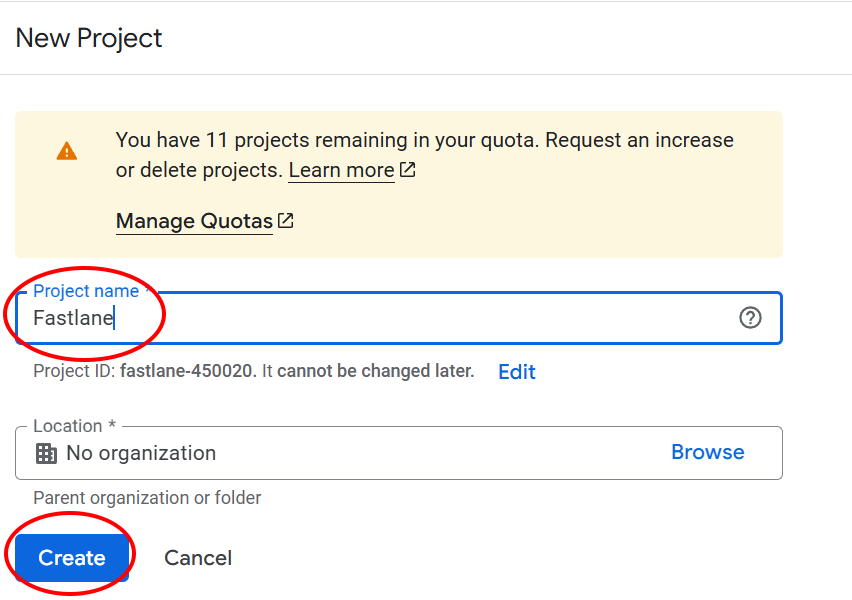
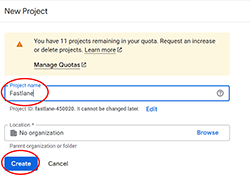
1. Create a [Google Cloud Project](https://console.cloud.google.com/projectcreate) (or use an existing one). Give it a name and click create ([more info](https://cloud.google.com/resource-manager/docs/creating-managing-projects)).
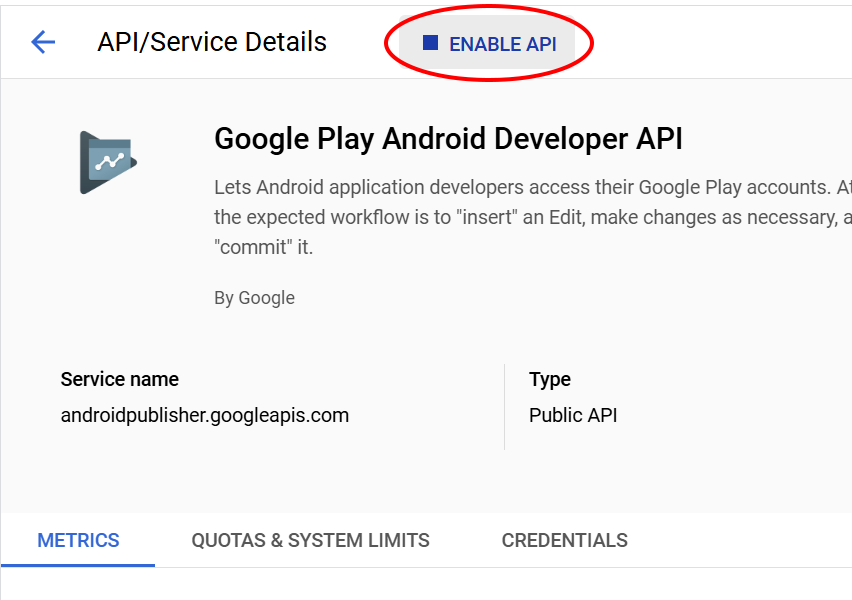
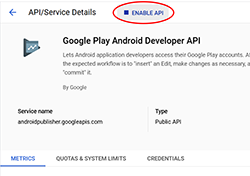
2. Enable the [Google Play Developer API](https://console.developers.google.com/apis/api/androidpublisher.googleapis.com/?hl=en) by clicking the **Enable API** button for your newly created project.
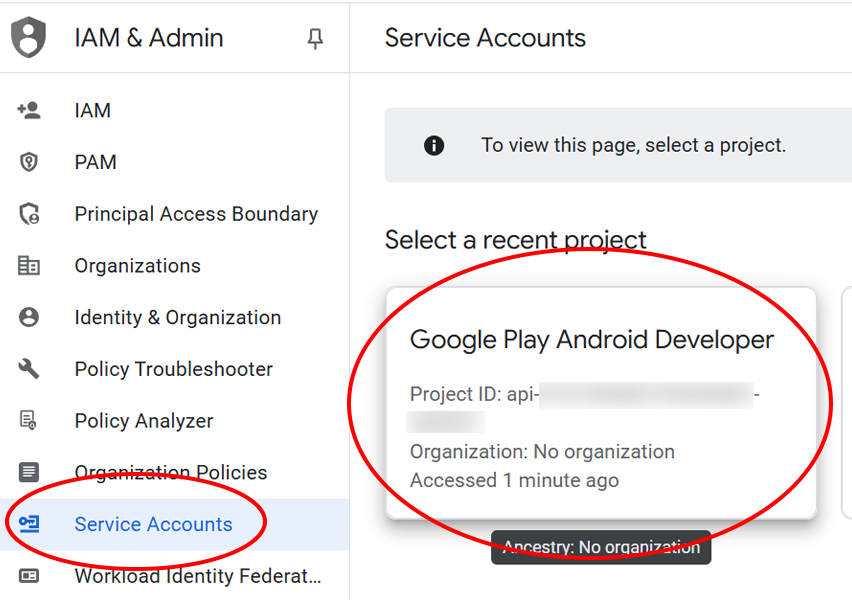
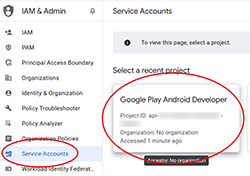
3. Open [Service Accounts](https://console.cloud.google.com/iam-admin/serviceaccounts?hl=en) on Google Cloud and select your project.
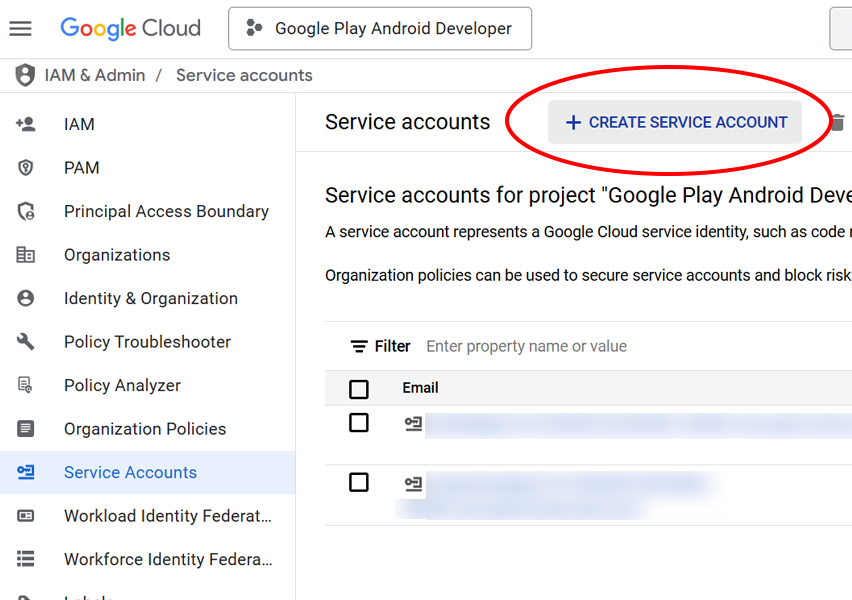
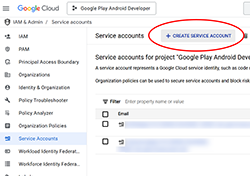
4. Create a new **Service Account** by clicking the create button.
5
6
7
8
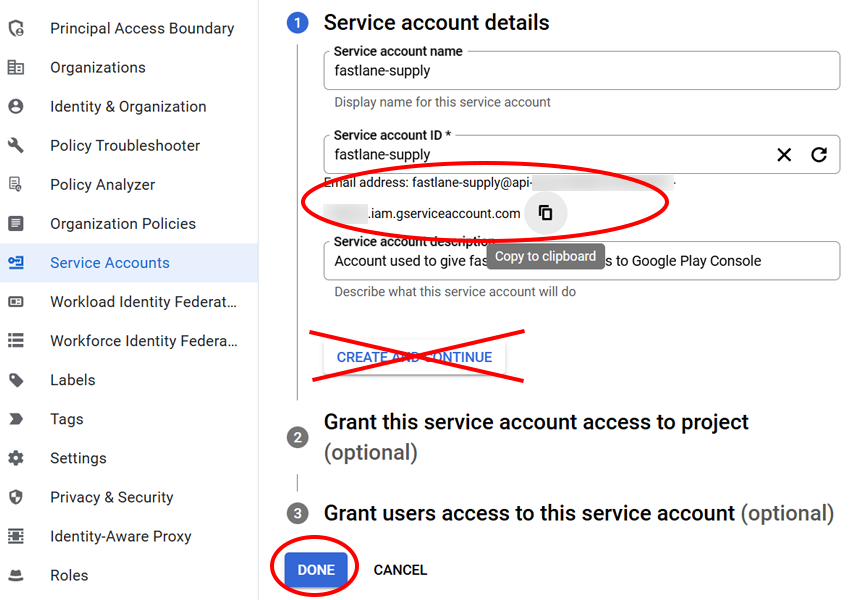
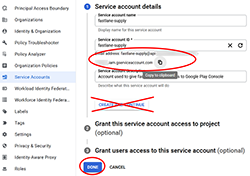
5. Give it a name and ID, copy the resulting **Email address** (we will need it later). Click on **Done**, *NOT* ~Create and Continue~.
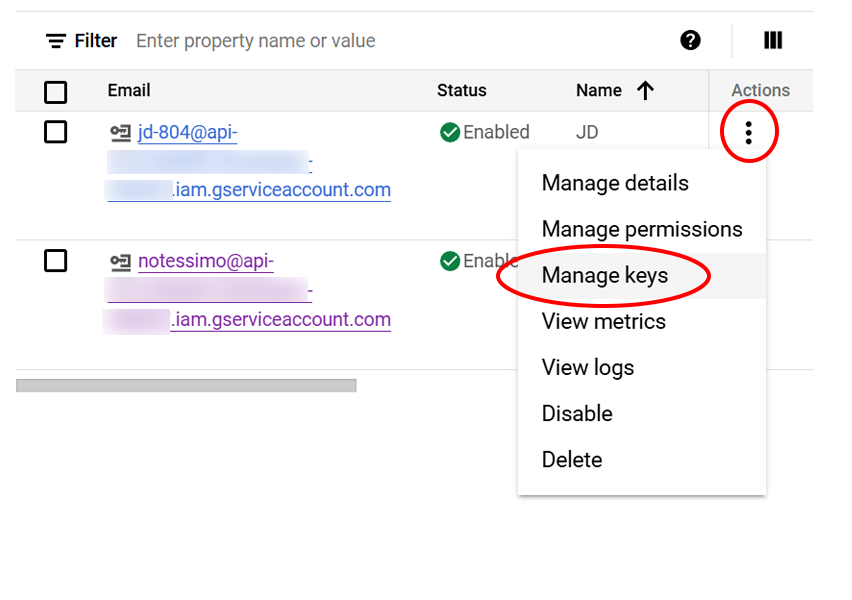
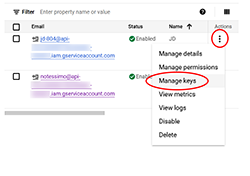
6. Click on the vertical **three-dot icon** (under **Actions**) of your newly created account, and select **Manage keys**.
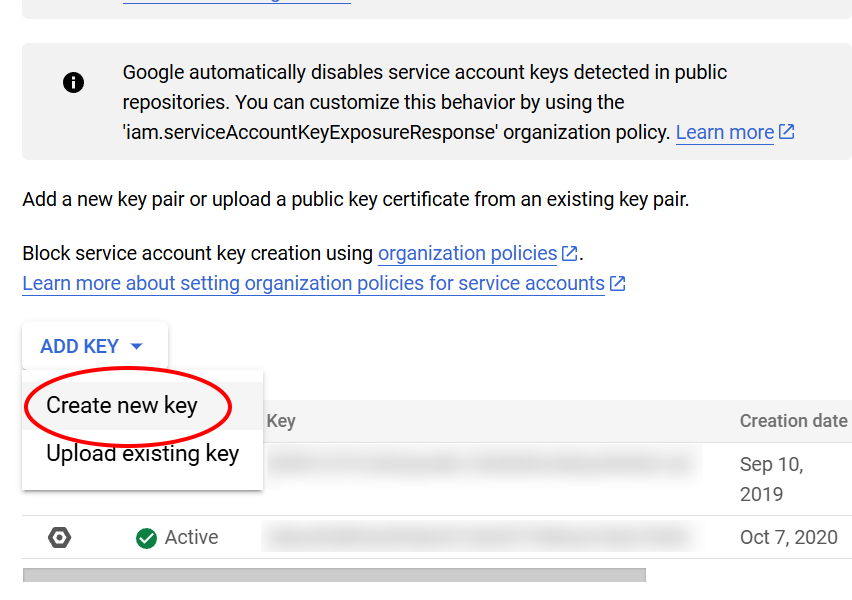
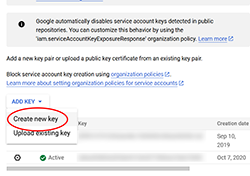
7. Click on **Add key** and select **Create new key**.
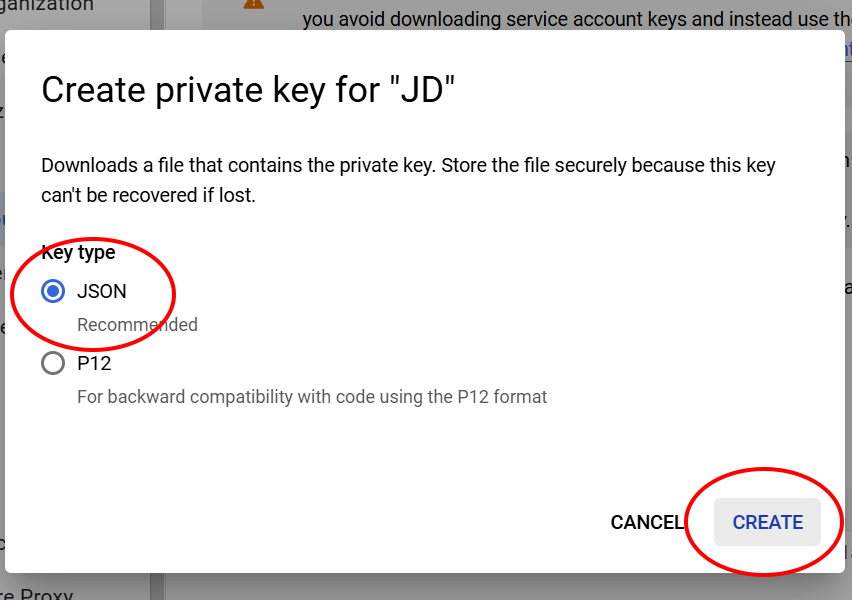
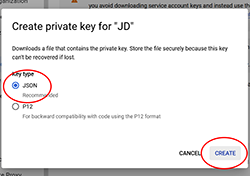
8. Make sure to select **JSON**, click **Create** and save the file on your computer.
## Invite Service Account to Google Play Console
1
2
3
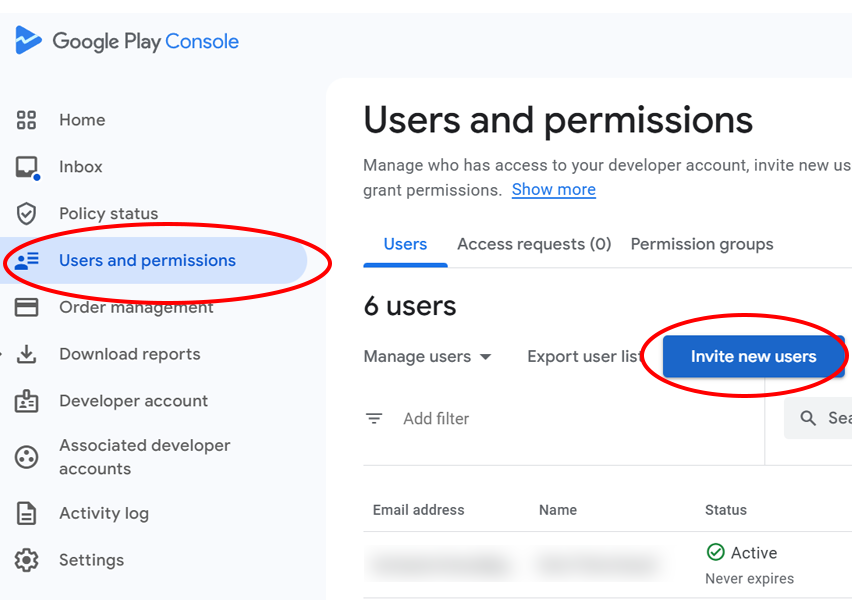
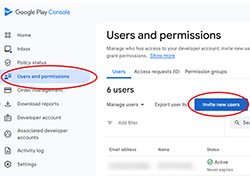
1. Open the [Google Play Console](https://play.google.com/console/?hl=en) and select **Users and Permissions**. Click **Invite new users**.
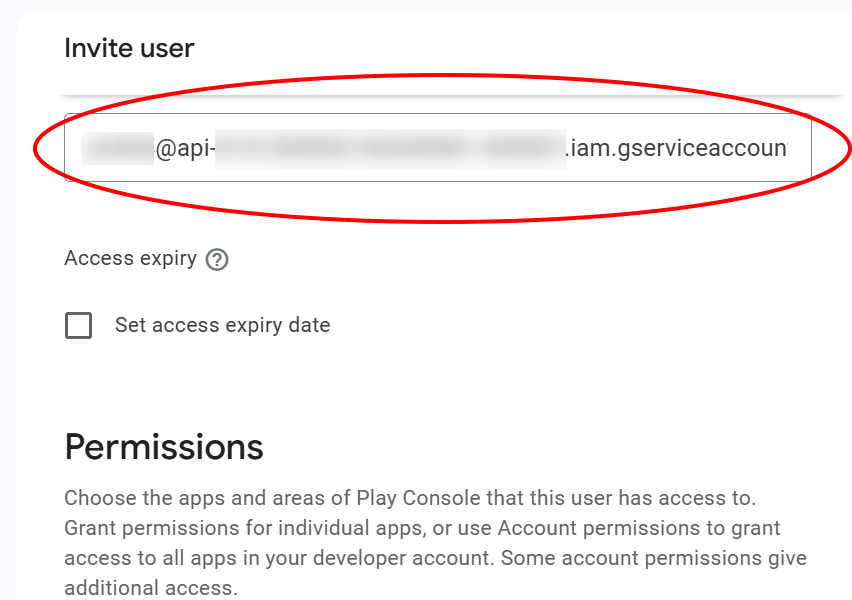
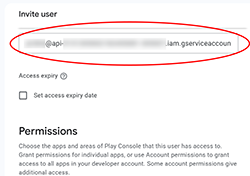
2. Paste the **email address** of the **Service Account** you saved for later (`xxxx@yyyy.iam.gserviceaccount.com`).
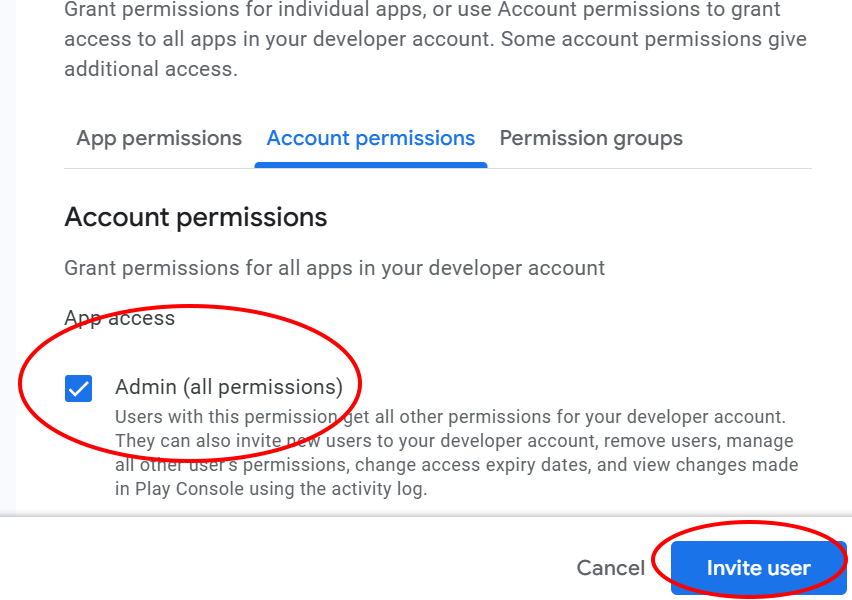
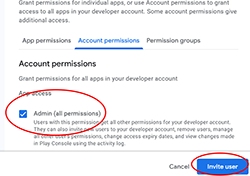
3. Choose the permissions: **Admin (all permissions)**. Click on **Invite User**.
## Test your JSON file
We can now test that the connection is valid using your **JSON file** by running this command:
```sh
bundle exec fastlane run validate_play_store_json_key json_key:/path/to/your/downloaded/file.json
```
Look for `Successfully established connection to Google Play Store`.
## Generate a Personal Access Token (PAT)
1
2
We also need to generate a **Personal Access Token** for Github.
This will enables us to increment a build number after each build.
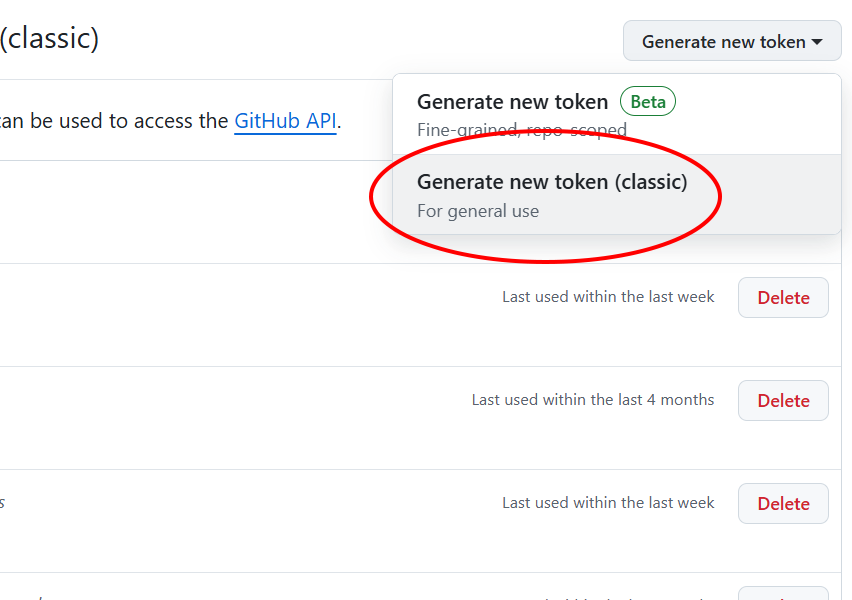
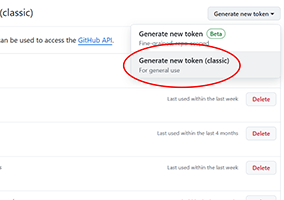
1. Visit your [settings page](https://github.com/settings/tokens) and click on **Generate new token** and select **Generate new token (classic)**.
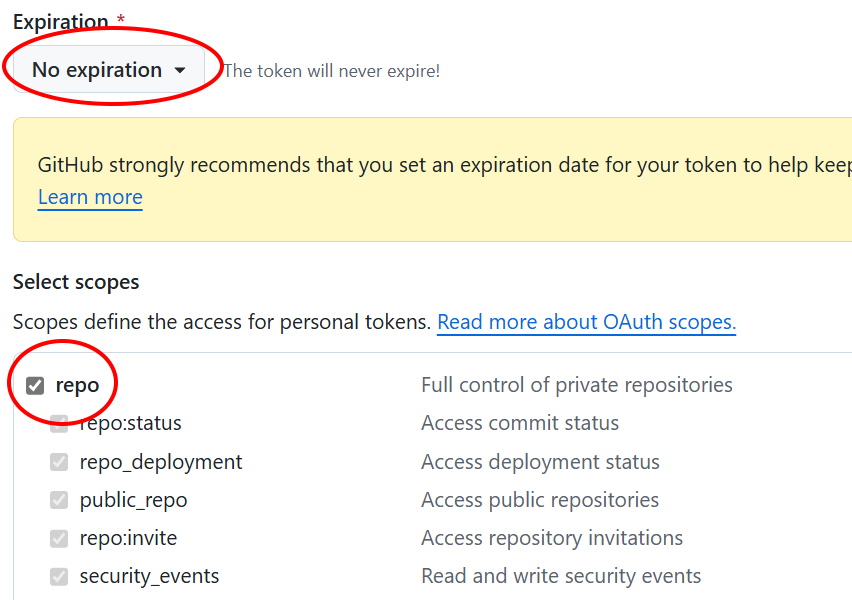
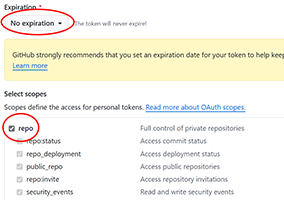
2. We need all the **repo** scope enabled. Set **no expiration**. Click **Generate token** and save the value.
### Save secrets
Save this secret in the github repository for your project:
- `GH_PAT`: The value of your newly generated token
## Generate an upload key and keystore
You can generate your key using [Android Studio](https://developer.android.com/studio/publish/app-signing#generate-key), but here's how you can do it on the command line using [keytool](https://docs.oracle.com/javase/7/docs/technotes/tools/solaris/keytool.html) (available in your JDK's bin folder):
```sh
keytool -genkey -v -keystore .keystore -keyalg RSA -keysize 2048 -validity 10000
```
You'll be prompt to add some information, keep notes of the **password** (use the same for both) and the **alias**.
For ease of use afterward, we'll save the keystore as **base64** and save it as a secret in our repository.
```sh
base64 .keystore
```
I've also created a [Github Action](https://github.com/starburst997/keystore-gh-actions) that you can run in this repository called: **Generate .keystore** ([.yml](https://github.com/starburst997/android-code-sign/blob/main/.github/workflows/keystore.yml)). You need to set the secrets: `ANDROID_KEYSTORE_PASS` and `ANDROID_KEYALIAS_PASS` first since there is no way to input password string in Github Action yet. Makes sure you added the `GH_PAT` secret as well.
The action will add the `ANDROID_KEYALIAS_NAME` and `ANDROID_KEYSTORE_BASE64` secrets once done.
Either the PKCS12 or JKS variant will works.
## Save secrets
We can now add all the necessary secrets to our repository:
- `GOOGLE_PLAY_KEY_FILE`: The **JSON** file content from the **Service Account**.
- `ANDROID_KEYALIAS_NAME`: The **alias** used for the **.keystore**.
- `ANDROID_KEYSTORE_PASS`: The **password** used for the **.keystore**.
- `ANDROID_KEYALIAS_PASS`: The **password** used for the **.keystore** (same as above).
- `ANDROID_KEYSTORE_BASE64`: The **base64** value of the **.keystore** file.
- `ANDROID_PACKAGE_NAME`: The package name of your app.
*(Save those variables inside a Password Manager for re-use in future projects, except for the package name, they won't change)*
## Build .aab
Before you can upload your app via [fastlane](https://docs.fastlane.tools/actions/supply/), you need to manually submit your app once (see [fastlane/fastlane#14686](https://github.com/fastlane/fastlane/issues/14686)).
The [android folder](https://github.com/starburst997/android-code-sign/tree/main/android) contains a simple "Hello World" project.
1
2
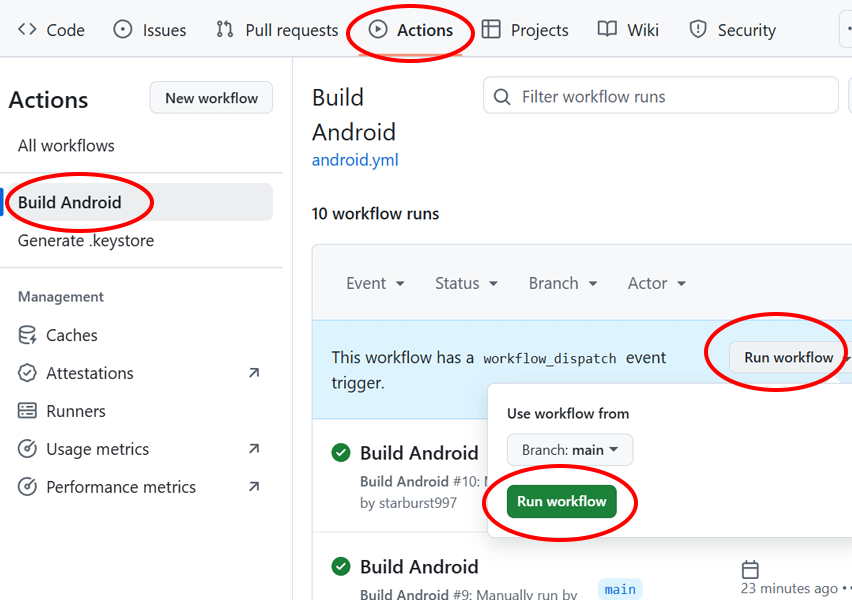
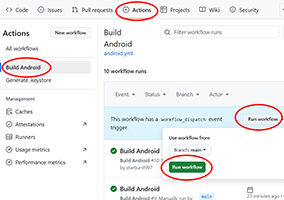
1. **Build** your app using the Github Action (**Build Android**). Go to the **Actions** tab and click **Run Workflow**.
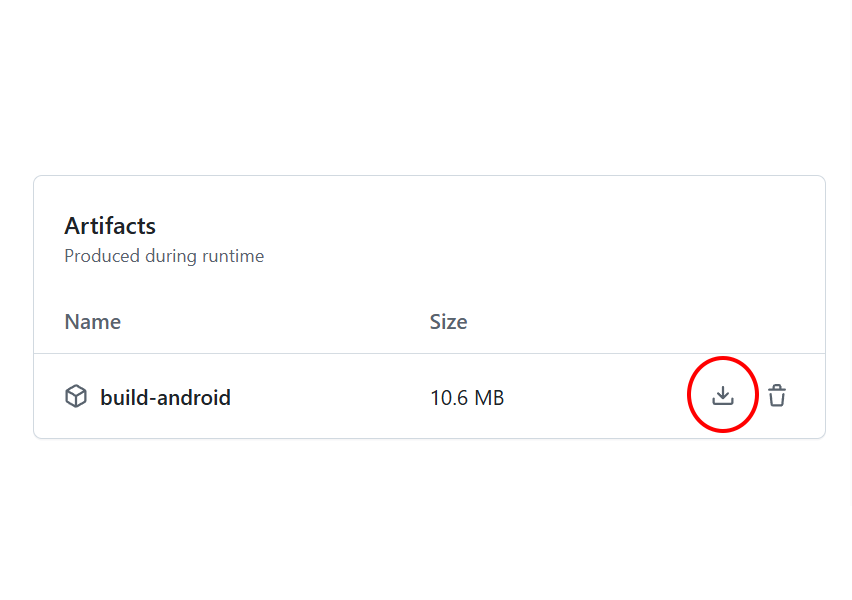
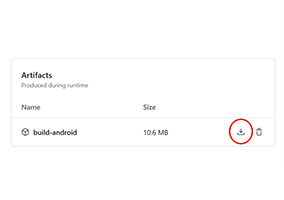
2. **Download** the artifact once the action is done.
## Create app in Google Play Console
1
2
3
4
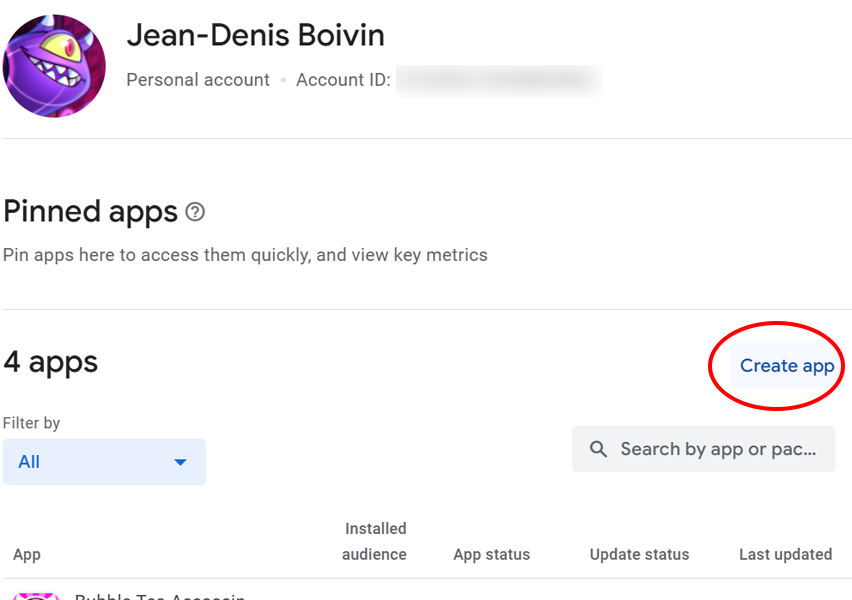
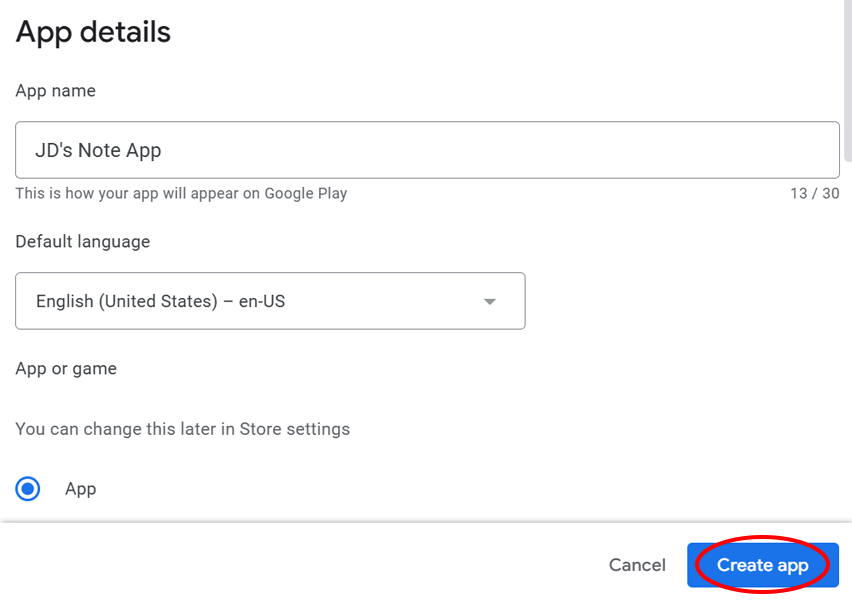
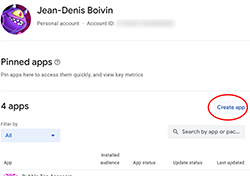
1. Open the [Google Play Console](https://play.google.com/console/?hl=en) and click **Create app**.
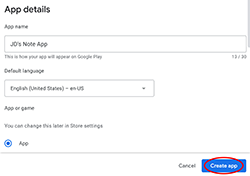
2. Fill out the form and click **Create app**.
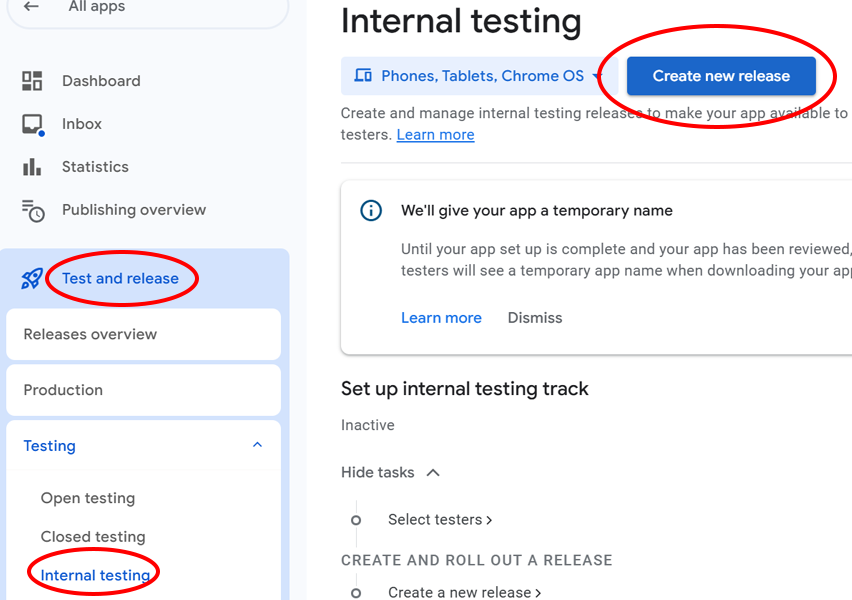
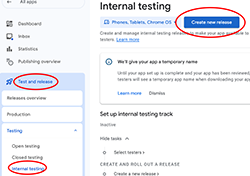
3. In the **Test and release** section, select **testing** and then **Internal testing**.Click **Create new release**.
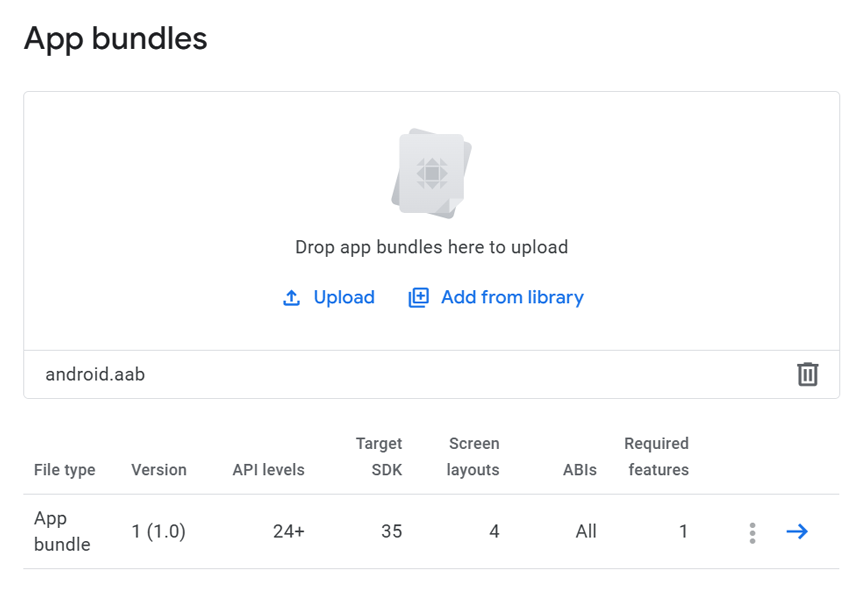
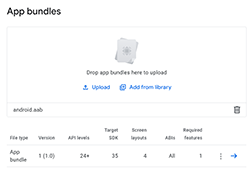
4. Drag and drop your **.aab**, enter release name and notes. Click **Save and publish**
## Create Fastfiles
#### fastlane/Appfile
```ruby
for_platform :android do
package_name(ENV["ANDROID_PACKAGE_NAME"])
json_key_file(ENV["GOOGLE_PLAY_KEY_FILE_PATH"])
end
```
#### fastlane/Fastfile
```ruby
org, repo = (ENV["GITHUB_REPOSITORY"]||"").split("/")
match_org, match_repo = (ENV["MATCH_REPOSITORY"]||"").split("/")
platform :android do
desc "Upload a new Android version to the production Google Play Store"
lane :production do
upload_to_play_store(track: 'production', release_status: 'completed', aab: "#{ENV['ANDROID_BUILD_FILE_PATH']}")
end
desc "Upload a new Android internal version to Google Play"
lane :internal do
upload_to_play_store(track: 'internal', release_status: 'completed', aab: "#{ENV['ANDROID_BUILD_FILE_PATH']}")
end
end
```
## Create workflows
By using `workflow_call` we can simplify the workflow file by referencing an external one, but feel free to copy the original instead to fit your pipeline better.
Save those inside the `.github/workflows` directory of your repository.
#### android.yml ([original](https://github.com/starburst997/android-code-sign/blob/v1/.github/workflows/android.yml))
```yml
name: Build Android
on:
workflow_dispatch:
workflow_call:
jobs:
build:
uses: starburst997/android-code-sign/.github/workflows/android.yml@v1
secrets: inherit
with:
path: 'android'
module: 'app'
version: '1.0'
```
#### publish_android.yml ([original](https://github.com/starburst997/android-code-sign/blob/v1/.github/workflows/publish_android.yml))
```yml
name: Publish Android
on:
workflow_dispatch:
jobs:
build:
uses: ./.github/workflows/android.yml
secrets: inherit
publish:
uses: starburst997/android-code-sign/.github/workflows/publish_android.yml@v1
needs: [build]
secrets: inherit
with:
lane: 'internal'
```
Notice that we need to specify the project's path, module and version.
## Publish an update
Now you can call the **Publish Android** action and you should see a new build appears in your internal test lane.
Makes sure your app has been **reviewed** by filling all the necessary steps in [Google Play Console](https://play.google.com/console/?hl=en), otherwise you'll get an error: `Only releases with status draft may be created on draft app.`
The workflow will also automatically increment the build number and save it as a variable in the repository.
I've also included a [release workflow](https://github.com/starburst997/android-code-sign/blob/main/.github/workflows/release.yml) as an example.
Code-signing / distributing app series:
- Part 1: [Code Signing for Windows as an Individual Developer](https://github.com/starburst997/windows-code-sign)
- Part 2: [Code Signing for Apple without a mac](https://github.com/starburst997/apple-code-sign)
- Part 3: [Code Signing for Android via Github Actions](https://github.com/starburst997/android-code-sign)
- Part 4: [Build and publish your Unity Game using Github Actions](https://github.com/starburst997/windows-code-sign)