https://github.com/starburst997/apple-code-sign
Code Signing for macOS as an Individual Developer without a mac
https://github.com/starburst997/apple-code-sign
appstore appstoreconnect code-sign code-signing codesign codesigning tutorial
Last synced: 6 months ago
JSON representation
Code Signing for macOS as an Individual Developer without a mac
- Host: GitHub
- URL: https://github.com/starburst997/apple-code-sign
- Owner: starburst997
- License: mit
- Created: 2025-02-02T16:35:53.000Z (over 1 year ago)
- Default Branch: main
- Last Pushed: 2025-02-03T16:09:07.000Z (over 1 year ago)
- Last Synced: 2025-02-03T16:23:55.153Z (over 1 year ago)
- Topics: appstore, appstoreconnect, code-sign, code-signing, codesign, codesigning, tutorial
- Language: Objective-C
- Homepage:
- Size: 106 KB
- Stars: 0
- Watchers: 1
- Forks: 0
- Open Issues: 0
-
Metadata Files:
- Readme: README.md
Awesome Lists containing this project
README
# apple-code-sign
Sample project to code-sign and publish an iOS and macOS app without owning a mac*.
*\*(we'll use a mac BUT inside Github Action)*
The following text is a copy of my blog post: [**Code Signing for Apple without a mac**](https://jd.boiv.in/post/2025/02/02/code-signing-apple.html).
**TL;DR**: By using [fastlane match](https://docs.fastlane.tools/actions/match/) and [Github Action](https://github.com/features/actions) we can compile and publish a code-signed iOS / macOS app without ever using a mac in person.
*(Part two of my series on code-signing / distributing apps, check [Part 1 on Windows](https://github.com/starburst997/windows-code-sign))*
## Enroll in the Apple Developer Program
Before you jump in, you need to enroll in the [Apple Developer Program](https://developer.apple.com/programs/enroll/) which is about $99 per year.
## Create Github Repository
Create a Github Repository for your project. Feel free to use this repository as a template since it already contains all the workflows files.
## Installing fastlane
We need to install [fastlane](https://fastlane.tools/) locally on our machine, first makes sure you have [ruby](https://www.ruby-lang.org/en/documentation/installation/#rubyinstaller) installed (personally I prefer via [WSL2](https://learn.microsoft.com/en-us/windows/wsl/install)).
Also you need to makes sure [Bundler](https://bundler.io/) is installed:
```console
gem install bundler
```
Now create a file called `Gemfile` in the root:
```ruby
source "https://rubygems.org"
gem "fastlane"
gem 'fastlane-plugin-github_action', git: "https://github.com/starburst997/fastlane-plugin-github_action"
```
Notice that we're using my fork of [joshdholtz/fastlane-plugin-github_action](https://github.com/starburst997/fastlane-plugin-github_action), this is because the published gem is out of date and also because there was an issue preventing us to re-use the same repository for `fastlane match` again for other projects.
Now run:
```console
bundle install
```
## Create app in App Store Connect
1
2
3
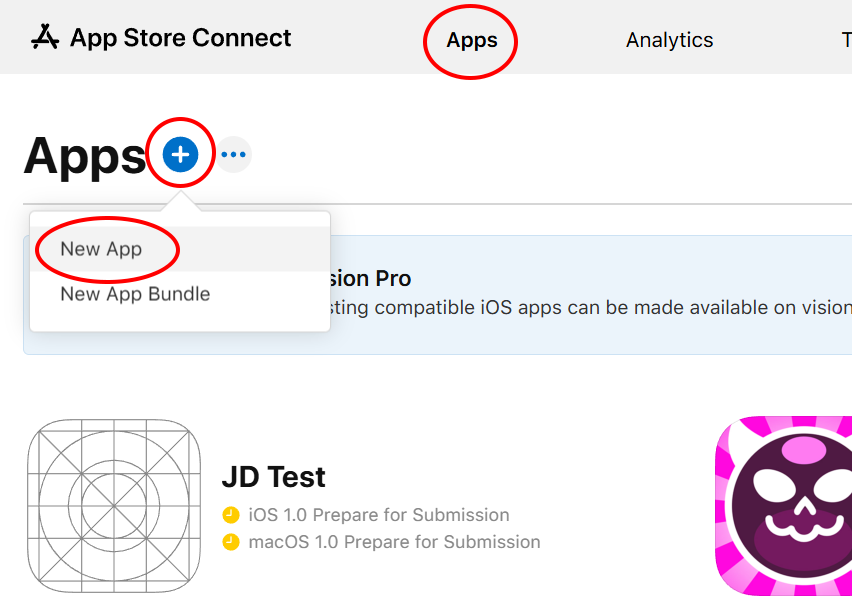
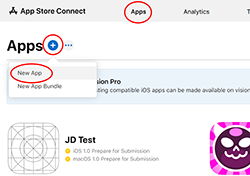
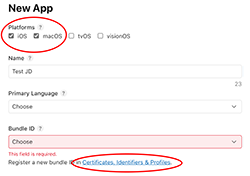
1. Register your app in [App Store Connect](https://appstoreconnect.apple.com/apps), click on the **(+)** button and select **New App**. You might create a single app for both platforms.
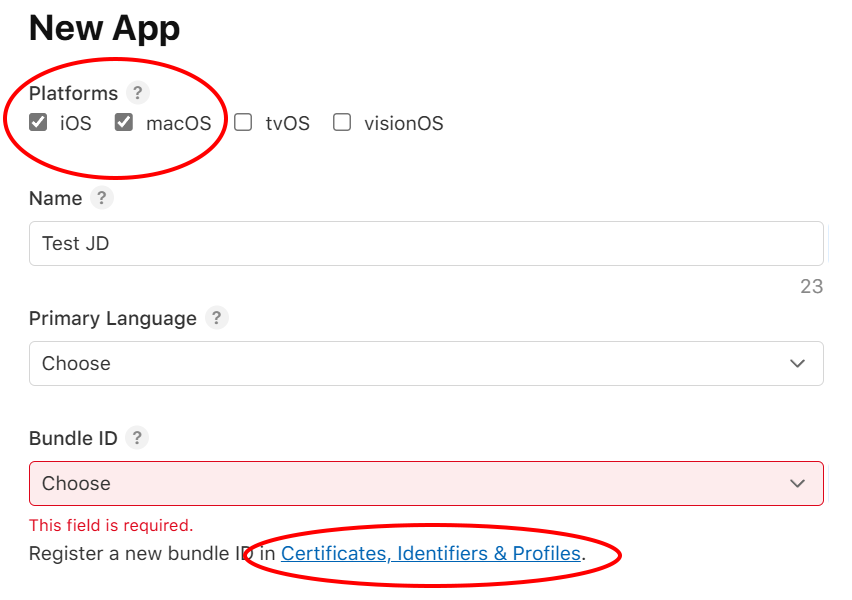
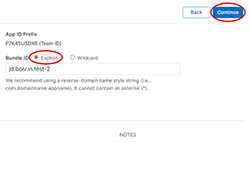
2. You'll be asked to pick a **Bundle ID** which can be created in the **Apple Developer** website under the [Certificates, Identifiers & Profiles](https://developer.apple.com/account/resources/identifiers/bundleId/add/bundle) section.
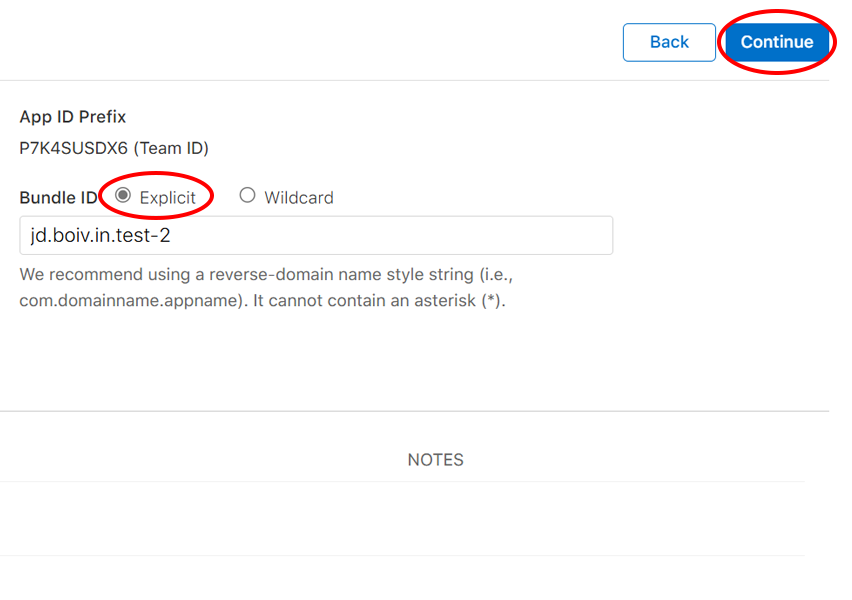
3. Remember it's value and pick the **Explicit** option.
### Save secrets
Save these 2 secrets in the github repository for your project (both equals if you registered only one app):
- `IOS_BUNDLE_ID`: The iOS bundle ID
- `MAC_BUNDLE_ID`: The macOS bundle ID
## Generate App Store Connect API Key
1
2
App Store Connect API Key is the recomended way to sign in using fastlane.
However if you want to also sign macOS app for individual distribution on your website, you will need to use the standard username / password procedure, this is because it requires the **Account Holder** permission to do so which is not (yet) possible with API Key. We'll discuss that in the next steps.
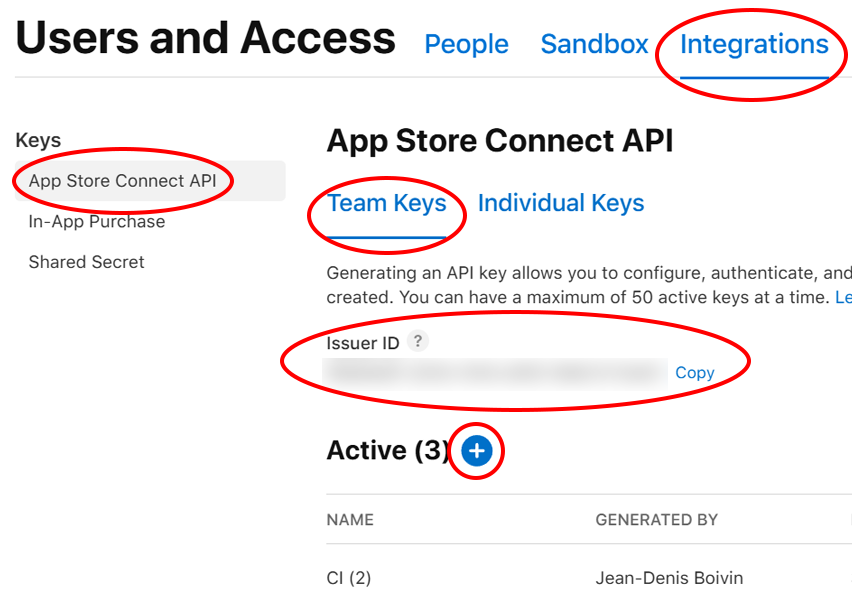
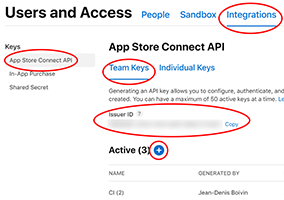
1. Go to your [Users and Access](https://appstoreconnect.apple.com/access/integrations/api) page on [App Store Connect](https://appstoreconnect.apple.com/). Go to the **Integrations** tab and makes sure to select the section **App Store Connect API** on the left side panel and the **Team Keys** tab.
Takes note of the **Issuer ID** value.
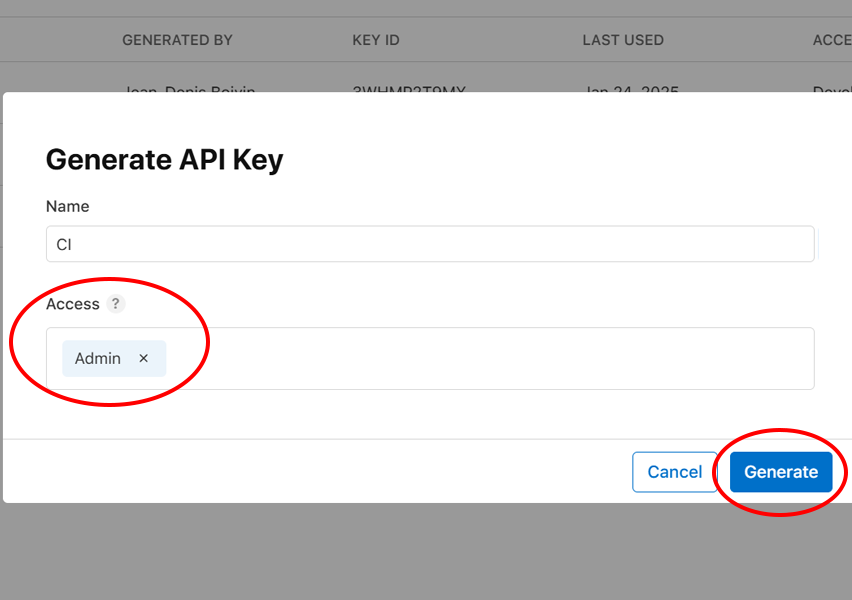
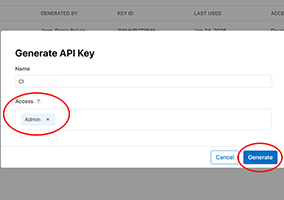
2. Create a new Key by clicking the **(+)** button, give it a name and select the **Admin** access.
Takes note of the **Key ID** and download the generated **P8 file** (open the file in a text editor, we will save the entire value inside a secret).
*(Sadly, **Individual Keys** won't work since they are not fully compatible yet with **match** / **sigh** but that might change in the future)*
### Save secrets
Save these 3 secrets in the github repository for your project:
- `APPSTORE_ISSUER_ID`: The **Issuer ID** from above
- `APPSTORE_KEY_ID`: The **Key ID** from your generated API Key
- `APPSTORE_P8`: The text content of the downloaded **P8 file**
## Generate Session token
This step is necessary if you need the `developer_id` certificate to sign ".app" for individual distribution. Technically, if we use that route, we could skip the **API Key** step as well but these can still be useful, so I recommend doing both steps.
Since Apple requires 2FA, saving the username / password in secrets is not enough, thankfully we can generate a **Session Token** (valid only for a short time) that we really only need once to save the certificate in the match repository (and in the future when that certificate expires).
Takes note of both your Apple ID **username** and **password**.
Generate a **Session Token** using [fastlane spaceauth](https://docs.fastlane.tools/getting-started/ios/authentication/):
```console
fastlane spaceauth -u YOUR_USERNAME
```
Copy *(right-click in most terminal)* the generated value (without the `export FASTLANE_SESSION=` prefix).
### Save secrets
Save these 3 secrets in the github repository for your project:
- `FASTLANE_USER`: Your Apple ID username
- `FASTLANE_PASSWORD`: Your Apple ID password
- `FASTLANE_SESSION`: The value of `fastlane spaceauth`
## Create the fastlane match repository
The `fastlane match` command can save all of your Apple certificates / profiles inside a private git repository for convenience and use in a CI environment.
Create a new empty **PRIVATE** github repository (any name you want).
### Save secrets
Save these 2 secrets in the github repository for your **project** (not the newly created one for match):
- `MATCH_REPOSITORY`: Your newly created private repo (ex: `starburst997/fastlane-match`)
- `MATCH_PASSWORD`: A unique password of your choice (save it in your password manager for re-use in other projects)
## Generate a Personal Access Token (PAT)
1
2
We also need to generate a **Personal Access Token** for Github.
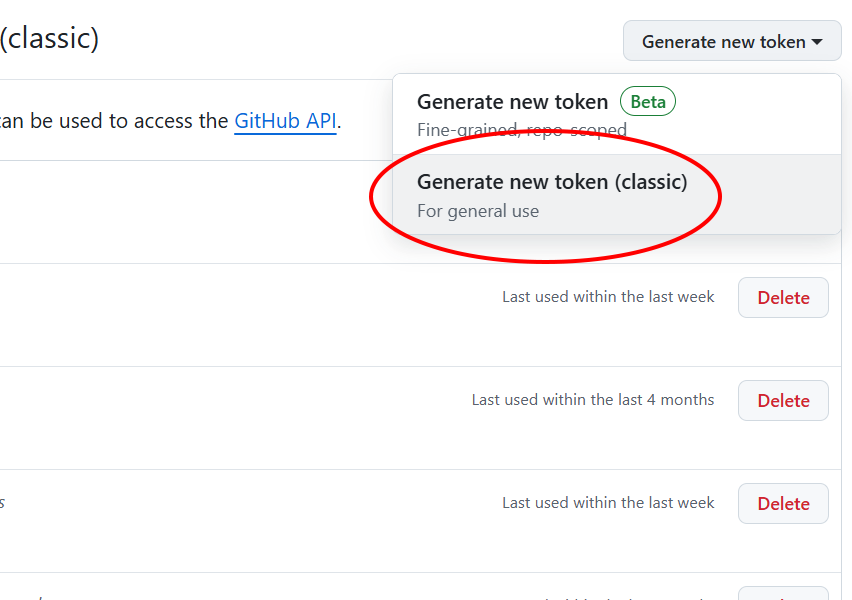
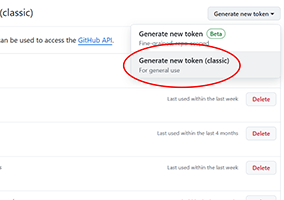
1. Visit your [settings page](https://github.com/settings/tokens) and click on **Generate new token** and select **Generate new token (classic)**.
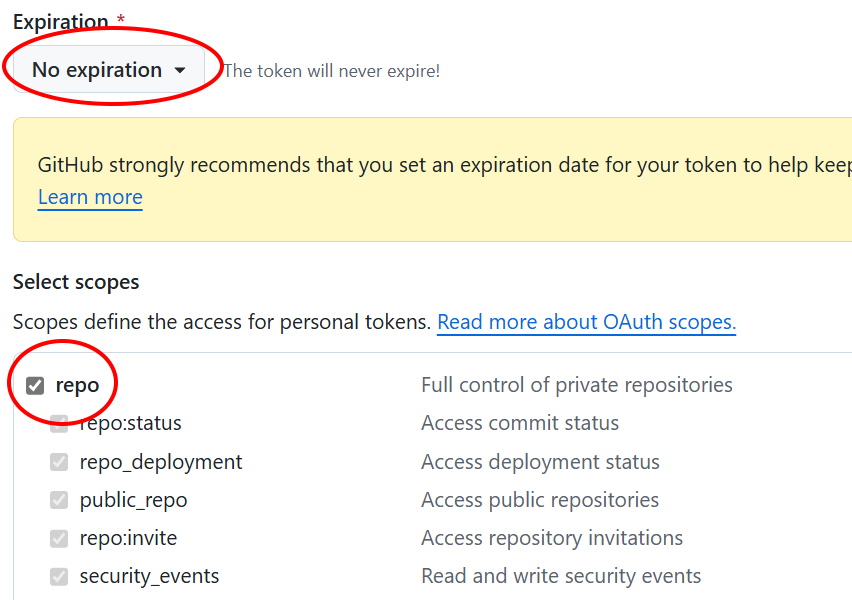
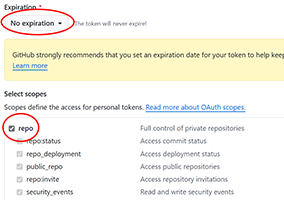
2. We need all the **repo** scope enabled. Set **no expiration**. Click **Generate token** and save the value.
### Save secrets
Save this secret in the github repository for your project:
- `GH_PAT`: The value of your newly generated token
## Additionals secrets
Also add these 3 secrets to your github repository:
- `APPLE_DEVELOPER_EMAIL`: Your Apple ID
- `APPLE_CONNECT_EMAIL`: Apple Connect email (same as above if using a single shared developer)
- `APPLE_TEAM_ID`: Team Id from your [Apple Developer Account - Membership Details](https://developer.apple.com/account/#/membership/)
## Secrets reviews
Makes sure you have all of these 14 secrets in your github repository:
- `IOS_BUNDLE_ID`
- `MAC_BUNDLE_ID`
- `APPSTORE_ISSUER_ID`
- `APPSTORE_KEY_ID`
- `APPSTORE_P8`
- `FASTLANE_USER`
- `FASTLANE_PASSWORD`
- `FASTLANE_SESSION`
- `MATCH_REPOSITORY`
- `MATCH_PASSWORD`
- `GH_PAT`
- `APPLE_DEVELOPER_EMAIL`
- `APPLE_CONNECT_EMAIL`
- `APPLE_TEAM_ID`
*(Save those variables inside a Password Manager for re-use in future projects, except for the bundle ids, they won't change)*
## Create Fastfiles
By using `import_from_git` we can reference external *Fastfile* files, but feel free to copy the original instead to fit your pipeline better.
#### fastlane/Appfile
```ruby
for_platform :ios do
apple_dev_portal_id(ENV['APPLE_DEVELOPER_EMAIL'])
itunes_connect_id(ENV['APPLE_CONNECT_EMAIL'])
team_id(ENV['APPLE_TEAM_ID'])
itc_team_id(ENV['APPLE_TEAM_ID'])
app_identifier(ENV['IOS_BUNDLE_ID'])
end
for_platform :mac do
apple_dev_portal_id(ENV['APPLE_DEVELOPER_EMAIL'])
itunes_connect_id(ENV['APPLE_CONNECT_EMAIL'])
team_id(ENV['APPLE_TEAM_ID'])
itc_team_id(ENV['APPLE_TEAM_ID'])
app_identifier(ENV['MAC_BUNDLE_ID'])
end
```
#### fastlane/Fastfile ([iOS](https://github.com/starburst997/apple-code-sign/blob/v1/fastlane/iOS/Fastfile) / [macOS](https://github.com/starburst997/apple-code-sign/blob/v1/fastlane/macOS/Fastfile))
```ruby
import_from_git(
url: "https://github.com/starburst997/apple-code-sign.git",
branch: "v1",
path: "fastlane/iOS/Fastfile"
)
import_from_git(
url: "https://github.com/starburst997/apple-code-sign.git",
branch: "v1",
path: "fastlane/macOS/Fastfile"
)
```
## Create workflows
By using `workflow_call` we can simplify the workflow file by referencing an external one, but feel free to copy the original instead to fit your pipeline better.
Save those inside the `.github/workflows` directory of your repository.
#### apple_setup.yml ([original](https://github.com/starburst997/apple-code-sign/blob/v1/.github/workflows/apple_setup.yml))
```yml
name: Apple Setup
on: workflow_dispatch
jobs:
setup:
uses: starburst997/apple-code-sign/.github/workflows/apple_setup.yml@v1
secrets: inherit
with:
generate_macos: true
generate_ios: true
generate_appstore: true
generate_developer_id: true
use_session: true
```
#### ios.yml ([original](https://github.com/starburst997/apple-code-sign/blob/v1/.github/workflows/ios.yml))
```yml
name: Build iOS
on:
workflow_dispatch:
jobs:
build:
uses: starburst997/apple-code-sign/.github/workflows/ios.yml@v1
secrets: inherit
with:
project_path: iOS
xcodeproj_path: Test.xcodeproj
plist_path: Test/Info.plist
project_target: Test
version: "2025.1"
artifact: false
```
#### macos.yml ([original](https://github.com/starburst997/apple-code-sign/blob/v1/.github/workflows/macos.yml))
```yml
name: Build MacOS
on:
workflow_dispatch:
jobs:
build:
uses: starburst997/apple-code-sign/.github/workflows/macos.yml@v1
secrets: inherit
with:
project_path: macOS
xcodeproj_path: Test.xcodeproj
plist_path: Test/Info.plist
project_target: Test
version: "2025.1"
artifact: true
generate_appstore: true
generate_developer_id: true
generate_dmg: true
```
Notice that we need to specify the project's path, target, plist and version.
If you want to upload the artifact to use in your workflow (ex; upload to S3 afterward), set `artifact: true`. The artifact name for iOS is `build-ios` and for macOS is `build-macos`.
## Initialize fastlane match
Go into the **Actions** tab of your project's github repository and run the action **Apple Setup** (disable `use_session` if you want to use **API Key**).
Notice that your match repository will now be populated with the certificates and profiles for your app, it will also save the deploy key as a secret inside your repo.
In the future (in a year), you might want to run again to renew any expired certificates. The **Developer ID Application** will need to be renewed in ~5 year.
## Build and Distribute App
Now you can manually run the action **Build iOS** and **Build Mac** to build your app and have it uploaded to Testflight. If you're satisfied with your builds, you can then use those to publish on the AppStore inside App Store Connect.
The workflow will also automatically increment the build number and save it as a variable in the repository.
I've also included a [release workflow](https://github.com/starburst997/apple-code-sign/blob/main/.github/workflows/release.yml) as an example.
The macOS builds also includes an optional **.dmg** and **.app.zip** ready to be hosted, both are [notarized and stapled](https://developer.apple.com/documentation/security/notarizing-macos-software-before-distribution).