https://github.com/starburst997/windows-code-sign
Code Signing for Windows as an Individual Developer
https://github.com/starburst997/windows-code-sign
azure code-sign code-signing codesign codesigning trusted-signing tutorial
Last synced: 2 months ago
JSON representation
Code Signing for Windows as an Individual Developer
- Host: GitHub
- URL: https://github.com/starburst997/windows-code-sign
- Owner: starburst997
- License: mit
- Created: 2025-01-29T18:52:21.000Z (over 1 year ago)
- Default Branch: main
- Last Pushed: 2025-02-20T16:20:01.000Z (over 1 year ago)
- Last Synced: 2025-10-10T09:52:17.966Z (9 months ago)
- Topics: azure, code-sign, code-signing, codesign, codesigning, trusted-signing, tutorial
- Language: C++
- Homepage: https://jd.boiv.in/post/2025/01/29/code-signing.html
- Size: 123 KB
- Stars: 2
- Watchers: 1
- Forks: 0
- Open Issues: 0
-
Metadata Files:
- Readme: README.md
- License: LICENSE
Awesome Lists containing this project
README
# windows-code-sign
Testing code signing with a simple C++ app via Github Action and Azure's [Trusted Signing](https://techcommunity.microsoft.com/blog/microsoft-security-blog/trusted-signing-is-now-open-for-individual-developers-to-sign-up-in-public-previ/4273554) .
The following text is a copy of my blog post: [**Code Signing for Windows as an Individual Developer**](https://jd.boiv.in/post/2025/01/29/code-signing.html).
*(**TL;DR**: Get code signing working for Windows with immediate SmartScreen reputation via Github Action, check this repository to see how simple it can get once everything is setup)*
*(Part one of my series on code-signing / distributing apps, check [Part 2 on Apple](https://github.com/starburst997/apple-code-sign))*
## Introduction
For the longest time, code signing on Windows required to buy certificates from rather sketchy companies ([Sectigo](https://www.sectigo.com/) / [DigiCert](https://www.digicert.com/) / etc...). This also required quite a lengthy process with terrible customer services to get verified (requiring in some case to [hire a Lawer or CA](https://www.sectigo.com/knowledge-base/detail/OV-Code-Signing-Validation-for-Organizations-and-Individuals/kA01N000000brb0)), exorbitant prices (500$+ / year) and the use of primitive technologies (forcing to [use internet explorer](https://signmycode.com/resources/generate-code-signing-certificate-using-internet-explorer-mode-in-microsoft-edge) to generate the private key).
Finally, [Microsoft recently launched](https://techcommunity.microsoft.com/blog/microsoft-security-blog/trusted-signing-is-now-open-for-individual-developers-to-sign-up-in-public-previ/4273554) a service under [Azure](https://en.wikipedia.org/wiki/Microsoft_Azure) to help ease this process and get ready in just a few minutes with a relatively affordable price and easy verification for Individual Developer.
*(this post is not sponsored, I was just quite relieved to see there was finally a viable solution)*
## What is Code Signing
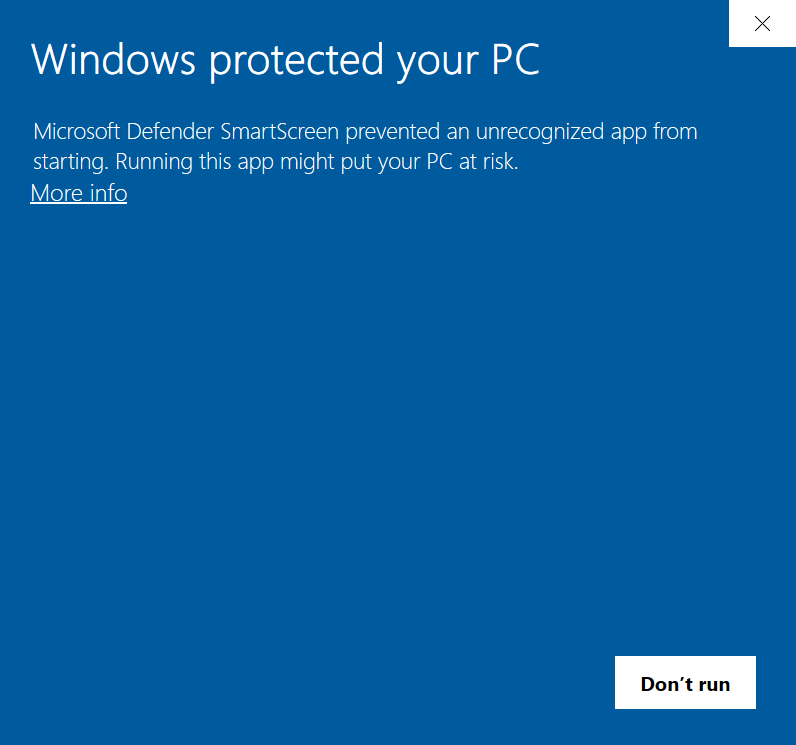
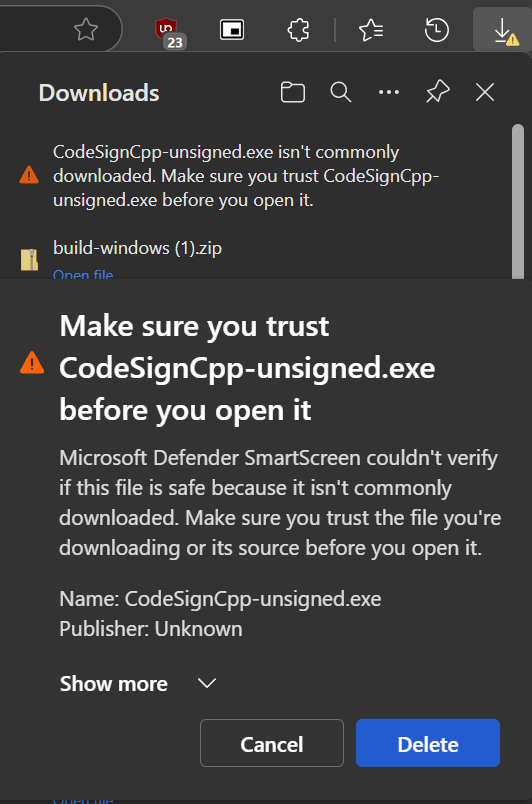
Ever saw a [scary warning](https://en.wikipedia.org/wiki/Microsoft_SmartScreen) while downloading a EXE?
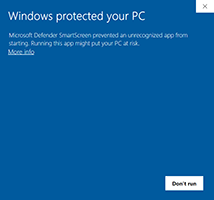
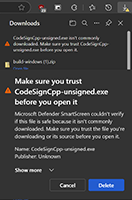
This is because the application is **NOT** code signed. This is an awful experience for anyone trying to download something and as a developer, is gut wrenching to feel powerless to remove this barrier without caving in to the Certificates Mafia Monopoly.
*(to be fair, if your app gets enough downloads, at some unknown point in times, [Microsoft will remove this warning](https://stackoverflow.com/a/66582477) but nothing is certains)*
[Code Signing](https://en.wikipedia.org/wiki/Code_signing) is a great practice and ensure that the EXE hasn't been tampered with and comes from the developer who built it by using a cryptographic hash. If a code signed application is found to have malware, the certificate can be revoked and Windows won't allow it to be run.
Apple have been doing this too for a while but the process is [rather painless](https://docs.fastlane.tools/actions/match/) and affordable through their [Apple Developer Program](https://developer.apple.com/support/compare-memberships/) (*which anyone making iOS app already have anyway*).
Linux doesn't have any of that *(in the context of scary popup from downloading binaries in the browser)*.
## Setup code signing in Azure
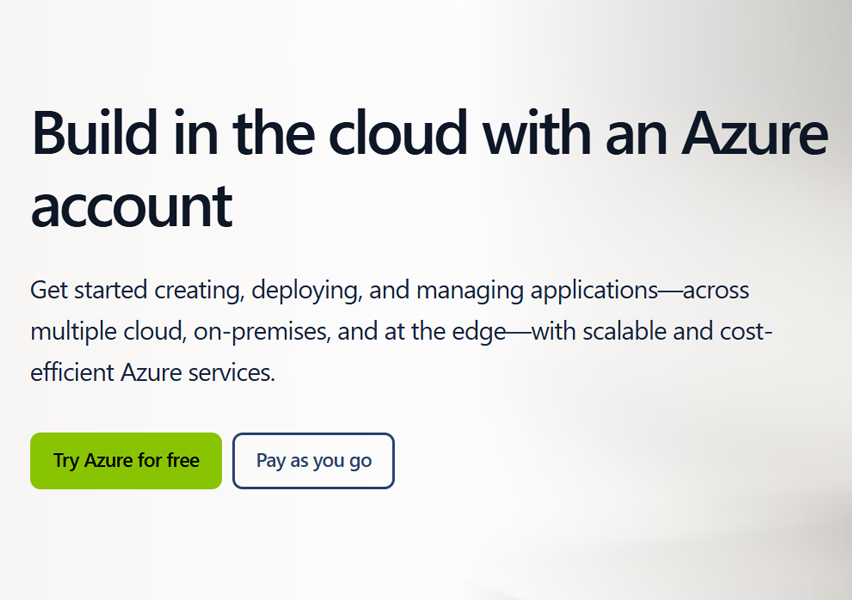
[Create an account](https://azure.microsoft.com/en-us/pricing/purchase-options/azure-account) (new account come with free credits) and sign in to the [Azure portal](https://portal.azure.com/).
*Makes sure you use the link above and click **Try Azure for free** or **Pay as you go** and fill the forms, otherwise you might get connected to the Microsoft Services tenant instead of your own and will see authentication issues.*
You should have a default Subscription / Tenant (if not, you didn't fill the forms as stated above).
### Register the Trusted Signing resource provider
1
2
3
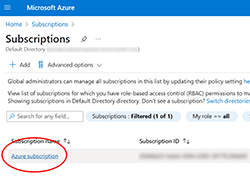
1. In the [Azure portal](https://portal.azure.com/), search for **Subscriptions** service, click on your subscription.
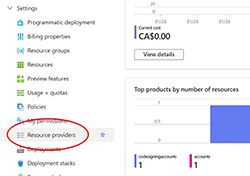
2. Select **Resource providers** under **Settings** on the left panel.
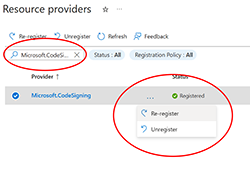
3. Search for **Microsoft.CodeSigning**, click on "..." and select **Register**.
### Create a Trusted Signing account
1
2
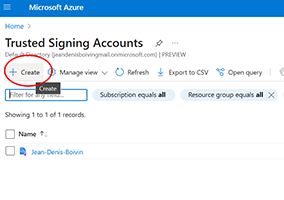
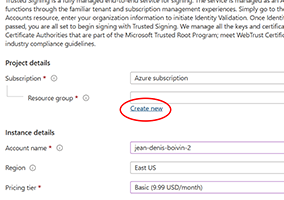
1. In the [Azure portal](https://portal.azure.com/), search for **Trusted Signing Accounts** service and **Create** one.
2. Fill the form by selecting your **Subscription**, select **Create new** for **Resource group** (use any name you want). Pick an **Account name** (any name you want), a **Region** and finally a **Pricing tier**.
### Assign roles
1
2
3
4
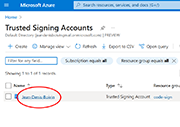
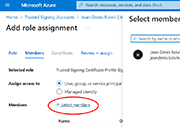
1. In the [Azure portal](https://portal.azure.com/), search for **Trusted Signing Accounts** service and select the account you just created.
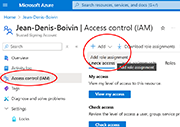
2. On the left panel select **Access Control (IAM)** and pick **Add** / **Add role assignment**.
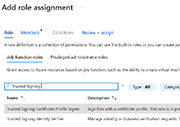
3. Search for **Trusted Signing**, you'll see two roles (**Trusted Signing Certificate Profile Signer** and **Trusted Signing Identity Verifier**) you'll need to add both, one at a time.
4. Select one role, go **Next**, click on **+ Select members**, select your user and click **Review + assign**.
Repeat for the second role.
### Create an identity validation request
1
2
3
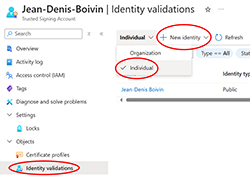
1. In the [Azure portal](https://portal.azure.com/), search for **Trusted Signing Accounts** service and select your account.
On the left panel, under **Settings** / **Objects** click **Identity validations**. On the top-left dropdown (**Organization**) switch to **Individual** and then click **New identity** / **Public**.
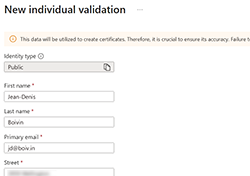
2. Fill the form with your name, address, etc. and click **Create**.
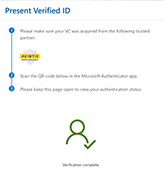
3. After a little while the status will change to **Action Required**, click on your name and click the link under **"Please complete your verification here"**.
You'll then start the verification process which requires a mobile phone, some government IDs (I used my driver license) and the [Microsoft Authenticator App](https://www.microsoft.com/en-ca/security/mobile-authenticator-app). I was pleasantly surprised by how easy and streamlined the process was. Simply follow the instructions, which is pretty much take selfie, take picture of ID and scan some QR code. Makes sure to use an ID where you can see your address.
Once this is done, it takes around 5-10 minutes before the status changes to **Completed**.
### Create a Certificate profile
1
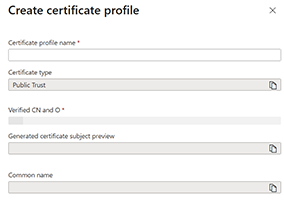
2
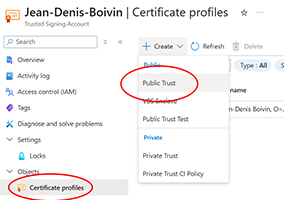
1. In the [Azure portal](https://portal.azure.com/), search for **Trusted Signing Accounts** service and select your account.
On the left panel, under **Settings** / **Objects** click **Certificate profiles**. Then click on **Create** / **Public Trust**.
2. Pick a name for your certificate, including the address / post code is optional. Click **Create**.
*(don't worry about the expiration date, the certificate auto-renew every 24h)*
## Sign your app locally
You are now ready to sign your first application!
### Note some values
1
2
3
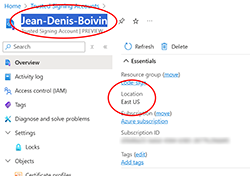
1. First, we need to takes note of a few variables, copy your **Trusted Signing account** name you used earlier (also take note of the **Location**)
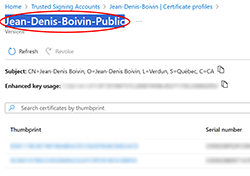
2. Find your **Certificate profile** name as well.
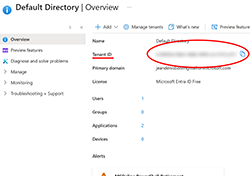
3. You also need your **Tenant ID**, search for **Microsoft Entra ID** in the [Azure portal](https://portal.azure.com/) and copy the value.
### Install SignTool
For the next steps, I used [**PowerShell 7**](https://learn.microsoft.com/en-us/powershell/scripting/install/installing-powershell-on-windows?view=powershell-7.5), makes sure you are also up-to-date with [**dotnet**](https://dotnet.microsoft.com/en-us/download/dotnet) (8+).
Install the [**Trusted Signing Tools**](https://download.microsoft.com/download/6d9cb638-4d5f-438d-9f21-23f0f4405944/TrustedSigningClientTools.msi) / [**Azure CLI**](https://aka.ms/installazurecliwindowsx64) via winget (or via installer)
```sh
winget install -e --id Microsoft.Azure.TrustedSigningClientTools
winget install -e --id Microsoft.AzureCLI
```
Now we need an additional file (*Azure.CodeSigning.Dlib.dll*) that is only available in the latest [**Microsoft.Trusted.Signing.Client**](https://www.nuget.org/packages/Microsoft.Trusted.Signing.Client) nuget (click on **Download package** on the right).
(***.nupkg** are simply **.zip** files, so rename it and extract it somewhere, remember it's path*)
### Sign your EXE
Create a JSON file with the variables we noted above (save the path)
```json
{
"Endpoint": "https://eus.codesigning.azure.net",
"CodeSigningAccountName": "",
"CertificateProfileName": ""
}
```
Based on the **Location** of your account, use the correct **Endpoint** url
```sh
"East US" = "https://eus.codesigning.azure.net"
"West US3" = "https://wus3.codesigning.azure.net"
"West Central US" = "https://wcus.codesigning.azure.net"
"West US 2" = "https://wus2.codesigning.azure.net"
"North Europe" = "https://neu.codesigning.azure.net"
"West Europe" = "https://weu.codesigning.azure.net"
```
Login to Azure using your Tenant ID
```sh
az login --tenant
```
Now we can sign any EXE! Notice that the value `10.0.22621.0` might change in the future.
```sh
& "C:\Program Files (x86)\Windows Kits\10\bin\10.0.22621.0\x64\signtool.exe" `
sign /v /debug /fd SHA256 /tr "http://timestamp.acs.microsoft.com" /td SHA256 `
/dlib "\bin\x64\Azure.CodeSigning.Dlib.dll" `
/dmdf "" `
""
```
Congrats! You now have a code signed app! Upload it somewhere and use your browser to [download it](https://cdn.notessimo.com/misc/codesign/CodeSignCpp.exe), notice how there is no scary popup at all anymore!
## Sign your app with Github Action
Now that everything works locally, we can easily automate the code signing steps using [Github Action](https://github.com/features/actions).
### Create an App
1
2
3
4
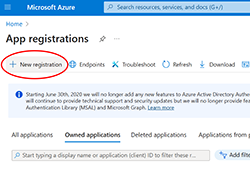
1. In the [Azure portal](https://portal.azure.com/), search for **App registrations** service and click on **New registration**.
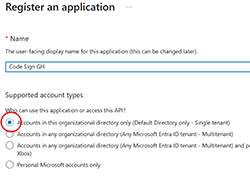
2. Give it a name and select the **Single Tenant** option, click on **Register**.
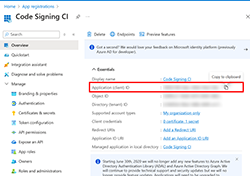
3. In your newly created app, note the **Application (client) ID**.
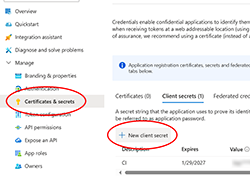
4. Select **Manage** / **Certificates & secrets** and click on **New client secret**, give it a name & expiration date and note the **Value**.
*(sadly the "no expiration" option is not available anymore)*
### Assign roles
1
2
3
4
1. We also need to add the **Trusted Signing Certificate Profile Signer** role to the app just like we did on our user.
In the [Azure portal](https://portal.azure.com/), search for **Trusted Signing Accounts** service and select your account.
2. On the left panel select **Access Control (IAM)** and pick **Add** / **Add role assignment**.
3. Search for **Trusted Signing Certificate Profile Signer**, go **Next**
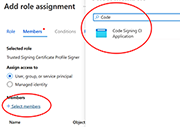
4. Click on **+ Select members**, search for your App name (it won't show up by default) and click **Review + assign**.
### Create GIT repository
1
2
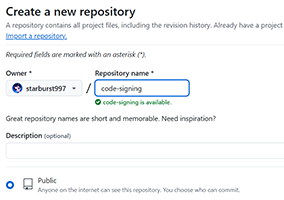
1. Create your git repository on [Github](https://github.com/new), or clone my [sample repository](https://github.com/starburst997/windows-code-sign) which includes a basic C++ application.
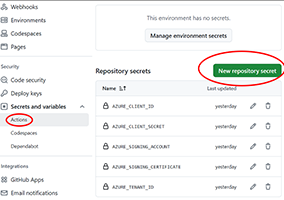
2. Add these 6 secrets to your repository (**Settings** / **Security** / **Secrets and variables** / **Actions**, click **New repository secret**).
- `AZURE_CLIENT_ID`: Your app client ID
- `AZURE_CLIENT_SECRET`: Your app secret value
- `AZURE_SIGNING_ACCOUNT`: Your Trusted Signing Accounts name
- `AZURE_SIGNING_CERTIFICATE`: Your Certificate profile name
- `AZURE_TENANT_ID`: Your Tenant ID
- `AZURE_ENDPOINT`: https://eus.codesigning.azure.net/
*(Save those variables inside a Password Manager for re-use in future projects as they won't change)*
### Generate a Personal Access Token (PAT)
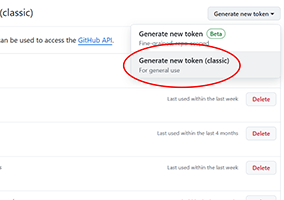
1
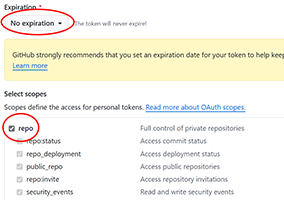
2
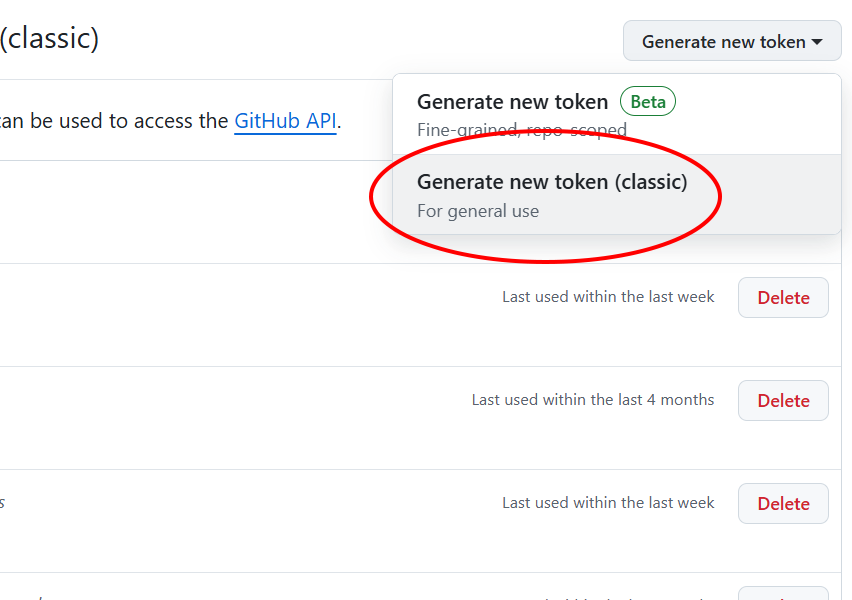
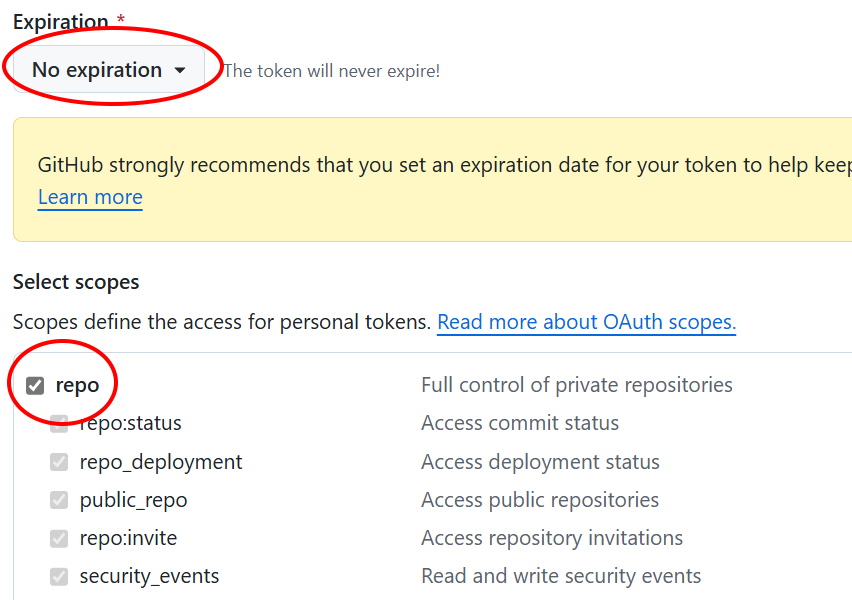
*(Optional)* We also need to generate a **Personal Access Token** for Github if you want to test the sample **Release** workflow.
1. Visit your [settings page](https://github.com/settings/tokens) and click on **Generate new token** and select **Generate new token (classic)**.
2. We need all the **repo** scope enabled. Set **no expiration**. Click **Generate token** and save the value.
Save this secret in the github repository for your project:
- `GH_PAT`: The value of your newly generated token
### Create worflow file
Create a workflow file in your repository ([**.github/workflows/windows.yml**](https://github.com/starburst997/windows-code-sign/blob/main/.github/workflows/windows.yml))
```yaml
name: Build Windows
on:
#push
workflow_dispatch:
jobs:
build:
name: Build Windows
runs-on: windows-latest
steps:
- uses: actions/checkout@v4
- name: Add msbuild to PATH
uses: microsoft/setup-msbuild@v2
- name: Build app for release
working-directory: CodeSignCpp
run: msbuild /property:Configuration=Release /property:Platform=x64
- name: Sign files with Trusted Signing
uses: azure/trusted-signing-action@v0.5.1
with:
azure-tenant-id: ${{ secrets.AZURE_TENANT_ID }}
azure-client-id: ${{ secrets.AZURE_CLIENT_ID }}
azure-client-secret: ${{ secrets.AZURE_CLIENT_SECRET }}
endpoint: ${{ secrets.AZURE_ENDPOINT }}
trusted-signing-account-name: ${{ secrets.AZURE_SIGNING_ACCOUNT }}
certificate-profile-name: ${{ secrets.AZURE_SIGNING_CERTIFICATE }}
files-folder: ${{ github.workspace }}\CodeSignCpp\bin\Release-x64
files-folder-filter: exe,dll
file-digest: SHA256
timestamp-rfc3161: http://timestamp.acs.microsoft.com
timestamp-digest: SHA256
- uses: actions/upload-artifact@v4
with:
name: build-windows
path: CodeSignCpp/bin/Release-x64
```
Thanks to the [azure/trusted-signing-action](https://github.com/azure/trusted-signing-action) action, all the heavy works is done, leaving us with a pretty simple workflow.
### Run the action
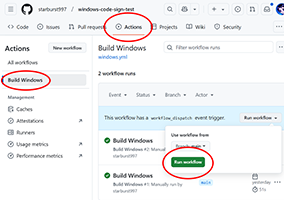
1
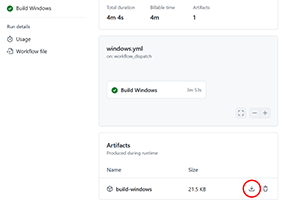
2
1. You can then start the action by going to the **Actions** tabs, selecting your action (**Build Windows**) and click on **Run workflow**.
2. Once the action has finished running, you can see the uploaded artifact and download your signed application!
See the result for yourself: [Signed](https://cdn.notessimo.com/misc/codesign/CodeSignCpp.exe) / [Unsigned](https://cdn.notessimo.com/misc/codesign/CodeSignCpp-unsigned.exe)
Immediate [SmartScreen](https://en.wikipedia.org/wiki/Microsoft_SmartScreen) reputation as well! Which is something that even some of the expensive code signing certificates don't supply.
## Conclusion
I am really glad Microsoft finally made it easy and affordable to code sign EXE on Windows, hopefully they will keep the price low for individual developer. Now, any new project I do, I can simply copy / paste the secrets into the new repository, copy the workflow file and be setup with code signing in just a few seconds.
Code-signing / distributing app series:
- Part 1: [Code Signing for Windows as an Individual Developer](https://github.com/starburst997/windows-code-sign)
- Part 2: [Code Signing for Apple without a mac](https://github.com/starburst997/apple-code-sign)
- Part 3: [Code Signing for Android via Github Actions](https://github.com/starburst997/android-code-sign)
- Part 4: [Build and publish your Unity Game using Github Actions](https://github.com/starburst997/windows-code-sign)