https://github.com/stephendade/rockblock2mav
RockBlock to MAVLink gateway
https://github.com/stephendade/rockblock2mav
Last synced: about 1 year ago
JSON representation
RockBlock to MAVLink gateway
- Host: GitHub
- URL: https://github.com/stephendade/rockblock2mav
- Owner: stephendade
- License: gpl-3.0
- Created: 2022-06-29T03:33:42.000Z (almost 4 years ago)
- Default Branch: main
- Last Pushed: 2025-03-23T09:32:34.000Z (over 1 year ago)
- Last Synced: 2025-04-15T03:46:09.450Z (about 1 year ago)
- Language: Python
- Size: 791 KB
- Stars: 6
- Watchers: 3
- Forks: 0
- Open Issues: 2
-
Metadata Files:
- Readme: README.md
- License: LICENSE
Awesome Lists containing this project
README
# RockBlock to MAVLink gateway
Simple Python script for sending and receiving MAVLink messages using the RockBlock SBD modems, allowing **worldwide** telemetry with an ArduPilot platform.
This gateway runs on the GCS, and will send/recieve MAVLink messages between the GCS and RockBlock servers.
Due to bandwidth constraints (50 bytes per message) MAVLink 1 is used, as it uses slightly less bytes per message
compared to MAVLink2. An option is available (``-mav20``) to convert messages to/from MAVLink V2 on the GCS side. This allows the GCS to continue using MAVLink V2.
There are two methods to run the gateway for recieving packets:
- Using Adafuit.io (https://io.adafruit.com/) to recieve the packets
- Using a public-facing webserver to recieve the packets
Required hardware, software and services:
- Rockblock Modem (such as https://www.sparkfun.com/products/14498 and cable https://www.sparkfun.com/products/14720)
- ArduPilot 4.4+ with a flight controller capable of running Lua scripts
- Active RockBlock account (https://rockblock.rock7.com/Operations)
## Using adafruit.io
An Adafuit.io account (https://io.adafruit.com/) is required.
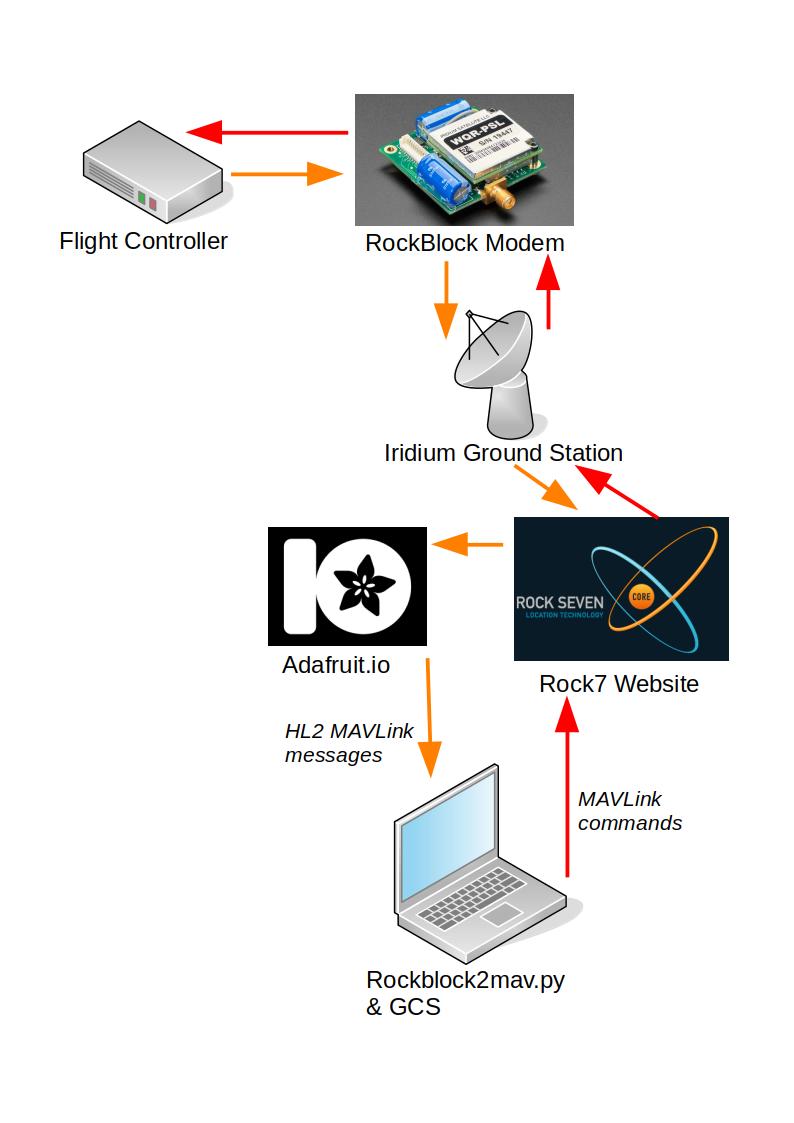
### Setup:
1. Connect the Rockblock modem to a spare UART on the flight controller. Only the +5V, RX, TX and GND lines need to be connected
2. Ensure the modem is activated in the RockBlock account
3. Create a new feed on adafuit.io. Ensure the Feed History is OFF and a webhook is active. Connect this to your Rockblock account (https://learn.adafruit.com/using-the-rockblock-iridium-modem/forwarding-messages).
4. Copy the Ardupilot Rockblock Lua script to the flight controller, configuring as required.
5. On the GCS install the required Python libraries via ``pip3 install adafruit-io pymavlink --user``
6. On the GCS run rockblock2mav-adafruit.py to process the packets. By default it will send/receive telemetry on 127.0.0.1:16000
### Commandline options
- ``-adafruitusername`` Adafruit.io username
- ``-adafruitfeed`` Adafruit.io feed name
- ``-adafruitkey`` Adafruit.io API key
- ``-imei`` Iridium Modem IMEI number
- ``-out`` MAVLink connection string (default: udpin:127.0.0.1:16000) to GCS
- ``-rock7username`` Rock7 account username
- ``-rock7password`` Rock7 account password
- ``-debug`` MAVLink connection string to view messages sent to the vehicle
- ``-mav20`` Use MAVLink V2 messages on ``-out``, instead of MAVLink V1
## Using a public webserver
A server (such as Amazon EC2) with a public URL is required.
### Setup:
1. Connect the Rockblock modem to a spare UART on the flight controller. Only the +5V, RX, TX and GND lines need to be connected
2. Ensure the modem is activated in the RockBlock account
3. Copy the Ardupilot Rockblock Lua script to the flight controller, configuring as required.
4. On the server install the required Python libraries via ``pip3 install pymavlink flask --user``
5. Ensure the server has an open http port (5000 by default), with the Rockblock IP addresses whitelisted (https://docs.groundcontrol.com/iot/rockblock/web-services/integration)
6. In your rockblock account, add a HTTP_POST Delivery Address in the format ``http://:5000/rock``
7. On the Server run rockblock2mav-webhook.py to process the packets. By default it will send/receive telemetry on 127.0.0.1:16000
### Commandline options
- ``-imei`` Iridium Modem IMEI number
- ``-out`` MAVLink connection string (default: udpin:127.0.0.1:16000) to GCS
- ``-rock7username`` Rock7 account username
- ``-rock7password`` Rock7 account password
- ``-tcpinput`` Public ip and port to bind to, for the Rock7 webhook. In format :
- ``-debug`` MAVLink connection string to view messages sent to the vehicle
- ``-mav20`` Use MAVLink V2 messages on ``-out``, instead of MAVLink V1
## SystemD Service
For running unattended, a Systemd service is provided at ``rockblock2mav.service``. The file will need to be edited to have the correct user and folder specified (current default is user "pi"), along with the Rockblock account details
To install the service, run the following:
```
sudo cp rockblock2mav.service /etc/systemd/system
sudo systemctl daemon-reload
sudo systemctl enable rockblock2mav.service
sudo systemctl start rockblock2mav.service
```
## GCS Connections
Note for QGC users:
- Use the "udpin" output option, as the default "udpout" isn't compatible. For example ``rockblock2mav-adafruit.py -out:udpout:127.0.0.1:16000``
Note that Mission Planner has limited support at this time.
## Limitations:
- The flight controller will only send HIGH_LATENCY2 MAVlink messages. This will give basic position and status information. This message
is sent once per 60 seconds by default
- The Rockblock modem does require a full view of the sky to work reliably. It will not work indoors.
- Only the MAVLink messages ``COMMAND_LONG``, ``COMMAND_INT``, ``MISSION_ITEM_INT``, ``MISSION_SET_CURRENT`` and ``SET_MODE`` are sent from the GCS to the Rockblock.
- The only command messages sent from the GCS to the Rockblock modem are the following:
- ``MAV_CMD_NAV_RETURN_TO_LAUNCH``
- ``MAV_CMD_NAV_LAND``
- ``MAV_CMD_NAV_TAKEOFF``
- ``MAV_CMD_NAV_VTOL_TAKEOFF``
- ``MAV_CMD_NAV_VTOL_LAND``
- ``MAV_CMD_DO_SET_MODE``
- ``MAV_CMD_DO_CHANGE_SPEED``
- ``MAV_CMD_DO_SET_SERVO``
- ``MAV_CMD_DO_PARACHUTE``
- ``MAV_CMD_MISSION_START``
- ``MAV_CMD_COMPONENT_ARM_DISARM``
- ``MAV_CMD_DO_REPOSITION``
- ``MAV_CMD_CONTROL_HIGH_LATENCY``