https://github.com/stsoftwareau/aws-initialise-image
Public bootstrap script for AWS images.
https://github.com/stsoftwareau/aws-initialise-image
Last synced: 8 months ago
JSON representation
Public bootstrap script for AWS images.
- Host: GitHub
- URL: https://github.com/stsoftwareau/aws-initialise-image
- Owner: stSoftwareAU
- Created: 2018-08-03T00:19:12.000Z (almost 8 years ago)
- Default Branch: master
- Last Pushed: 2024-06-25T23:59:16.000Z (almost 2 years ago)
- Last Synced: 2024-11-22T00:52:56.744Z (over 1 year ago)
- Language: Shell
- Size: 771 KB
- Stars: 0
- Watchers: 3
- Forks: 1
- Open Issues: 0
-
Metadata Files:
- Readme: README.md
Awesome Lists containing this project
README
# aws-initialise-image
Public bootstrap script for AWS images.
## What this script needs to work properly
1. This script must be passed a client parameter like "st" or in general "".
2. This script should be called by an ec2-instance on start up with sufficient permissions to access a secret called "st-boot_secrets" or in general "-boot_secrets".
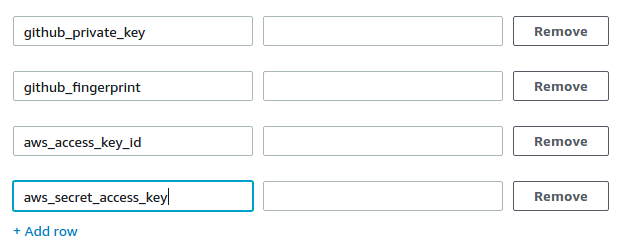
3. The secret should conatin four things: A private ssh key called github_private_key; ~~github's ssh fingerprint, called github_fingerprint;~~ an aws access key id called aws_access_key_id; and an aws secret access key called aws_secret_access_key.
## Generating a New SSH Key Pair
1. To generate a ssh private key use ssh-keygen in the command line and follow the prompts, be sure **not** to set a passphrase for the new key. For more information refer to [this useful GitHub article](https://help.github.com/articles/generating-a-new-ssh-key-and-adding-it-to-the-ssh-agent/).
```bash
ssh-keygen -t rsa -b 4096 -C "your_email@example.com"
```
2. Once you have a private ssh key we need to compress it so that it will fit into the secret manager's not so generous character cap and encode it in base 64 to ensure integrity of the key's formatting ect.
```bash
gzip -fc ~/.ssh/id_rsa | base64 -w 0 | xclip -selection c
```
3. Done! Now we need to store the key in the aws secrets manager service! Read on for details...
## Creating a Secret with Secrets Manager
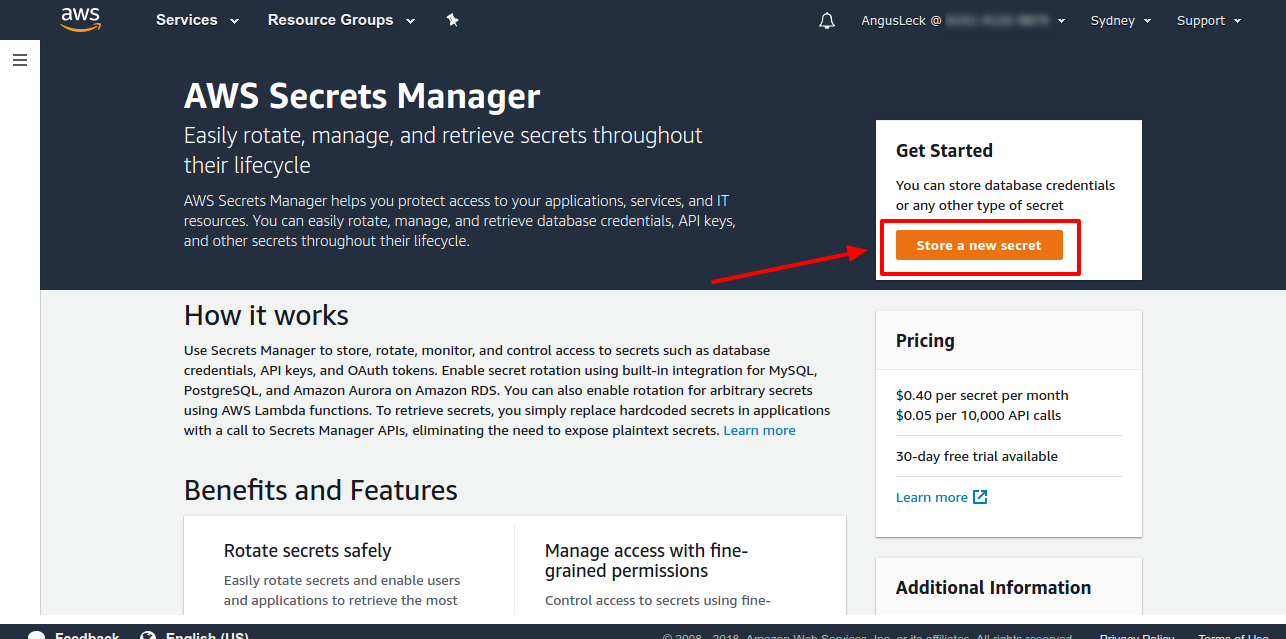
1. Log into aws with an account that has permission to create new secrets, the relevant IAM policy is **SecretsManagerReadWrite**. Click Services>Secrets Manager>Store a new secret.
2. You will be given a couple of options for what kind of secret to store, click 'other type of secrets'. Then fill in the text boxes as shown in the image below: the name of a secret value should be entered in the left and the value in the right, click add row to add another secret value. (we need 4 rows)
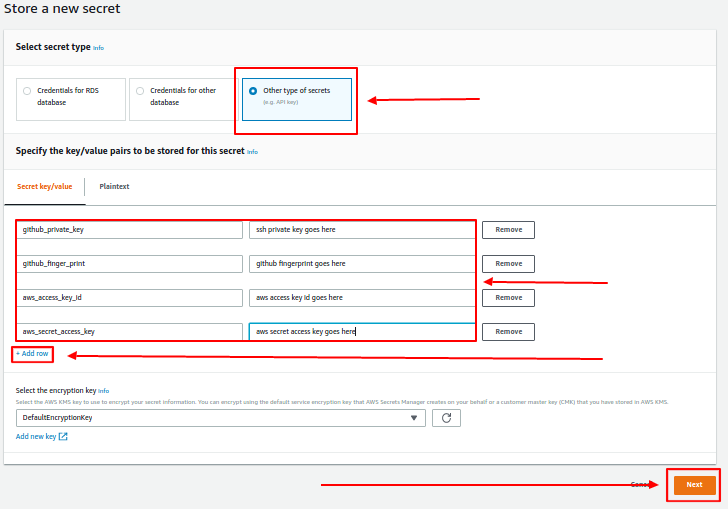
pay careful attention to the names you provide in the left column they should match mine exactly.
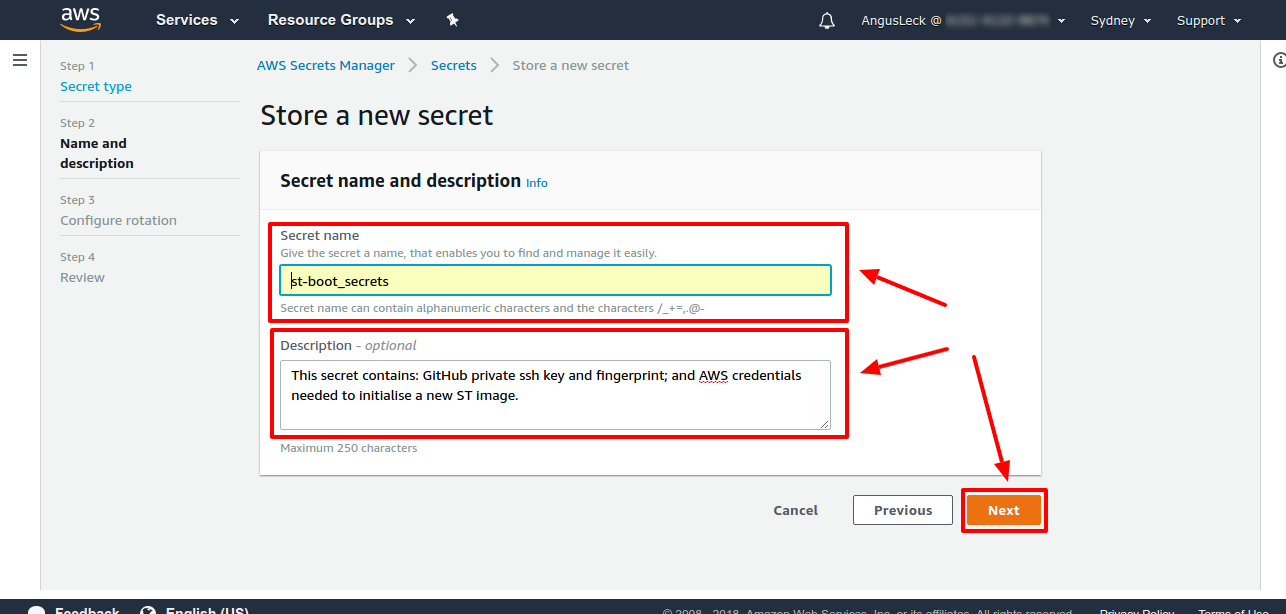
3. Name the secret "st-boot_secrets" or in general "-boot_secrets>" and provide a useful description.
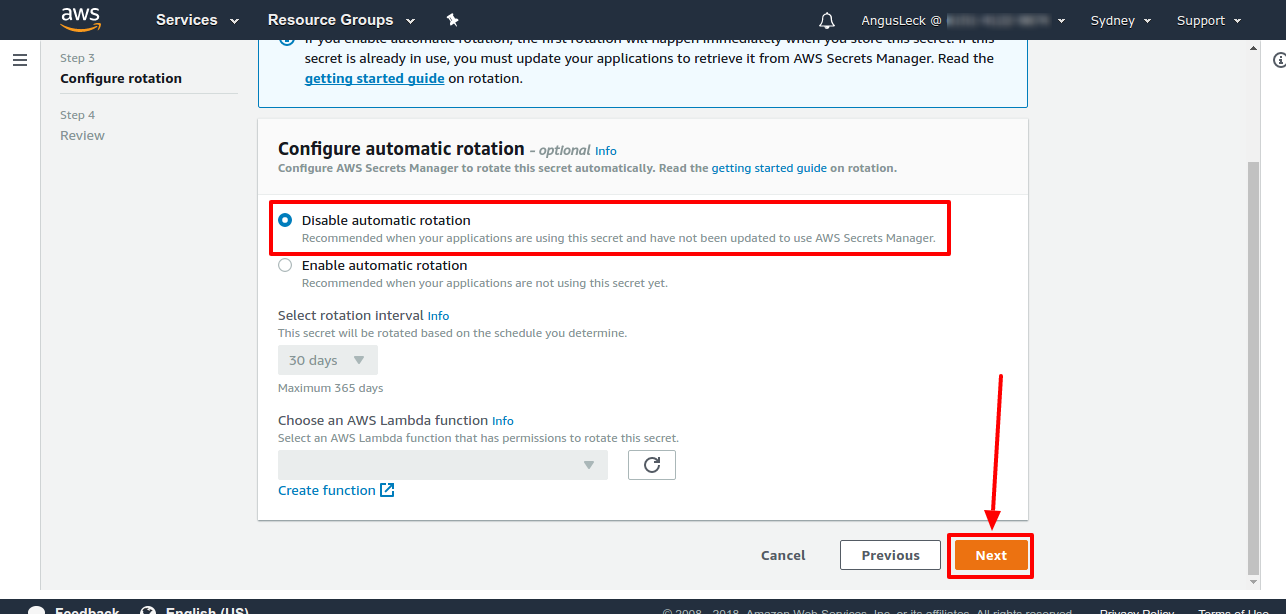
4. On the next screen we don't have to do anything because we're not interested in rotation, click next.
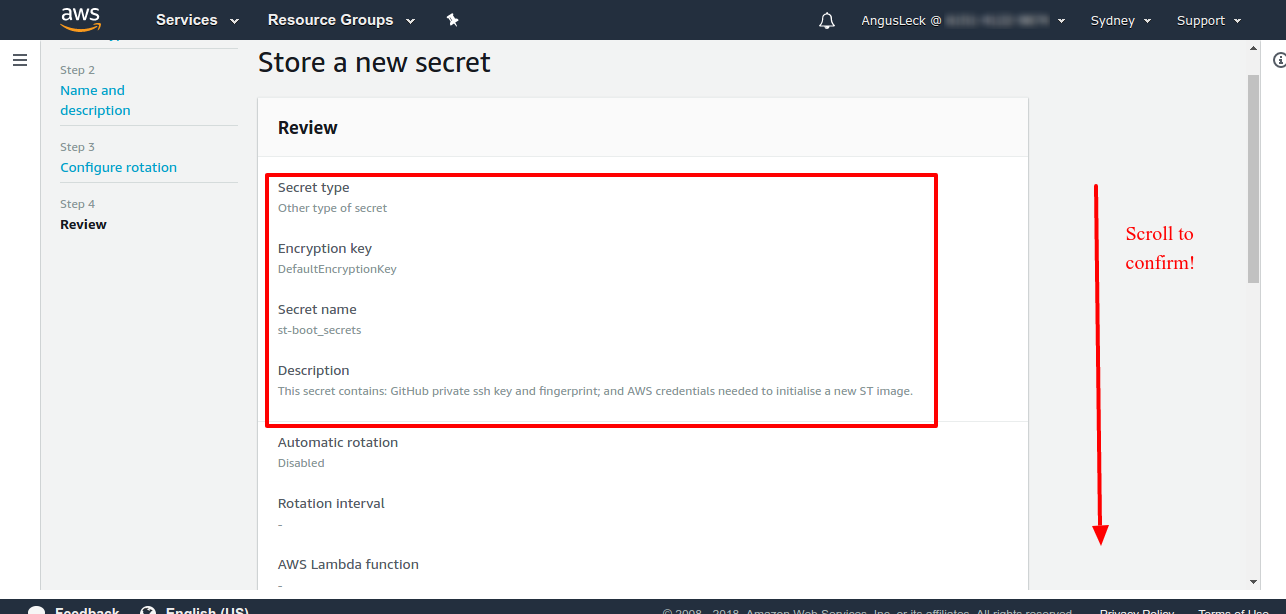
5. Review what you've done and **scroll down to confirm**.
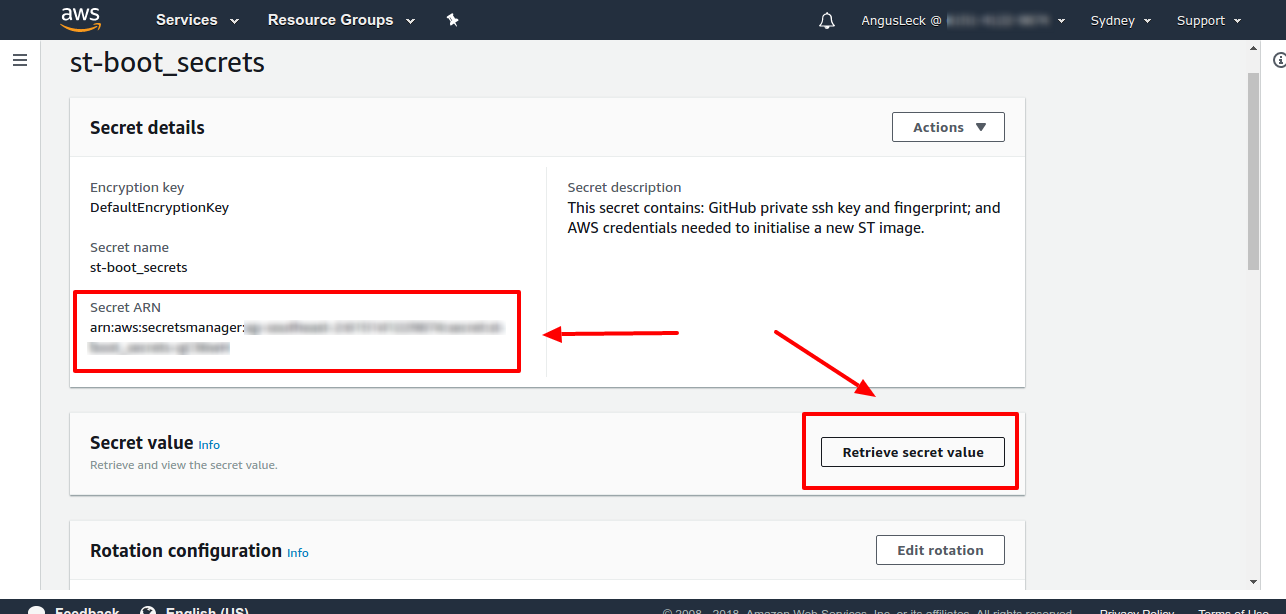
6. To edit your secret click on it and click on retrieve secret value then edit, you can also copy your secret's arn from here to create a policy that can access it.
## Retrieve and Use SSH Key from Secrets Manager
You may need permission to create roles to complete this stage, if you are signed in as admin or root then you have no restrictions placed on you, to specify permissions more granularly see [this aws link](https://docs.aws.amazon.com/IAM/latest/UserGuide/access_permissions-required.html)
1. We need an EC2 instance with permission to read secrets, to accomplish this we will create a role with the necesssary permissions. If such a role already exists, skip to step 5. Navigate to the IAM resource on the aws console click services>IAM>roles>create role.
2. You will be asked to specify a aws service that will use the role, choose EC2, click next>create policy.
3. For service select Secrets Manager, for actions chose **GetSecretValue**, for resource specify the **arn** of the secret you generated, click review policy.
4. Provide a meaningful name and description of the role and click create policy.
5. Now we need to attach our role to an EC2 instance, create a launch configuration, follow the prompts and at step 3 specify an IAM role with the policy **GetSecretValue** attached.
6. An EC2 instance can access our secret now with the syntax
```bash
aws secretsmanager get-secret-value --secret-id --region
```
## Calling this Script to Setup EC2 instance
Under user data>advanced paste the following code
```bash
#!/bin/bash
set -e
wget -O /root/run.sh https://raw.githubusercontent.com/stSoftwareAU/aws-initialise-image/master/run.sh
bash /root/run.sh st
```
## Code Function and Documentation
This code retrieves a ssh private key from the aws secrets manager service. The private key is used to ssh into the stsoftware private repository to download and install company code.
```bash
secret_JS=$(aws secretsmanager get-secret-value --secret-id github --region ap-southeast-2)
```
Secrets manager stores secrets in pairs as "\" : "\" in JSON format, the following command retrieves the secret value named "private_key" from the secret.
```bash
key_pairs_JS=$(jq -r '.SecretString' <<< "${secret_JS}")
private_key_64=$(jq -r '.private_key' <<< "${key_pairs_JS}")
```
The private key is compressed and encoded in base 64 so it must be decoded and then decompressed **in that order**.
```bash
echo "${private_key_64}" | base64 -i --decode | zcat > /home/ec2-user/.ssh/id_rsa
```