https://github.com/sudhansuuranjan/multimedia-app
A multimedia app using React + firebase.
https://github.com/sudhansuuranjan/multimedia-app
firebase google-auth reactjs
Last synced: 3 months ago
JSON representation
A multimedia app using React + firebase.
- Host: GitHub
- URL: https://github.com/sudhansuuranjan/multimedia-app
- Owner: SudhansuuRanjan
- Created: 2023-06-15T13:26:24.000Z (about 3 years ago)
- Default Branch: main
- Last Pushed: 2023-07-06T17:55:41.000Z (about 3 years ago)
- Last Synced: 2025-12-31T21:12:41.290Z (6 months ago)
- Topics: firebase, google-auth, reactjs
- Language: JavaScript
- Homepage: https://spectre-7-featuresection.web.app
- Size: 4.25 MB
- Stars: 0
- Watchers: 1
- Forks: 0
- Open Issues: 0
-
Metadata Files:
- Readme: README.md
Awesome Lists containing this project
README
# Multimedia App
[Live Site Url](https://spectre-7-featuresection.web.app/)
## Description
This is a multimedia app that allows users to upload files. Users can create an account and login to upload their own images and videos. Users can also view other users' images, files, docs and videos.
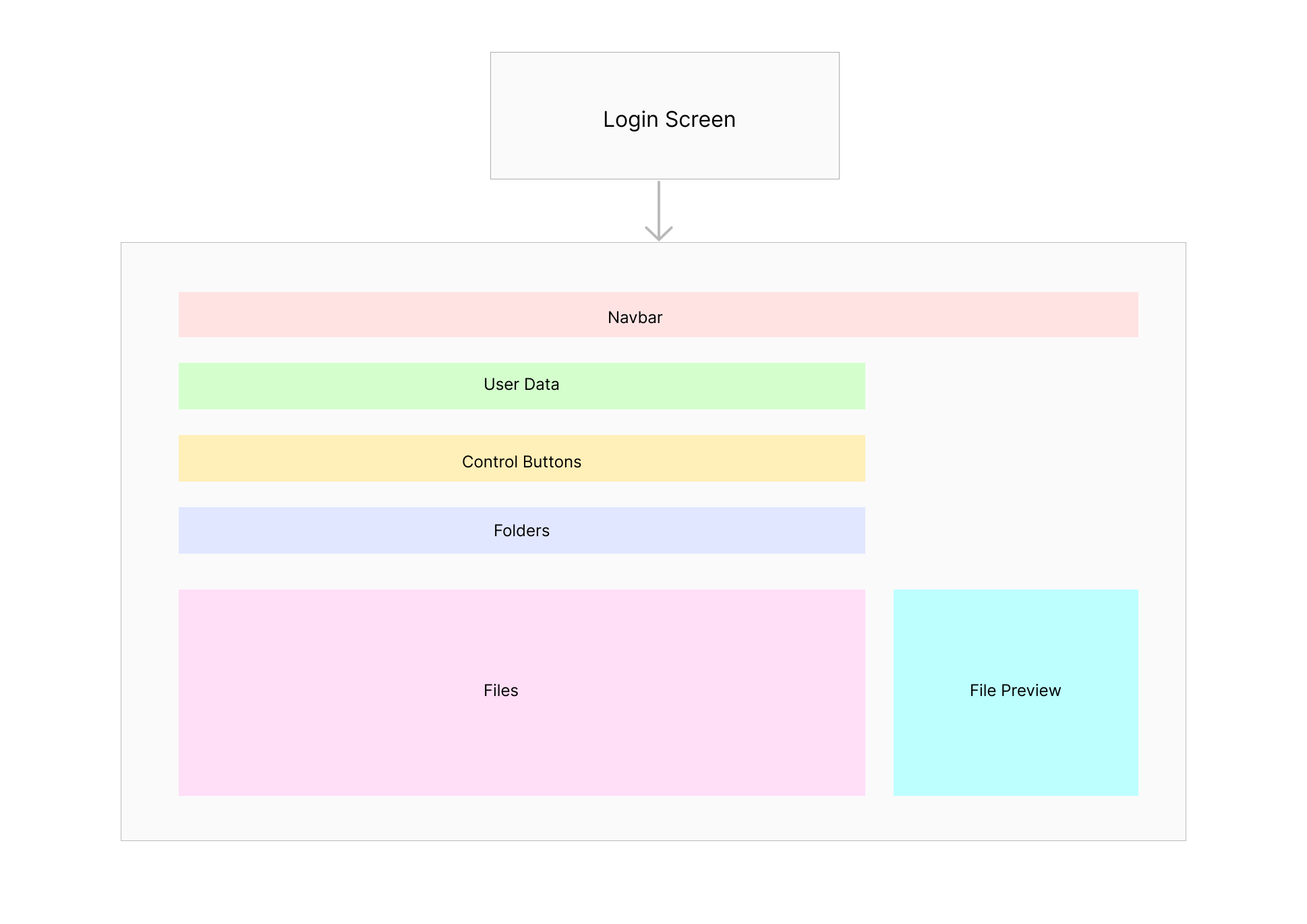
## Project Layout
## Which features I am trying to add and why?
- ### Added Google Authentication using Firebase
- I added Google Authentication using Firebase because it is easy to implement and it is secure. It also allows users to login using their Google account which is convenient for users. And users can store and retrive their files from Firebase Storage and other users can't see thier files, also it protects the platform from spam and abuse.
- Implemented Protected Routes using React Router. So, users can't access the dashboard without login.
- Modified dashboard Navbar to show user's profile picture and also placed a logout button.
- ### Added a feature to upload files using Firebase Cloud Storage
- I added a feature to upload files using Firebase Cloud Storage because it is easy to implement and it is secure. It allows users to create folders and upload files to their folders. And users can store and retrive their files from Firebase Storage.
- Implemented File icons so users can easily identify the file type.
## My Work and How It works?
### 1. Added Google Authentication using Firebase
- The `App.js` sets up routes for a React application using React Router. It imports the two pages `Login` and `Dashboard`, defines routes for public and protected pages, and wraps them in a router component.
```jsx
// App.js
import Home from './pages/Home'
import Login from './pages/Login'
import PrivateRoute from './components/PrivateRoute'
import { BrowserRouter as Router, Route, Routes } from 'react-router-dom'
const App = () => {
return (
{/* Public Route */}
} />
{/* Protected Route */}
}>
} />
)
}
export default App
```
- The `PrivateRoute.js` component defines a PrivateRoute component that is used to protect certain routes in the React app. It imports Navigate and Outlet components from react-router-dom for routing functionality and `useAuthStatus` custom hook for authentication status.
```jsx
// useAuthStatus.js
import { getAuth, onAuthStateChanged } from 'firebase/auth'
import { useEffect, useState, useRef } from 'react'
export const useAuthStatus = () => {
const [loggedIn, setLoggedIn] = useState(false);
const [checkingStatus, setCheckingStatus] = useState(true);
const isMounted = useRef(true);
useEffect(() => {
if (isMounted) {
const auth = getAuth();
onAuthStateChanged(auth, (user) => {
if (user) {
setLoggedIn(true);
} else {
setLoggedIn(false);
}
setCheckingStatus(false);
})
}
return () => {
isMounted.current = false;
}
}, [isMounted])
return { loggedIn, checkingStatus }
}
```
- The component first checks the `checkingStatus` variable to display a loading spinner while the authentication status is being checked. Once the status is determined, if the user is logged in (loggedIn is true), it renders the child components using the Outlet component. Otherwise, it redirects the user to the login page using the Navigate component.
```jsx
// PrivateRoute.js
import { Navigate, Outlet } from "react-router-dom"
import { useAuthStatus } from "../hooks/useAuthStatus"
import Loader from "./Loader"
const PrivateRoute = () => {
const { loggedIn, checkingStatus } = useAuthStatus();
if (checkingStatus) {
return
}
return loggedIn ? :
}
export default PrivateRoute
```
- The `Login.js` component defines a Login component that is used to login to the React app. It imports the `useAuth` custom hook for authentication functionality and `useNavigate` hook for navigation functionality.
```jsx
import React from 'react'
import OAuth from '../components/OAuth'
const Login = ({ setUser }) => {
return (

+

Multimedia Application
)
}
```
- In `OAuth.js` component, `handleOauth` function handles the Google Authentication and also checks if the user exists in firestore. If user does not exist in firestore, it creates a new document in firestore.
```jsx
const navigate = useNavigate()
const handleOAuth = async () => {
try {
const auth = getAuth()
const provider = new GoogleAuthProvider();
const result = await signInWithPopup(auth, provider)
const user = result.user
// Check if user exists in firestore
const userRef = doc(db, 'users', user.uid)
const userDoc = await getDoc(userRef)
// If user does not exist in firestore, create a new document
if (!userDoc.exists()) {
await setDoc(userRef, {
name: user.displayName,
email: user.email,
timestamp: serverTimestamp(),
id: shortid.generate().toUpperCase(),
photoURL: user.photoURL
})
}
navigate('/');
} catch (error) {
// toast.error('Bad User Credentials')
console.log(error);
}
}
```
- The `Home.js` Component, First we importing all the required components and firebase and ChartJs libraries,, hooks and functions.
```jsx
import React, { useState, useEffect } from 'react';
import { db } from '../firebase.config';
import { getAuth } from 'firebase/auth';
import { collection, getDocs, query, where, updateDoc, doc, deleteDoc } from 'firebase/firestore';
import { Pie, Bar } from 'react-chartjs-2';
import { AudioPlayer, ImageViewer, Loader, DocumentViewer, VideoPlayer, NewFolder, Folder, FileUploadPopup, Header } from '../components';
import { Chart as ChartJS, CategoryScale, LinearScale, BarElement, Title, ArcElement, Tooltip, Legend
} from 'chart.js';
ChartJS.register( CategoryScale, LinearScale, BarElement, Title, Tooltip, Legend, ArcElement );
```
Define the state variables and functions to Fetch all the files and folders from firestore and store them in state variables. Also define the state variables and functions to open and close modals and also delete and edit Files.
```jsx
const auth = getAuth();
const [myFiles, setMyFiles] = useState(null)
const [selectedFile, setSelectedFile] = useState(null)
const [showChartModal, setShowChartModal] = useState(false);
const [showFileModal, setShowFileModal] = useState(false);
const [currentFolder, setCurrentFolder] = useState(null) // All Files, [folder name
const [folders, setFolders] = useState([]);
const [showFolderModal, setShowFolderModal] = useState(false);
const [selectedFolderName, setSelectedFolderName] = useState("All Files");
// Get all files and Folders on page load
useEffect(() => {
getFolders();
getFiles();
}, [])
var barChartOptions = {
responsive: true,
plugins: {
legend: {
position: 'top',
},
title: {
display: true,
text: 'Files Breakdown',
},
},
};
// Get all files created by the user and sort them by date created in descending order (newest first) from firestore
const getFiles = async () => {
const q = query(collection(db, "files"), where("createdBy", "==", auth.currentUser.email));
const querySnapshot = await getDocs(q);
const files = [];
querySnapshot.forEach((doc) => {
const data = doc.data();
data.uid = doc.id;
files.push(data);
});
files.sort((a, b) => b.createdAt - a.createdAt);
// console.log(files);
setMyFiles(files);
setCurrentFolder(files);
}
// Get all folders created by the user and sort them by date created in descending order (newest first) from firestore
const getFolders = async () => {
const q = query(collection(db, "folders"), where("createdBy", "==", auth.currentUser.email));
const querySnapshot = await getDocs(q);
const folders = [];
querySnapshot.forEach((doc) => {
const data = doc.data();
data.uid = doc.id;
folders.push(data);
});
folders.sort((a, b) => b.createdAt - a.createdAt);
// console.log(folders);
setFolders(folders);
}
// Rename a File in firestore
const renameFile = async (id, fileName) => {
try {
const fileRef = doc(db, "files", id);
await updateDoc(fileRef, { fileName });
} catch (error) {
console.log(error);
}
}
// Delete a File in firestore
const deleteFile = async (id) => {
try {
const fileRef = doc(db, "files", id);
await deleteDoc(fileRef);
} catch (error) {
console.log(error);
}
}
```
Popups to Create a new folder and upload a new file
```jsx
{
showFolderModal && (
)
}
{
showFileModal && (
)
}
```
Mapping Folders and Create Folder button
```jsx
{
folders.map((folder) => (
))
}
setShowFolderModal(true)} style={styles.Folder}>

Create Folder
```
Adding Loader and Icons to the files based on the file type
```
{!currentFolder ? : currentFolder.map((file) =>
{
if (selectedFile && selectedFile.id === file.id) {
setSelectedFile(null)
return
}
setSelectedFile(file)
}}>
{
file.fileType === 'video' && (
 )
)
}
{
file.fileType === 'audio' && (
 )
)
}
{
file.fileType === 'document' && (
 )
)
}
{
file.fileType === 'image' && (
 )
)
}
{file.fileName}
)
}
```
Create Folder Popup is opened when we click new folder button. In `NewFolder` component we are handing folder creation using function `handleFolderCreate`, If the folder with the name exists or it is empty we reject, else we are creating the folder in firestore in `folders` collection.
```jsx
const handleFolderCreate = async (e) => {
e.preventDefault();
setFolderCreating(true);
if (newFolderName === "") {
alert("Folder name cannot be empty");
setFolderCreating(false);
return;
}
if (folders.find(folder => folder.folderName === newFolderName)) {
alert("Folder with same name already exists");
setFolderCreating(false);
return;
}
try {
const folderRef = collection(db, "folders");
const payload = {
id: shortid.generate(),
folderName: newFolderName,
createdAt: new Date(),
createdBy: auth.currentUser.email,
}
await addDoc(folderRef, payload);
setShowFolderModal(false);
alert("Folder created successfully");
setNewFolderName("");
setFolderCreating(false);
await getFolders();
} catch (error) {
console.log(error);
setFolderCreating(false);
}
}
```
Create File Popup is opened when we click Upload File button. In `FileUploadPopup` component we are handing folder creation using function `handleFolderCreate`, If the formdata is valid we are uploading file, getting its url and creating a new doc in firestore in `files` collection.
```jsx
// Upload file to Firebase Storage and getting url
const storeFile = async (file) => {
const storage = getStorage();
const filename = `${file.name}-${shortid.generate()}`
console.log(filename);
const storageRef = ref(storage, 'files/' + filename);
await uploadBytesResumable(storageRef, file);
const url = await getDownloadURL(storageRef);
return url;
}
// Creating a new doc in files collection with filedata
const handleSubmit = async (e) => {
e.preventDefault();
setFileUploading(true);
try {
if (!fileToUpload) return;
if (
formData.fileName === "" || formData.fileType === "" || formData.folder === ""
) return alert("Please fill all the fields");
const fileUrl = await storeFile(fileToUpload);
const fileRef = collection(db, "files");
const payload = {
id: shortid.generate(),
fileName: formData.fileName,
fileType: formData.fileType,
folder: formData.folder,
fileUrl,
createdAt: new Date(),
createdBy: auth.currentUser.email,
}
await addDoc(fileRef, payload);
setShowFileModal(false);
alert("File uploaded successfully");
setFormData({
fileName: "",
fileType: "",
folder: "",
fileUrl: "",
})
setFileToUpload(null);
await getFiles();
setFileUploading(false);
} catch (error) {
console.log(error);
setFileUploading(false);
}
}
```
### Working of the features
Login Screen

1. First Sigin with Google, the Dashboard Appears

2. Create A folder

3. Create Files in that folder
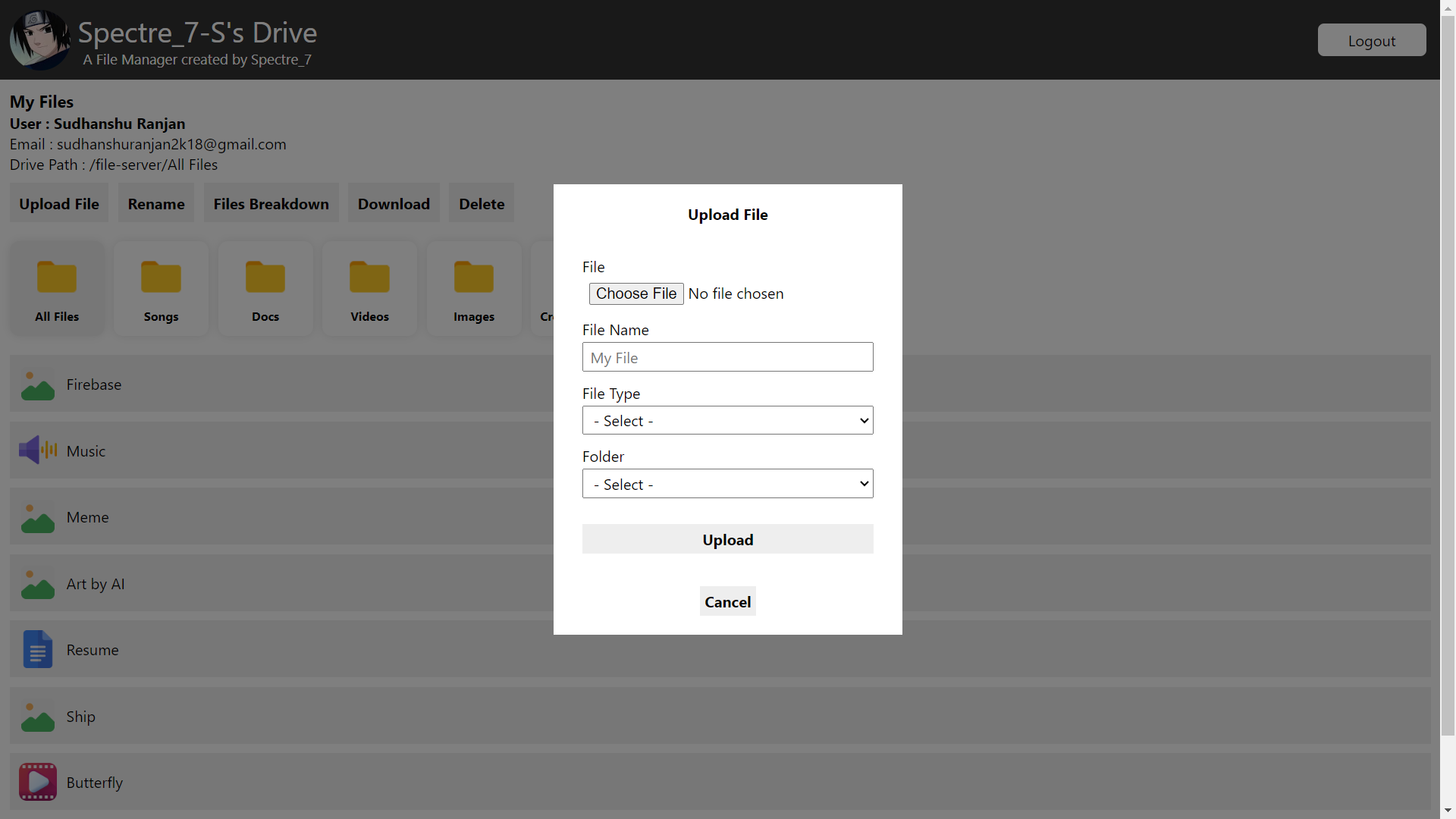
4. Now you can view all the files in the folders or you could view files from a particular folder.

5. Now we can upload more files, create folders, preview files, edit filenames, see filebreakdown, download and also delete files, or you could just logout.