https://github.com/sumithemmadi/archlinux-installation-guide
This is a guide for arch linux installation with Openbox Window Managers
https://github.com/sumithemmadi/archlinux-installation-guide
Last synced: 3 months ago
JSON representation
This is a guide for arch linux installation with Openbox Window Managers
- Host: GitHub
- URL: https://github.com/sumithemmadi/archlinux-installation-guide
- Owner: sumithemmadi
- License: mit
- Created: 2023-02-10T13:34:34.000Z (over 3 years ago)
- Default Branch: main
- Last Pushed: 2023-03-08T09:42:53.000Z (over 3 years ago)
- Last Synced: 2025-06-10T22:07:02.352Z (about 1 year ago)
- Size: 366 KB
- Stars: 21
- Watchers: 2
- Forks: 0
- Open Issues: 1
-
Metadata Files:
- Readme: README.md
- License: LICENSE
Awesome Lists containing this project
README
# ArchLinux-Installation-Guide
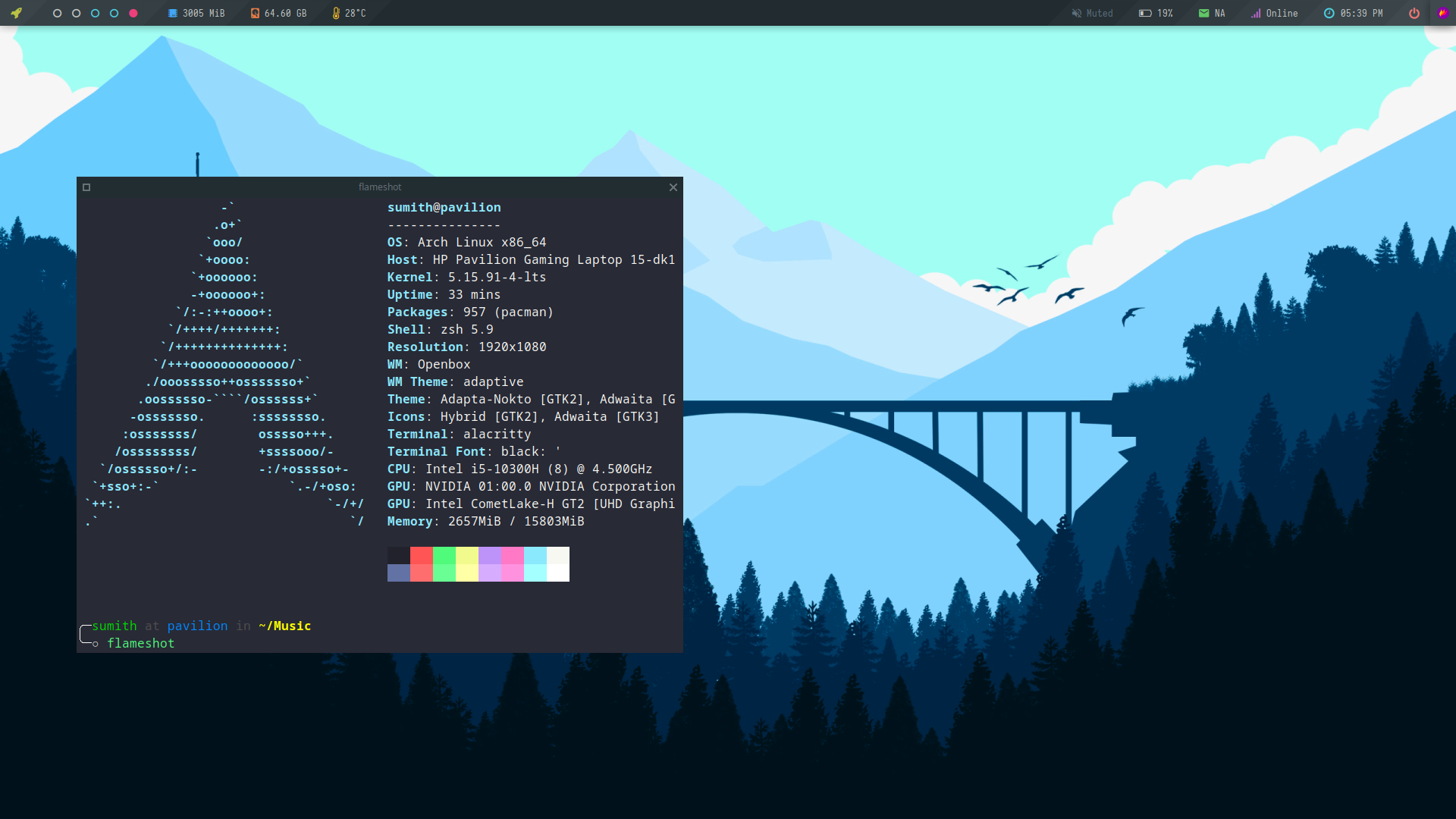
This is a guide for arch linux installation with Openbox Window Manager.
---
## Installing Arch Linux
### Small notes before we start
- Arch Linux now comes with an installer, so if you just want a minimal system ready in a few minutes, you're better off just doing
```sh
archinstall
```
- The only officially supported architecture by Arch Linux is **x86_64**, so make sure your computer uses that architecture before attempting to install it.
- This guide is for UEFI only, not BIOS.
- so you should enable the UEFI mode and disable the secure boot option on your BIOS system. (Also remember to change the boot order to boot through your USB device).
### Bootable Flash Drive
First of all, you need the Arch Linux image, that can be downloaded from the [Official Website](https://www.archlinux.org/download/).
After that, you should create the bootable flash drive with the Arch Linux image.
- Write the [Arch Linux ISO](https://www.archlinux.org/download/) into a USB drive. There are several tools available for this, like [dd](https://man.archlinux.org/man/dd.1.en), [balenaEtcher](https://www.balena.io/etcher/).
If you're on a GNU/linux distribution, you can use the `dd` command for it. Like:
```sh
dd bs=4M if=/path/to/archlinux.iso of=/dev/sdx status=progress oflag=sync && sync
```
> Note that you need to update the `of=/dev/sdx` with your USB device location (it can be discovered with the `lsblk` command).
Otherwise, if you're on `Windows`, you can use [balenaEtcher](https://www.balena.io/etcher/) or [Rufus](https://rufus.ie/en/).
You can follow this [tutorial](https://wiki.archlinux.org/index.php/USB_flash_installation_media#In_Windows)
---
- Disable **Secure Boot** in the UEFI.
- Boot from the USB drive.
### Check boot mode
To check if the UEFI mode is enabled, run:
```sh
ls /sys/firmware/efi/efivars
```
If the directory does not exists, the system may be booted in BIOS (not UEFI).
### (Dual Boot) Disable Fast Startup in Windows
---
### Pre installation
Time to connect to the Internet:
- If you're not going to use DHCP, [check the Arch Wiki on how to manually set a static IP](https://wiki.archlinux.org/title/Network_configuration#Static_IP_address).
- If you're using a wired connection (recommended), it should already be working.
- If you're using a wireless connection, the live system comes with `iwd` enabled, so you can use `iwctl`. `iwctl`'s man page (`man iwctl`) shows a simple example on how to connect to a network.
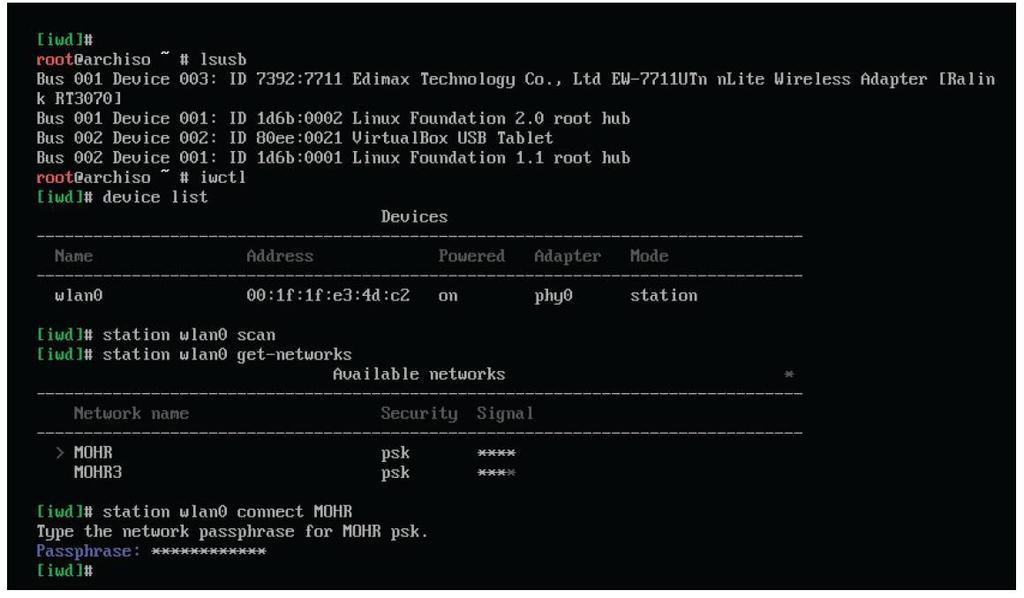
- If scanning with `iwctl` isn't working (you get no networks found), simply do `systemctl restart iwd` and try again.
- Do `ping -4c4 archlinux.org` to verify that everything is working properly.
```sh
ping -4c4 archlinux.org
```
### Update System Clock
Ensures that the system clock is accurate.
```sh
timedatectl set-ntp true
```
### Partitioning
First, define your partitions size. There's no rules about this process.
> Tip: If you use a SSD drive, it's recommended to leave 25% of his storage free. More info [here](https://wiki.archlinux.org/index.php/Solid_State_Drives#TRIM).
My SSD has 512GB of storage. I want to have Dual-Boot with Windows11. If Windows was installed first, then you could see it's partitions. For that example, I have 4 Windows partitions already created:
(in my case, I'll work with `/dev/nvme0n1` disk. Use `fdisk -l /dev/nvme0n1` to list partitions)
| Name | Size | Type |
| :--: | :-------------: | :--: |
| nvme0n1p1 | 625M | Windows recovery environment |
| nvme0n1p2 | 100M | EFI System |
| nvme0n1p3 | 16M | Microsoft Reserved |
| nvme0n1p4 | 356G | Microsoft Basic Data |
EFI partition was created by Windows, so we don't need to care about it. We need to create additional partitions for Linux installation.
| Name | Mount | Size | Type |
| :--: | :----------: | :-------------: | :--: |
| nvme0n1p5 | `swap` | 4G | Linux Swap |
| nvme0n1p6 | `/` | 32G | Linux Root x86-64 (Ext4) |
| nvme0n1p7 | `/home` | Remaining Space | Linux Home (Ext4) |
Look at partitioning layout examples:
#### Create Partitions
Use [fdisk](https://wiki.archlinux.org/index.php/Fdisk) to create partitions.
To create partitions, I'll use `gdisk` since to work on UEFI mode we need GPT partitions.
First, list partitions (Informational only) with the following command
```sh
fdisk -l /dev/nvme0n1
```
Here's a table with some handy gdisk commands
| Command | Description |
| :-----: | ---------------------- |
| p | Print partitions table |
| n | Add a new partition |
| d | Delete a partition |
| w | Write table to disk and exit |
| l | List known partition types |
| t | Change a partition type |
| m | Help |
1. Enter in the interactive menu
```sh
fdisk /dev/nvme0n1
```
1. Create boot partition (If not Dual-Boot)
- Type `n` to create a new partition
- Partition Number: default (return)
- First Sector: default
- Last Sector: `+512M`
- Type: `1` - EFI System
1. Create root partition
- Type `n` to create a new partition
- Partition Number: default
- First Sector: default
- Last Sector: `+32G`
- Type: `24` - Linux Root (x86-64)
1. Create swap partition
- Type `n` to create a new partition
- Partition Number: default
- First Sector: default
- Last Sector: `+4G`
- Type: `19` - Linux Swap
1. Create home partition
- Type `n` to create a new partition
- Partition Number: default
- First Sector: default
- Last Sector: default
- Type: `28` - Linux Home
1. Save changes with `w`
#### Format partitions
Once the partitions have been created, each (except swap) should be formatted with an appropriated file system. So run:
```sh
mkfs.btrfs -L arch_root /dev/nvme0n1p6 #-- root partition
mkfs.btrfs -L HOME /dev/nvme0n1p7 #-- home partition
```
If not Dual Boot format partition for EFI boot
```sh
mkfs.fat -F32 -n BOOT /dev/nvme0n1p2 #-- boot partition
```
The process for swap partition is slight different:
```sh
mkswap -L swap /dev/nvme0n1p5
swapon /dev/nvme0n1p5
```
> To check if the swap partition is working, run `swapon -s` or `free -h`.
#### Mount file system
1. Mount root partition:
```sh
mount /dev/nvme0n1p6 /mnt
```
1. Mount home partition:
```sh
mkdir -p /mnt/home
mount /dev/nvme0n1p7 /mnt/home
```
1. Mount boot partition: (to use `grub-install` later)
```sh
mkdir -p /mnt/boot
mount /dev/nvme0n1p2 /mnt/boot
```
Do `lsblk` to verify everything is correct.
---
## Installation
Now we'll install arch on disk
### Select Mirror
Before installation,It is recommended to select the best mirror servers.
So open the file `/etc/pacman.d/mirrorlist` (again, you can use `nano` or `vi` to do that) and move the best mirror to the top of the file.
> **Tip**: That [link](https://www.archlinux.org/mirrorlist/) generates a mirror list based on your location, you can use them as reference.
### Install Base Packages
Now that the mirrors are already set, use `pacstrap` to install the base package group:
Open the file `/etc/pacman.conf` and uncomment the line `#ParallelDownloads = 5`
```sh
pacstrap /mnt base{,-devel} btrfs-progs dkms linux{{,-lts}{,-headers},-firmware} nano
```
- If the install failed because of signature issues, run below command to update the keyring and try again
```sh
pacman -Sy --needed archlinux-keyring
```
### Generate fstab
Now you should generate the fstab with the `genfstab` script:
```sh
genfstab -p /mnt >> /mnt/etc/fstab
```
> Optional: You can add `noatime,commit=60,barrier=0` to the generated `fstab` file (on root and home partitions) to increase IO performance.
### Chroot
Now, we'll change root into the new system
```sh
arch-chroot /mnt
```
### Check pacman keys
```sh
pacman-key --init
pacman-key --populate archlinux
```
---
## Basic system configuration
- Again open the file `/etc/pacman.conf` and uncomment the line `#ParallelDownloads = 5`
```sh
nano /etc/pacman.conf
```
- Uncomment this line `#ParallelDownloads = 5`
- Press `CRTL + S` to save and `CRTL + X` to exit
Install some important packages with
```sh
pacman -S dhclient git man-{db,pages} nano networkmanager openssh polkit vi vim
```
- Edit the file `/etc/NetworkManager/conf.d/dhcp.conf` to contain the following:
```conf
[main]
dhcp=dhclient
```
- Edit the file `/etc/NetworkManager/conf.d/dns.conf` to contain the following:
```conf
[main]
dns=systemd-resolved
```
- If you want to enable [mDNS](https://en.wikipedia.org/wiki/Multicast_DNS) support, which is useful for adding network printers for example, do the following:
- Edit the file `/etc/systemd/resolved.conf` and uncomment the line `#MulticastDNS=yes`
- Edit the file `/etc/NetworkManager/conf.d/dns.conf` and add the following lines:
```conf
[connection]
connection.mdns=2
```
---
- Do `ln -svf /usr/share/zoneinfo/$(tzselect | tail -1) /etc/localtime` to set your timezone.
- Example
```sh
ln -svf /usr/share/zoneinfo/Asia/Kolkata /etc/localtime
```
- Then, do `hwclock -w` to update the hardware clock.
- You can do `hwclock -r` to see the current time stored by the hardware clock. You'll notice that it takes the timezone into account.
---
- Open the file `/etc/locale.gen`. Uncomment the `en_US.UTF-8` and any other locales you want to use.
- Do `locale-gen` to generate the uncommented locales.
- Do echo LANG=**LOCALE** > /etc/locale.conf, **LOCALE** being your preferred locale from the ones you just generated.
- Example
```gen
echo LANG=en_US.UTF-8 > /etc/locale.conf
```
- Now you'll have to execute the following command:
```sh
locale-gen
```
- Do echo KEYMAP=**KEYMAP** > /etc/vconsole.conf, **KEYMAP** being the name of the keymap you're using (set when you used the `loadkeys` command earlier).
- Example:
```sh
echo KEYMAP=mac-us > /etc/vconsole.conf
```
- Do `echo FONT=lat0-16 >> /etc/vconsole.conf`. You can find all fonts available in `/usr/share/kbd/consolefonts`.
---
- Do echo **HOSTNAME** > /etc/hostname, **HOSTNAME** being the name you want your system to have.
- The hostname must be compatible with the following regex expression: `^(:?[0-9a-zA-Z][0-9a-zA-Z-]{0,61}[0-9a-zA-Z]|[0-9a-zA-Z]{1,63})$`.
- You can [click here](https://regexr.com/4f7ah) and put the hostname you want your computer to have in the text field to see if you can actually use it.
- Edit the file `/etc/hosts` to contain the following:
# Static table lookup for hostnames.
# See hosts(5) for details.
127.0.0.1 localhost
::1 localhost
127.0.1.1 HOSTNAME
> Note: **HOSTNAME** being the hostname you chose in the previous command.
---
- Enable some services with
```sh
systemctl enable sshd NetworkManager systemd-resolved
```
- If you have an SSD, do
```sh
systemctl enable fstrim.timer
```
- Run below commad for the system to automatically update the pacman keyring.
```sh
systemctl enable archlinux-keyring-wkd-sync.timer
```
### Initramfs
- Edit the file `/etc/mkinitcpio.conf` and change `udev` to `systemd` in the `HOOKS` list.
https://wiki.archlinux.org/index.php/Installation_guide#Initramfs
- Creating a new initramfs is usually not required.
```sh
mkinitcpio -P linux
```
## How To Set the Root Password
You may want to set a password for the root user because why not? To do so, execute the following command:
```sh
passwd
```
The passwd command lets you change the password for a user. By default it affects the current user's password which is the root right now.
It'll ask for a new password and confirmation password. Input them carefully and make sure you don't forget the password.
---
## How To Install Microcode
According to PCMag,
> A set of elementary instructions in a complex instruction set computer (CISC). The microcode resides in a
separate high-speed memory and functions as a translation layer between the machine instructions and the
circuit level of the computer. Microcode enables the computer designer to create machine instructions
without having to design electronic circuits.
Processor manufacturers such as Intel and AMD often release stability and security updates to the
processor. These updates are crucial for the system's stability.
In Arch Linux, microcode updates are available through official packages that every user should install on their systems.
Just installing these packages is not enough though. You'll have to make sure that your bootloader is loading them. You'll learn about it in the next section.
- Time to install the microcode updater:
- If you're using an Intel CPU, do
```sh
pacman -S intel-ucode
```
- If you're using an AMD CPU, do
```sh
pacman -S amd-ucode
```
---
## How To Install and Configure a Boot Loader
- Run below command to install grub and efibootmgr.
```sh
pacman -S grub efibootmgr os-prober
```
- If you're dual-booting with other operating systems, you'll have to enable os-prober before generating the configuration file. To do so, open the `/etc/default/grub` file in nano text editor. Locate the following line and uncomment it:
```grub
# GRUB_DISABLE_OS_PROBER=false
```
> This should be the last line in the aforementioned file so just scroll to the bottom and uncomment it.
- Then do
```sh
grub-install --target=x86_64-efi --efi-directory=/boot --bootloader-id=Arch\ Linux
```
- Then do
```
grub-mkconfig -o /boot/grub/grub.cfg
```
- Do `exit` and then `umount -R /mnt`.
- You can now do `shutdown now`.
## Congratulations! You've installed Arch Linux
***But we're not done yet. We still have to create a user and do some final touches***
---
---
---
## Creating a user
- Start by logining in as **`root`**. Do `ln -svf /run/systemd/resolve/resolv.conf /etc/resolv.conf`.
```sh
ln -svf /run/systemd/resolve/resolv.conf /etc/resolv.conf
```
```sh
sudo pacman -S zsh
```
- Change **`root`**'s shell by doing `chsh -s /bin/zsh`.
- Do `timedatectl set-ntp true` and `timedatectl status` again to make sure the time is setup correctly. The RTC and Universal time should be in UTC and the Local time in your timezone.
---
- Now add a user by doing useradd -m -U -G wheel -s /bin/zsh -c "**REAL NAME**" **USERNAME**, **REAL NAME** being the user's real name, and **USERNAME** a valid username.
Example:
```sh
useradd -m -U -G wheel -s /bin/zsh -c "Sumith Emmadi" sumithemmadi
```
- Usernames in Unix-like OSs are valid if they're compatible with the regex expression `^[a-z_]([0-9a-z_-]{0,31}|[0-9a-z_-]{0,30}\$)$`.
- You can check if a username is valid by clicking [here](https://regexr.com/4f7er).
- Set the user's password with passwd **USERNAME**.
Example:
```sh
passwd sumithemmadi
```
- Finally, you'll have to enable sudo privilege for this new user. To do so, open the `/etc/sudoers` file using nano. Once open, locate the following line and uncomment it:
```txt
# %wheel ALL=(ALL:ALL) ALL
```
- Add the line `Defaults pwfeedback`, preferably before `## Runas alias specification` in same file, if you want asterisks when inputting your password.
- This file essentially means that all users in the wheel group can use sudo by providing their password. Save the file by hitting Ctrl + S and exit nano by hitting Ctrl + X. Now the new user will be able to use sudo when necessary.
---
- Do `nmtui` and setup your Internet connection.
- Open the file `/etc/pacman.conf` and perform the following:
- Uncomment the line `#ParallelDownloads = 5`.
- Uncomment the line `#[multilib]` and the line below it.
- Do `pacman -Syu` to update `pacman`'s configuration and to perform any updates available.
- Reboot by doing `shutdown -r now`.
---
---
---
## User configuration
- Login as the user you've created. In the ZSH configuration, continue to configure zsh or press *q* to quit if you already have a configuration in your dotfiles.
```sh
sudo pacman -S bat lm_sensors neofetch
```
---
### Additional Tools
#### Install Paru AUR helper in Arch Linux, EndeavourOS, Manjaro Linux
Installing Paru in Arch Linux is easy!
- First, install git and base-devel package group that includes tools needed for building (compiling and linking) packages from source.
```sh
sudo pacman -S --needed git base-devel
```
- Git clone Paru repository using command:
```bash
git clone https://aur.archlinux.org/paru-bin.git
```
> This command will download the contents of the Paru GitHub repository in a local directory named paru-bin.
- Change into the paru directory:
```bash
cd paru-bin
```
- Finally, build and install Paru AUR helper in Arch Linux using the following command:
```bash
makepkg -sri
```
- After the installation is done, do `cd ..`, and then `rm -rf paru-bin`.
- Now you can use `paru` for install packages from [AUR](https://aur.archlinux.org/paru.git)
- From now on we'll be using `paru` instead of `sudo pacman`.
```sh
paru -S xdg-user-dirs pacman-cleanup-hook
```
#### oh-my-zsh
1. Setup zsh with [oh-my-zsh](https://github.com/robbyrussell/oh-my-zsh) framework.
```bash
paru -S oh-my-zsh-git oh-my-zsh-plugin-syntax-highlighting oh-my-zsh-plugin-autosuggestions
```
## Extras
### Set-up TTF Fonts
Follow [this tutorial](https://gist.github.com/cryzed/e002e7057435f02cc7894b9e748c5671)
### Bluetooth Headphone
To connect the headphone:
1. Install required packages:
```sh
sudo pacman -S pulseaudio pulseaudio-bluetooth pavucontrol bluez-utils
```
1. Edit `/etc/pulse/system.pa` and add:
```sh
load-module module-bluez5-device
load-module module-bluez5-discover
1. Connect to bluetooth device
```sh
$ bluetoothctl
# power on
# agent on
# default-agent
# scan on
# pair HEADPHONE_MAC
# trust HEADPHONE_MAC
# connect HEADPHONE_MAC
# quit
```
To auto switch to A2DP mode:
1. Edit `/etc/pulse/default.pa` and add:
```sh
.ifexists module-bluetooth-discover.so
load-module module-bluetooth-discover
load-module module-switch-on-connect # Add this line
.endif
```
1. Modify (or create) `/etc/bluetooth/audio.conf` to auto select AD2P profile:
```sh
[General]
Disable=Headset
```
1. Reboot PC to apply changes `reboot` .
---
### Congratulations! You finally have Arch Linux installed, and it's actually usable now.
---
## How to install Openbox Window Manager
Installing Openbox
- To have audio, do `paru pipewire` and select the following packages:
- `extra/pipewire`
- `extra/pipewire-alsa`
- `extra/pipewire-jack`
- `extra/pipewire-pulse`
- `extra/wireplumber`
- `multilib/lib32-pipewire`
- `multilib/lib32-pipewire-jack`
or
```bash
paru -S \
extra/pipewire \
extra/pipewire-alsa \
extra/pipewire-jack \
extra/pipewire-pulse \
extra/wireplumber \
multilib/lib32-pipewire \
multilib/lib32-pipewire-jack
```
- For fonts, run below command
```
paru -S noto-fonts{,-{cjk,emoji,extra}} ttf-fira-code
```
- To install Rust (which we'll need to compile packages from the AUR):
- Do `paru -S rustup`.
- Do `rustup default stable`.
- I use a simple TUI greeter. To install it, do `paru -S greetd{,-tuigreet}`.
- For the provider of `greetd`, simply select `greetd`.
- Edit `/etc/greetd/config.toml`:
- Change the `command` setting to `tuigreet -itrc 'systemd-cat -t xinit xinit -- :1'`.
- Do `sudo systemctl enable greetd`.
- For the base of the graphical environment, do `paru -S alacritty openbox xorg-{server,xinit}`.
- Get the default configuration files by doing the following commands:
- `cp /etc/X11/xinit/xinitrc ~/.xinitrc`.
- `cp /etc/X11/xinit/xserverrc ~/.xserverrc`.
- Edit `~/.xinitrc` and replace the last block of commands with `exec openbox-session`. Remove all last lines from `twm &` to last line.
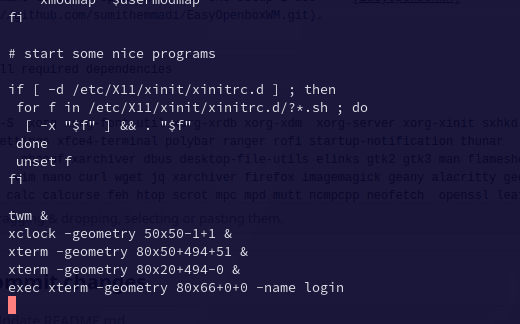
- replace the last block of commands with `exec openbox-session`
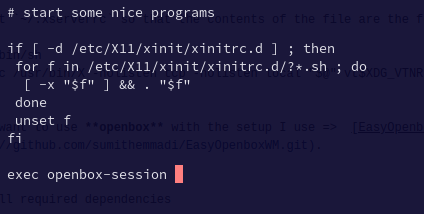
- Edit `~/.xserverrc` so that the contents of the file are the following:
```sh
#!/bin/sh
exec /usr/bin/X -nolisten tcp -nolisten local "$@" vt$XDG_VTNR
```
If you want to use **openbox** with the setup I use => [EasyOpenboxWM](https://github.com/sumithemmadi/EasyOpenboxWM.git).
- Install required dependencies
```bash
pacman -S xorg xorg-font-util xorg-xrdb xorg-xdm xorg-server xorg-xinit sxhkd \
xfce4-settings xfce4-terminal polybar ranger rofi startup-notification thunar \
openbox obconf xarchiver dbus desktop-file-utils elinks gtk2 gtk3 man flameshot \
zsh git vim nano curl wget jq xarchiver firefox imagemagick geany alacritty gedit \
bc bmon calc calcurse feh htop scrot mpc mpd mutt ncmpcpp neofetch openssl leafpad \
xmlstarlet xbitmaps ranger xcompmgr nitrogen brightnessctl alsa-utils imv maim mpv
```
- Clone this repository
```sh
cd ~/
git clone https://github.com/sumithemmadi/EasyOpenboxWM.git
cd EasyOpenboxWM
```
- Run below command to install open box config files.
```bash
configs=($(ls -A $(pwd)/files))
for _config in "${configs[@]}"; do
cp -rf $(pwd)/files/$_config $HOME;
done
```
- And wait for some time untill installation is done.
Start Openbox Window Manager:
```bash
startx
```
- If not working, restart your PC and run again.
> If it shows a black screen then press `CTRL + AL + F1` and with your username.
## Enabling Tap-to-click
Follow these steps to enable tap-to-click in window manager.
Follow these steps carefully, they require root privileges! ⚠️
Install this package.
```sh
sudo pacman -S --needed xf86-input-libinput
```
Then Edit this file.
```sh
sudo nano /etc/X11/xorg.conf.d/30-touchpad.conf
```
Paste this text into 30-touchpad.conf
```conf
Section "InputClass"
Identifier "touchpad"
Driver "libinput"
MatchIsTouchpad "on"
Option "tapping" "on"
Option "AccelProfile" "adaptive"
Option "TappingButtonMap" "lrm"
EndSection
```
Save the file (Ctrl + S)
Quit the editor (Ctrl + X)
Reboot
Tap to click should now be enabled!
## Keybindings
Here's some shortcut keys you want to use to speed up your work. For more, `Right click on desktop > Keybinds`
|Keys|Action| ----- |Keys|Action|
|--|--|--|--|--|
| `W-1` | Go To Desktop 1 | |`S-W-1` | Send To Desktop 1 |
| `W-2` | Go To Desktop 2 | |`S-W-2` | Send To Desktop 2 |
| `W-3` | Go To Desktop 3 | |`S-W-3` | Send To Desktop 3 |
| `W-4` | Go To Desktop 4 | |`S-W-4` | Send To Desktop 4 |
| `W-5` | Go To Desktop 5 | |`S-W-5` | Send To Desktop 5 |
||||||
| `W-S-Left` | Send To Prev Desktop | | `W-S-Right` | Send To Next Desktop |
| `A-Tab` | Next Window (Current Workspace) | |`W-Tab` | Next Window (All Workspaces) |
||||||
| `W-h` | Move to TopLeft | | `W-j` | Move to BottomLeft |
| `W-k` | Move to TopRight | | `W-l` | Move to BottomRight |
| `W-Left` | Move To Left Edge | | `W-Right` | Move To Right Edge |
| `W-Up` | Maximized | | `W-Down` | Unmaximized |
||||||
| `W-q/c` | Close Windows | | `A-r/m` | Toggle Resize/Move |
| `W-Space` | Openbox Menu | | `W-p/A-F1` | App Launcher |
| `W-d` | Toggle Desktop | | `W-v` | Set Tasks |
||||||
| `W-f` | File Manager | | `W-e` | Text Editor |
| `W-t/return` | Terminal | | `W-w` | Web Browser |
| `W-x` | Exit Menu | | `W-m` | Music Menu |
| `W-b` | Battery Menu | | `W-n` | Network Menu |
| `C-A-v` | Vim | | `C-A-r` | Ranger |
| `C-A-h` | Htop | | `C-A-n` | Nano |
## References
-