https://github.com/syncfusion/wpf-controls-localization-resx-files
This repository includes the resource(.resx) files with default strings that are used for localization of Syncfusion WPF libraries.
https://github.com/syncfusion/wpf-controls-localization-resx-files
localization wpf wpf-localization xaml
Last synced: 4 months ago
JSON representation
This repository includes the resource(.resx) files with default strings that are used for localization of Syncfusion WPF libraries.
- Host: GitHub
- URL: https://github.com/syncfusion/wpf-controls-localization-resx-files
- Owner: syncfusion
- Created: 2019-10-17T05:58:02.000Z (over 6 years ago)
- Default Branch: master
- Last Pushed: 2025-12-17T06:55:42.000Z (6 months ago)
- Last Synced: 2026-01-31T21:50:07.670Z (5 months ago)
- Topics: localization, wpf, wpf-localization, xaml
- Homepage:
- Size: 275 KB
- Stars: 13
- Watchers: 6
- Forks: 11
- Open Issues: 2
-
Metadata Files:
- Readme: README.md
Awesome Lists containing this project
README
# Localization of Syncfusion® WPF Controls using .resx files
This repository contains the default resource files (.resx) of Syncfusion WPF libraries. You can use this resource files to localize the strings for any selected language.
## Localization of Syncfusion WPF Controls
Localization is the process of translating the application resources into different language for the specific cultures. You can localize the syncfusion WPF controls by adding resource file for each language.
### Changing application culture
When you are changing the application culture, then you can localize the application based on application culture by creating .resx file.
```
public MainWindow()
{
System.Threading.Thread.CurrentThread.CurrentUICulture = new System.Globalization.CultureInfo("de-DE");
InitializeComponent();
}
```
### Creating .resx files
You can create .resx files for any language by following below steps,
1) Right click your project and add new folder named `Resources`.
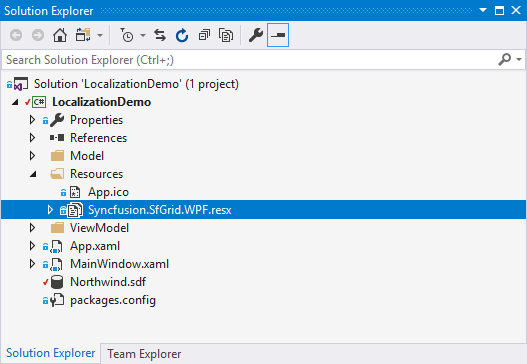
2) Add default resource files of libraries you are using into `Resources` folder and ensure `AccessModifier` specfied as `Public`.
> Consider you are using `SfDataGrid` and `Ribbon` in your application. Then you need to copy and include `Syncfusion.SfGrid.WPF.resx` (since `SfDataGrid` present in `Syncfusion.SfGrid.WPF` library) and `Syncfusion.Tools.Wpf.resx` (since `Ribbon` present in `Syncfusion.Tools.WPF` library) files in your application under `Resources` folder. So, now you can know the key names and values of default stings used in `Syncfusion.Tools.WPF.dll` and `Syncfusion.SfGrid.WPF.dll` libraries.
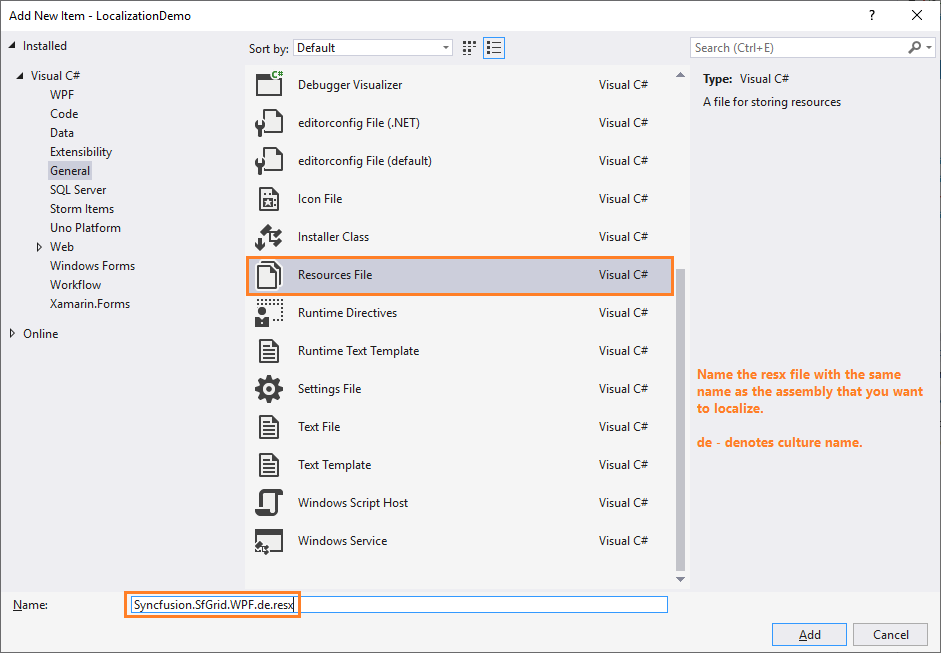
3) Now, right click `Resources` folder and select `Add` and then `NewItem`. In the In `Add New Item` wizard, select the Resource File option and name the filename as `Syncfusion.SfGrid.WPF..resx`. For example, you have to give name as `Syncfusion.SfGrid.WPF.de.resx` for `German` culture. In the same way, add new resource files for other libraries used in your application.
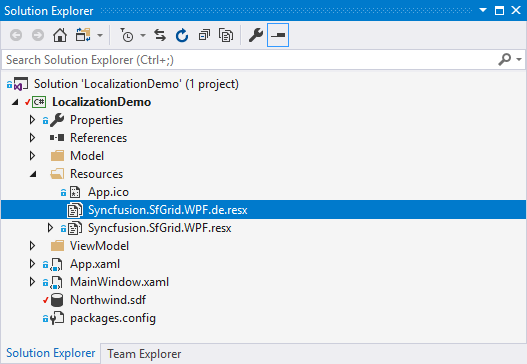
4) Now, select `Add` and add resource file for german culture in `Resources` folder and set `AccessModifier` property to `No code generation`.
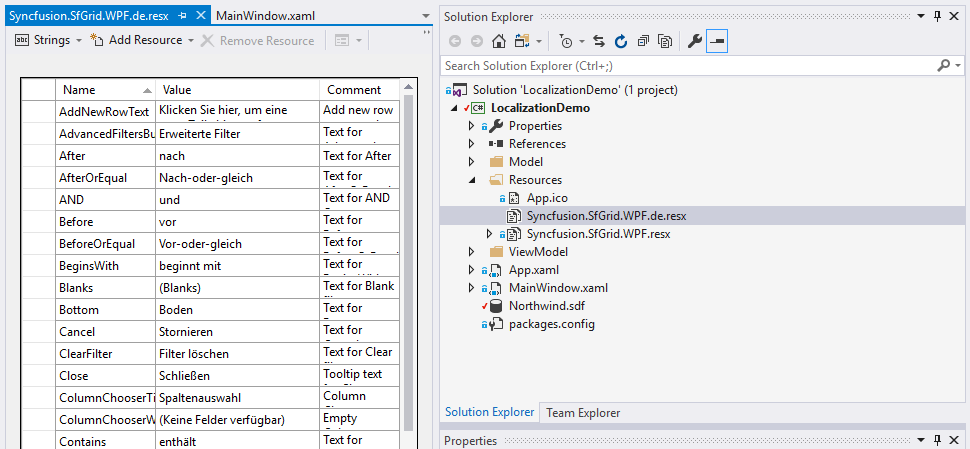
5) Now, you can copy the key names from default resource files and assign value based on the culture the resource files targets.
> Download demo from [GitHub](https://github.com/SyncfusionExamples/wpf-datagrid-localization)
## Editing default culture strings
You can change default string of any control by adding the default .resx files ([from Github](https://github.com/syncfusion/wpf-controls-localization-resx-files)) to `Resources` folder of your application. Syncfusion WPF controls reads the default string from the .resx files of application if its added.